
Cách thiết lập TP-Link Wi-Fi router trên trang quản lý Web (Web Management Page)
Bài viết này sẽ hướng dẫn bạn từng bước thiết lập hoàn chỉnh router TP-Link bằng trang quản lý trên trình duyệt web. Bạn có thể truy cập trang cài đặt router tại địa chỉ tplinkwifi.net sau khi thiết bị của bạn đã kết nối với router. Nếu bạn muốn thao tác trên điện thoại hơn, ứng dụng TP-Link Tether sẽ là một lựa chọn thay thế tiện lợi trên di động.
Các điểm chính cần lưu ý
- Truy cập trình hướng dẫn cài đặt (setup wizard) tại địa chỉ tplinkwifi.net hoặc 192.168.0.1 từ thiết bị đã kết nối với router của bạn.
- Bạn cần biết kiểu kết nối của nhà cung cấp dịch vụ Internet (ISP) mà bạn đang sử dụng (Dynamic IP, PPPoE hoặc Static IP). Hãy liên hệ với ISP nếu bạn không chắc chắn.
- Trình hướng dẫn cài đặt sẽ đưa bạn qua các bước chọn múi giờ, chọn kiểu kết nối Internet, đặt tên và mật khẩu Wi-Fi, cùng tùy chọn cập nhật firmware.
- Quá trình thiết lập mất khoảng 5 đến 10 phút thông qua kết nối cáp Ethernet hoặc Wi-Fi tới router.
- Ứng dụng TP-Link Tether là giải pháp thay thế di động cho việc cài đặt trên trình duyệt web.
Trước khi bắt đầu
- Rút phích cắm điện của modem và tháo pin dự phòng (nếu có).
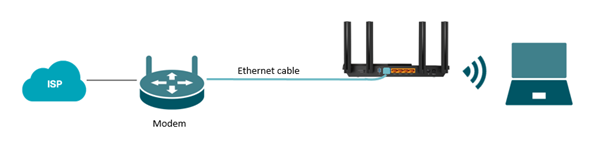
- Kết nối modem (đang tắt nguồn) với cổng Internet (WAN) của router bằng cáp Ethernet.
- Bật nguồn modem, sau đó chờ khoảng 2 phút để modem khởi động lại hoàn tất.
- Cắm bộ chuyển đổi nguồn (adapter) vào router và bật nguồn router.
- Nếu ISP của bạn sử dụng chuẩn PPPoE, hãy chuẩn bị sẵn tên đăng nhập và mật khẩu do ISP cung cấp.
Bước 1: Kết nối Modem với Router
(Các bước dưới đây lấy model Archer AX55 làm minh họa)
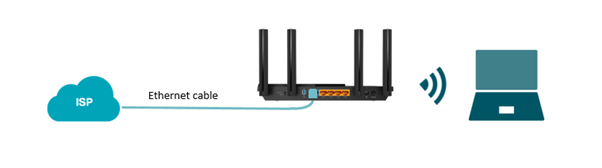
Cắm một đầu cáp Ethernet vào modem của bạn, sau đó cắm đầu còn lại vào cổng WAN trên router TP-Link. Ngoài ra, nếu nhà bạn có sẵn cổng mạng Ethernet âm tường, bạn có thể kết nối cổng đó trực tiếp vào cổng WAN của router.
Bước 2: Mở trang cài đặt Router trên trình duyệt
Mở các trình duyệt Chrome, Firefox hoặc Edge để đạt tính tương thích tốt nhất với trang quản lý web. Nhập trực tiếp một trong các địa chỉ sau vào thanh địa chỉ của trình duyệt rồi nhấn Enter:
- tplinkwifi.net
- 192.168.0.1
Lưu ý: Không nhập các địa chỉ này vào thanh tìm kiếm của các công cụ tìm kiếm (như Google) — chúng phải được gõ trực tiếp vào thanh địa chỉ trình duyệt để truy cập trang cài đặt router. Nếu bạn gặp rắc rối khi truy cập trang, hãy tham khảo bài viết tại sao không thể truy cập tplinkwifi.net để xem hướng dẫn xử lý sự cố. Để biết thêm hướng dẫn về cách đăng nhập, xem bài viết cách đăng nhập vào trang quản lý web của router TP-Link.
Bước 3: Chọn múi giờ của bạn
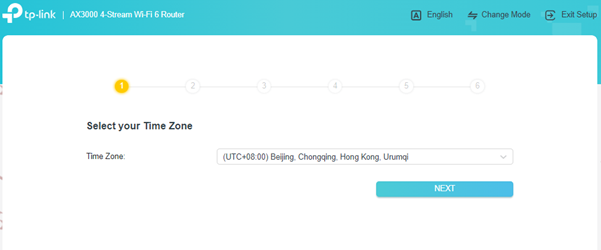
Sau khi trình hướng dẫn cài đặt tải xong, hãy chọn múi giờ của bạn từ menu thả xuống và nhấp vào Next (Tiếp theo).
Bước 4: Chọn kiểu kết nối Internet
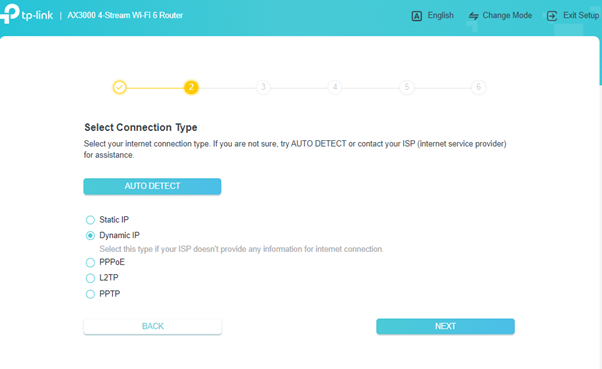
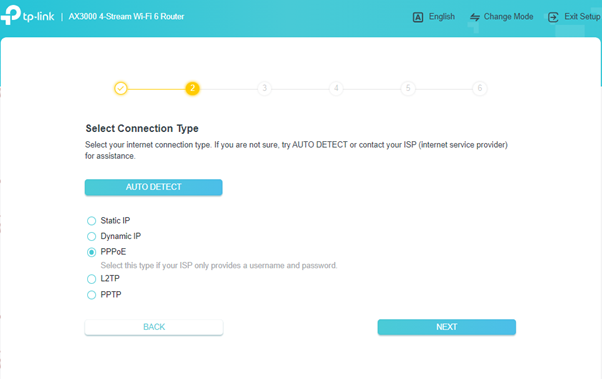
Tại màn hình Select Connection Type (Chọn kiểu kết nối), hãy chọn kiểu kết nối phù hợp với thiết lập từ ISP của bạn. Bạn cũng có thể nhấp vào AUTO DETECT để router tự động nhận diện kiểu kết nối phù hợp. Nếu không chắc chắn, hãy liên hệ trực tiếp với ISP của bạn.
Dưới đây là tóm tắt nhanh về các tùy chọn phổ biến nhất:
- Dynamic IP (IP động): Được sử dụng bởi hầu hết người dùng mạng cáp. Nếu ISP không cung cấp thông tin đăng nhập, đây nhiều khả năng là kiểu kết nối của bạn.
- PPPoE: Phổ biến cho người dùng mạng DSL. Yêu cầu tên đăng nhập và mật khẩu do ISP cung cấp.
- Static IP (IP tĩnh): ISP cung cấp cho bạn một địa chỉ IP cố định cùng các thông số cài đặt liên quan.
- Nếu kiểu kết nối của bạn là Dynamic IP, hãy chọn nó và nhấp vào Next.
- Nếu kiểu kết nối của bạn là PPPoE, hãy nhập tên đăng nhập và mật khẩu do ISP cung cấp, sau đó nhấp vào Next để tiếp tục.
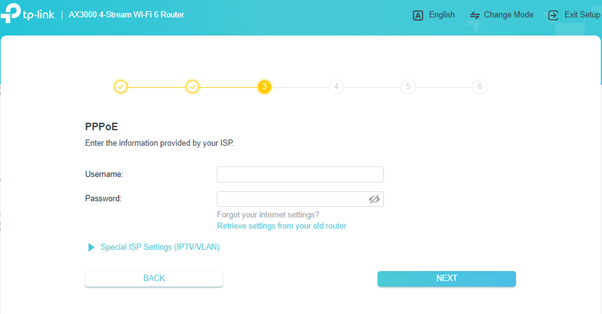
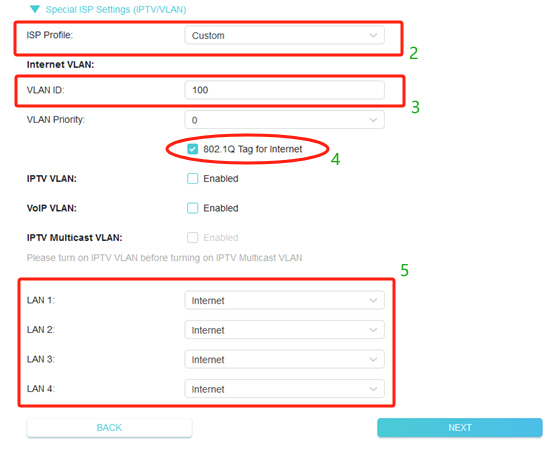
Nếu ISP của bạn yêu cầu VLAN ID, hãy nhấp vào Special ISP Settings (IPTV/VLAN) và làm theo các bước sau:
- Chọn Custom nếu ISP của bạn không có trong danh sách.
- Nhập VLAN ID do ISP cung cấp.
- Tích chọn 802.1Q Tag và giữ nguyên độ ưu tiên (priority) ở cài đặt mặc định.
- Chọn Internet cho tất cả các cổng LAN.
- Không thay đổi các cài đặt khác trừ khi cần thiết, sau đó nhấp vào Next.
Bước 5: Cài đặt địa chỉ MAC cho Router
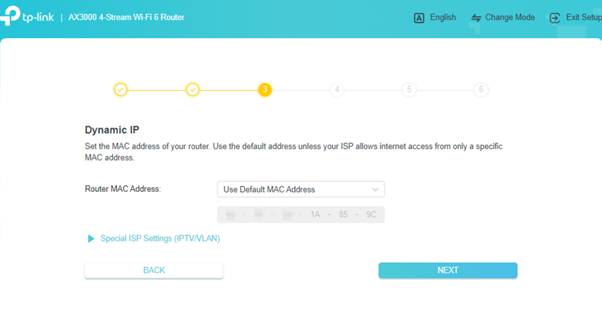
Chọn cài đặt địa chỉ MAC cho router của bạn. Nếu bạn không chắc chắn nên chọn tùy chọn nào, hãy chọn Use Default MAC Address (Sử dụng địa chỉ MAC mặc định) và nhấp vào Next.
Bước 6: Đặt tên và mật khẩu Wi-Fi
Tùy chỉnh tên mạng không dây (SSID) và mật khẩu cho cả hai băng tần 2.4 GHz và 5 GHz. Nhấp vào Next sau khi hoàn tất.
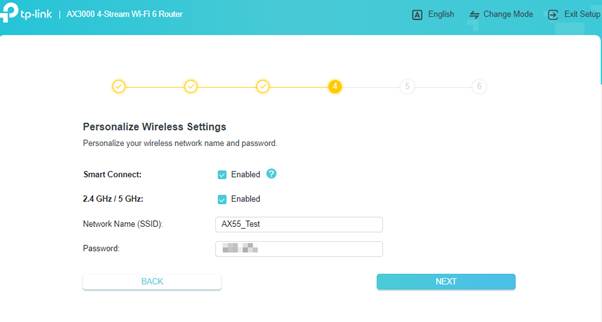
Bước 7: Chờ kiểm tra kết nối Internet
Router sẽ tự động chạy quy trình kiểm tra kết nối. Quá trình này có thể mất vài giây. Vui lòng chờ cho đến khi hoàn tất trước khi chuyển sang bước tiếp theo.
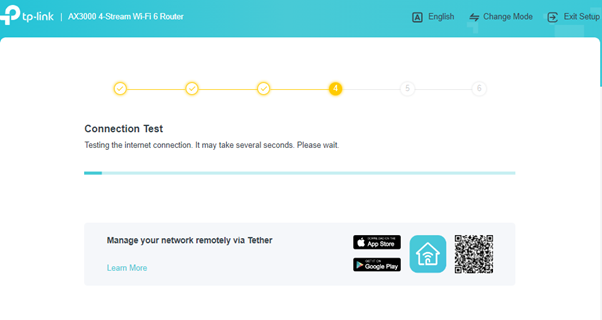
Bước 8: Cài đặt tùy chọn cập nhật Firmware
Chọn bật tính năng tự động cập nhật (auto-update) cho firmware của router, hoặc bỏ qua tại thời điểm này. Chúng tôi khuyến nghị nên bật tự động cập nhật để giữ cho router luôn hoạt động ổn định và an toàn. Nhấp vào Next để tiếp tục.
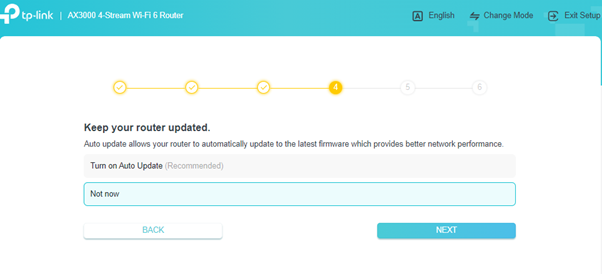
Bước 9: Hoàn tất cài đặt
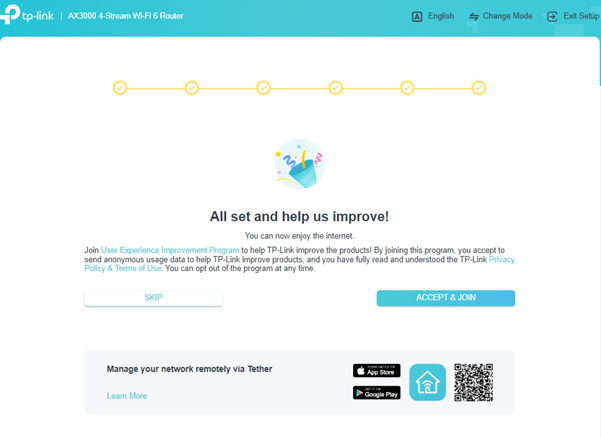
Quá trình thiết lập router của bạn đã hoàn tất. Màn hình xác nhận sẽ hiển thị khu vực, múi giờ, kiểu kết nối Internet và các cài đặt mạng không dây của bạn. Nhấp vào Next để kết thúc.
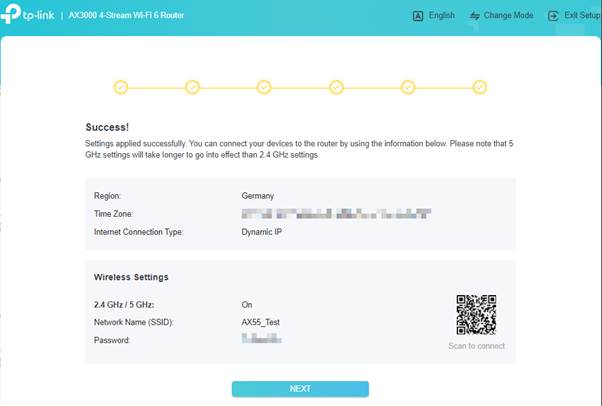
Xử lý sự cố (Troubleshooting)
- Không thể truy cập tplinkwifi.net?
Hãy thử nhập trực tiếp 192.168.0.1 vào thanh địa chỉ trình duyệt. Đảm bảo thiết bị của bạn đang kết nối với router TP-Link chứ không phải một mạng nào khác. Tham khảo thêm bài viết tại sao không thể truy cập tplinkwifi.net để biết thêm hướng dẫn.
- Trình hướng dẫn cài đặt không xuất hiện?
Xóa bộ nhớ đệm (cache) của trình duyệt và thử lại. Xác nhận rằng bạn đang sử dụng Chrome, Firefox hoặc Edge, và bạn đã gõ địa chỉ vào thanh địa chỉ thay vì thanh tìm kiếm.
- Kiểm tra kết nối Internet thất bại?
Kiểm tra kỹ xem cáp Ethernet đã được cắm chặt vào cả modem và cổng WAN của router chưa. Nếu kiểu kết nối của bạn là PPPoE, hãy xác nhận lại thông tin đăng nhập do ISP cung cấp đã chính xác chưa. Để được trợ giúp sâu hơn, hãy xem bài viết phải làm gì nếu không thể truy cập Internet qua Wi-Fi router.
Tìm kiếm thêm
Câu hỏi thường gặp này có hữu ích không?
Phản hồi của bạn giúp cải thiện trang web này.
_normal_20250418093949d.png)



TP-Link Community
Still need help? Search for answers, ask questions, and get help from TP-Link experts and other users around the world.