
How to configure the Tap to Focus feature for Tapo Dual-Lens Camera
 6750
6750Introduction
This FAQ article provides step-by-step instructions for configuring the Tap to Focus feature to improve performance with your dual-lens cameras.
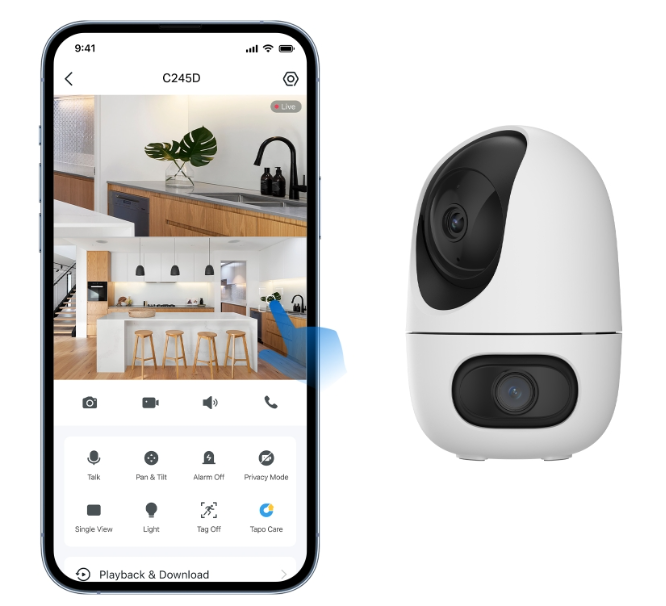
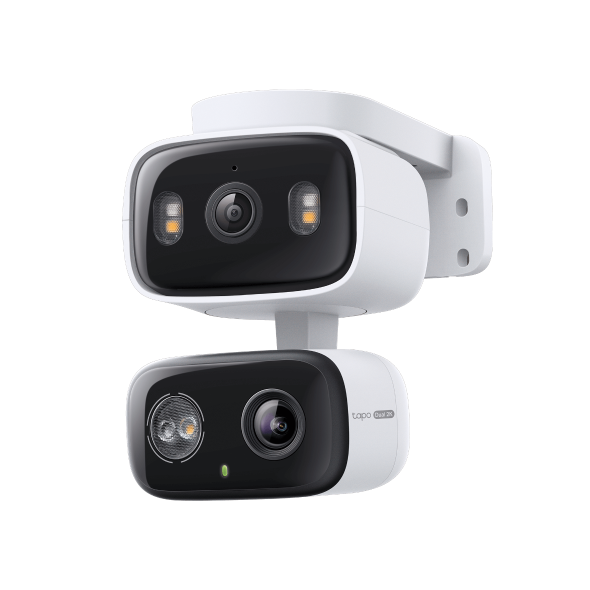
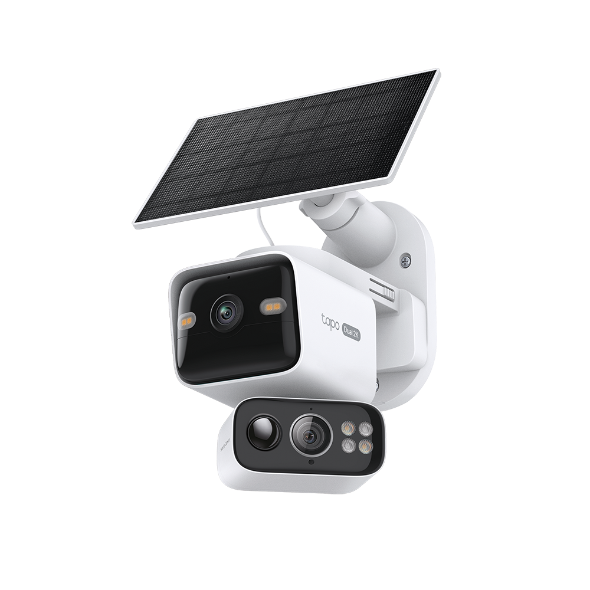
The dual-lens cameras have a wide-angle lens and a telephoto lens. The telephoto lens features automatic pan and tilt to follow motion or shift focus between different areas as needed. Long-press on a point in the wide-angle view, and the pan/tilt camera will focus on it instantly.
Note: This feature is only available when Dual View is enabled.
Requirement
Set up your dual-lens camera in the Tapo app. You can get the Tapo app by visiting the Google Play Store, the App Store, or by scanning the QR code.

Configuration
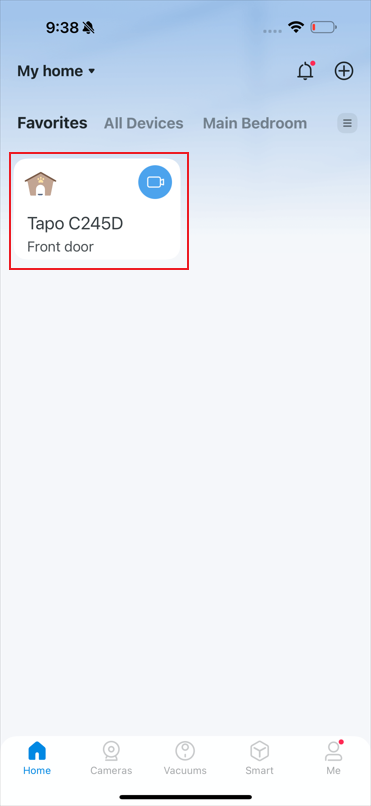
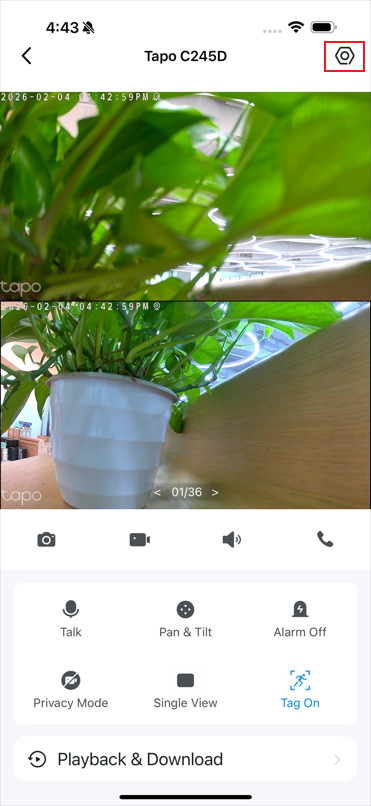
Step 1. In the app, tap your camera on the Home page and then the  icon to enter its Settings page.
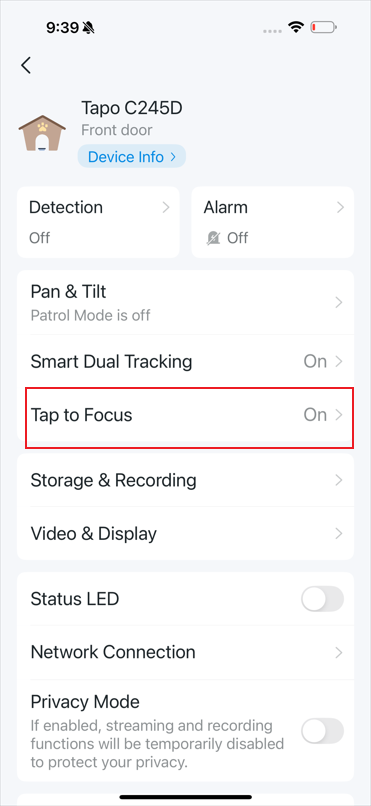
Step 2. Select Tap to Focus on the Setting page. Enable the Tap to Focus feature.
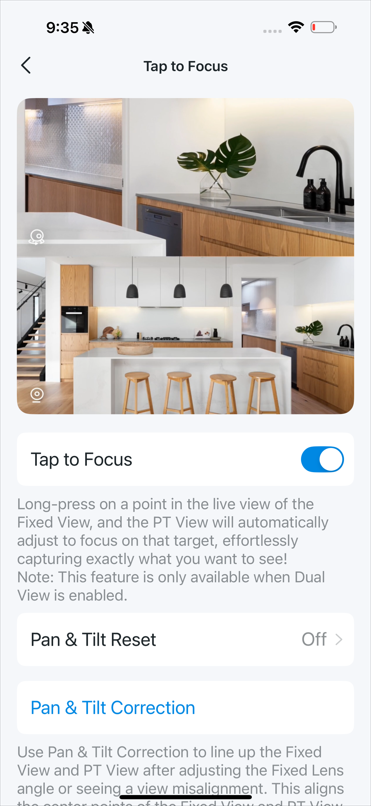
Step 3. If you want the camera to return to its original angle after each Tap to Focus action, set the Pan & Tilt Reset time. If not, simply choose Off. If you’ve adjusted the wide-angle view or see a view misalignment, try Pan & Tilt Correction before enabling Tap to Focus. This aligns the center points of the wide-angle view and the pan/tilt view.
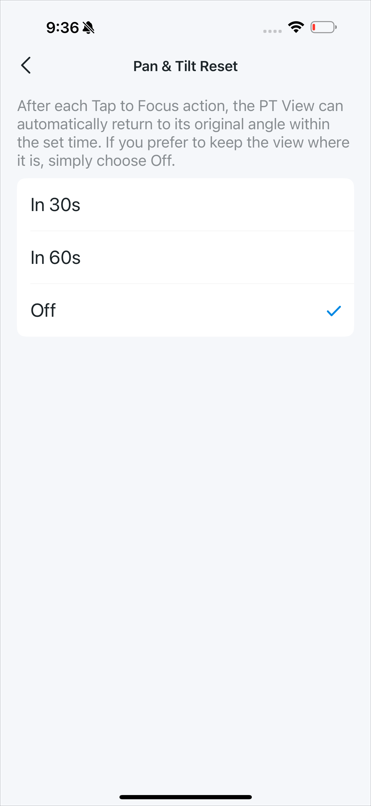
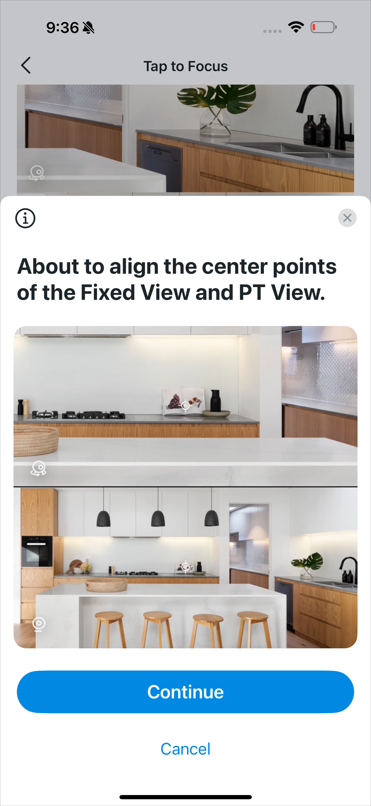
Get to know more details of each function and configuration please go to Download Center to download the manual of your product.
Is this faq useful?
Your feedback helps improve this site.

TP-Link Community
Still need help? Search for answers, ask questions, and get help from TP-Link experts and other users around the world.