
How to configure Reboot Schedule of TP-Link ISP-customized 4G/5G Router on Aginet app
 5503
5503Introduction
Auto Reboot lets you specify a time for the router to reboot automatically.
Requirement
Go to Google Play or the App Store to install the Aginet app on your Android or iOS smartphone or tablet.

Configuration
Here, we take NX620v(EU) for example.
Step 1. Open the Aginet app. Log in or sign up to set up a TP-Link ID. Or hit Continue without TP-Link ID.
Note: If you already have a TP-Link Cloud account, you can log in with your account.
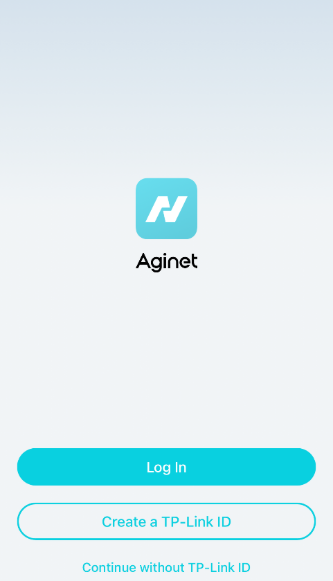
Step 2. Connect your phone to the device’s SSID.
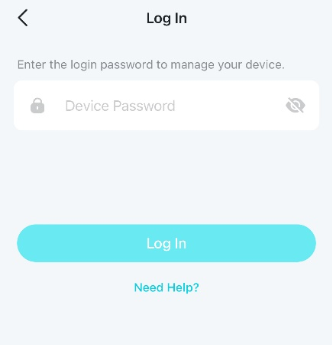
Step 3. Enter the Device Password. If it is the initial login, you will need to set a Device Password. Some providers may have pre-configured the password, as this is a customized product. If you are unaware of the device password, look for it on the bottom label of the device or reach out to your ISP.
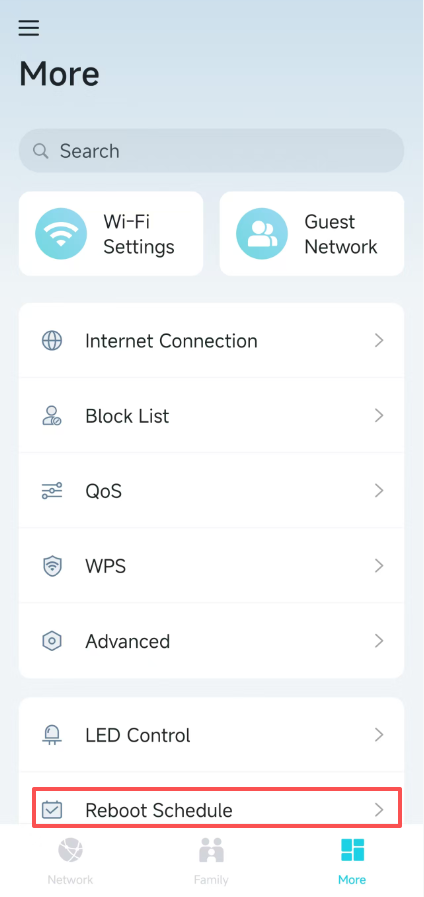
Step 4. Go to More > Reboot Schedule.
Step 5. Enable Reboot Schedule. Specify the time at which your router will reboot and the Auto Reboot Interval.
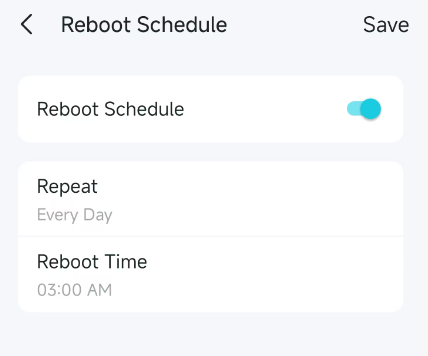
Step 6. Hit the Save button to apply your settings and have them work immediately.
QA
Q1: What should I do if I don’t find Reboot Schedule in Aginet app?
A1: Features available in Aginet App may vary by model and software version. The Reboot Schedule feature should be supported on the Aginet app if the router's software supports it in the web GUI.
Get to know more details of each function and configuration please go to Download Center to download the manual of your product.
Is this faq useful?
Your feedback helps improve this site.

TP-Link Community
Still need help? Search for answers, ask questions, and get help from TP-Link experts and other users around the world.