
How to set up System Time on TP-Link ISP-customized Router
 11462
11462Introduction
System time reflects the router’s current operating time and serves as the basis for time-dependent features like Parental Controls, with configurable synchronization options.
Requirements
- TP-Link Router
- Computer or Laptop
Configuration
Log in to the web-based interface of the router, go to Advanced > System Tools > Time Settings then refer to the following instrcustions according to your scenario.
Scenario 1: To get time from the internet
Step 1. In the System Time field, select your local Time Zone from the drop-down list.
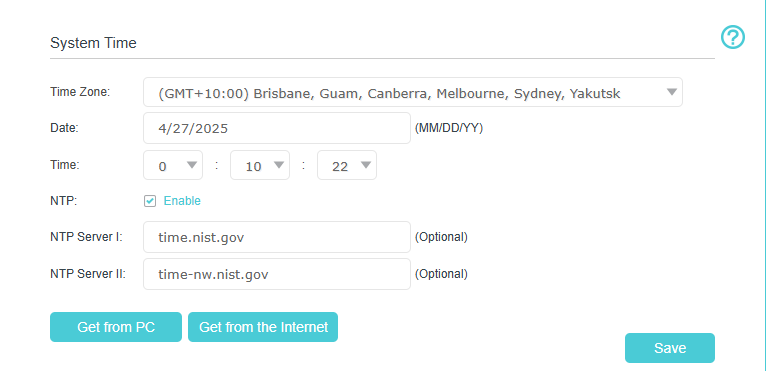
Step 2. In the NTP Server I field, enter the IP address or domain name of your desired NTP Server.
Step 3. (Optional) In the NTP Server II field, enter the IP address or domain name of the second NTP Server.
Step 4. Click Get from the Internet to get the current Internet time and click Save.
Scenario 2: To get time from PC
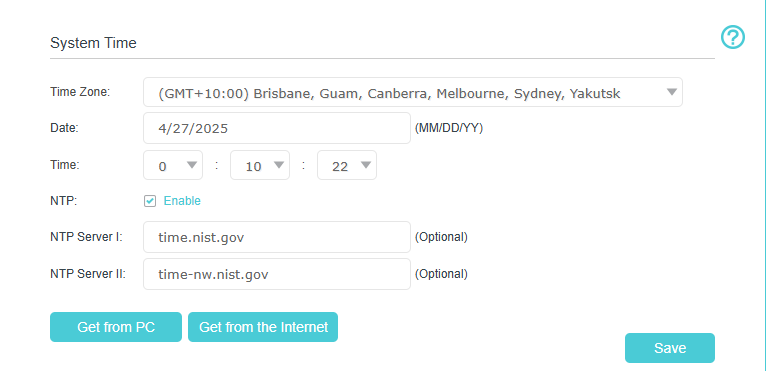
In the System Time field, click Get from PC will obtain the time zone and time settings from the PC.
Scenario 3: To set up Daylight Saving Time
Step 1. Select Enable Daylight Saving Time.
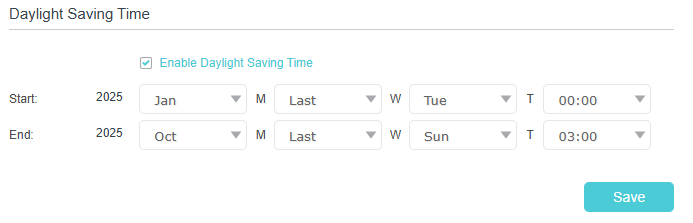
Step 2. Select the correct Start date and time when daylight saving time starts at your local time zone.
Step 3. Select the correct End date and time when daylight saving time ends at your local time zone.
Step 4. Click Save.
Note: The daylight saving time will take effect from the day (Monday to Sunday) of the week (First, 2th, 3th, 4th and last week) in a given month. For example, if you want to set Daylight Saving Time from March 8, 2019 on TP-Link router, you may set the Start Time as 2019, March, 2nd, Friday.
QA
Q1: Can I still obtain the time configuration properly without specifying the exact NTP server address?
A1: Yes. Our router is equipped with the public NTP server address. Our router will request the time configuration from these public NTP Server when you configure the NTP server as empty.
Q2: Can I set the time manually?
A2: Yes. You can manually set the time zone, Month/Day/Year and Hour / Minute / Second. And then click save.
Get to know more details of each function and configuration please go to Download Center to download the manual of your product.
Is this faq useful?
Your feedback helps improve this site.



TP-Link Community
Still need help? Search for answers, ask questions, and get help from TP-Link experts and other users around the world.