
Fail to configure Tapo Camera
 940108
Introduction
The Tapo App will guide you step-by-step during the initial configuration; however, you may not be able to complete all steps due to interference. This FAQ will tell you what to do if you have trouble with a specific step.
Note: If the battery-powered cameras fail to pair with the Tapo H200, you may refer to this article.
Requirements
- Install the latest Tapo App from the App Store or Google Play.
- Choose the correct camera model and device version during the configuration process. Identify your device’s version on the device label.
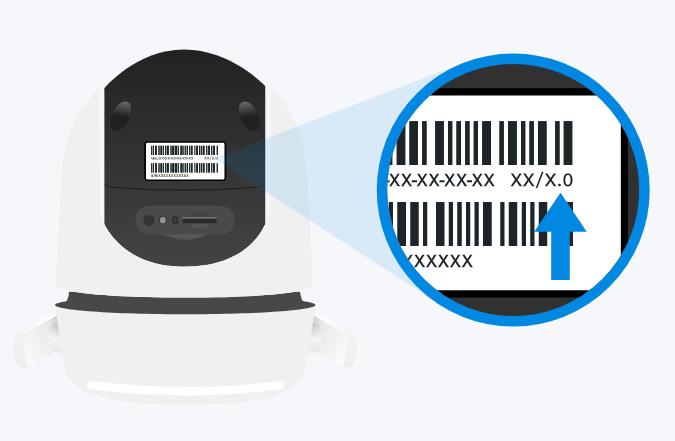
- Please ensure the System LED is blinking red and green (or red and blue for HomeKit models, such as the Tapo C125 or Tapo C225). If not, reset the camera by pressing and holding the RESET button for over 5 seconds until the LED blinks red.
Troubleshooting
Step 1. Ensure the Tapo Cam is powered on with the rated voltage using the original power adapter, and avoid powering it through any extension cords.
Step 2. Reset the Tapo Cam by pressing and holding the RESET button for over 5 seconds until the LED starts blinking red and green (or red and blue for HomeKit models such as Tapo C125 or C225), indicating the reset is successful.
Step 3.
- iOS: Go to the Settings page, then tap Wi-Fi to connect to the Tapo Cam’s Wi-Fi manually.
- Android: Go to the Settings page to connect to the Tapo Cam’s Wi-Fi network. Once it’s connected, the phone will automatically search for the camera.
Step 4. Try scanning for the camera’s default Wi‑Fi on another phone to check whether the SSID “Tapo_Cam_XXXX” can be detected.
Step 5. Change the location for setting up the smart device to reduce the possible interference in the same frequency band at the original location (to avoid interference from devices such as Bluetooth, USB 3.0, microwave ovens, ZigBee devices, etc).
Step 6. Reboot the phone to have a try, or try a different phone, or check if a PC can detect the device's Wi-Fi network “Tapo_Cam_XXXX”.
Step 1. Place the smartphone close to the device to ensure the Wi-Fi signal is strong enough (full bars).
Step 2. Ensure there is no active VPN or VPN-related apps (such as AdGuard, DuckDuckGo, NordVPN, etc.) running on the phone. If a VPN is running on the phone, turn it off.
Step 3. (Only for iPhone/iPad)Click on "Settings" on your phone and find Tapo APP on the list, then enable the "Local Network" option. Reopen the APP and try again. If you can't find "Local Network" permission, please go back to APP and click "I’ve already given Local Network Permission".
Step 4. Choose the right wireless network to connect to, whose SSID should be “Tapo_Cam _XXXX”. (XXXX is usually the last 4 bits of the device's MAC Address).
Note:
- iOS: After connecting to the device’s Wi-Fi, it will show “No Internet Connection”; don't worry about it, just return to the app to continue.
- Android: If the phone pops up a message “this Wi-Fi network is unsecured/unprotected, your privacy and data may be at risk”. With 2 options: "Disconnect” or “connect anyway / keep using this Wi-Fi / stay connected”, select "connect anyway/keep using this Wi-Fi/stay connected", and continue.
Step 5. Make sure you choose the Correct Model when adding a device in the Tapo App.
Step 6. Make sure the smartphone is always connected to the device’s Wi-Fi when the app shows it connecting to the device.
Note: Some phones prefer to connect to a remembered network automatically rather than to an unsecured network. In this case, please forget the profile of the remembered network first.
Step 7. Use another smartphone to set up the device again.
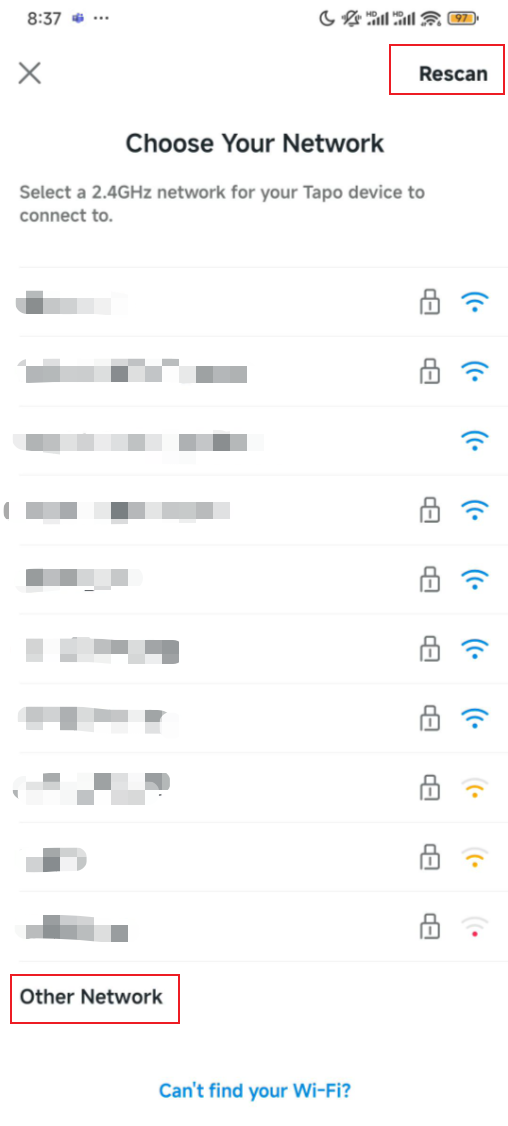
Step 1. Ensure your Wi-Fi network is encrypted and operating on the 2.4 GHz band (most Tapo Cams require 2.4 GHz, though some models support 5 GHz—please check your specific model's specifications). Tapo Cams cannot connect to unencrypted networks. Additionally, verify that the Wi-Fi signal strength is adequate; if not, move the camera closer to your router.
Step 2. If it doesn’t display your router's Wi-Fi name automatically, please click Rescan to refresh the Wi-Fi list multiple times to see if you can find it.
Step 3. If the router’s SSID is hidden, please choose “Other” to input the SSID and password manually.
Step 4. Try configuring the Tapo Cam on a different phone.
Step 5. Reset the camera by pressing and holding the RESET button for over 5 seconds until the LED blinks red, then repeat the process.
Step 1. Ensure the smart device is close to the router to get a strong Wi-Fi signal, and enter the correct Wi-Fi password in the app. We suggest disconnecting from your home Wi-Fi network, then reconnecting with the same password to refresh the connection.
Step 2. Ensure VPN (such as AdGuard, DuckDuckGo, NordVPN, etc.) is Disabled on the phone and router.
Step 3. Ensure the smartphone is connected to the router’s dedicated 2.4 GHz Wi‑Fi, and that both the phone and the Tapo Cam are on the same Wi‑Fi network (same SSID) when pairing the device in the app.
Step 4. If the camera is connected to a range extender, try setting it up and connecting to the main Wi-Fi network.
Step 5. Try using a different phone and router. You may also try connecting the Tapo Cam—and the smartphone—to the same independent 2.4 GHz guest Wi‑Fi or mobile hotspot for testing.
Step 6. Check whether your router has a maximum number of connected devices (maximum clients) limit enabled. If the limit has been reached, new devices may fail to connect. Try disconnecting unused devices or increasing the limit in the router settings. Routers such as AT&T models commonly include this type of restriction, particularly on guest networks.
Step 7. Try resetting the camera by pressing and holding the RESET button for over 5 seconds until the LED blinks red, then start the setup process again.

Please contact TP-Link technical support with the following information if you still failed to configure the Tapo camera after the above suggestions.
- Your TP-Link ID or cloud account;
- The model number of your Tapo Cam and its MAC address;
- Whether you have tried all suggestions listed as above or not. If yes, what are the results?
Get to know more details of each function and configuration please go to Download Center to download the manual of your product.
Is this faq useful?
Your feedback helps improve this site.


TP-Link Community
Still need help? Search for answers, ask questions, and get help from TP-Link experts and other users around the world.