
How to Check Your TP-Link Adapter Driver Version and System Information on Windows
When troubleshooting TP-Link adapter driver issues, knowing your driver version and Windows system information is often the first step. This page covers two quick processes: checking the TP-Link adapter driver version in Device Manager and viewing system information in the Run window (msinfo32).
Key Takeaways
- To check the TP-Link adapter driver version on Windows, right-click This PC, go to Manage > Device Manager, find the adapter under Network Adapters, right-click and select Properties, then select the Driver tab.
- The driver version is displayed on the Driver tab in Device Manager under the TP-Link adapter's Properties.
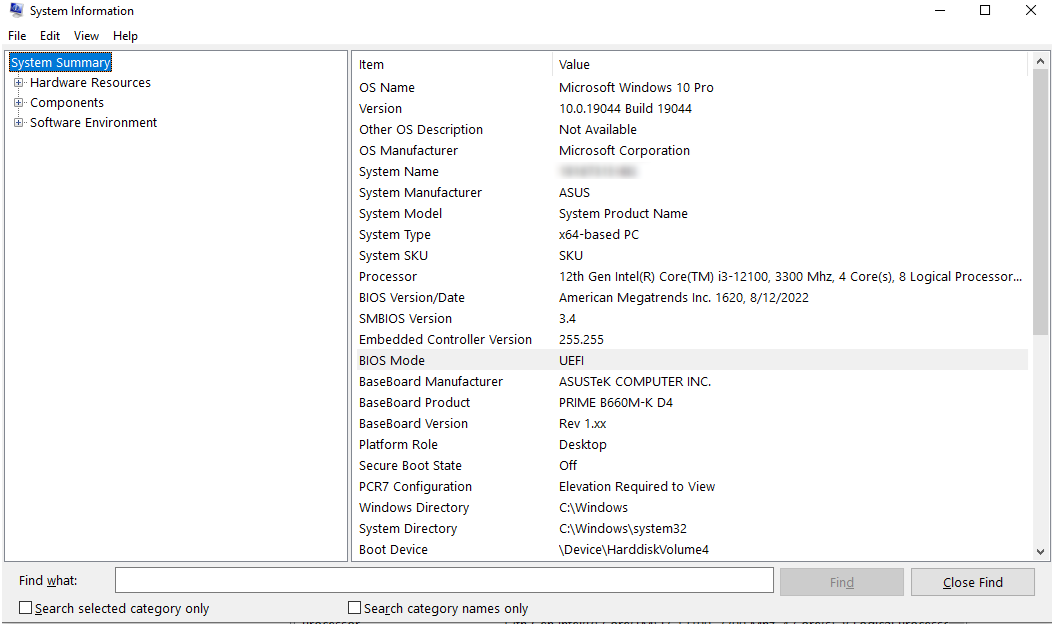
- To view system information on Windows, press Win+R, type "msinfo32" in the Run window, and press Enter to open the System Information screen.
How to Check Your TP-Link Adapter Driver Version
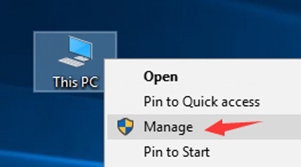
Step 1. Right-click This PC and then go to Manage. (If there is no “This PC” on the desktop, search Device Manager from the search box.)
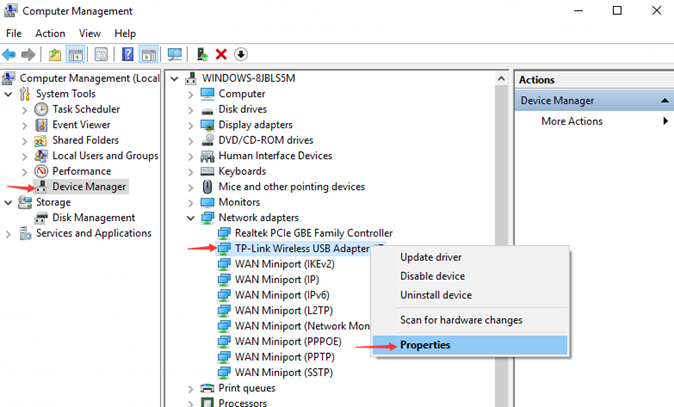
Step 2. Click Device Manager. Find the TP-Link adapter under Network Adapters and right-click to select Properties.
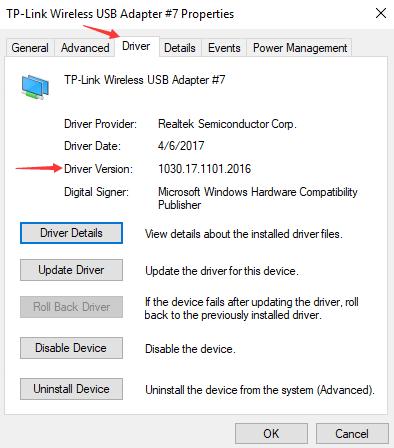
Step 3. Click the Driver tab to see the driver version.
How to Check System Information on Windows
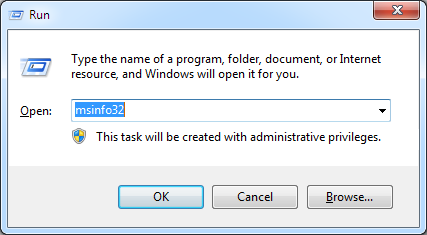
Step 2. Type "msinfo32" in the Run window and click Okay.
Step 3. The system information screen will pop up.
For full configuration details, visit the Download Center to find the manual for your product.
Looking For More
Is this faq useful?
Your feedback helps improve this site.

TP-Link Community
Still need help? Search for answers, ask questions, and get help from TP-Link experts and other users around the world.