
How to Place Your TP-Link Wi-Fi Extender for the Best Signal and Performance
 810675
Wi-Fi extender placement is the single biggest factor affecting your extender's performance. Even a quality device will underdeliver if it is placed in the wrong spot. This guide covers where to place your Wi-Fi extender for the strongest, most reliable signal throughout your home.
Key Takeaways
- Place the extender roughly halfway between your router and the area with a weak signal — about 25 to 40 feet from the router for external antenna models, or 20 to 35 feet for internal antenna models, when the router signal is still strong at that distance.
- Position the extender at about the same height as your router, around four feet off the ground.
- Keep the antennas vertical and face the front of the extender toward the router for the best signal reception and rebroadcast.
- Avoid placing the extender near mirrors, large metal surfaces, microwaves, cordless phones, or refrigerators.
- If a stable wireless connection is not possible due to obstacles or distance, use Access Point (AP) mode with an Ethernet cable running from the router to the extender.
Find the Right Distance from Your Router
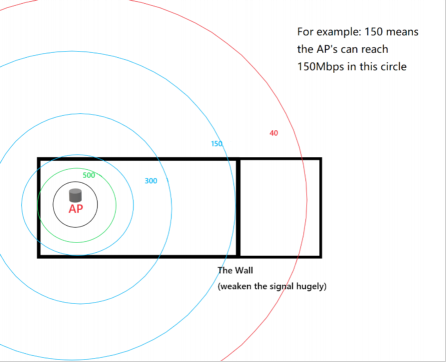
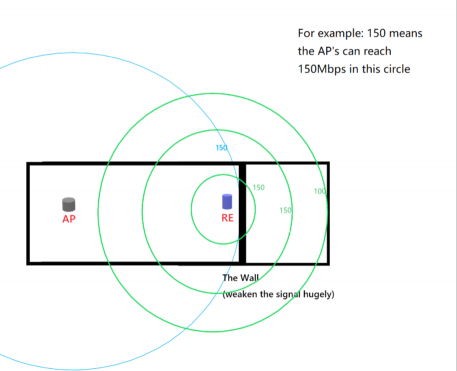
Distance is the most critical placement factor. For models with external antennas, place the extender 25 to 40 feet from the router when there are few obstacles and the router signal is still strong at that range. For models with internal antennas, a distance of 20 to 35 feet typically works best under the same conditions.
If there are walls or other obstacles between the router and the extender, you may need to place the extender closer to the router to maintain a good connection.
Raise the Extender Off the Floor
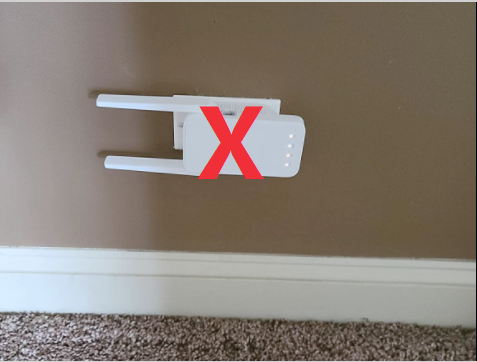
Place your extender at roughly the same height as your main router, around four feet high. A bookshelf, desk, or shelf at that height works well. Avoid placing the extender on the floor or in a corner, as lower placement reduces both the signal received from the router and the signal sent to your devices.
Position Antennas Vertically
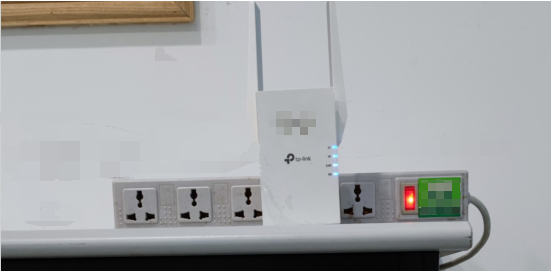
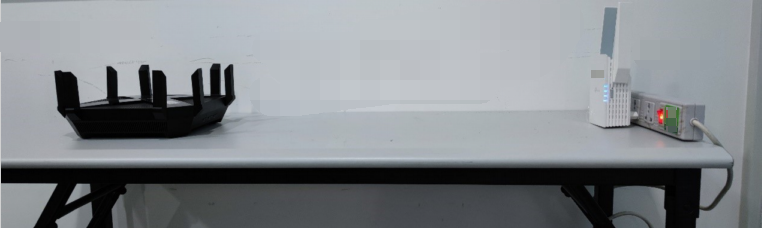
Keep external antennas pointed straight up, perpendicular to the floor. This orientation helps the extender receive and transmit data at its best. A power strip can make it easier to adjust the extender's height, antenna angle, direction, and distance as needed.
Face the Extender Toward the Router
Point the front of the extender toward the main router as directly as possible. With the front face aimed at the router, the extender's antennas can receive and rebroadcast the signal most effectively. Devices connecting on the far side of the extender will also get better speeds in this configuration.
Avoid Signal-Blocking Objects and Interference
Certain objects weaken or reflect the Wi-Fi signal. When choosing where to place a Wi-Fi extender, keep it away from mirrors and large metal surfaces, which reflect signals, and away from walls, cabinets, and masonry, which absorb them. A clear line of sight between the router and the extender is ideal.
Electronics that generate radio frequency interference are also worth avoiding. Microwaves, cordless phones, refrigerators, and baby monitors can all disrupt the Wi-Fi signal and reduce your extender's performance.
What to Do When Wireless Placement Is Not Possible
If obstacles cannot be avoided or the distance between the router and extender is too great for a stable wireless connection, switch the extender to Access Point (AP) mode. Place the extender near the area where you need coverage, run an Ethernet cable from the router to the extender, and configure it as an access point. For setup instructions, see how to configure a TP-Link range extender in AP mode.
If you have not yet set up your extender at all, see how to configure a TP-Link range extender via the Tether app.
Once your extender is placed and connected, you can check signal strength using the Signal LED on the extender and verify your configuration is working correctly. For help reading the LEDs and confirming placement quality, see how to confirm your range extender is configured and in the best location.
Is this faq useful?
Your feedback helps improve this site.



TP-Link Community
Still need help? Search for answers, ask questions, and get help from TP-Link experts and other users around the world.