
Is Your Kasa Device Not Connecting? Troubleshooting Setup Issues
 529993
If your Kasa smart plug, switch, or bulb won't connect during setup, you're not alone. This Kasa setup troubleshooting guide covers five common connection failure scenarios to help you get back on track.
Key Takeaways
- Before setting up any Kasa device, download the Kasa Smart app from the App Store or Google Play. Make sure you select the correct model number during setup.
- If the Kasa app shows a "Connect to Wi-Fi" or "No internet" error during setup (Case 1), confirm your phone is connected to your home router's Wi-Fi and can access the Internet. Force-close and relaunch the Kasa app, then try again.
- When connecting to your Kasa device's Wi-Fi during setup (Case 2), check that the device is in config mode first. For smart plugs and switches, the Wi-Fi light (LED) should be blinking orange and green. For smart bulbs, the bulb should flash three times. If you need to reset your device to get back to config mode, see the guides linked in Case 2 below. You can also refer to how to remove an existing wireless network profile on Android and iPhone if your phone keeps connecting to a remembered network instead.
- Kasa smart home products do not support captive portals or open Wi-Fi networks. A captive portal is a webpage that public network users must interact with before accessing the Internet, such as a hotel or public Wi-Fi. If your home network uses one of these, the setup will not complete.
- If your Kasa device cannot connect to your home Wi-Fi network (Case 4), try switching your router's Wi-Fi encryption to WPA2+AES, setting the wireless channel to 1, 6, or 11, and setting the channel width to 20 MHz.
Case 1: "Connect to Wi-Fi" or "No Internet"
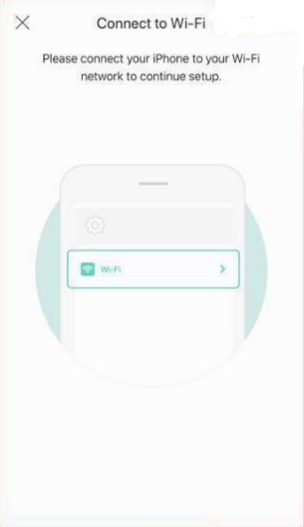
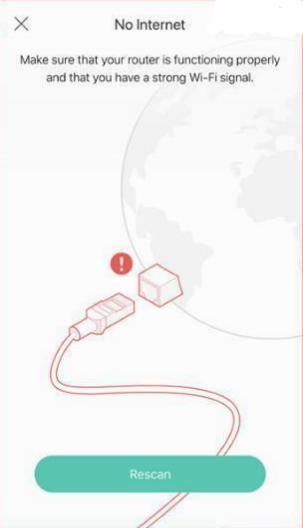
Step 1. Check that your phone is connected to your home router's Wi-Fi and can access the Internet.
Step 2. Force-close the Kasa app and relaunch it. Wait a few seconds to see whether you can move to the next step and connect to the smart device's Wi-Fi.
Case 2: Unable to Connect to Your Smart Device's Wi-Fi
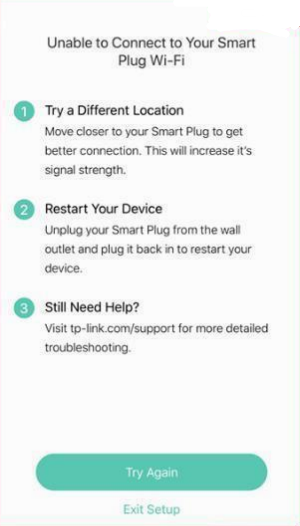
If Kasa app shows "Unable to Connect to Your Smart Device's Wi-Fi”, the issue usually falls into one of the following sub-cases:
- Cannot see the Kasa device's Wi-Fi on the phone
- Unable to connect to your smart device's Wi-Fi
- Asked for a password when connecting to the smart device's Wi-Fi
Step 1. Check the device's LED status and ensure it is in config mode. If it is not, reset the device as per the User Guide. Go to www.tp-link.com, search your smart device's model number, click Support, and open the User Guide.
How to reset TP-Link Kasa smart switch and plug?
How to reset TP-Link Kasa smart bulb?
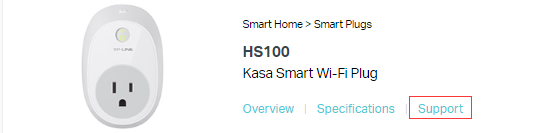
Suggested alt text: TP-Link product support page for the HS100 Kasa Smart Wi-Fi Plug with the Support tab selected.
Note:
- For smart plugs and switches, the Wi-Fi LED blinking orange and green means the device is in config mode.
- For smart bulbs, the bulb will flash three times to show it is in config mode.
Step 2. Go to phone/tablet Settings to connect the smart device’s Wi-Fi manually. Make sure you select the correct model and the correct wireless network to connect to. The network name (SSID) should be "TP-Link_Smart Plug_XXXX" or "TP-Link_Smart Bulb_XXXX." You can confirm this by checking the MAC address on the device label, which matches part of the network name. Once connected, go back to the Kasa app and tap Try Again.
Step 3. On iOS devices, go to Settings and find the Kasa app in the list. Enable the Local Network option. Reopen the Kasa app and try again.
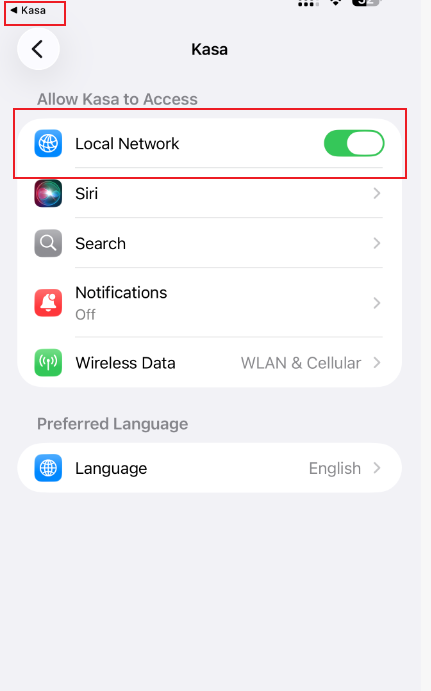
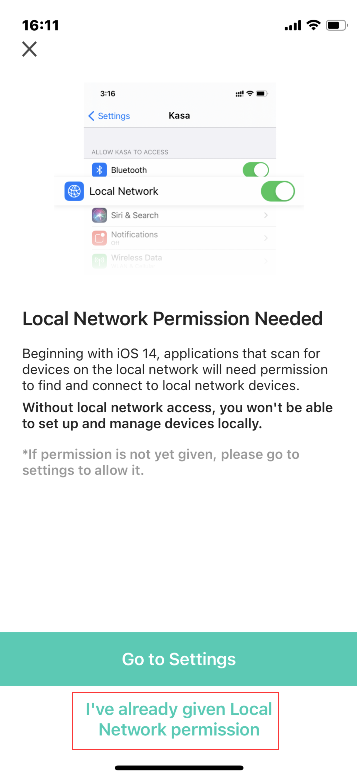
If you cannot find the Local Network permission, go back to the Kasa app and tap I've already given Local Network Permission.
Step 4. Make sure there is no virtual private network (VPN) or VPN software such as Lookout or AdGuard running on the phone. If a VPN is active, turn it off.
Step 5. Try using a different phone.
Step 6. Some phones prefer to reconnect to a remembered network rather than an unsecured one. If this applies, forget the remembered network profile first. See how to remove an existing wireless network profile on Android and iPhone for instructions.
Case 3: "Unable to Find Your Device" / "We couldn't find this Kasa device"
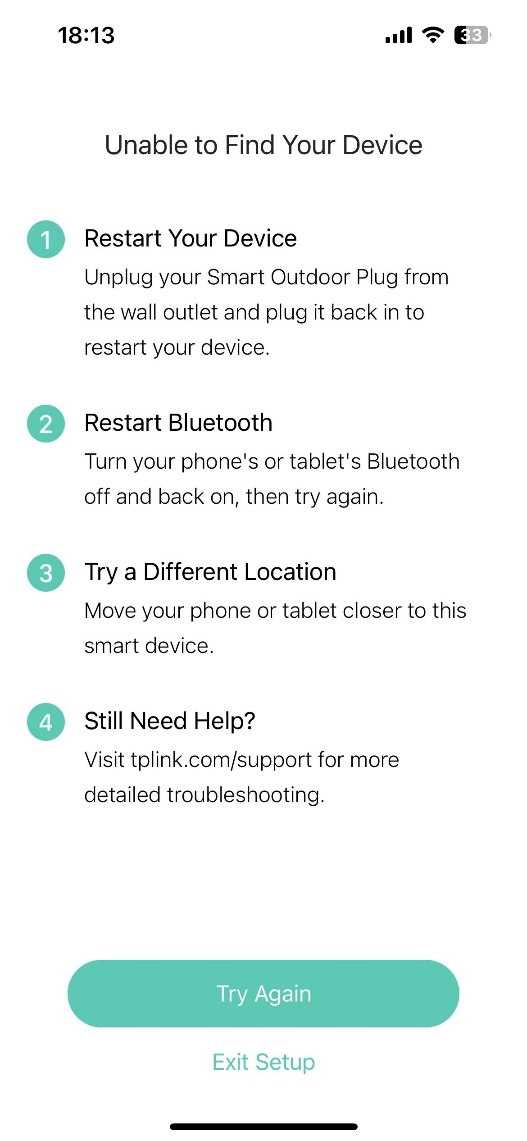
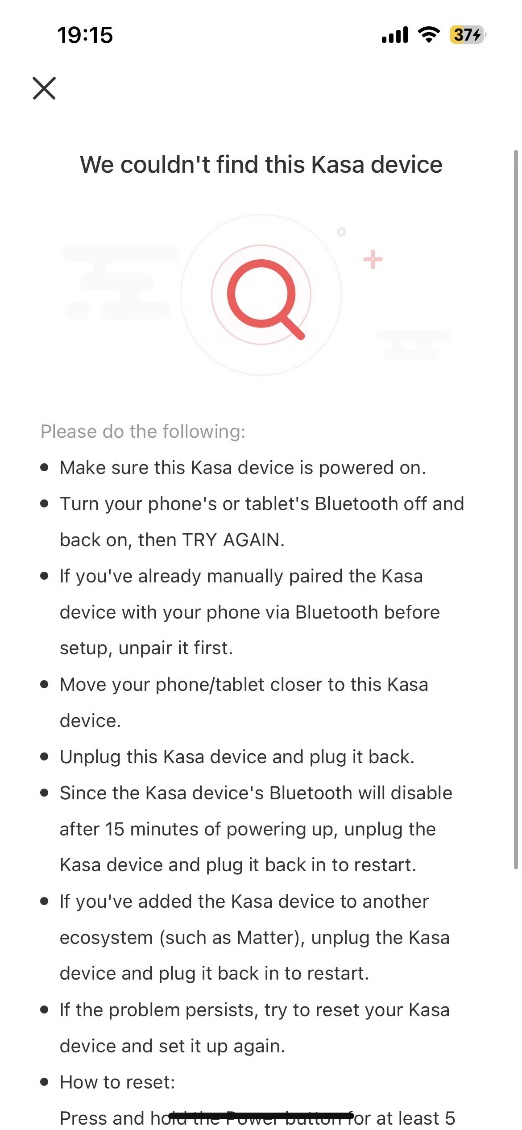
The Kasa app cannot find the smart device via Bluetooth.
Step 1. Make sure you selected the correct model number for your smart device and that it is powered on.
Step 2. Power the smart device off, then back on (or press the restart button) to restart it.
Step 3. Move your phone or tablet closer to the smart device.
Step 4. Turn your phone's or tablet's Bluetooth off and back on, then try again.
Step 5. If the issue continues, reset your smart device and reboot your phone, then try again.
Case 4: Unable to Connect to Your Wi-Fi Network
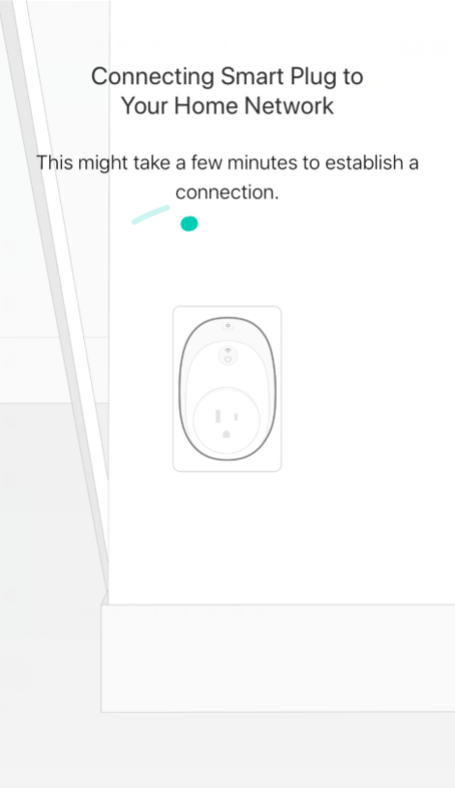
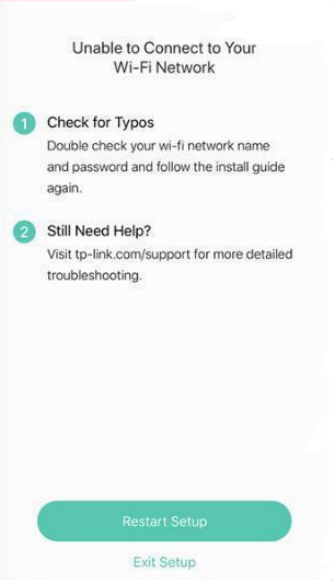
Note: To avoid risks, TP-Link's smart home products do not support captive portals or open Wi-Fi networks. A captive portal is a webpage that users of a public network must view and interact with before they can access the Internet. Users are typically required to enter authentication information to connect.
If your Kasa smart plug is not connecting to your Wi-Fi network or gets stuck at this step and cannot get through the connecting process, work through the steps below.
Step 1. For smart bulbs, wait for 15 seconds and tap Exit Setup to leave the setup flow. Go to the Devices page in the Kasa app to see whether you can control the bulb. If yes, go to the Device Settings page to change the device name and icon. If not, continue to Step 2. For smart plugs and switches, wait for 15 seconds, then check the LED status.
- Wi-Fi LED is solid green or blue: The network connection has been established. Do not tap Restart Setup. Force-close the Kasa app, relaunch it, and wait a few seconds to see whether the device is working. You can change the device name and icon in the device settings page after setup is complete. If the Wi-Fi LED is solid green or blue but the Kasa device does not appear on the Devices page, contact your router's support to check whether AP Isolation or Client Isolation is enabled, and change the router's domain name system (DNS) to 8.8.8.8 and 8.8.4.4.
- Wi-Fi LED is not solid green or blue: Continue to Step 2.
Step 2. Make sure the router's Wi-Fi signal is strong and that your phone is connected to the same home network as the Kasa device. If not, move the device closer to the router.
Step 3. Confirm your router's Wi-Fi password. If the password you entered was incorrect, set up the Kasa device again. You can forget the router's Wi-Fi network on your phone and reconnect to confirm the password.
Note: The password must not exceed 64 characters and must not contain single or double quote characters.
Step 4. Try using a different phone.
Step 5. Contact your router's support and ask them to switch the Wi-Fi encryption method to WPA2+AES. Set the wireless channel to 1, 6, or 11 and the channel width to 20 MHz, then try setting up the Kasa device again. If the device still cannot connect to the Wi-Fi network, try turning off the 5 GHz band on your router temporarily.
Step 6. For dual-band or mesh routers, use a different network name (SSID) for the 5 GHz band than for the 2.4 GHz band, or temporarily turn off the 5 GHz band. If the 5 GHz band cannot be disabled, try moving the router and smart device farther apart to encourage the smart device to connect to the 2.4 GHz network. The 2.4 GHz band typically provides a longer range than the 5 GHz band.
Case 5: Failed to Create a Name or Icon for the Device
Step 1. Make sure the router's Wi-Fi signal is strong and that your phone is connected to the same home network as the Kasa device.
Step 2. If the Wi-Fi LED is solid green or blue, the network connection has been established. Force-close the Kasa app, relaunch it, and wait a few seconds to see whether the device is working.
Step 3. Try a simple name. When selecting an icon, choose one from the Kasa app rather than from your phone's photo library.
Step 4. Try using a different phone.
Step 5. Reset the Kasa device and try again.
How to reset a Kasa smart plug or smart switch
How to reset a Kasa smart bulb
Please contact TP-Link technical support with the following information if you still fail to configure the Kasa device after the above suggestions.
- The Model of your Kasa device and its MAC address.
- The Model of your home router and detailed 2.4 GHz wireless settings, such as encryption method, channel width, and wireless mode.
- The Model and Operating System of your mobile device.
- The screenshot of the error message.
Related Blogs
Is this faq useful?
Your feedback helps improve this site.



TP-Link Community
Still need help? Search for answers, ask questions, and get help from TP-Link experts and other users around the world.