
How to Change MTU Settings on Your TP-Link Wi-Fi Router and Fix Network Issues
The MTU (Maximum Transmission Unit) setting on your TP-Link router controls the maximum size of data packets sent over your network. If your TP-Link MTU settings are mismatched with what your Internet service provider (ISP) supports, you may experience lag, slow speeds, or dropped connections. This page explains what MTU and fragmentation are, how to identify an MTU issue, and how to correct it.
Key Takeaways
- MTU (Maximum Transmission Unit) is the largest packet size, in bytes, that can be sent over a network without being fragmented. The default for Ethernet and most ISPs is 1500 bytes.
- When a router's MTU is set higher than what the network can handle, packets are fragmented and reassembled at the endpoint, which can cause lag and slower speeds.
- The first step in resolving an MTU issue is to contact your ISP to confirm their MTU setting, then adjust your TP-Link router to match.
- MTU settings on TP-Link routers are found under Advanced > Network > Internet or Network, then WAN, then MTU.
- After changing the MTU setting, a power cycle or reboot of the router is required for the change to take effect.
- If using a virtual private network (VPN), the VPN may have its own MTU requirements. Check with your VPN admin if applications stall or fail to load after connecting.
What is an MTU?
MTU, or Maximum Transmission Unit, is the largest packet size, in bytes, that can be transmitted without fragmentation. The largest size allowed over Ethernet and most Internet service providers is 1500 bytes. This means the maximum size a data packet can transmit is 1500 bytes.
What is Fragmentation?
Fragmentation occurs when a packet is too large to send through a network connection and must be broken apart. The packet is then reassembled at the receiving endpoint once all parts arrive. This can contribute to network lag and speed issues.
Troubleshooting MTU Issues
If you are experiencing network lag or slower-than-expected speeds, an incorrect MTU setting may be the cause. If your MTU is set higher than what your network can handle, packets will be fragmented. This demands additional work from your device and network, thus decreasing your network’s speed and stability.
Correcting an MTU Issue
The first step in correcting an MTU issue is to contact your ISP. Ask them what their MTU is set to. This way, you can adjust your router to the same settings. Adjusting the router’s MTU is the best solution because it avoids the need to adjust individual devices.
Example: Your ISP states your internet access MTU is set to 1472. Your Router, however, is set to 1500 (default). Your network devices are sending packets at 1500 bytes, when your network can only handle 1472 bytes. This causes packets to be fragmented, creating a significant slowdown to your network as a result.
Adjust the MTU Settings In Your TP-Link Router
Steps for Interface with Older Logo
Step 1. Log in to your router at tplinkwifi.net or 192.168.0.1. The default username and password are both admin.
Step 2. Click Advanced > Network > Internet, then click Advanced Settings button, and you can see and change MTU.
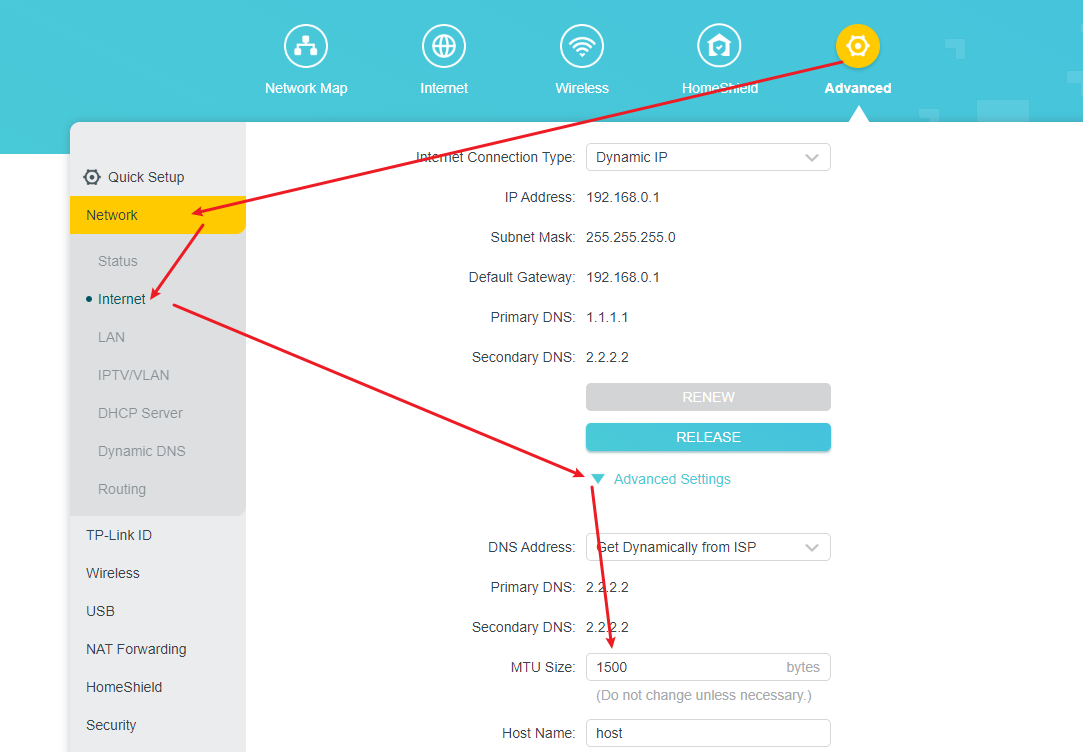
Or Advanced > Network > WAN > MTU
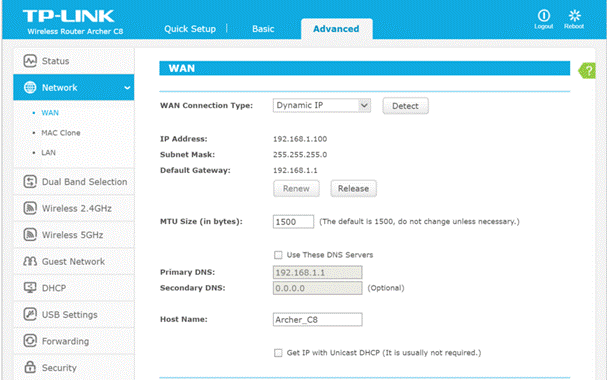
Note: Power cycle/reboot your router for the changes to take effect.
MTU Settings for VPN Connections
VPNs typically have their own MTU settings. If you can connect and authenticate but applications stall or fail to load, your MTU setting may need adjustment. In this case, you will need to refer to your VPN admin for their MTU settings. Once obtained, you can adjust your Router with the steps above.
Looking For More
Is this faq useful?
Your feedback helps improve this site.

TP-Link Community
Still need help? Search for answers, ask questions, and get help from TP-Link experts and other users around the world.