
TP-Link Network Adapter Not Working? How to Fix It
This guide covers how to troubleshoot a TP-Link network adapter that is not working correctly. Solutions are organized by symptom, so identify which issue you are experiencing before following the steps. The five cases covered are: slow speed, unstable connection, cannot find a wireless network, cannot connect to Wi-Fi, and no internet access after connecting.
Note: If your laptop has a built-in Wi-Fi adapter and you are adding a new USB or PCIe adapter, you will need to remove or disable the Windows drivers for the original built-in adapter first. Refer to How to Disable the Original Adapter for instructions.
Key Takeaways
- If your TP-Link wireless adapter is showing slow speeds, first check Wi-Fi signal strength by moving your computer closer to the router. Then check whether the problem occurs on 2.4GHz or 5GHz, and verify the adapter's link speed. A speed test result of 30–50% of the link speed is considered normal.
- For an unstable connection, disable the Power Management setting that allows Windows to turn off the adapter to save power. Go to Device Manager > adapter Properties > Power Management and uncheck "Allow the computer to turn off this device to save power."
- If the adapter cannot find a specific Wi-Fi network, try changing the router's wireless network name (SSID) and channel. Set the 2.4GHz band to channel 1 and the 5GHz band to channel 36.
- If the adapter cannot find any Wi-Fi signal on Windows, make sure the WLAN AutoConfig service is running. Go to My Computer > Manage > Services > WLAN AutoConfig > General and set Startup type to Automatic.
- If the adapter connects to Wi-Fi but has no internet access, check that the IP address is set to obtain automatically, and verify the IP address, Default Gateway, and Domain Name System (DNS) settings of the wireless connection.
Case 1: Slow Speed
Step 1. Check Wi-Fi signal strength. If the signal is weak, move your computer closer to the router (about 10–15 feet if possible).
Step 2. If you have a dual-band adapter, check whether the slow speed occurs on the 2.4GHz band, the 5GHz band, or both.
Step 3. Contact your router's support team to change the wireless channel and channel width on your router to reduce possible interference.
Step 4. Update the driver for your adapter. Download the latest driver from the TP-Link Download Center for your adapter model.
Step 5. Check the adapter's link speed. A speed test result of 30–50% of the link speed is normal. If your result is significantly lower, continue to Step 6.
Step 6. Run a speed test on your computer, then use a phone or tablet to connect to the same Wi-Fi network and run a speed test from the same location. If the phone result is substantially higher than the computer result, contact TP-Link support and provide both speed test results along with your computer's operating system.
Case 2: Unstable Connection
Step 1. Check Wi-Fi signal strength. If the signal is weak, move the computer closer to your router if possible.
Step 2. Navigate to Device Manager in Control Panel > Locate the wireless adapter in the list >Highlight the device in the listing > Right-click and Select Properties > Power Management >Uncheck Allow computer to turn off this device…> Click OK to close the window > Reboot the computer.
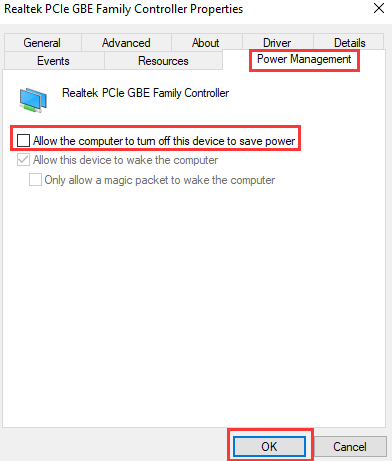
Step 3. Check if the problem happens on 2.4GHz or 5GHz if it’s a dual-band adapter.
Step 4. Contact router support to change the channel and channel width on your router to avoid possible interference.
Step 5. Update the driver of the adapter (skip if you don’t know how to do that).
Step 6. Please try to ping the router's IP address “192.168.0.1”(we take the TP-Link router's IP address as an example), then please share the ping result. How to Use the Ping Command.
Step 7. Contact TP-Link support with the results above and tell us the operating system of your computer and what it looks like when the connection drops, as the Wi-Fi signal disappears, or other behaviors.
Case 3: Cannot Find Wireless Network
A. Cannot Find Certain Wi-Fi Signal
Change the SSID/wireless network name and channel of your router (contact the router support if you don’t know how to do it).
Please try changing the settings on your router. Please set the 2.4G channel to 1 and the 5G channel to 36.
If you use the TP-Link router, you can check How to Change the SSID and Channel on a TP-Link Router.
B. Cannot Find Any Wi-Fi Signal
Step 1. Enable wireless service. There might be a Wi-Fi on/off button on some computers. Make sure it’s switched on.
Step 2. For Windows
Enable WAC (skip if you don’t know where to find it). Right click on My Computer > Manage > Computer Management > Services > WLAN AutoConfig > General > Ensure the Startup type as Automatic > Start > OK
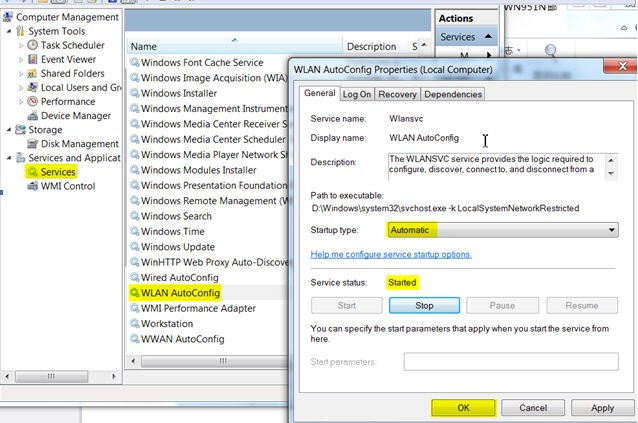
For MAC
If you have already installed the driver and it was successful. However, don't see any other Wi-Fi bar, and it shows "no wireless NIC plugin".
Run as Administrator when installing the driver.
- Open the Apple menu.
- Select System Preferences.
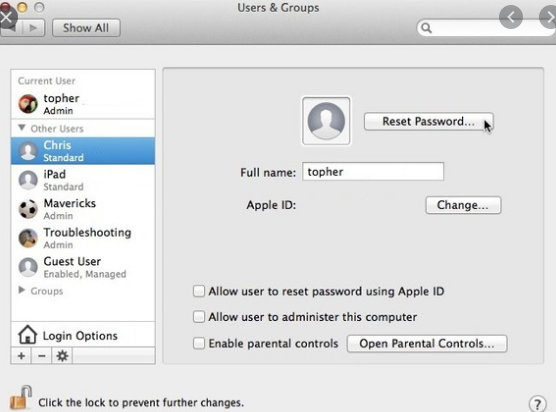
- In the System Preferences window, click on the Users & Groups icon.
- On the left side of the window that opens, locate your account name in the list.
- If the word "Admin" appears immediately below your account name, you are an administrator on this machine.
- If the word Standard appears, then you are not an administrator, and your account cannot be used to install software or make administrative changes.
Step 3. Uninstall antivirus software and disable the firewall if any is installed.
Step 4. Update the adapter driver (skip if you don’t know how).
Step 5. Contact TP-Link support with the results above and tell us the operating system of your computer.
Case 4: Cannot Connect to Wi-Fi
Step 1. Confirm your router is working correctly. Connect another device (such as a phone or another laptop) to the same Wi-Fi network and verify it can access the Internet.
If you are connecting to a mobile Wi-Fi hotspot for the first time, your computer may ask for a PIN code. Follow the instructions in How to Connect to a Mobile Wi-Fi Network Using a PIN Code to complete the connection.
Step 2. Check Wi-Fi signal strength. Move your computer closer to the router, or contact your router's support team to adjust the wireless channel and channel width to reduce interference.
Step 3. Update the driver for your adapter. Download the latest driver from the TP-Link Download Center for your adapter model.
Step 4. Try changing the Wi-Fi settings on your router (such as the wireless channel or security type) and then attempt to reconnect.
Step 5. If the issue continues, contact TP-Link support and provide the wireless security type and model number of your router or access point.
Case 5: No Internet Access After Connecting to Wi-Fi
Step 1. Connect another wireless device to the same router and confirm whether the Internet is working on that device.
Step 2. Check the IP address, Default Gateway, and DNS settings of your wireless connection. Follow the instructions in How to Check Your IP Address to find these values.
If the IP address is not being obtained automatically, change the setting to "Obtain IP Address Automatically."
- If there is no IP address, or the IP address shows as 169.254.x.x: Check your router's settings and confirm the adapter is not being blocked by MAC filtering, access control, or a firewall. Contact your router's support team if you need help, or disable the filtering function and add the adapter to the allowed list. Also, try changing the router's wireless channel and reinstalling the adapter driver using the latest version from the TP-Link website or the chipset manufacturer.
- If a valid IP address is assigned by the main router: Try to ping the router's IP address to confirm the connection path is working. Follow the steps in The Instruction to Use Ping Command. Confirm anchor text against the live page before publishing.
Step 3. Check the driver version of your adapter and your computer's motherboard information, then send that information to TP-Link support. Follow the steps in How to Check Your Adapter Driver Version and System Information to gather the details needed.
Is this faq useful?
Your feedback helps improve this site.



TP-Link Community
Still need help? Search for answers, ask questions, and get help from TP-Link experts and other users around the world.