
How to Enable Ignore Ping from WAN Port on a TP-Link Router
Ping is a method used to test whether a device on a network is reachable and how quickly it responds. The Ignore Ping from WAN Port setting is a security feature on TP-Link routers that prevents the router from responding to ping requests sent from the Internet. This page explains what ping is, why enabling "ignore ping from WAN" improves network security, and how to turn it on in three steps.
Key Takeaways
- Ping is a network testing method that works by sending packets and measuring the response time.
- Enabling Ignore Ping from WAN Port prevents your TP-Link router from responding to ping requests originating from the Internet.
- A large number of ping requests can burden the router's CPU and disrupt normal network traffic.
- Hackers often use ping scans to identify active devices before launching an attack. Ignoring WAN pings hides the router from these scans.
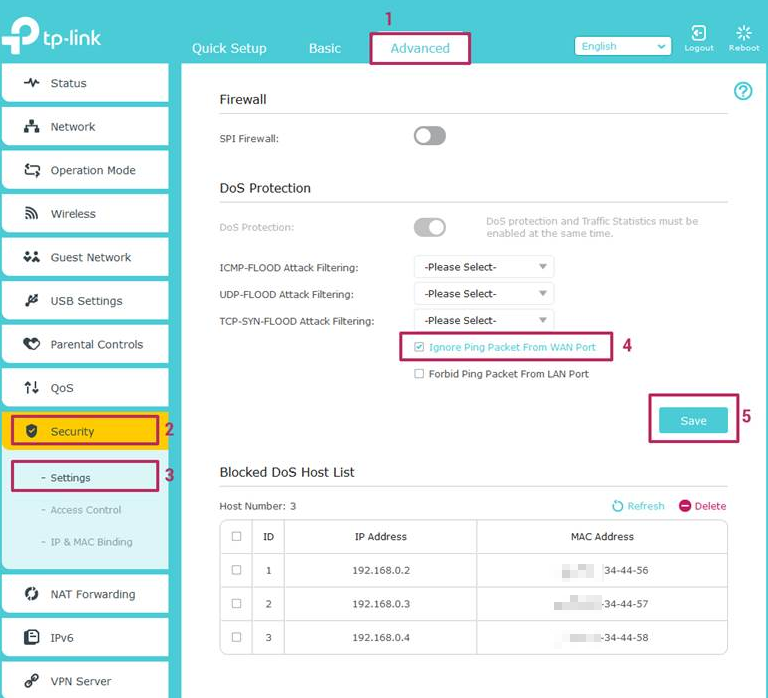
- The Ignore Ping from WAN Port setting is located under Advanced > Security > Settings in the TP-Link web management page.
What Is Ping?
The measurement works by sending packets and recording the response time. Sending a Ping Packet to the WAN Port of a router should cause the router to respond immediately. If there is no response or a delayed response, it means the network is interrupted or internet access is poor.
Why Ignore the Ping from the WAN?
1. Ping Can Burden Your CPU and Affect Network Security
A large number of ping requests can burden the CPU, slowing down normal network traffic and potentially blocking connections. While ping is a legitimate network testing tool, it can also be misused to overload a network by sending large numbers of packets in a short period.
2. Ping May Expose Your IP to Hackers
Hackers usually scan the IP addresses on the Internet before launching an attack. One common scanning method is Ping. If one device responds, it means the device is active and can be targeted for attack. Enabling Ignore Ping from WAN Port hides the router from these scans.
How to Enable Ignore Ping from WAN Port
The Ignore Ping from WAN Port setting can be enabled in the TP-Link web management page.
Follow the steps below, Archer A7 is used as a demonstration:
Step 1: Log in to the web management page
How do I log into the web-based Utility (Management Page) of the TP-Link wireless router?
Step 2: Go to Advanced > Security > Settings and check the Ignore Ping Packet From WAN Port option.
Step 3: Don’t forget to save your settings!
For more details, download the manual for your product from the Download Center.
Looking For More
Is this faq useful?
Your feedback helps improve this site.

TP-Link Community
Still need help? Search for answers, ask questions, and get help from TP-Link experts and other users around the world.