How to view camera SD card recordings on a computer
 400639
Introduction
This FAQ explains how to access and view video recordings stored on a camera’s SD card using a computer. It provides step-by-step guidance for both Windows and macOS users, helping you correctly connect the SD card, locate the stored files, and understand the different file types created by the camera. By following this guide, you can efficiently manage and review recorded videos while avoiding actions that may affect normal recording or playback.
Configuration
Step 1. Remove the SD card from the camera and insert it into your computer's SD card slot or an SD card adapter. If you are using the SD card adapter, insert it into a USB port on your computer.
Step 2. Access the SD Card files on your computer.
- For Windows: Depending on your computer's settings, a dialog box may appear. If a dialog box does not appear, open Windows File Explorer to locate and select the SD card on the left side of the window.
- For Mac: If you are using the SD card for the first time, your Mac will automatically install the necessary driver software. A device icon will appear on your Mac display. Double-click the icon. You can also click “Finder” to open the Finder window, then choose the SD card icon under Devices. The contents will display in a separate window.
QA
Q1: What if the recorded videos have no sound?
A1: The recorded video uses G.711 as the standard for audio companding. Some players do not support the codec, such as Windows Media Player, so the video plays on Windows without sound.
Please use a player that supports the G.711 codec, such as VLC on Windows. It can also be played properly on iOS. For Android, please use the player that supports the G.711 codec as well.
Q2: Why can the video recordings not be played?
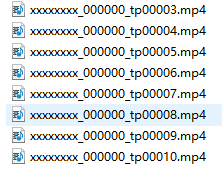
A2: The SD card will be automatically divided into multiple MP4 files once formatted in the Tapo app, and all folders will be named xxxxxxxx_000000_tp00001.mp4, xxxxxxxx_000000_tp00002.mp4, and so on.
These MP4 files cannot be played or opened because they contain no recordings. These files are reserved for subsequent writing. The actual video recordings will overwrite the files one at a time.
Reserved files cannot be played:
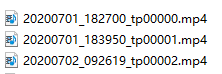
Normally recorded videos (the prefix of the file will be replaced with the date and time):
Q3: Why are there different types of files on the SD card, and can I delete them?
A3: It is normal to see different file contents on the SD card, especially when different camera models have formatted it. Each camera may use a slightly different file structure.
Tapo Cameras automatically create several system files (such as .bin, .pic, and .index) for configuration and playback management. Deleting or modifying these system files may cause recording or playback issues and is not recommended.
You may also see other files on the SD card, including:
- snapshot: Stores detection images and related index files.
- sysxx.bin: Used for disk management and video indexing.
- tp00000.pic: Stores detection images generated by the camera.
To ensure proper camera operation and video playback, it is recommended to keep all files on the SD card intact.
คำถามที่พบบ่อยนี้มีประโยชน์หรือไม่?
ความคิดเห็นของคุณช่วยปรับปรุงเว็บไซต์นี้