How to Improve Your Wi-Fi Signal and Wireless Range
 2147682
Weak Wi-Fi signal, slow speeds, or limited range are common problems with a few reliable solutions. This guide covers three categories of fixes: choosing the right location for your router, adjusting its configuration settings, and expanding your Wi-Fi coverage when needed.
- Choosing the best location
- Optimizing the configuration of the device
- Expanding your Wi-Fi coverage
Key Takeaways
- The 5 GHz Wi-Fi band offers faster speeds but shorter range, and is more sensitive to physical obstacles than the 2.4 GHz band.
- Common causes of weak Wi-Fi include physical barriers like walls and ceilings, interference from devices like microwave ovens and cordless phones, channel conflicts with nearby routers, and poor router placement.
- Positioning antennas vertically (for the same floor coverage) or at 30 degrees (for multi-story building coverage) can improve signal spread.
- Switching your 2.4 GHz router channel to 1, 6, or 11, and 5GHz channel to 36-48 can reduce interference in environments with many overlapping Wi-Fi networks.
- If your router’s current Wi-Fi signal doesn’t reach every corner of your home, you can add compatible devices to eliminate dead zones.
Symptom
Weak Wi-Fi signal, slow Wi-Fi speed, or limited range.
Cause
The factors most frequently affecting the Wi-Fi signal:
Intrinsic Factors
Transmission Distance.
For wireless devices operating on the 5 GHz band, the signal is more sensitive to obstacles. Though the 5 GHz band offers clearer channels than the 2.4 GHz band, the Wi-Fi signal is reduced significantly and travels a shorter range due to the higher frequency.
Antenna.
Omni-directional antennas and directional antennas
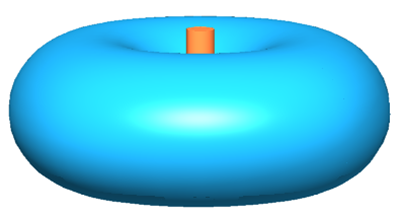
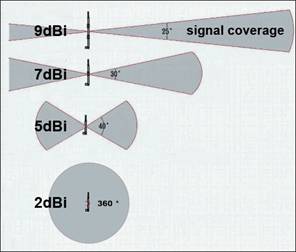
Omni-directional antennas are found in home products like wireless routers and wireless ADSL2+ Modem Routers. They radiate horizontally in all directions, but produce a weaker signal above and below the antenna, as the picture shows.
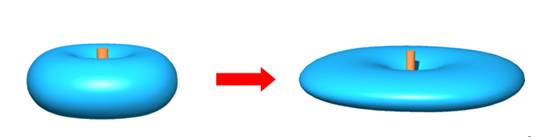
Directional antennas radiate strongly in a particular direction and are typically used for high-power outdoor products. As the gain of a directional antenna increases, so does the coverage distance, but the effective coverage angle decreases.
In general, a higher antenna gain value produces a more directional signal, increasing range in one direction while narrowing the overall coverage angle.
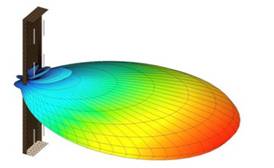
Directional antennas concentrate signal energy in a specific direction, with little energy transmitted behind the antenna. Refer to the picture below.
This narrowing effect becomes more pronounced with High-Gain antennas. Make sure the antenna is aimed precisely in the direction you need coverage, as misalignment can cause significant signal loss.
Wireless Communication Performance.
Higher transmission rates, better performance.
Extrinsic Factors
- Physical barriers such as walls, floors, and partitions.
- Interference from other devices that use the same frequency band, such as microwave ovens, cordless phones, and Bluetooth devices.
- More than one access point (AP) or wireless router operating on the same channel.
- Poor placement of the AP or wireless router. Place the device in an elevated, central location to reduce the impact of physical barriers.
Solution
Choosing the Best Location
1. Position antennas for the best location and direction.
- For the same floor coverage, place antennas vertically, so the coverage is best on the same level.
- For multi-story building coverage, placing antennas at 30 degrees (diagonally) is more effective. Because antennas transmit weakly at the base, do not place your wireless client device directly below a TP-Link wireless router or access point..
2. Reduce interference from physical and electronic sources.
- Avoid physical obstructions within the wireless coverage area. Each wall or ceiling reduces Wi-Fi signal strength, particularly those containing metal or dense materials.
- Keep your device away from electromagnetic noise sources that generate radio frequency (RF) noise, such as microwaves, monitors, electric motors, and copying and fax machines.
Optimize Configuration of the Device
For TP-Link wireless products, adjust the following settings to reduce interference from other networking and radio frequency equipment.
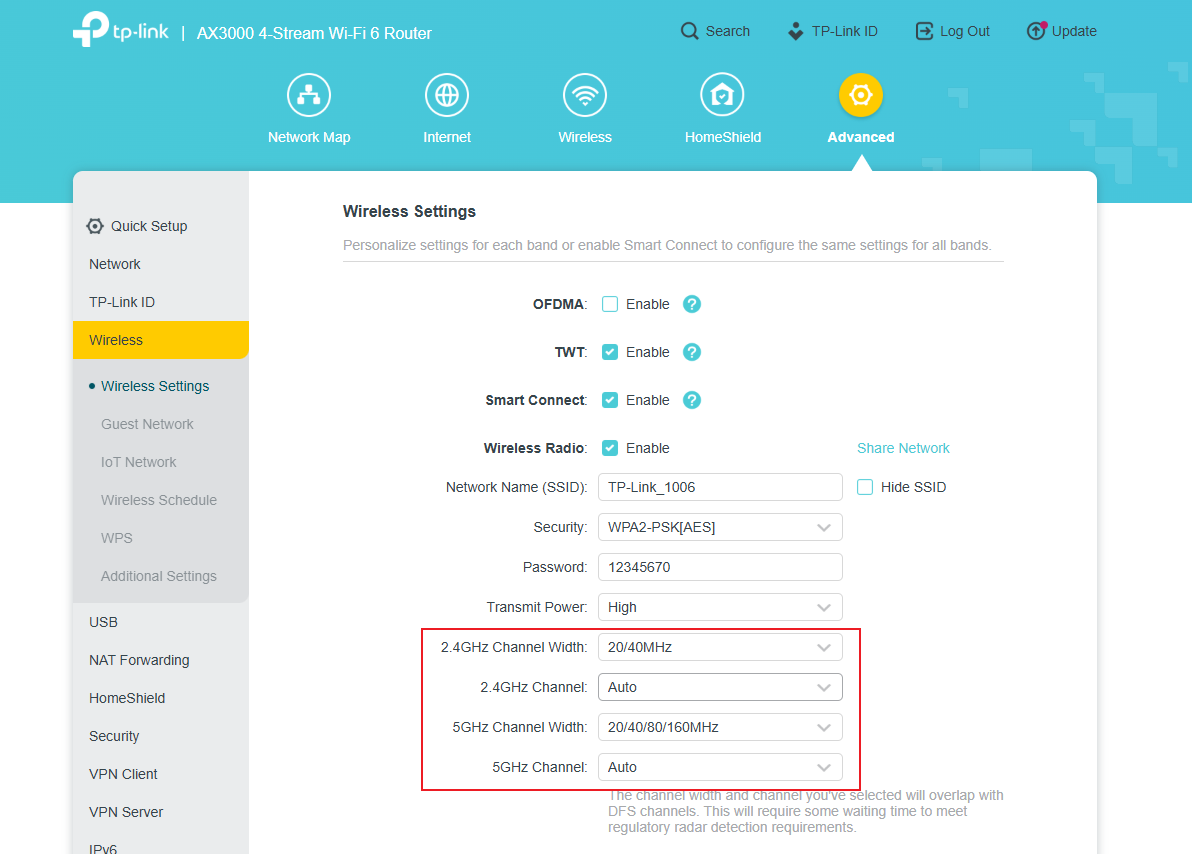
Log in to your product first (see how to log in to your TP-Link router for guidance). Using the Archer AX55 user interface as an example, go to Advanced > Wireless > Wireless Settings and change the channel setting. The default value is Auto. If you are experiencing high Wi-Fi interference, consider channel 1, 6, or 11 for 2.4G, and 36, 40, 44, 48 for 5G.
Note: The interface may differ by model.
For 802.11b/g, there are 14 channels in the 2.4 GHz range. Three non-overlapping channels are recommended: 1, 6, and 11. (In some European regions, channels 1, 7, and 13 are used instead. Check your local regulations.) In some cases, even these common channels may be congested. Select the channel that works best for your local environment.
Expand Your Wi-Fi Coverage
If your router’s current Wi-Fi signal doesn’t reach every corner of your home, you can add compatible devices to eliminate dead zones. Here are some common solutions:
- For a single weak spot on the same floor, try a Range Extender. Place it about halfway between your router and the area with a poor signal to extend coverage precisely where you need it.
- For whole-home coverage across multiple rooms or floors, a Deco Mesh Wi-Fi System is the best choice. It uses multiple units working together to create a single, seamless network that blankets your entire space with a strong, consistent signal.
- For a congested wireless environment or difficult-to-wire areas, consider a wired alternative like Powerline Adapters. They use your home's electrical wiring to create a stable and reliable network connection, which is ideal for reducing interference.
Related Blogs
Este guia foi útil?
A sua resposta ajuda-nos a melhorar o nosso site.