
TP-Link Router Internet Light Off or WAN Port Unplugged: Fix It
If the internet light on your TP-Link router is off, or the web interface shows "WAN Port Unplugged" or "Something Is Wrong with the Hardware Connection," this guide walks you through diagnosing and fixing the problem.
Note: If other LEDs on your router are also malfunctioning, refer to What should I do if the LED of the TP-Link router is abnormal? instead.
Key Takeaways
- Before troubleshooting, confirm you are using an RJ45 Ethernet cable, not an RJ11 phone cable. Using the wrong cable type is a common cause of this error. See How to distinguish RJ45 and RJ11 cables if you are unsure.
- Test whether the modem is working by connecting a computer directly to the modem and checking for Internet access. If the computer cannot connect through the modem, the problem is with the modem or your Internet service provider (ISP), not the TP-Link router.
- If the modem is working, disconnect it from the router and plug the same Ethernet cable from the router's WAN port into one of its LAN ports. If both the Ethernet and Internet lights turn on, the router's WAN port hardware is functioning.
- For routers that show "WAN Port Unplugged" but have only one LED indicator (such as the Archer AX3200, AX11000, AX6000, or C5400), the issue may be a speed negotiation problem. Go to Advanced > Internet > Internet Port Negotiation Speed Setting and force the setting to 100Mbps full duplex.
- If the internet light is still off after completing all steps, contact TP-Link support with your modem model number, ISP name, and TP-Link router model, hardware version, and firmware version.
Note: Refer to this FAQ if the router's other LEDs are malfunctioning in addition to the Internet LED: What should I do if the LED of the TP-Link router is abnormal
Please first verify that the cable is detected by your router. If the internet light on your router is off or there are any error messages on the TP-Link router's web interface, such as "WAN Port unplugged" or "something wrong with the hardware connection", refer to How to distinguish the RJ45&RJ11?
If your cable is appropriate for your router, please use the following steps for troubleshooting:
Step 1: Verify the physical connection
Confirm the Ethernet cable is firmly seated in the router's WAN port. If the cable looks worn or you are unsure whether it is working, replace it with a new CAT5E or higher Ethernet cable and retest.
Step 2. Test whether the modem is working
Disconnect the router and connect a computer directly to the modem using an Ethernet cable. Check whether the computer can access the Internet.
- If the computer cannot connect through the modem directly, the modem or your ISP is likely the source of the problem. Contact your ISP for assistance. See also What Should I Do If I Cannot Access the Internet Through a Wi-Fi Router? and TP-Link Router Unstable Connection: Troubleshooting Guide.
- If the computer can connect through the modem, and your router has a separate internet LED, the modem is working. Continue to Step 3.
- If your router has only one LED indicator (such as the Archer AX3200, AX11000, AX6000, or C5400) and the web interface shows "WAN Port Unplugged" or "Something Is Wrong with the Hardware Connection": Skip to Step 4.
Step 3. Test the router's WAN port
Disconnect the Ethernet cable from the modem. Plug that same cable from the router's WAN port into one of the router's LAN ports. Check whether the Ethernet and internet LEDs turn on.
- If both the Ethernet and Internet lights turn ON: The router's WAN port is functioning. The issue is likely a speed negotiation problem between the router and the modem. Continue to Step 4.
- If both the Ethernet and Internet lights are OFF, the WAN port may be faulty, or the Ethernet cable may be faulty. Try a different Ethernet cable first. If the issue persists, contact TP-Link support for further assistance. You may also want to check What Should I Do If an Error Message Appears in the TP-Link Web Management Page?
Step 4. Set Internet Port Negotiation Speed
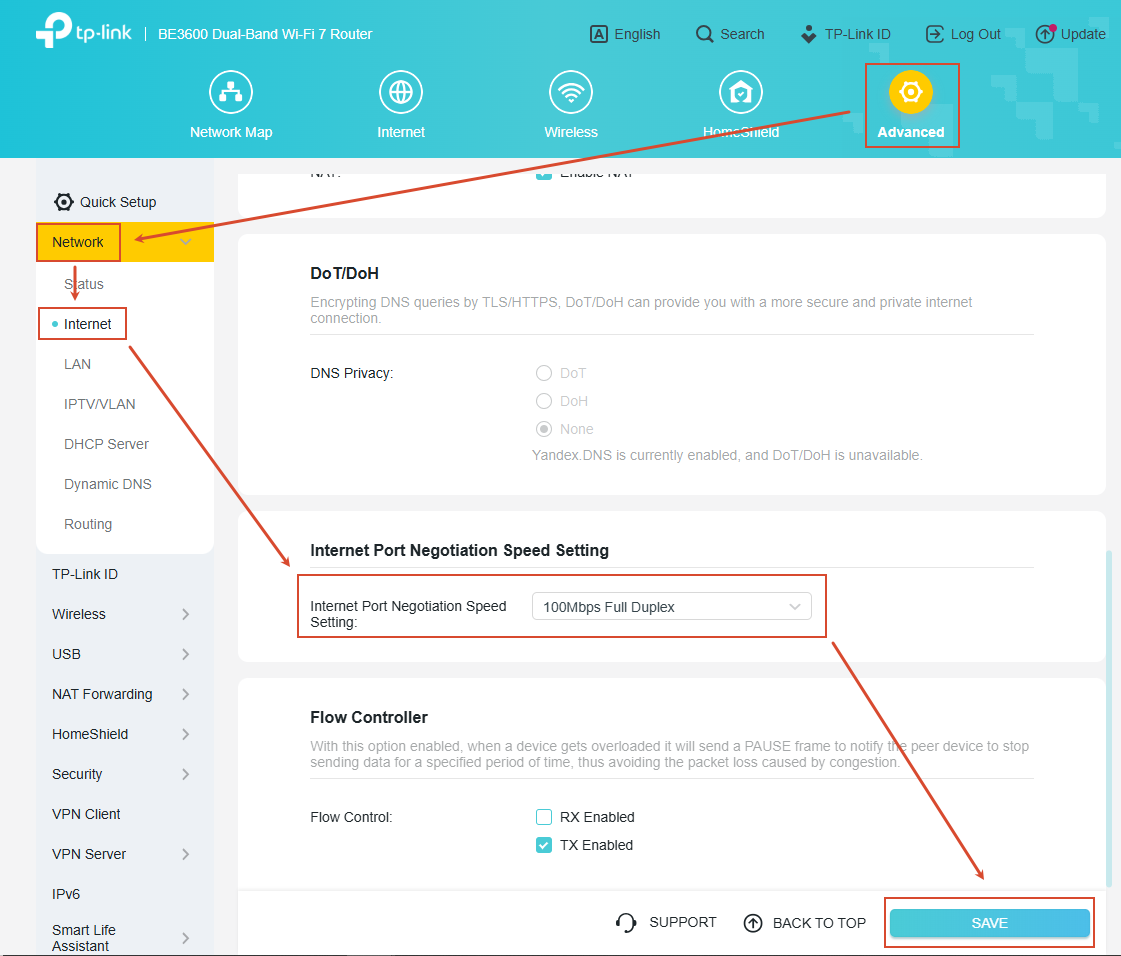
Connect the modem back to the WAN port of the router as you normally would, and log into the web interface of the TP-Link router. Under Advanced > Internet > Internet Port Negotiation Speed Setting, set the internet port negotiation speed to 100 Mbps full duplex, and check whether the internet LED comes on.
We take Archer AX1500 as an example.
Step 5. Reset Router
To reset the router if needed. With the router powered on, press and hold the Reset button for more than 10 seconds to perform a hard reset. see How to Reset TP-Link Products to Factory Defaults.
If the internet light on the router is still off, please contact the TP-Link support team with the following information.
- The model number of the modem
- Your internet service provider's name
- The model number, hardware, and firmware version of the TP-Link Router
- Results of each troubleshooting step
Looking For More
Is this faq useful?
Your feedback helps improve this site.
3.0-A_normal_1584497102381x.png)



TP-Link Community
Still need help? Search for answers, ask questions, and get help from TP-Link experts and other users around the world.