
How to Reset a Tapo Light Bulb: Soft Reset and Factory Reset
There are two ways to reset a Tapo smart bulb: a soft reset that keeps your existing settings, and a factory reset that erases all custom settings and restores the bulb to factory defaults. You might need to reset your Tapo light bulb if it is experiencing connectivity issues, being moved to a new Wi-Fi network, or being transferred to a new account.
Use a soft reset to troubleshoot minor issues without losing your settings, or a factory reset when reconfiguring the bulb from scratch.
This article walks you through how to perform a soft reset and factory reset for Wi-Fi-only control models and Bluetooth-enabled control models.
Key Takeaways
- Tapo smart bulbs have two reset types: soft reset that retains all current custom settings, and factory reset that erases custom settings and restores the bulb to factory defaults.
- Soft reset procedures differ by connectivity: Wi-Fi-only Tapo smart bulbs require 5 on-off toggle cycles (1-second pause per interval) with a 3-blink confirmation; Bluetooth-enabled models can change the Wi-Fi directly in the Tapo app without resetting: Tapo app > Device Setting > Network Connection > Switch Wi‑Fi
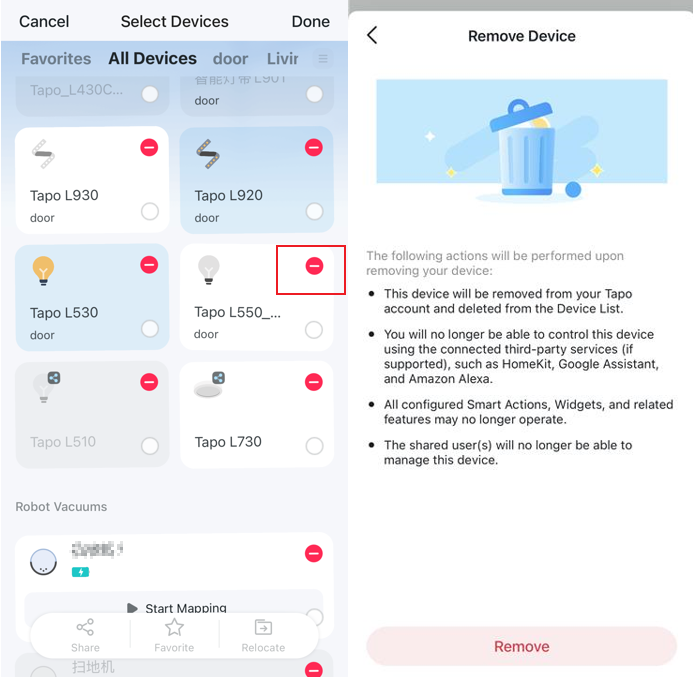
- Any Tapo smart bulb can be factory reset via the Tapo app: long-press the device card on the home page, tap the minus icon to remove the bulb from your TP-Link account and restore defaults.
- Physical toggle factory reset also differs by connectivity: Wi-Fi-only Tapo smart bulbs require 10 on-off cycles, while Bluetooth-enabled models require 5 cycles, and both confirm a successful reset with 3 blinks.
How to Reset Your Tapo Smart Bulb
Refer to the video for additional information.
Devices Support Wi-Fi-only Control
Soft Reset: Keep Your Current Settings
- Turn the light switch controlling the smart bulb to the on position first.
- Switch it off and on 5 times, pausing for one second between each cycle.
- The smart bulb should blink 3 times.
Factory Reset: Restore to Factory Defaults
Method 1: Remove the Device via the Tapo App
On the home page, long-press your camera model card, then tap the minus icon on the card. The camera will be removed from your TP-Link account and reset to default settings.
Method 2: Use the Reset Button
- Turn the light switch controlling the smart bulb to the on position first.
- Switch it off and on 10 times, pausing for one second between each cycle.
- The smart bulb should blink 3 times.
Devices Support Bluetooth-enabled Control
Soft Reset: Keep Your Current Settings
For models that support Bluetooth control, you can change the Wi-Fi directly in the Tapo app without resetting: Tapo app > Device Setting > Network Connection > Switch Wi‑Fi
Factory Reset: Restore to Factory Defaults
Method 1: Remove the Device via the Tapo App
On the home page, long-press your camera model card, then tap the minus icon on the card. The camera will be removed from your TP-Link account and reset to default settings.
Method 2: Use the Reset Button
- Turn the light switch controlling the smart bulb to the on position first.
- Switch it off and on 5 times, pausing for one second between each cycle.
- The smart bulb should blink 3 times.
For more details on your bulb's functions and configuration, visit the Download Center to download your product's manual.
Looking For More
¿Es útil esta pregunta frecuente?
Sus comentarios nos ayudan a mejorar este sitio.


TP-Link Community
Still need help? Search for answers, ask questions, and get help from TP-Link experts and other users around the world.