
How to Recover Your TP-Link Router Login Password
This page covers how to recover the admin login password for your TP-Link router — this is separate from your Wi-Fi network password. There are two scenarios: if you set up Admin Password Recovery in advance, you can recover your TP-Link router password without a reset. If you are already locked out and did not configure Password Recovery, a factory reset is required to regain access. There are two methods to recover the admin password, and this article will provide detailed guidance:
- Method 1: Recover via Email
- Method 2: Recover via Security Questions (Not all models support this method. Check your router’s web interface for availability)
Key Takeaways
- The Password Recovery feature lets you recover your TP-Link router's admin login password via email or security questions if you forget it, but it must be set up before you are locked out.
- To enable Password Recovery, log in to the router's web management page and go to Advanced > System/System Tools > Administration.
- To recover the password through email, configure a sending and receiving email address along with your Simple Mail Transfer Protocol (SMTP) server details.
- To recover the password through security questions, select two questions and customize your answers.
- After saving the configuration, you can recover your password by visiting tplinkwifi.net, clicking Forgot Password? on the login page, and following the on-screen steps to set a new password.
- If you are using a TP-Link ID to log in to the web management page, the Email Password Recovery method will be disabled, while the Security Question method remains. Manage your TP-Link ID at Basic > TP-Link Cloud.
- If you are already locked out and have not set up Password Recovery in advance, a factory reset is required to regain access.
This feature allows you to recover the login password you set for your router in case you forget it. If you cannot already log in to the management page, please reset your router to its factory default settings.
Steps to Enable Password Recovery
Step 1: Log In to the Web Management Page
Connect your device to the router via Wi-Fi or an Ethernet cable.
Open a web browser, and enter https://tplinkwifi.net.
Log in with your admin password.
Step 2: Navigate to Password Recovery Settings
Go to Advanced > System/System Tools > Administration and focus on the Password Recovery section.
Note: The Security Questions feature varies by router model. If the option is missing, your model does not support it.
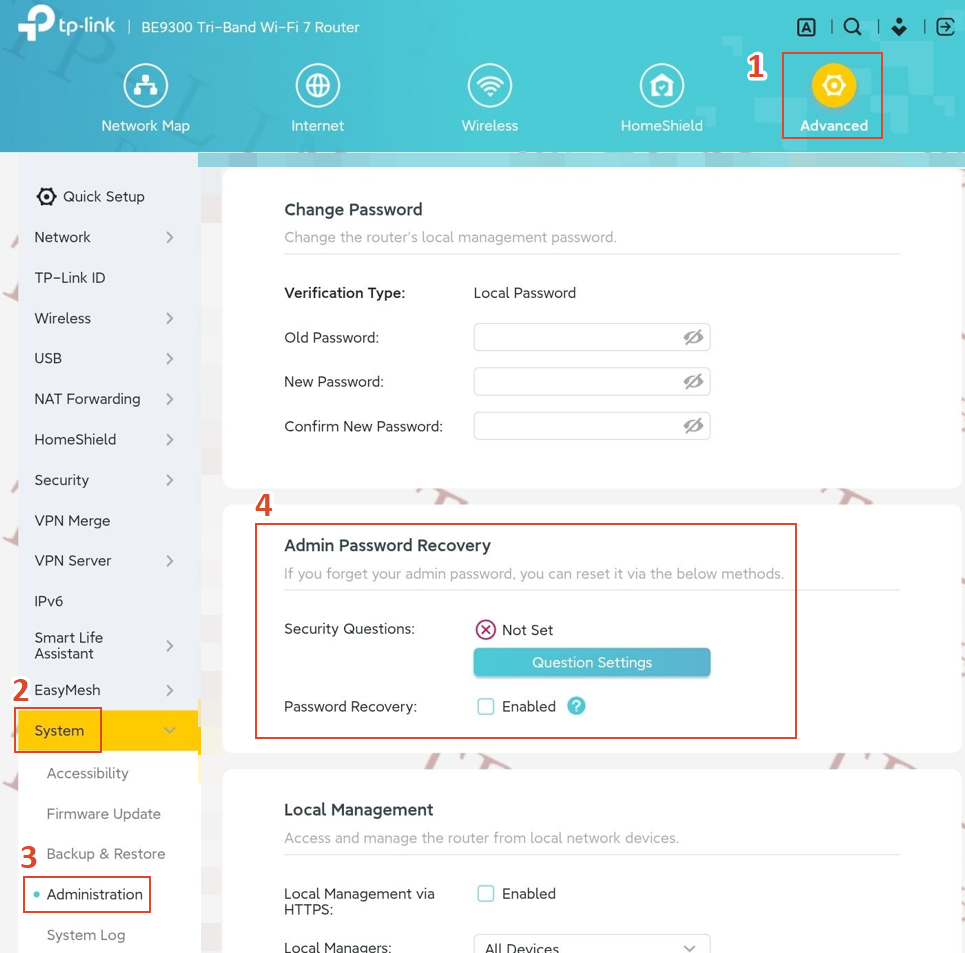
Step 3: Select a password recovery method and follow the steps below to configure it
Method 1: Recovery Via Email
1) Tick the Enable Password Recovery checkbox.
2) Configure Your Email and SMTP Server
Specify a mailbox (From) for sending the recovery letter and enter its SMTP Server address. Specify a mailbox (To) for receiving the recovery letter. If the mailbox (From) used to send the recovery letter requires encryption, select Enable Authentication, then enter its username and password.
Tip: The SMTP server is available for users in most webmail systems. For example, Gmail's SMTP server address is smtp.gmail.com. You can refer to their Help page to learn the SMTP server address.
Generally, Enable Authentication should be selected if the mailbox login requires a username and password.
3) Click Test Email to test whether the configuration is successful.
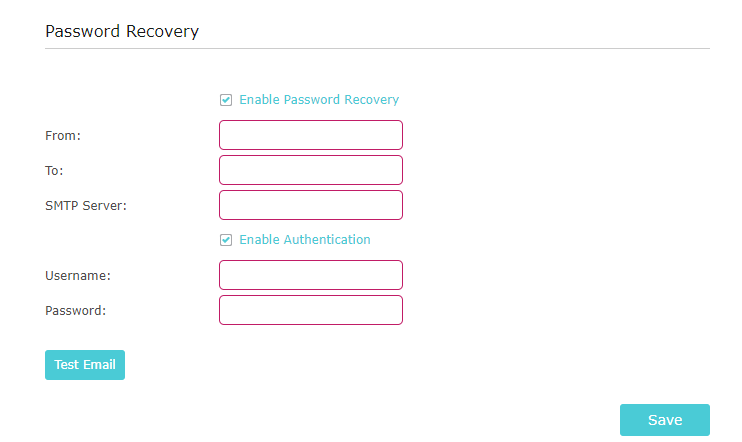
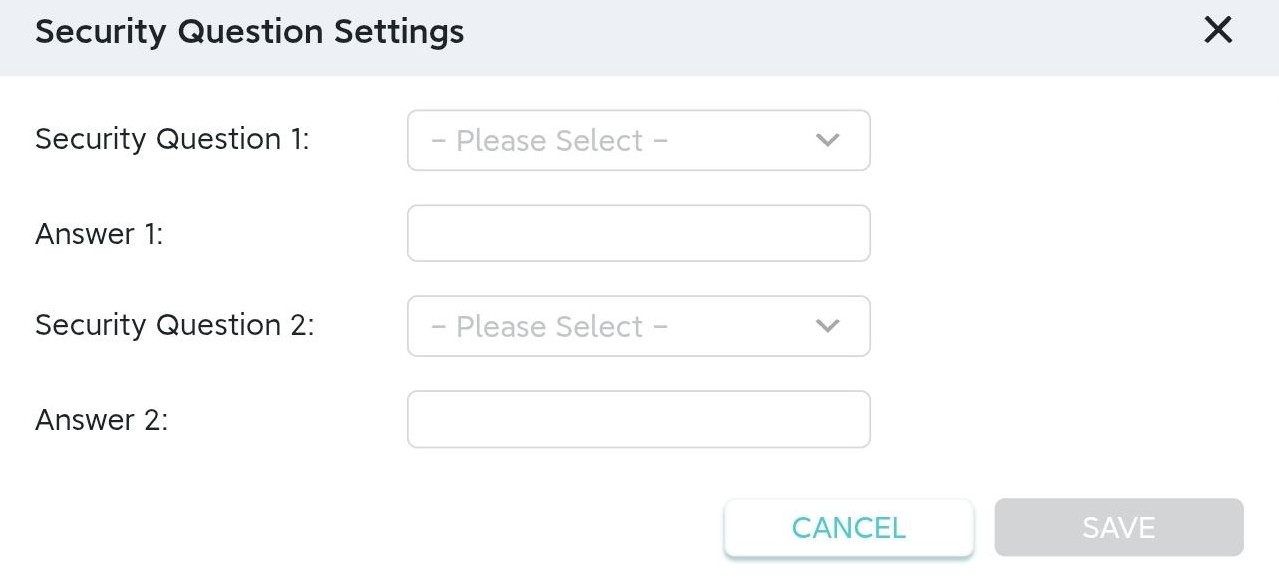
Method 2: Recovery Via Security Questions
1) Click Question Settings.
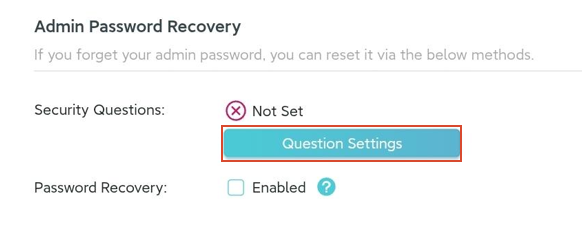
2) Enter your admin password to verify.
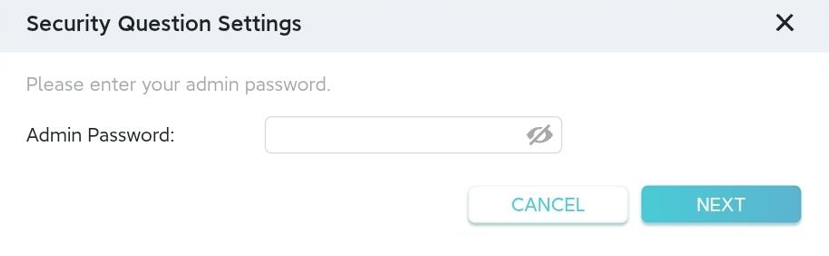
3) Select two security questions from the provided list, customize your answers, and Save.
How to Use Password Recovery Once It Is Set Up
Once Password Recovery is configured, follow these steps if you forget your router login password:
- Open a browser and visit tplinkwifi.net.
- On the login page, click Forgot Password?
- Follow the on-screen instructions to verify your identity via email and set a new password.
Already Locked Out? Use Factory Reset
If you are already locked out of your router and did not set up Password Recovery in advance, you will need to reset your router to factory default settings to regain access. This will erase all custom settings, including your Wi-Fi name and password. For full instructions, see how to reset a TP-Link router to factory defaults.
Looking For More
Is this faq useful?
Your feedback helps improve this site.


1.0_normal_20210812031127k.png)

TP-Link Community
Still need help? Search for answers, ask questions, and get help from TP-Link experts and other users around the world.