
How to Rename Your Deco Device in the Deco App
If you move a Deco unit to a different room, you may want to rename your Deco device to reflect its new location. The Deco app makes it simple: you can choose a name from a preset list of room options, or enter a custom name using the Custom tab.
Key Takeaways
- Renaming a Deco device is a quick process you can complete in just a few taps in the Deco app.
- To rename a Deco device, open the Deco app, go to the Network page, and tap the Network Map section.
- Tap the Deco unit you want to rename, then tap the edit icon.
- You can choose a preset name from the provided list, or enter a custom name using the Custom tab.
- Tap Save after selecting or entering the name to apply the change.
When moving your Deco device from one room to another, you may want to change its name. This article will guide you on how to change the name of your Deco device.
Rename Your Deco Device in the Deco App
Here we take Deco M5 as an example.
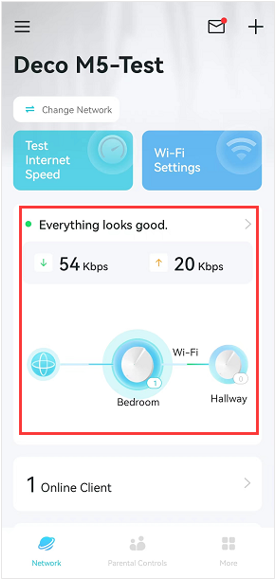
Step 1. To rename your Deco unit, log in to the Deco app, go to the Network page, and tap the Network Map section.
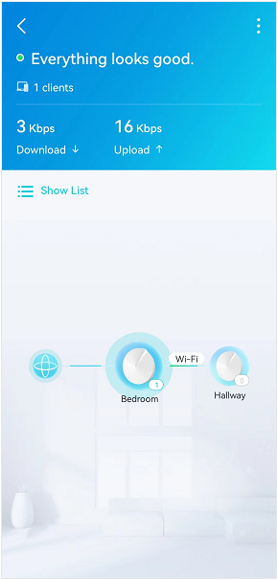
Step 2. Tap the Deco unit to which you want to change the name
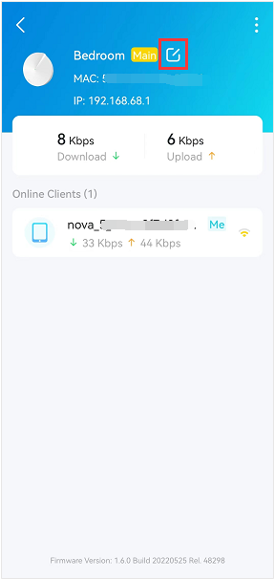
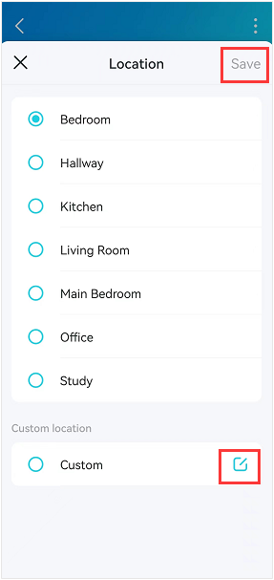
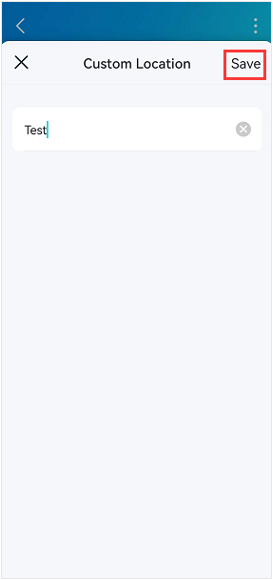
Step 4. Select a name from the list and tap Save. Or click on the edit icon at the Custom tab, set a name for the Deco manually, and then click on Save and tap Save again.
Looking For More
Is this faq useful?
Your feedback helps improve this site.

_Overview_normal_20211130005706l.png)


TP-Link Community
Still need help? Search for answers, ask questions, and get help from TP-Link experts and other users around the world.