
如何在 Windows 和 Mac 上更新 IP 位址(ipconfig /renew)
如果您的電腦設定為自動取得 IP 位址,在對路由器進行變更(例如更新其 IP 位址)後,您可能需要重新取得 IP 位址設定。重新取得會強制電腦向動態主機設定協定(DHCP)伺服器請求新的 IP 配置。在 Windows 上,這是透過命令提示字元中的 ipconfig /renew 命令來完成的。在 Mac OS 上,則是在系統偏好設定中進行處理。請在下方選擇您的作業系統,以跟隨適用於您架構的步驟。
重點摘要
- 重新取得 IP 位址是透過兩個命令提示字元命令來完成的:ipconfig /release 釋放目前的 IP 配置,而 ipconfig /renew 則向 DHCP 伺服器請求新的 IP 位址。
- 在 Windows XP 上,可透過開始 > 執行 > cmd 開啟命令提示字元。在 Windows Vista、7、8、8.1、10 和 11 上,請在開始功能表中搜尋「cmd」或按下 Windows 鍵 + X。
- 在 Mac OS 上,無需使用命令提示字元即可重新取得 IP 位址。前往系統偏好設定 > 網路,選擇您的連線,點擊進階,並在 TCP/IP 分頁下點擊續租 DHCP。
- 執行 ipconfig /renew 後,DHCP 伺服器(通常是您的路由器)會自動指派新的 IP 位址。無需手動輸入 IP 位址詳細資訊。
如何重新取得您的 IP 位址:逐步指引
選擇您電腦的作業系統
如何在 Windows 8、8.1 和 10 上重新取得您的 IP 位址
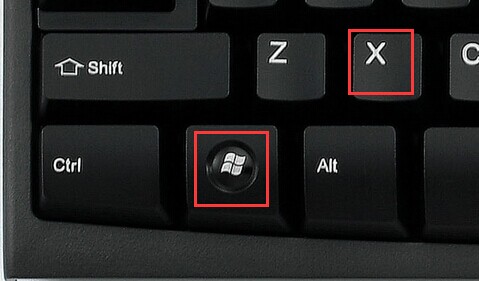
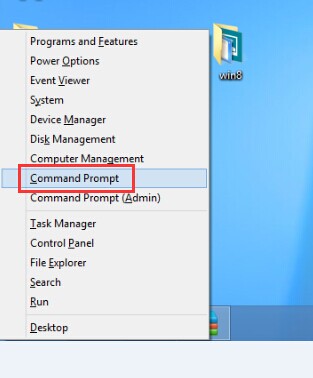
步驟 1. 同時按下 Windows 鍵與 X,然後點擊命令提示字元。
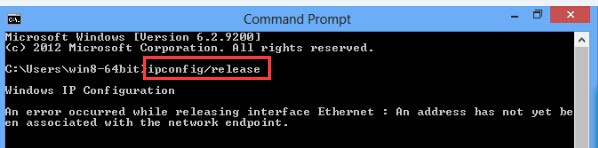
步驟 2. 在命令提示字元視窗中輸入 ipconfig /release,按下 Enter,即可釋放目前的 IP 配置。
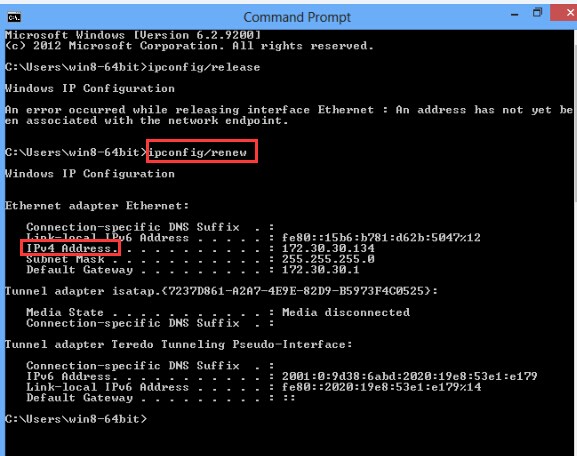
步驟 3. 在命令提示字元視窗中輸入 ipconfig /renew,稍等片刻,DHCP 伺服器將會為您的電腦指派新的 IP 位址。
如何在 Windows XP 上重新取得您的 IP 位址
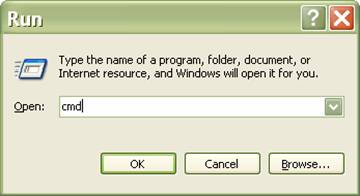
步驟 1. 點擊開始 > 執行,輸入 cmd,然後按下 Enter。
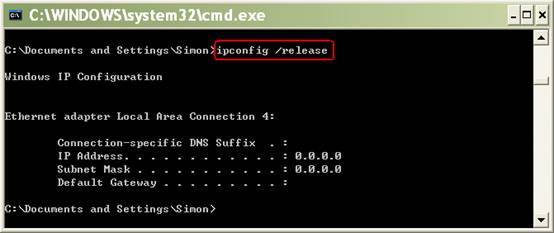
步驟 2. 在提示字元視窗中輸入 ipconfig /release 並按下 Enter。這將釋放目前的 IP 配置。
步驟 3. 在提示字元視窗中輸入 ipconfig /renew 並按下 Enter。稍等片刻 — DHCP 伺服器將會為您的電腦指派新的 IP 位址。
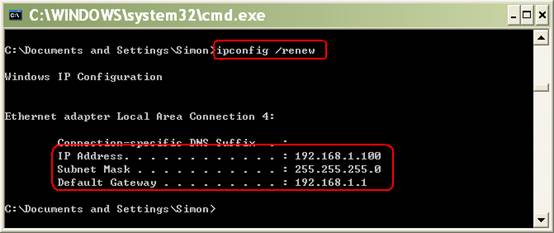
如何在 Windows Vista 和 Windows 7 上重新取得您的 IP 位址
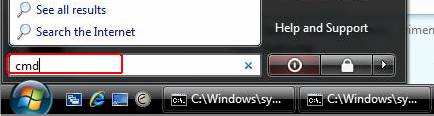
步驟 1. 點擊工作列上的開始,在搜尋方塊中輸入 cmd,然後按下 Enter。
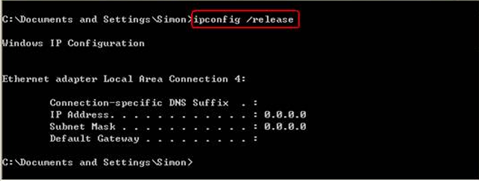
步驟 2. 在提示字元視窗中輸入 ipconfig /release,按下 Enter,即可釋放目前的 IP 配置。
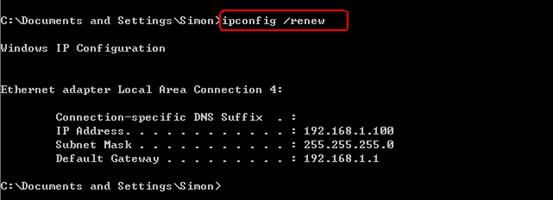
步驟 3. 在提示字元視窗中輸入 ipconfig /renew 並按下 Enter。稍等片刻 — DHCP 伺服器將會為您的電腦指派新的 IP 位址。
如何在 Mac 上重新取得您的 IP 位址
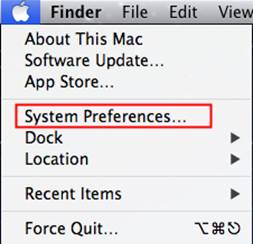
步驟 1. 點擊蘋果按鈕並前往系統偏好設定...。
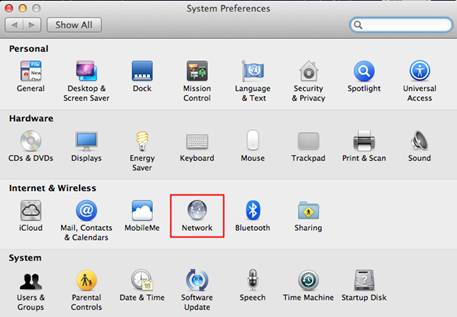
步驟 2. 點擊網路。
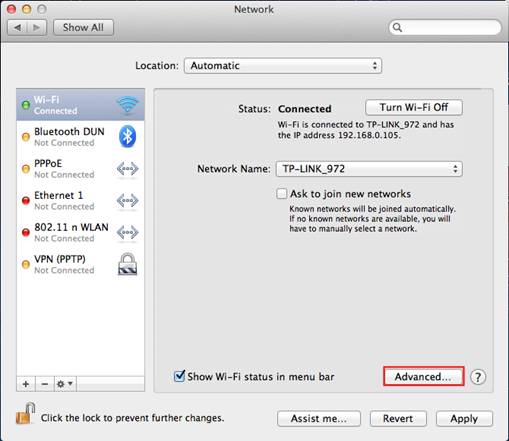
步驟 3. 在左側面板中,根據您的連線類型點擊 Wi-Fi 或乙太網路,然後點擊右下角的進階。
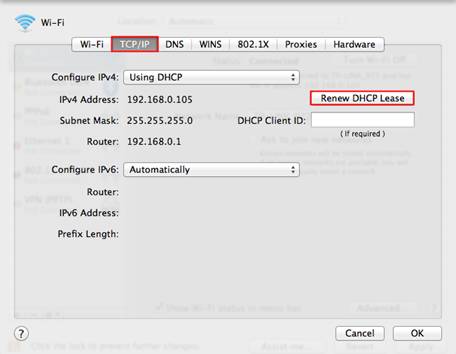
步驟 4. 選擇 TCP/IP 分頁。如果「設定 IPv4」設為「使用 DHCP」,您將會看到「續租 DHCP」按鈕。點擊它即可重新取得 IP 位址。
Looking For More
這篇faq是否有用?
您的反饋將幫助我們改善網站

TP-Link Community
Still need help? Search for answers, ask questions, and get help from TP-Link experts and other users around the world.