
How to Submit the Shipping Address for Part Replacement
This guide provides step-by-step instructions for submitting the shipping address in a Part RMA case for a defective TP-Link product part, after you have created the initial Part RMA case in your TP-Link account. Before you begin, please ensure that you have a part RMA case that is authorized by TP-Link technical support.
Key Takeaways
● To start a TP-Link Part RMA case process, open a supported web browser (Chrome, Edge, or Safari), navigate to https://myproducts.tp-link.com, and log in with your TP-Link ID.
● TP-Link cannot ship to PO Box addresses, so you must provide a valid physical shipping address during the process.
● After logging in, go to Account Info, select the page’s Edit icon, fill in your shipping address, click Save Address, and then submit the address to TP-Link.
● After submitting your address, open the Special Offer section from the left sidebar, locate the Part RMA case for your defective part, click Confirm, and select your saved shipping address.
● After case submission, if applicable you can click the Pay button to be redirected to PayPal, where you can either log into an existing PayPal account or fill out the guest checkout form to complete payment.
● Once you finish the payment process, you will be redirected back to the TP-Link Product Registration System, and can check your case status on the Special Offer page.
Instructions for Submitting the Address
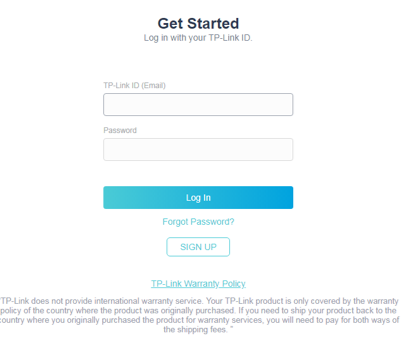
Step 1: Open a web browser (Chrome, Edge, Safari), and browse to ‘https://myproducts.tp-link.com’. Then log in with your TP-Link ID.
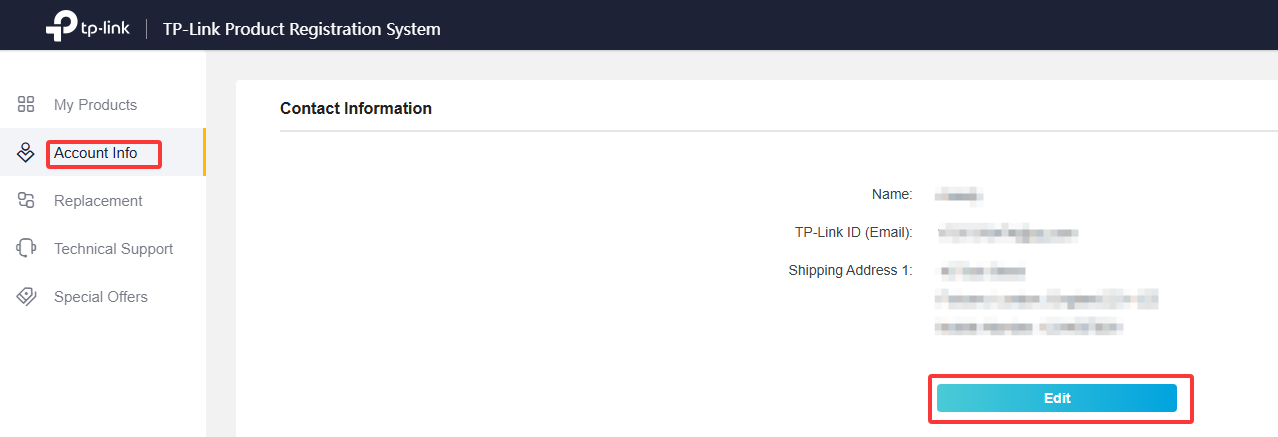
Step 2: Go to Account Info, then click the Edit icon in the middle of the page.
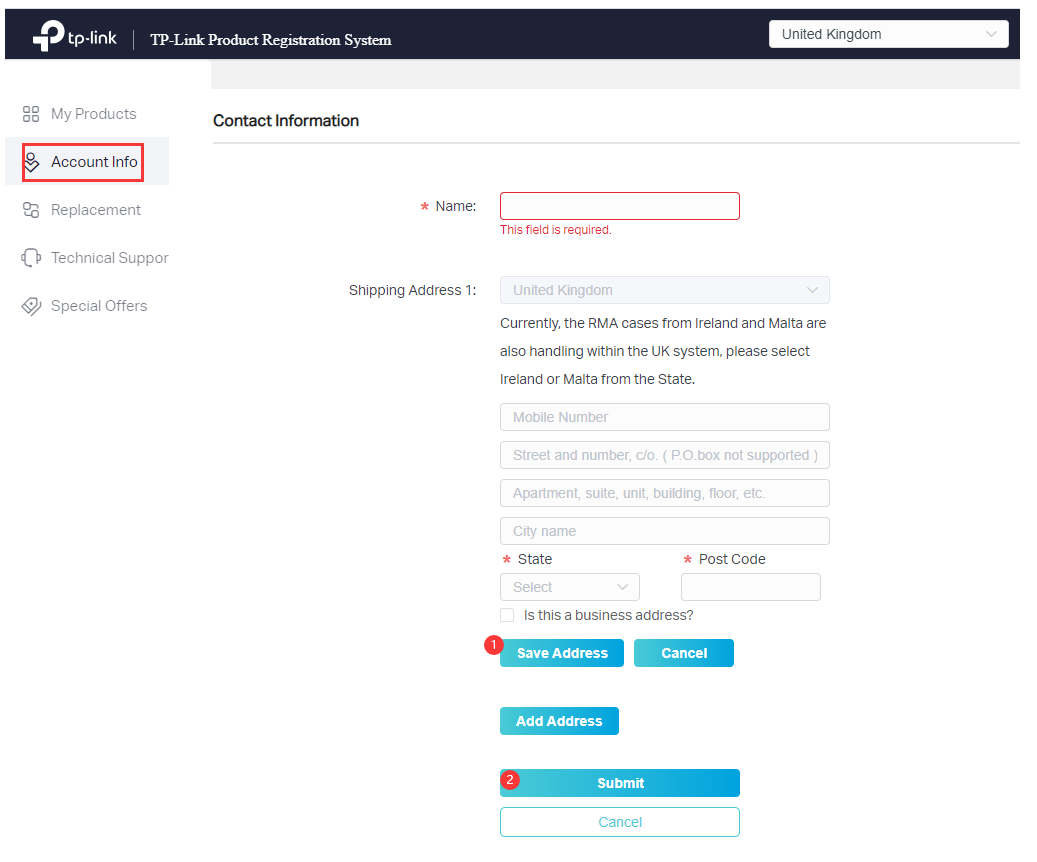
Step 3: Fill in your physical shipping address, click ‘Save Address’ and then click ‘Submit’.
Note: TP-Link cannot ship to PO Box address. Addresses must be a physical address.
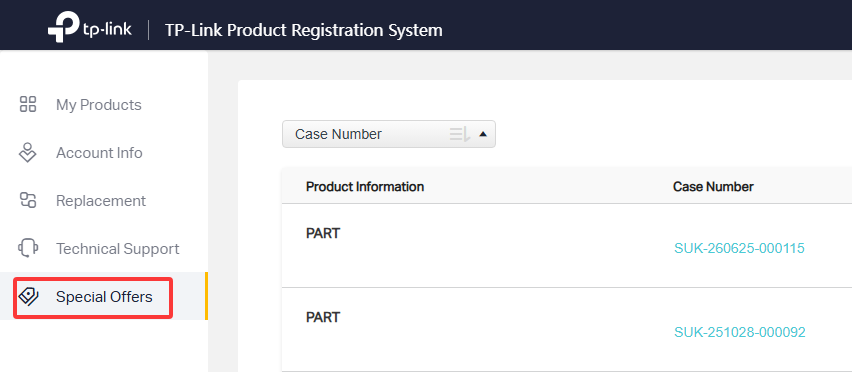
Step 4: Click on Special Offer on the left sidebar. You will see a Part RMA case for the defective part.
Step 5: Click on ‘Confirm’.

Step 6: Select your shipping address.
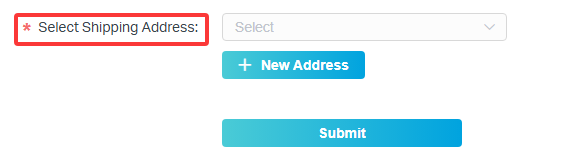
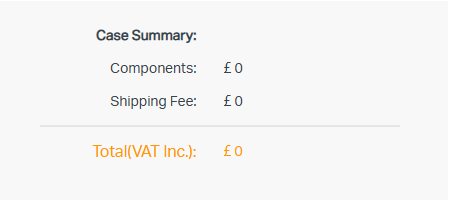
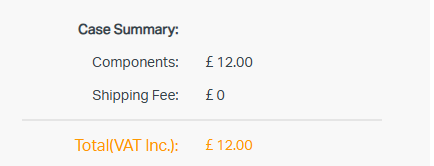
Step 7: After you select the shipping address, you will see a case summary like below:
For part replacement:
For part purchase:
Step 8: Once submitted, if applicable, click "Pay" to be redirected to PayPal to complete the payment process.
Note: If nothing happened when you click "Pay", please refer to Why doesn’t it allow me to pay when I submit an RMA?

Note: You can either sign in to your PayPal account or complete the Guest Form.
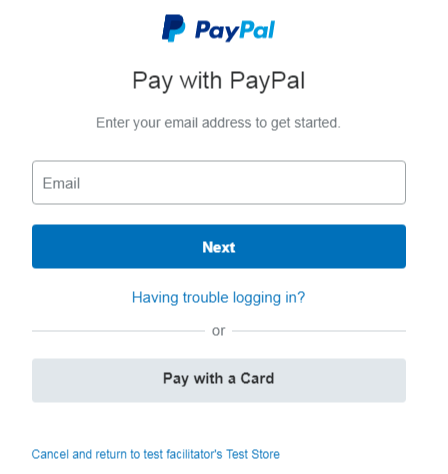
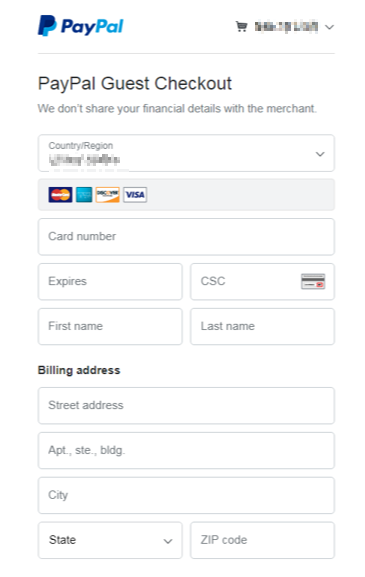
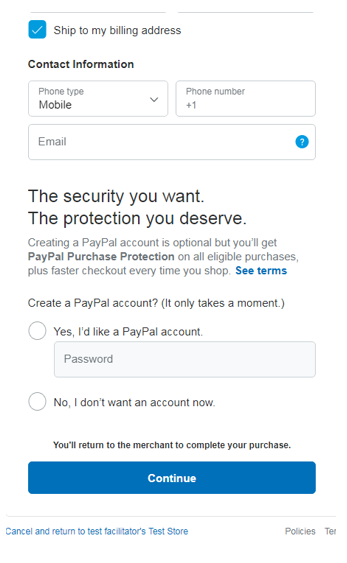
Step 9: Once you have completed the payment form you will be redirected back to the Product Registration System, where you can view the Status under the Special offer page.

Looking For More
Is this faq useful?
Your feedback helps improve this site.


TP-Link Community
Still need help? Search for answers, ask questions, and get help from TP-Link experts and other users around the world.