
How to Find the Model Number of Your TP-Link Device
Knowing your TP-Link model number is the first step for many common tasks — downloading the right firmware from the TP-Link Download Center, finding compatible accessories, registering your product, or getting help from support. This page explains where to find your TP-Link model number, no matter which type of device you have.
Key Takeaways
- The model number is printed on a label on the bottom or back of most TP-Link devices.
- For products without a label (such as smart bulbs or small adapters), the model number is printed directly on the device body.
- If the device itself is not accessible, the model number is also printed on the original packaging.
- You can also find the model number in the Tether, Deco, Tapo, or Kasa app under the device info section.
- The model number is not the same as the serial number or hardware version. All three may be needed when contacting support. See how to find the hardware version on a TP-Link device and how to find the serial number on TP-Link devices for help locating those.
Method 1: Check the Label on the Device
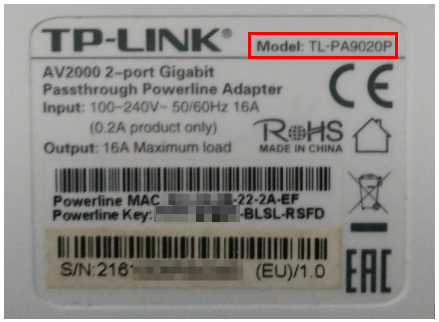
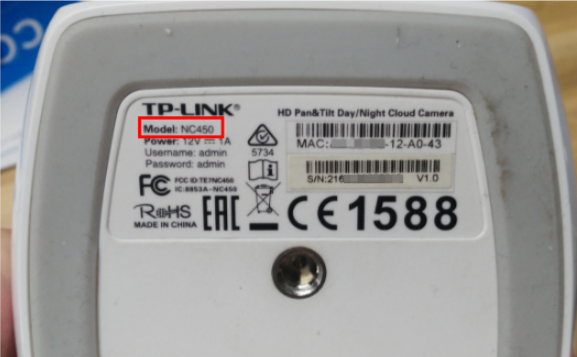
For most TP-Link products, the easiest place to find the model number is on the label located on the back or bottom of the device. Look for the text "Model:" followed by the model number string.
This applies to routers, Deco units, cameras, powerline adapters, and most other TP-Link devices.
Method 2: Check the Printed Text on the Device Body
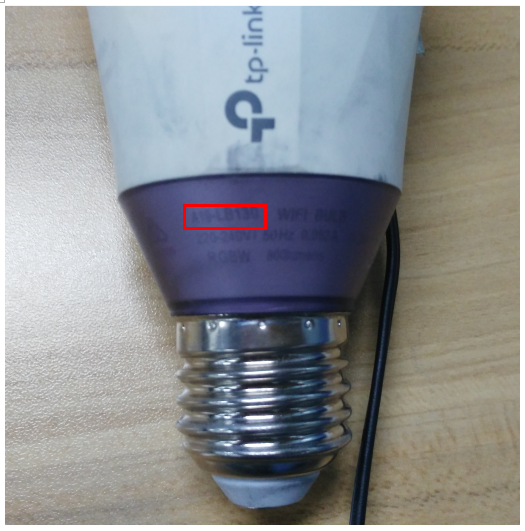
Some TP-Link products, such as smart bulbs and compact USB adapters, do not have a separate label. On these devices. The model number is printed or engraved directly on the product body. Look around the base, side, or connector end of the device.
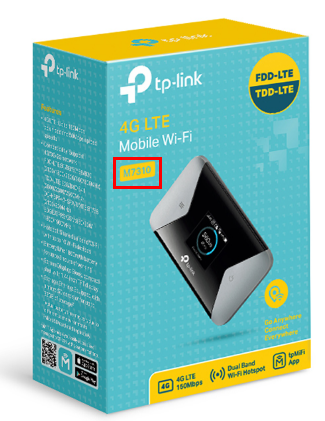
Method 3: Check the Original Packaging
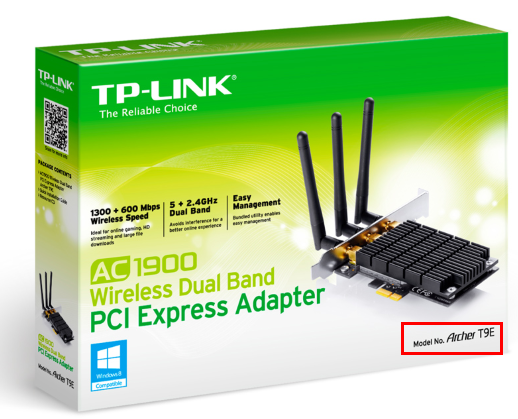
If you cannot locate the model number on the device itself, check the box it came in. The model number is printed on the outside of the packaging of all TP-Link products.
Method 4: Find the Model Number in the App
If your device is already set up and you have a TP-Link app installed, you can look up the model number there without needing physical access to the device. Open the Tether, Deco, Tapo, or Kasa app, select your device, and look for device information or device details in the settings.
For product manuals, visit the TP-Link Download Center and search by model number.
Is this faq useful?
Your feedback helps improve this site.


TP-Link Community
Still need help? Search for answers, ask questions, and get help from TP-Link experts and other users around the world.