Troubleshooting for Wi-Fi disconnecting issue on TP-Link MiFi devices
 297171
Introduction
Several factors may cause your Wi-Fi to disconnect automatically. This article offers possible solutions for the Problem phenomenon below:
- Wired connection works fine and stable, only wireless clients disconnect automatically.
- Wi-Fi signal disappears and reappears automatically after a couple of seconds.
Troubleshooting
Tip 1: Disable power saving mode
All our MiFi devices support power-saving mode, which is enabled by default. When no client devices connect to or use the internet for a specific time (10 minutes by default, but on M8550 V1.0 it is 3 minutes), the Wi-Fi will be automatically disabled; you need to press the power button to re-enable it. Therefore, if the issue occurs when no client devices are using the internet, it is normal. To avoid such an issue, you could disable power-saving mode.
Here is the related instruction:
Why my devices fail to detect the wireless signal of the Mobile Wi-Fi suddenly?
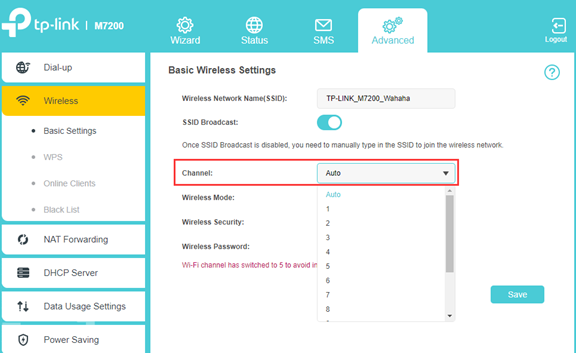
Tip 2: Change Wi-Fi channel from Auto to a static one
Tip 3: Set 5G/4G LTE band manually
On our MiFi devices, there is an LTE-WLAN channel avoidance mechanism: the MiFi detects interference between LTE and Wi-Fi, and if so, the Wi-Fi channel will change automatically. That mechanism is to avoid interference between LTE and Wi-Fi. Still, if LTE bands change frequently, you may experience frequent Wi-Fi disconnections and reconnections when Wi-Fi switches channels automatically.
Therefore, if the problem still exists after you set a static Wi-Fi channel, you could also try setting the 5G LTE Band manually on the Advanced > Network > Mobile WAN page, and the 4G LTE band manually on the Advanced > Dial-up > Network Settings page.
NOTE: All 5G MiFi devices can manually set the 5G/LTE Band. Only some MiFi devices support manually setting the 4G LTE band, including M7200 V2/V3 and M7350 V5/V7. If you don’t see the related settings, please skip this step.
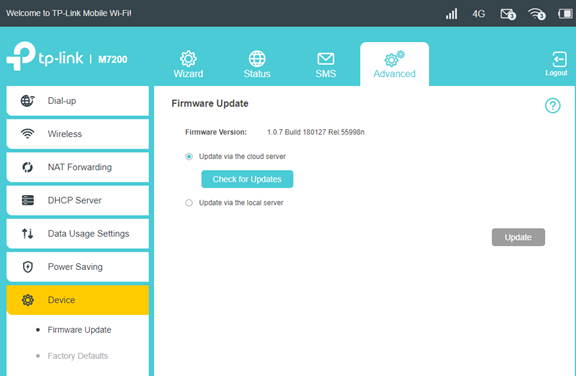
Tip 4: Update to the latest firmware version
Check firmware update and make sure you are using the latest firmware.
Related instruction:
How to upgrade firmware of TP-Link 5G Mobile Wi-Fi
How to upgrade firmware of TP-Link 4G Mobile Wi-Fi
After the above troubleshooting, if the problem still exists, please contact TP-Link Technical Support and provide the following information:
- Model No., hardware and firmware version of your TP-Link MiFi device, country, and your ISP name.
- Details of the problem, such as the Wi-Fi signal, will disappear from the available Wi-Fi list and reappear automatically, or Wi-Fi is connected but no internet access.
- How many client devices usually connect to the MiFi? Do all client devices disconnect at the same time, or only some devices?
- Is the wired internet stable or not if you connect to the MiFi via USB connection? (If it supports USB connection)
- When the problem happens, will it recover automatically? Or anything else you need to do?
- When the problem happens, please don’t reboot the MiFi device. Try to log in to the web interface and save a system log file on the Advanced->Device->System Log page, and let us know the specific time of the issue.
- How often does the problem happen? Was it working fine and stable before?
Get to know more details of each function and configuration please go to Download Center to download the manual of your product.
Чи була ця стаття корисною?
Ваш відгук допомагає вдосконалити цей сайт.