
How to limit devices on your LAN from accessing the Wi-Fi Router
1. Connect your device to the router via Wi-Fi or an Ethernet cable, open a browser, enter https://tplinkwifi.net/, and log in with your credentials.
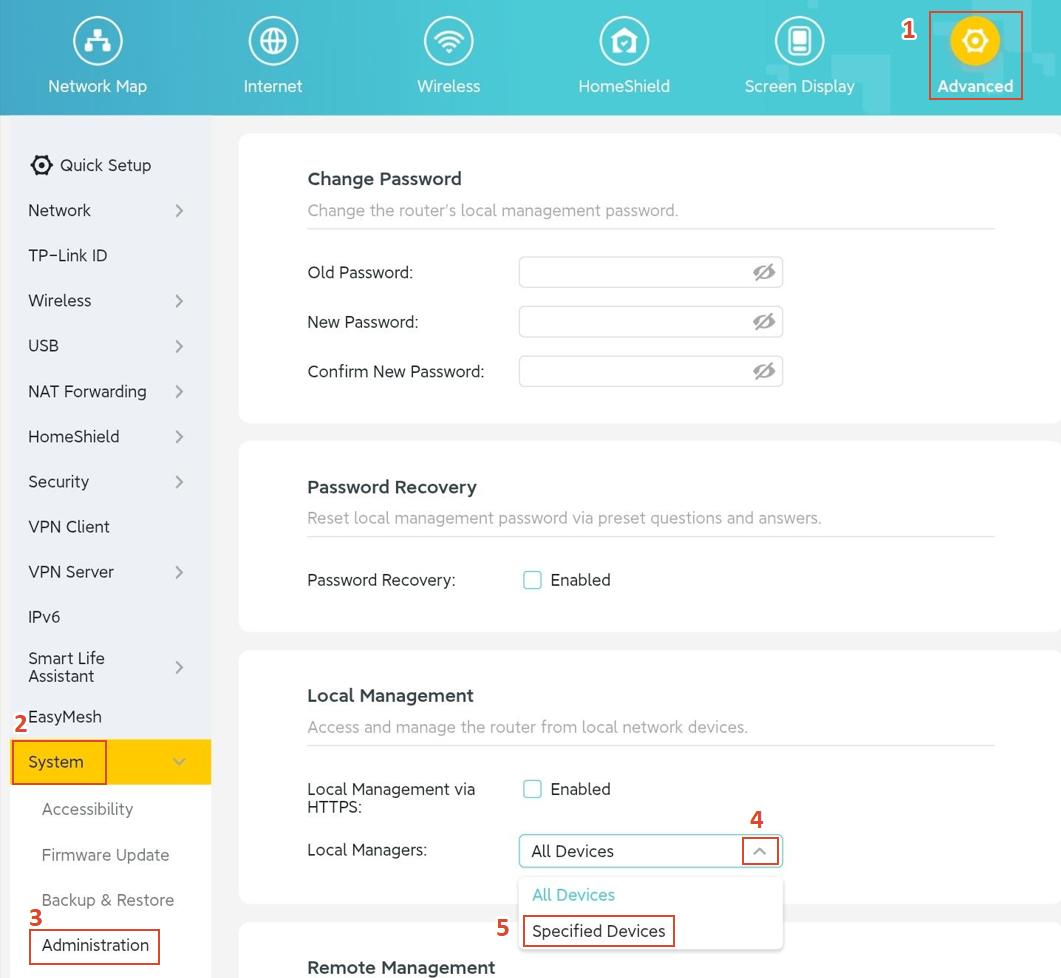
2. Go to Advanced > System > Administration > Local Management > Local Managers, click the dropdown arrow, and select Specified Devices from the list.
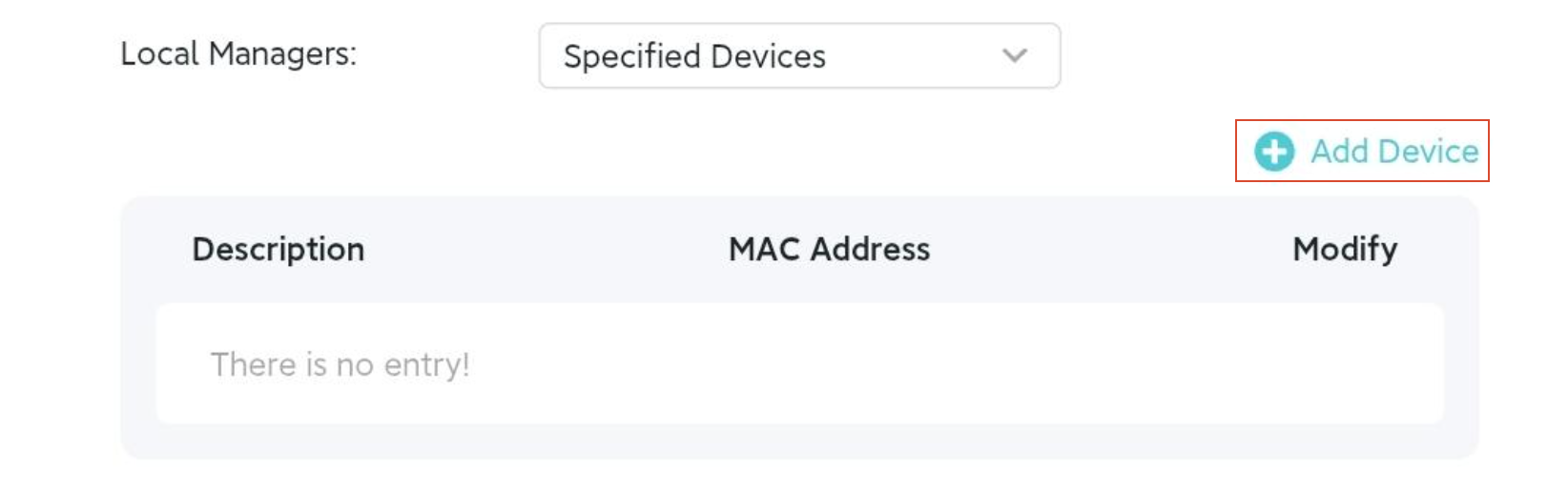
3. Click Add Device.On the pop-up window, click View Connected Devices to select the device from the list, or enter its MAC address manually.
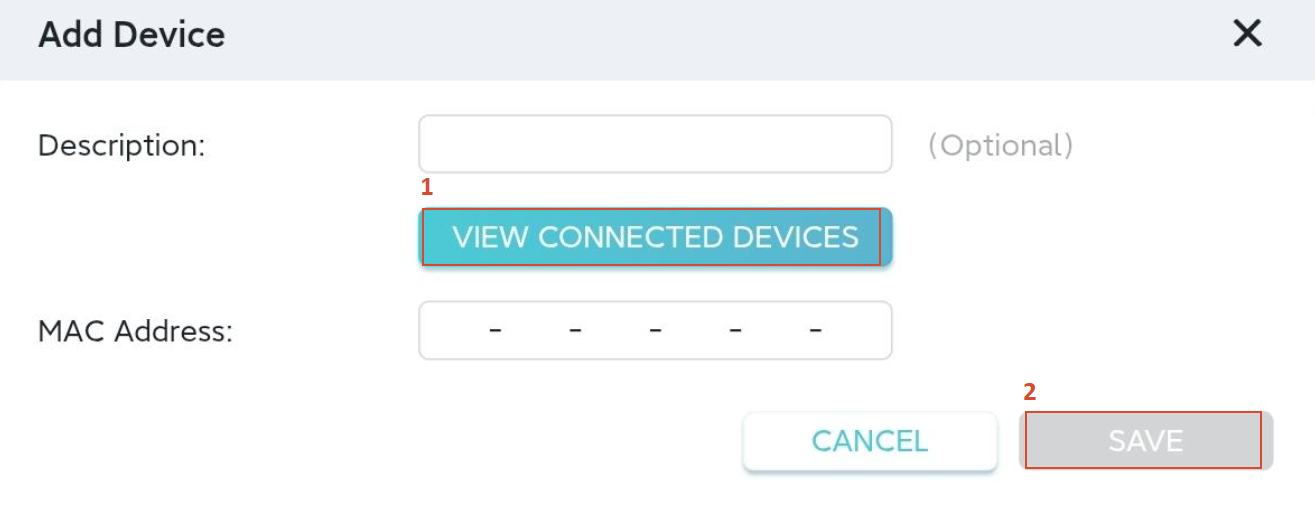
4. After adding all devices that you allow to manage the router, click Save on the bottom right to apply the settings.
Get to know more details of each function and configuration please go to Download Center to download the manual of your product
Looking For More
Чи була ця стаття корисною?
Ваш відгук допомагає вдосконалити цей сайт.



TP-Link Community
Still need help? Search for answers, ask questions, and get help from TP-Link experts and other users around the world.