
How to limit devices on your LAN from accessing the Wi-Fi Router (new logo)
 460842
O artigo aplica-se a:
1. Log in to the web-based interface of the router. If you don’t know how to do that, please refer to
How do I log into the web-based Utility (Management Page) of TP-Link wireless router?
2. Go to Advanced > System Tools > Administration and complete the settings In Local Management section as needed.
- Allow all LAN connected devices to manage the router:
Toggle on Access for All LAN Connected Devices.

- Allow specific devices to manage the router:
- Toggle off Access for All LAN Connected Devices.
- Click Add.
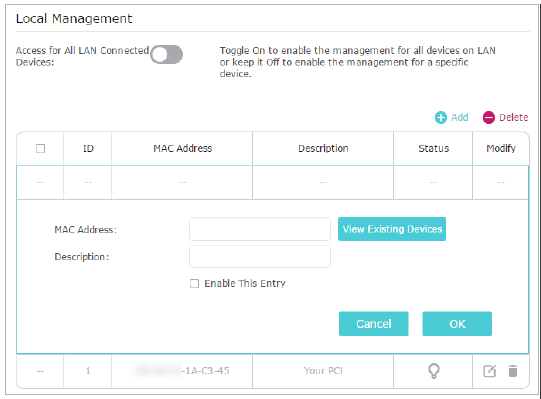
- Click View Existing Devices and select the device to manage the router from the Existing Devices list, or enter the MAC address of the device manually.
- Specify a Description for this entry.
- Tick the Enable This Entry checkbox.
- Click OK.
Get to know more details of each function and configuration please go to Download Center to download the manual of your product.
Este guia foi útil?
A sua resposta ajuda-nos a melhorar o nosso site.


