
How to Use Widgets to Control Tapo Devices
If you want quick one-tap access to your Tapo smart devices from your phone home screen, follow this guide to use widgets to control Tapo Devices for both iOS and Android phones.
Key Takeaways
● Tapo offers four types of widgets that support different functions to access or control your Tapo devices directly from your phone home screen.
● Adding a Tapo widget to an iOS home screen follows a 5-step process that starts with activating the app jiggle editing mode.
● Adding a Tapo widget to an Android home screen requires 4 simple steps initiated from your home screen or the Tapo app icon.
● Each Tapo widget serves a distinct function, including shortcut running, status checking, camera access, and direct device control.
Instructions on Phone
Scenario 1: For iOS
Step 1. Touch and hold a widget or an empty area until the apps jiggle.
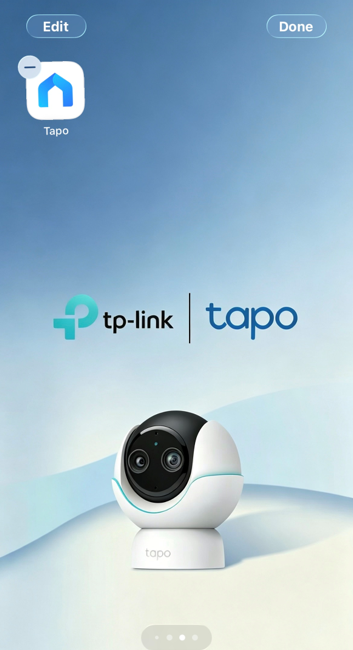
Step 2. Tap the edit button in the upper-left corner, and select Add Widget from the menu that appears.
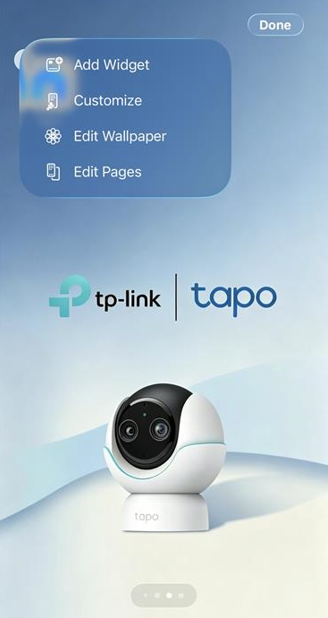
Step 3. Enter Tapo to search or scroll down to find the Tapo widget. Tap on it.
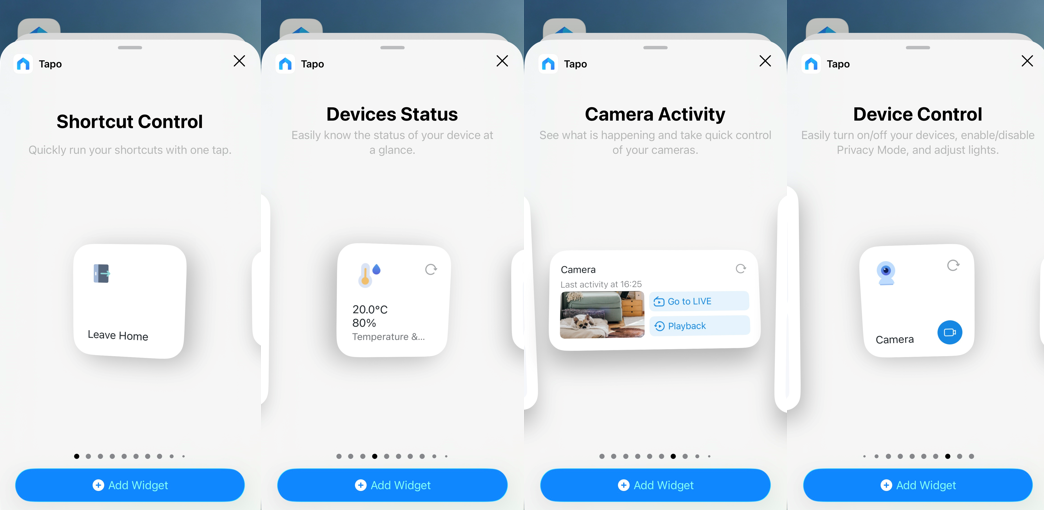
Step 4. Choose one of the following 4 types of widgets and tap Add Widget. You will see the Tapo widget on the home screen, and tap Done.
- Shortcut Control: Create the shortcut in the Tapo app first, then select it for your widget, and you can quickly run your shortcut with one tap.
- Device Status: Easily check your device status at a glance. For example, you can view real-time temperature and humidity readings from your smart temperature & humidity sensor, or confirm whether your Door Lock is open or locked.
- Camera Activity: See what is happening and quickly jump to the Live View or Playback of your camera.
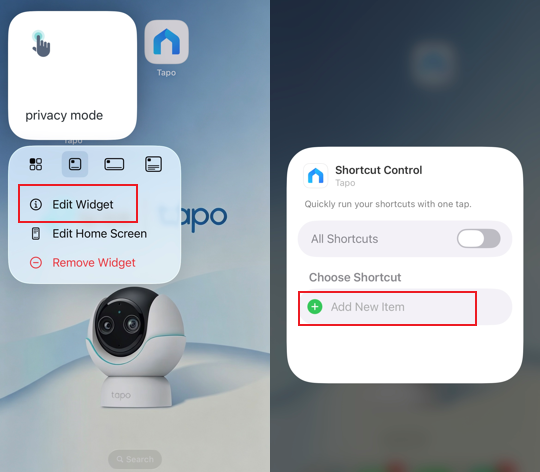
- Device Control: Easily turn your device on/off. For example, enable/disable Privacy Mode, or adjust lights/plug/switch.
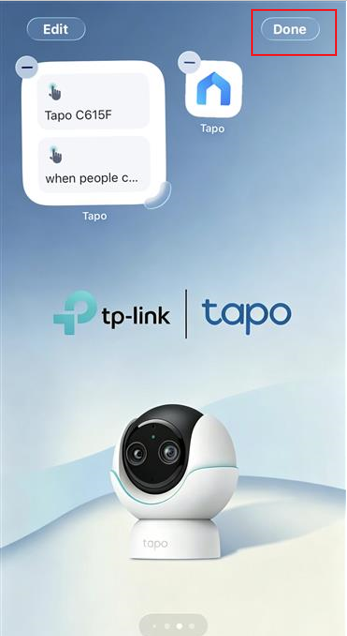
Step 5. Long-press the widget card to enter the Edit Widget, then select the devices you wish to control.
Scenario 2: For Android
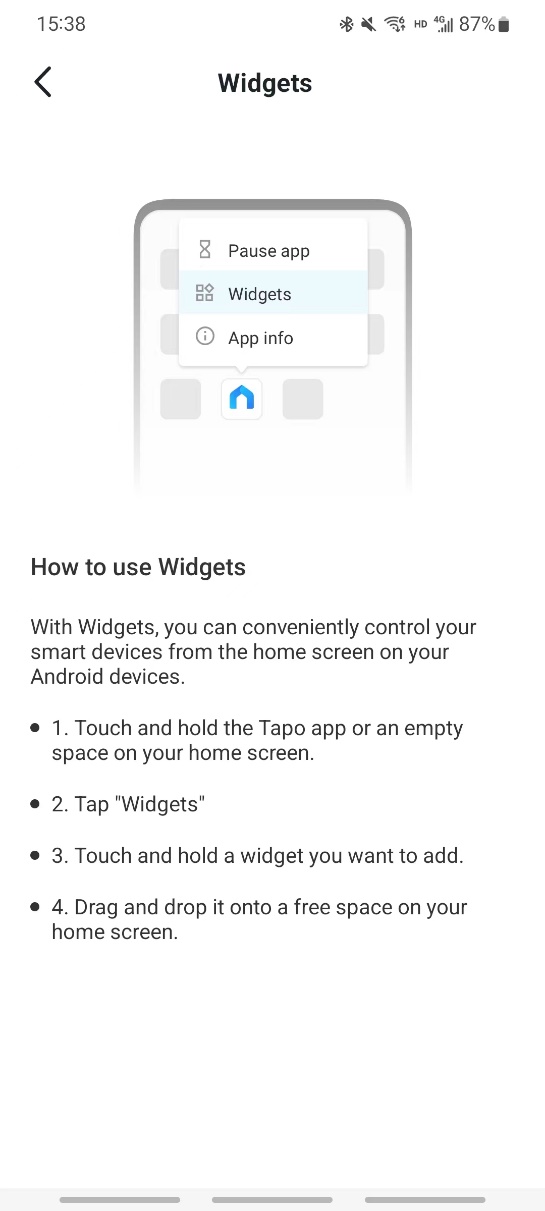
Step 1. Touch and hold the Tapo app icon, or tap a space on your home screen.
Step 2. Tap Widgets.
Step 3. Add the Tapo widget; touch and hold the widget you want to add.
Step 4. Drag and drop it onto a free space on your home screen.
To get to know more details of each function and configuration, please go to the Download Center to download the manual for your product.
Looking For More
Is this faq useful?
Your feedback helps improve this site.



TP-Link Community
Still need help? Search for answers, ask questions, and get help from TP-Link experts and other users around the world.