
How to Factory Reset Your TP-Link Range Extender or Access Point
This page covers how to factory reset a TP-Link range extender or access point to its default settings using the RESET button. A reset is useful when your device is unresponsive, misconfigured, or you've forgotten the password. Be aware that a factory reset will erase all custom settings; you'll need to reconfigure the device from scratch afterward, unless you have a saved configuration file backup to restore.
Key Takeaways
- A factory reset restores the device to its original settings. All custom configurations will be lost, and the device will need to be set up again from scratch.
- For most access points: press and hold the RESET button with a pin for eight to ten seconds while the device is powered on. Release when all lights flash, go off, and some come back on slowly.
- For models range exctender: press and hold the RESET button for one to two seconds while the device is powered on and wait for power light blinking.
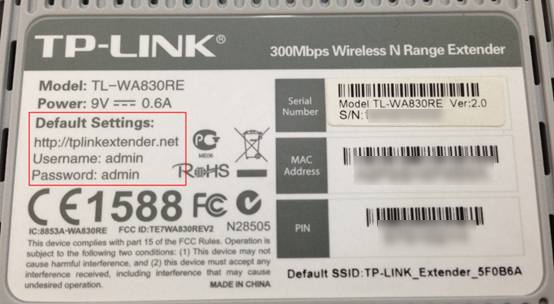
- After the reset, check the label on the back of your device for the default Wi-Fi name, password, and login credentials.
To perform a hard reset, please follow the instructions below.
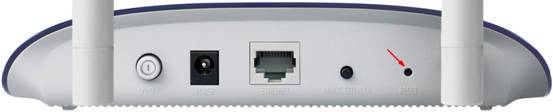
Access Point: Hold the RESET Button for 8–10 Seconds
With the access point powered on, press and hold the RESET button with a pin for 8 to 10 seconds. The reset is successful when all lights flash, go off, and some come back on slowly.
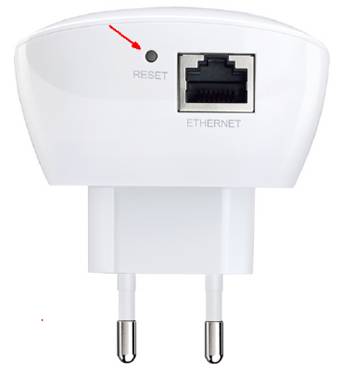
Range Extender: Hold the RESET Button for 1–2 Seconds
With the extender powered on, press and hold the RESET button with a pin for 1 to 2 seconds. The reset is successful when all the lights go off, and the power LED light blinks.
Note: After the reset, check the label on the back of your device for the default Wi-Fi name, password, and login credentials.
Get to know more details of each function and configuration please go to the Download Center to download the manual of your product.
Looking For More
Is this faq useful?
Your feedback helps improve this site.



TP-Link Community
Still need help? Search for answers, ask questions, and get help from TP-Link experts and other users around the world.