
TP-Link Router Keeps Disconnecting? Fix Unstable Wi-Fi
If your TP-Link router keeps disconnecting on Wi-Fi but your wired devices stay connected, the problem is wireless-specific. This is a different issue from a general Internet or wired connection problem. This guide covers what to verify before you start, followed by six fixes to help stabilize your unstable Wi-Fi.
Key Takeaways
- This page covers wireless-specific disconnection issues. The symptom is wireless devices intermittently dropping while wired devices stay connected. If wired devices are also experiencing problems, refer to the TP-Link router general connection troubleshooting guide instead.
- Before applying any fixes, confirm the Internet connection is stable when your computer connects directly to the modem, and also when connected to the router via Ethernet cable. This rules out a modem or wired issue and confirms the problem is wireless.
- Common causes of unstable Wi-Fi on TP-Link routers include physical interference from nearby appliances (such as microwave ovens, Bluetooth devices, and refrigerators), weak signal due to router placement, Wi-Fi channel congestion from neighboring networks, and Smart Connect compatibility issues with certain client devices.
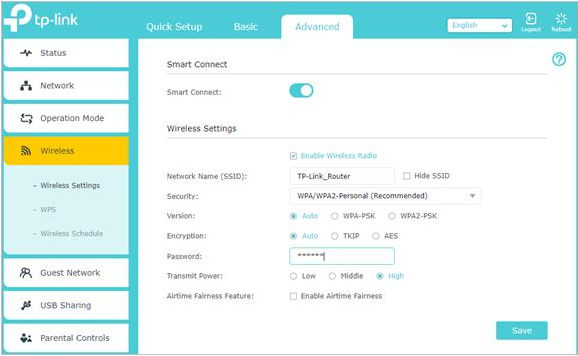
- Disabling Smart Connect in the router's Wireless Settings (Advanced > Wireless > Wireless Settings) and reducing channel width (2.4GHz to 20MHz, 5GHz to 20MHz) are two of the most effective fixes for intermittent disconnections.
- Upgrading the router firmware is also recommended, as outdated firmware can cause wireless instability.
Symptoms
Wireless devices intermittently disconnect from the Wi-Fi network, while wired devices remain connected and working normally. If both your wired and wireless connections are unstable, this page does not apply. Refer to the TP-Link router general connection troubleshooting guide for help with that issue instead.
Before You Begin
Complete both checks below before applying any fixes. This confirms the issue is wireless-specific and not caused by your modem or Internet service.
- Disconnect the TP-Link router from your modem, then connect your computer directly to the modem with an Ethernet cable. Test the Internet connection. If the connection is unstable when connected directly to the modem, the problem is with your modem or Internet service provider (ISP), not the router. Contact your ISP to troubleshoot.
- Reconnect the router, then connect your computer to the router with an Ethernet cable. Test the connection again. If the wired connection through the router is also unstable, the issue is not wireless-specific and requires a different approach. If your wired connection through the router is stable but Wi-Fi keeps dropping, continue with the fixes below.
How to Fix Unstable Wi-Fi on Your TP-Link Router
If your TP-Link router keeps disconnecting on Wi-Fi, work through the following steps in order.
Step 1: Move the Router Away from Interference Sources
Keep the router away from microwaves, refrigerators, ovens, Bluetooth devices, and other appliances that emit radio frequency interference. These devices can disrupt the Wi-Fi signal and cause intermittent disconnections. Also, reduce the number of wireless clients connected at the same time, and keep the router away from physical obstructions. Walls between the router and your devices can reduce signal quality.
Step 2: Optimize Router Placement and Antenna Position
If the Wi-Fi signal is weak, see How to place your wireless router for optimal reception and performance. Place it up high and away from obstacles. Position the antennas at 45 degrees diagonally or at 0 degrees parallel to the floor for better coverage. Avoid placing wireless client devices at the base of the router, as the signal is weakest there. For more guidance on improving wireless performance, see how to improve your wireless speed or range.
Step 3: Switch to the 5GHz Band
If the Wi-Fi signal is strong but the connection is still dropping, try connecting to the router's 5GHz Wi-Fi network. The 5GHz band has fewer interference sources than 2.4GHz. Skip this step if your router does not support 5GHz. For tips on getting the most from the 5GHz band, see how to improve 5GHz wireless signal strength.
Step 4: Change the Wi-Fi Channel and Channel Width
If there are multiple Wi-Fi networks in your area, their signals may overlap and cause interference. Changing your router's Wi-Fi channel and channel width can help. You may change the 2.4GHz channel width to 20MHz and the 5GHz channel width to 20MHz. For instructions, see How to change wireless settings on TP-Link Wireless Router.
Step 5: Update the Router Firmware
Outdated firmware can cause wireless instability. Check that your router is running the latest firmware version and upgrade if needed. For step-by-step instructions, see how to upgrade the firmware on TP-Link Wi-Fi Routers.
Step 6: Disable Smart Connect
If you have worked through all the steps above and Wi-Fi is still dropping, disabling Smart Connect may resolve the issue. Smart Connect can cause compatibility problems with certain client devices.
- Log in to your router's web management page. For help with this, see how to log in to the web-based management page of a TP-Link wireless router.
- Go to Advanced > Wireless > Wireless Settings and disable Smart Connect.
Related Blogs
Is this faq useful?
Your feedback helps improve this site.

3.0_A_RGB_normal_1584493572647x.png)

TP-Link Community
Still need help? Search for answers, ask questions, and get help from TP-Link experts and other users around the world.