
Como configurar o kit de 2 câmeras (Tapo HB610/Tapo HB410/Tapo HB112)
O Kit Tapo com 2 Câmeras, como o Tapo HB610/Tapo HB410/Tapo HB112, inclui um Tapo H500 e duas câmeras Tapo. Configurar seu Kit Tapo com 2 Câmeras é rápido e fácil. Este guia orienta você no download do aplicativo Tapo, na configuração do CentralHub e na conexão das suas câmeras para monitoramento completo da sua casa.
Principais Conclusões
- Faça o download e inicie sessão na aplicação Tapo antes de iniciar o processo de instalação.
- Configure primeiro o Tapo H500 CentralHub antes de adicionar qualquer câmera.
- Mantenha as câmeras próximas ao hub durante a configuração para detecção automática de dispositivos.
- Siga as instruções no aplicativo para adicionar câmeras adicionais ao CentralHub e concluir a instalação.
Configuração
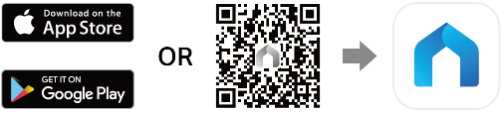
Passo 1: Baixe o aplicativo Tapo
Abra a Google Play ou a App Store, ou digitalize o código QR para baixar o aplicativo Tapo.
Etapa 2: Faça login
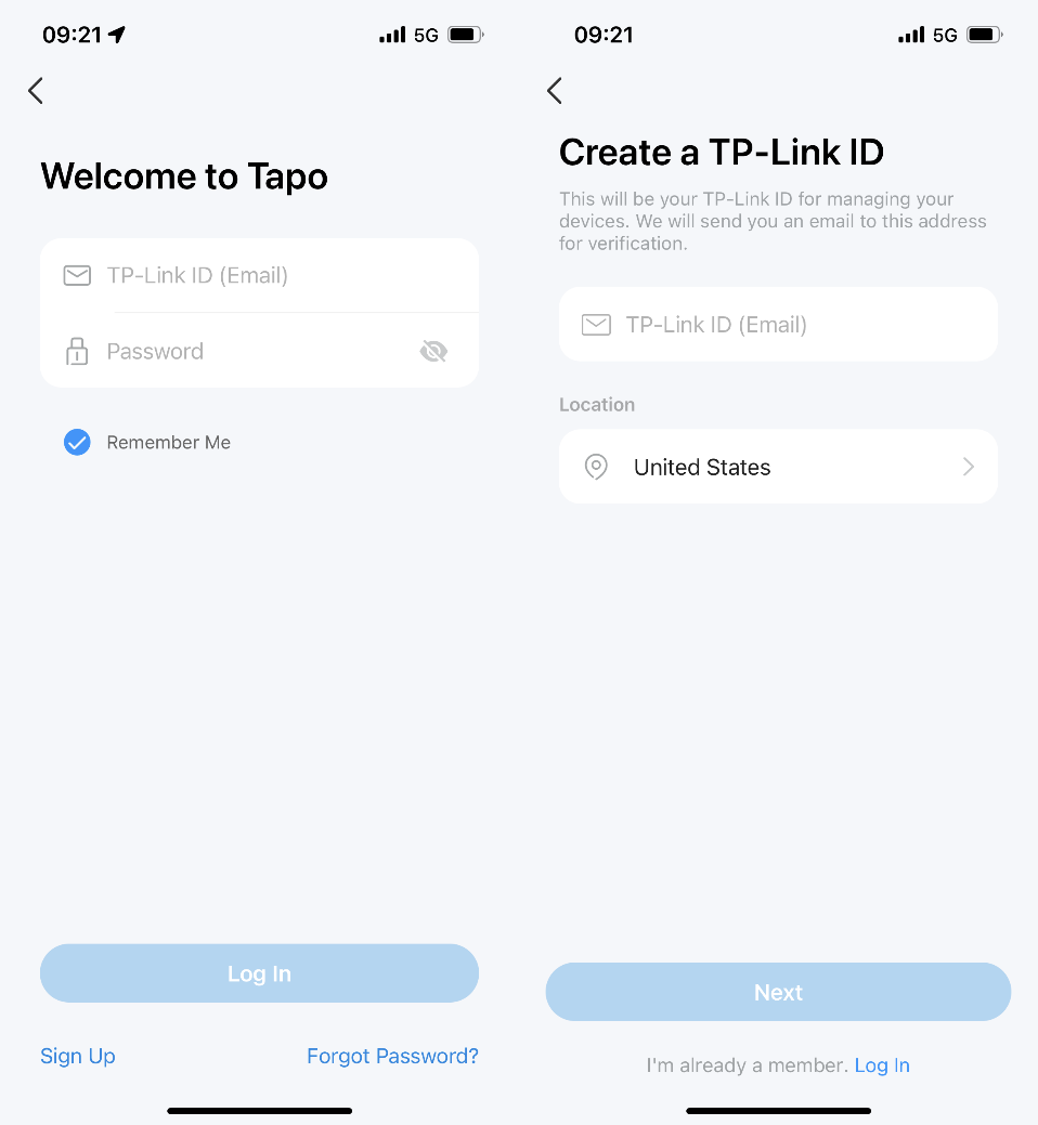
Abra o aplicativo e use seu ID TP-Link para fazer login. Se você não tiver um ID TP-Link, toque em Cadastrar-se para criar um, e o aplicativo o guiará pelo restante do processo.
Etapa 3: Configurar o CentralHub
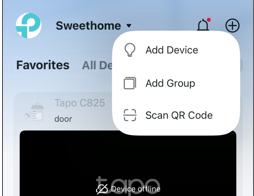
Opção 1: Toque no botão + no aplicativo Tapo e selecione “Adicionar dispositivo”.
Opção 2: Toque no botão + no aplicativo Tapo e selecione “Escanear código QR”.
(Siga o símbolo  no CentralHub para encontrar onde você deve pressionar e verá o código QR.)
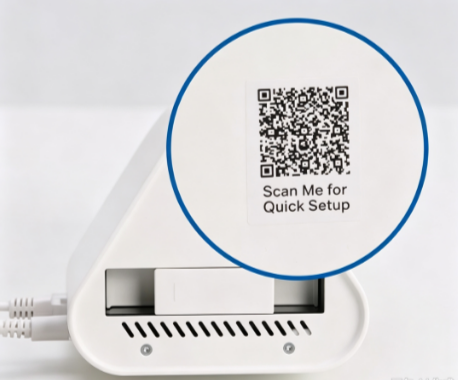
Em seguida, siga as instruções no aplicativo ou consulte o Como configurar o Tapo Smart CentralHub (Tapo H500) para concluir o processo de configuração.
Passo 4: Configurar a câmera
1. Após concluir a configuração do CentralHub, você verá a seguinte opção e deverá selecionar “Um conjunto de dispositivos”.
2. Aproxime a câmera do hub e do seu telefone. Ligue a câmera, pressione o botão de reinicialização por pelo menos cinco segundos até que o LED pisque em vermelho e, em seguida, aguarde até que o LED da câmera pisque em vermelho e verde; o telefone encontrará e configurará a câmera automaticamente.
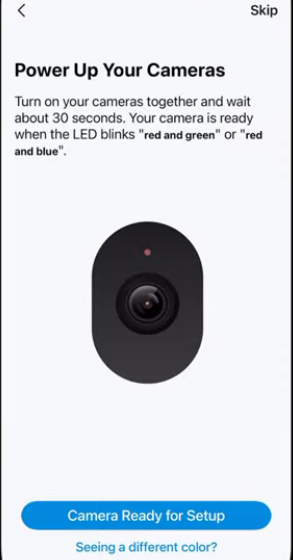
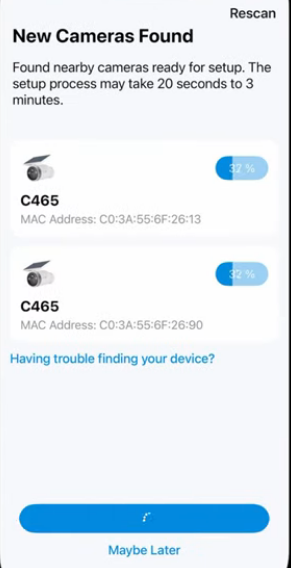
Etapa 5: Adicionar mais câmeras ao CentralHub
Após a configuração da câmera estar concluída, siga as instruções no aplicativo para adicionar mais dispositivos ao CentralHub.

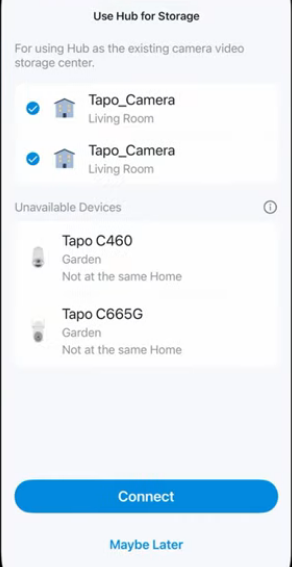
Para saber mais sobre cada função e configuração, visite a Central de Downloads para baixar o manual do seu produto
Procurando por mais
Esta FAQ é útil?
Seu feedback ajuda a melhorar este site.

-F_large_1560310831908g_normal_1577328413052u.jpg)

TP-Link Community
Still need help? Search for answers, ask questions, and get help from TP-Link experts and other users around the world.