
How to Set Your TP-Link Deco Speed Limit and Control Bandwidth
The Speed Limit feature on TP-Link Deco lets you cap the download and upload bandwidth for individual devices connected to your Deco network. This is useful for managing bandwidth fairly across the home — for example, preventing one device from using more than its share during peak hours. Speed Limit is configured through the Deco app on iOS or Android.
Key Takeaways
- The Speed Limit feature on TP-Link Deco allows you to set individual download and upload speed caps for any device connected to the Deco network.
- Speed limits are configured per device through the Deco app: open the Client module, find the device, tap Speed Limit, enable it, and set the desired speeds.
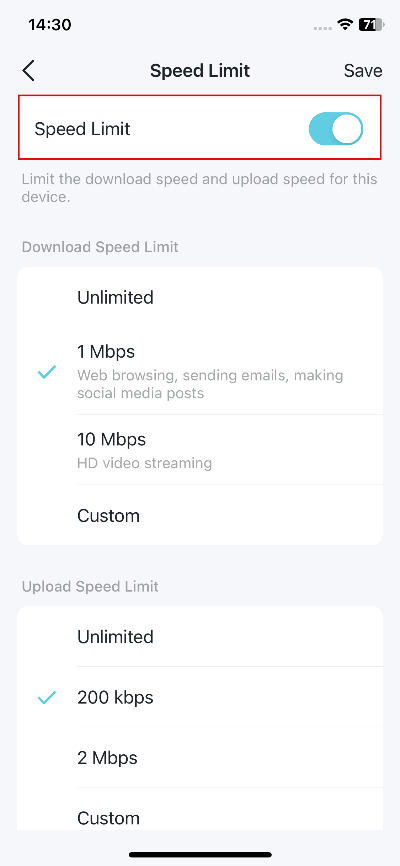
- Download and upload speeds can be limited independently.
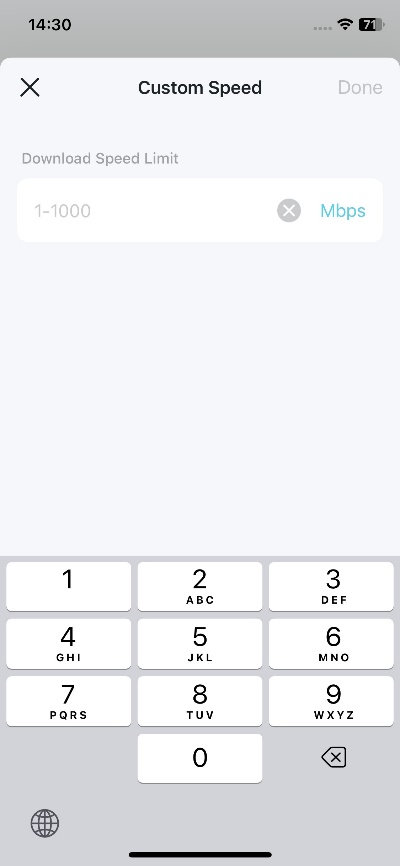
- If the preset speed options do not meet your needs, the Deco app lets you enter a custom speed.
How to Set a Speed Limit on TP-Link Deco
Use the Speed Limit feature to control the download and upload speed for individual devices connected to your Deco network.
Notes:
1. Features may vary across different Deco models.
2. Steps may vary depending on your device's operating system. This guide uses iOS as an example.
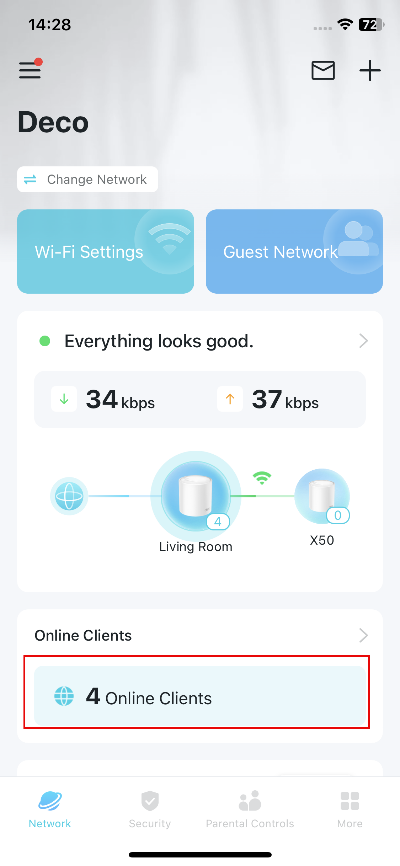
Step 1. Open the Deco app, and tap the Client module on the homepage.
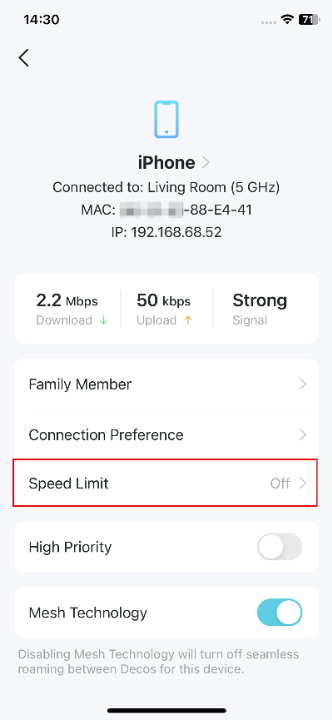
Step 2. Find the client you want to limit speeds, then tap Speed Limit.

Step 3. Enable Speed Limit and set this client's download and upload speed. Customize the speed if needed.
Step 4. Tap Save to apply the settings.
Looking For More
¿Es útil esta pregunta frecuente?
Sus comentarios nos ayudan a mejorar este sitio.


TP-Link Community
Still need help? Search for answers, ask questions, and get help from TP-Link experts and other users around the world.