
How to Use SMS Function on TP-Link 5G/4G Router
The SMS function lets you manage text messages received by or sent from the SIM card installed in your router.
Key Takeaways
- Use the Tether app or web management page to manage SMS messages stored on the router's SIM card.
- Your SIM card must be active and have SMS service enabled by your mobile carrier.
- In the Tether app, go to More > SMS to view, send, reply to, or delete messages.
- On the web management page, go to Advanced > SMS to manage Inbox, New Message, Outbox, and Drafts.
Requirements
- Insert an active, compatible SIM card into the router.
- Confirm that your mobile carrier supports SMS service for the SIM card.
Step-by-Step Guide
Method 1: Manage SMS Messages in the Tether App (For Tether-compatible models)
Step 1: Log in to Tether App
Open the Tether app, select your router, and log in.
- Connect your phone to the router’s Wi-Fi. (Skip this step if your router is already bound to your TP-Link ID for remote access)
- Open the Tether app. Tap your router under Devices.
- Log in with your admin password. (For first login, you’ll be asked to create an admin password)
Step 2: Navigate to SMS Settings
Go to More > SMS.
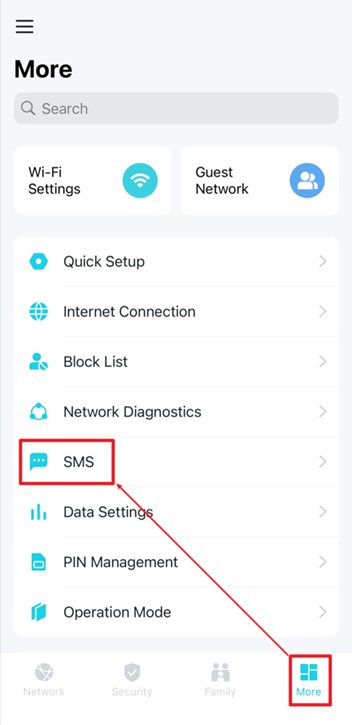
Step 3. Manage SMS messages
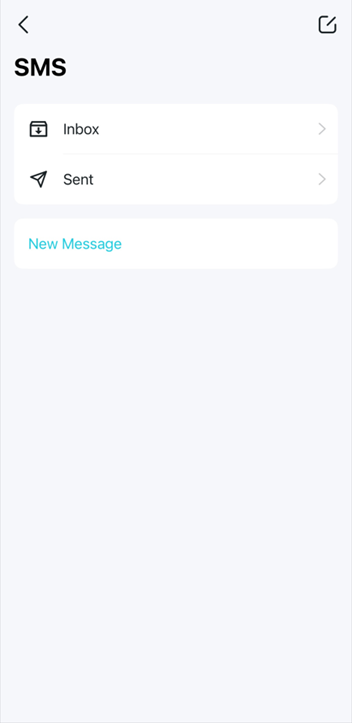
- View Messages: Tap Inbox to view received messages, or tap Sent to view sent messages. Tap a message to open it.
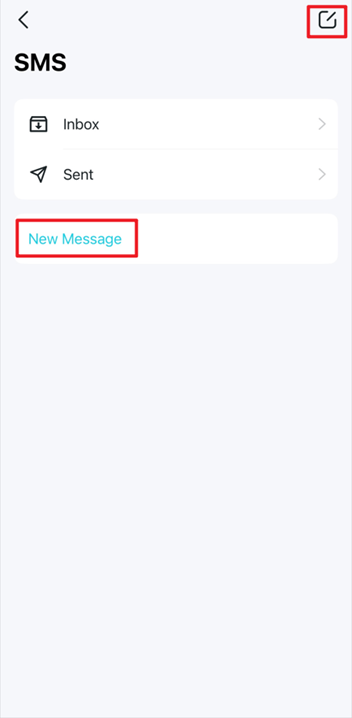
- Send a New Message: Tap the compose icon in the upper-right corner or tap New Message to write and send a new message
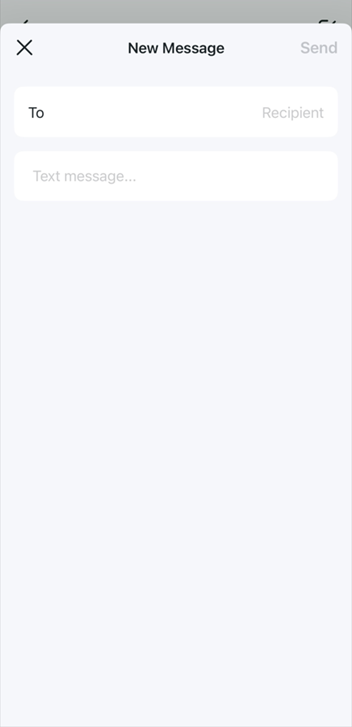
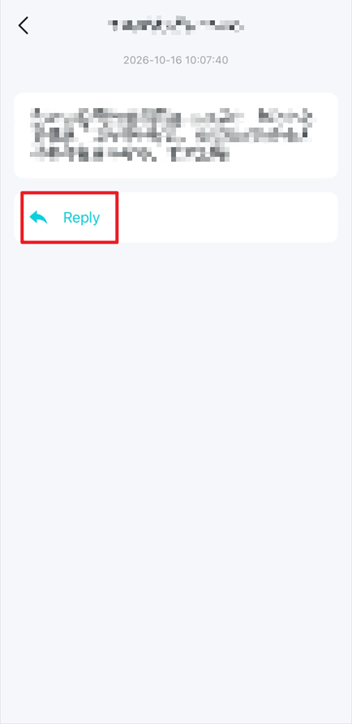
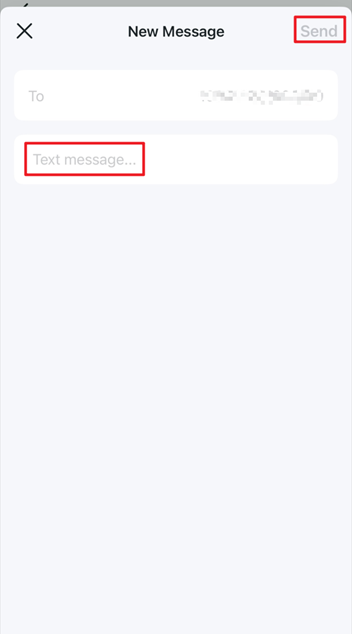
- Reply to a Message: Open a received message and tap Reply. Enter your reply and tap Send.
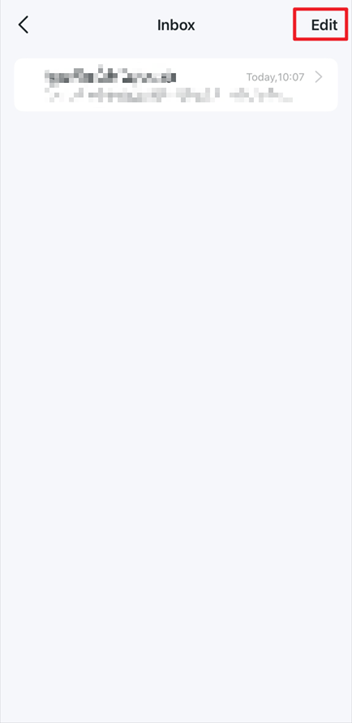
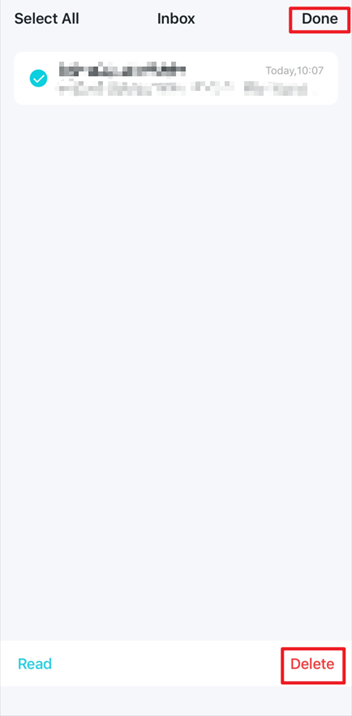
- Delete Messages: Open Inbox or Sent, and tap Edit. Select one or more messages, tap Delete, tap Done when finished.
Method 2: Manage SMS Messages on the Web Management Page
Step 1: Access the Web Management Page
- Connect your phone or computer to the router via Wi-Fi or an Ethernet cable.
- Open a web browser and enter https://tplinkmodem.net/ in the address bar.
- Log in with your admin password. (For first login, you’ll be asked to create an admin password)
Step 2: Navigate to SMS Settings
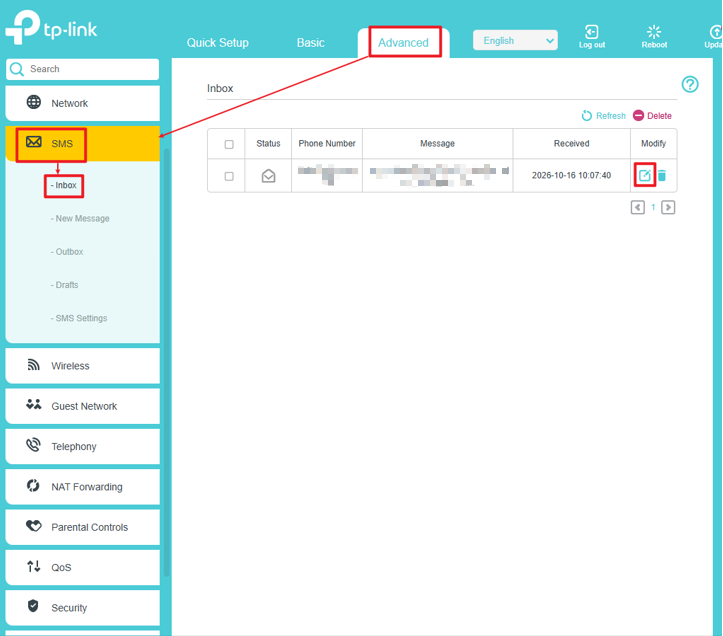
Go to Advanced > SMS.
Step 3. Manage SMS messages
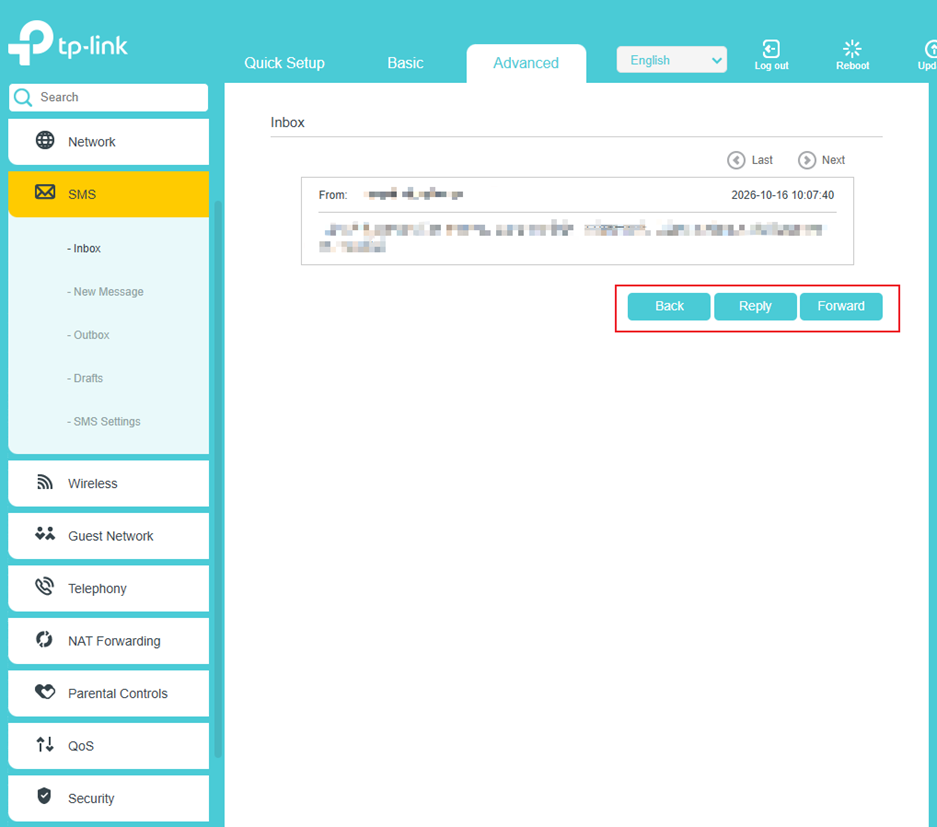
- View and Reply to Messages: Select Inbox to view received messages. Click the view icon in the Modify column to open and reply to a message. You can also click Forward to send the content to another number.
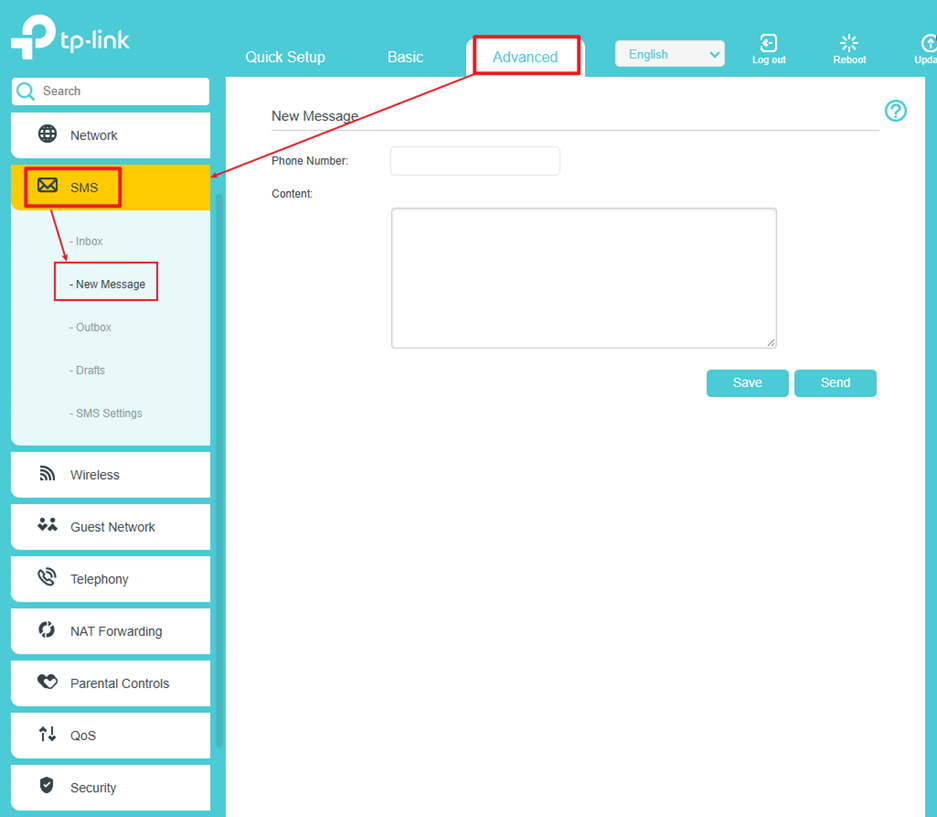
- Send a New Message: Select New Message from the SMS menu Enter the recipient's number in Phone Number and the message in Content. Click Send to send it or Save to save it as a draft.
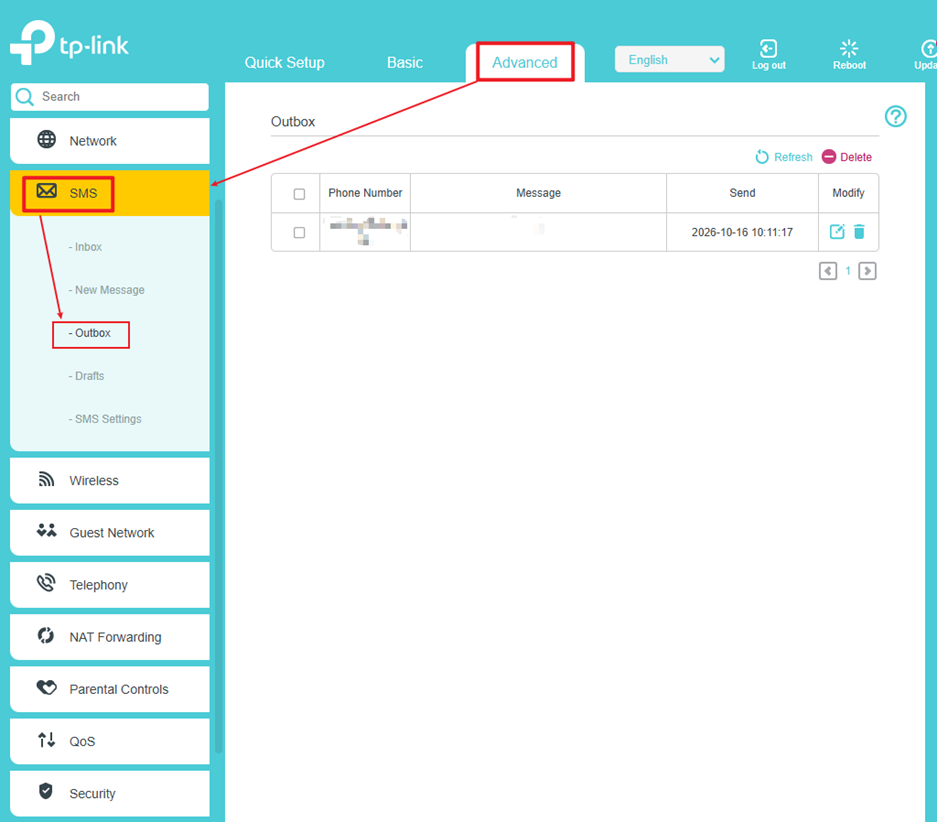
- View Sent Messages and Delete Messages: Select Outbox to view sent messages. To delete messages, select the check box beside each message and click Delete
Pour en savoir plus
Est-ce que ce FAQ a été utile ?
Vos commentaires nous aideront à améliorer ce site.


TP-Link Community
Still need help? Search for answers, ask questions, and get help from TP-Link experts and other users around the world.