
How to Change TP-Link Extender Wireless Settings (Name, Password, Security, etc.)
This guide shows you how to customize your TP-Link extender's wireless settings, including:
- Wi-Fi name (SSID)
- Wi-Fi password (if supported by your model)
- Security type/encryption (if supported by your model)
- Hide SSID (make network invisible)
- Enable/disable 2.4GHz or 5GHz bands
- Wireless Mode, Channel, and Channel Width (in AP mode)
You can make these changes using either the TP-Link Tether app or the web management page. The steps vary depending on whether your extender is in Range Extender mode or Access Point (AP) mode.
Notes:
1. If your extender is part of a OneMesh/EasyMesh network, it automatically syncs settings with the router. You must disable OneMesh/EasyMesh first to customize its Wi-Fi independently.
2. Not all models support changing the Wi-Fi password or security type in Range Extender mode. The interface may vary by model. Please refer to your actual interface for availability. Models that do not currently support this feature will gain it through future firmware updates.
Key Takeaways
- To change Wi-Fi name, password, security type, hide SSID, and toggle 2.4GHz/5GHz on a TP-Link range extender, you may use either the Tether app (method 1) or its web management page (method 2).
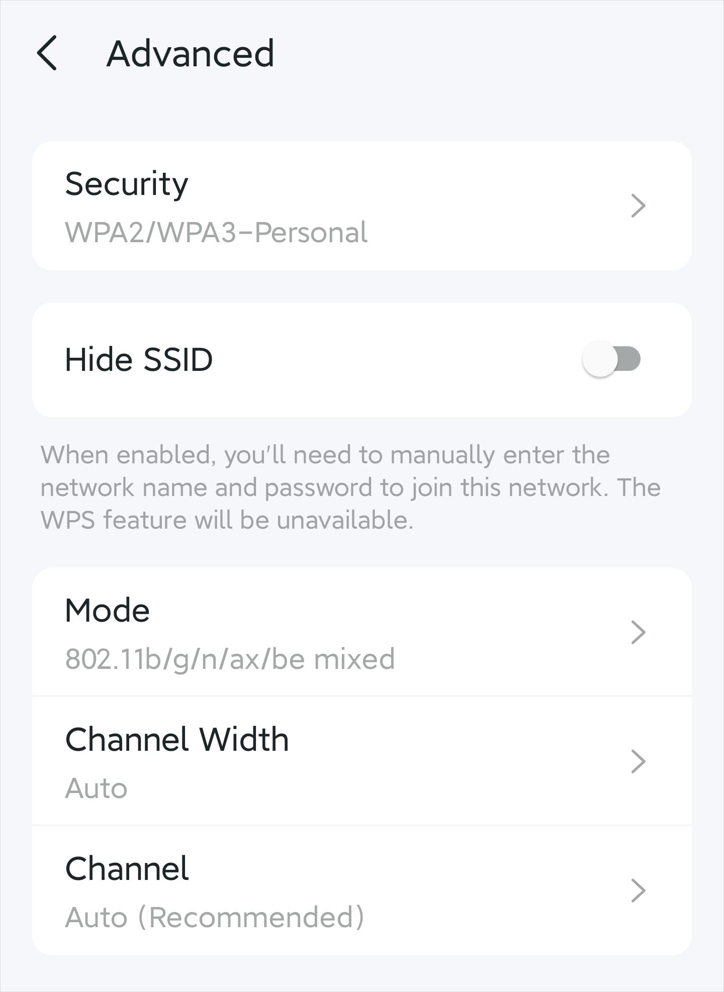
- In AP mode, you can also change Wireless Mode, Channel, and Channel Width for advanced control.
- In Range Extender mode, settings are under Extended Network (App: Network > Extended Network; Web: Wireless/Settings > Extended Network). In AP mode, go to Wireless Settings (Web: Wireless/Settings > Wireless Settings) or Wi-Fi Settings (App: More > Wi-Fi settings).
- If your extender uses OneMesh/EasyMesh, disable it first to customize settings independently.
- By default, TP-Link extenders use the same wireless password and security type as the host router. Not all extender models support customizing the wireless password in Range Extender mode. Please refer to your actual interface for availability.
Method 1: Using TP-Link Tether App (For Tether-Compatible models)
Step 1. Access Extender Settings
Connect to your extender’s Wi-Fi.
Open the TP-Link Tether app.
Select your extender under Devices, and log in.
Step 2. Modify Wireless Settings
If your extender works in Range Extender mode, go to Network > Extended Network to adjust the settings as needed, and click Save to apply the settings.
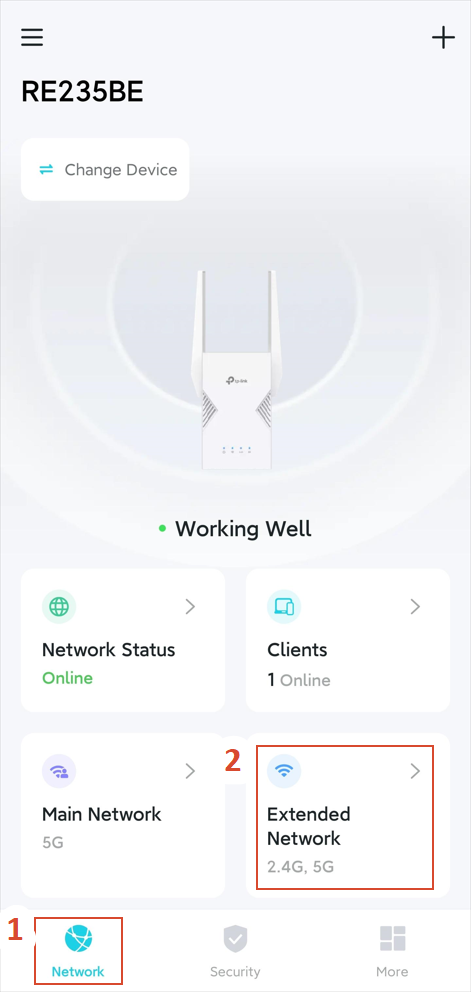
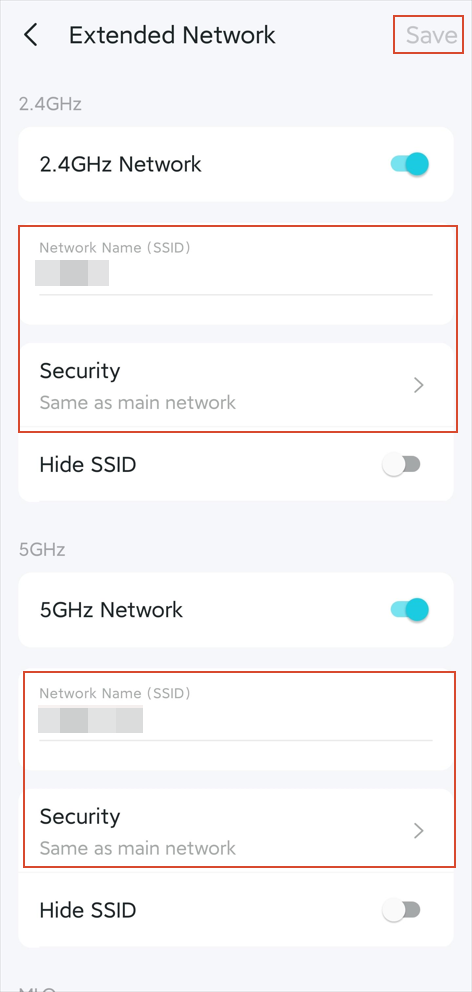
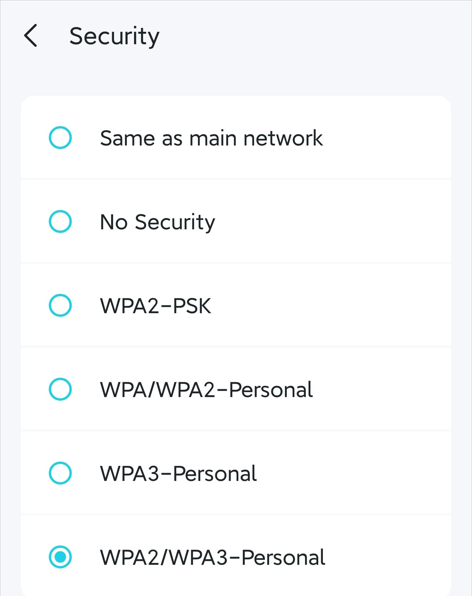
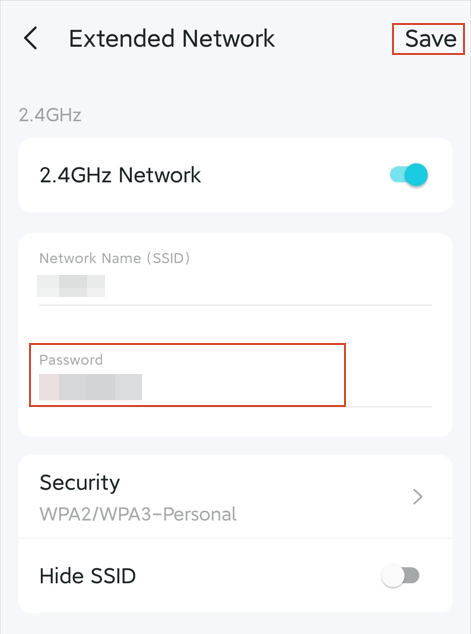
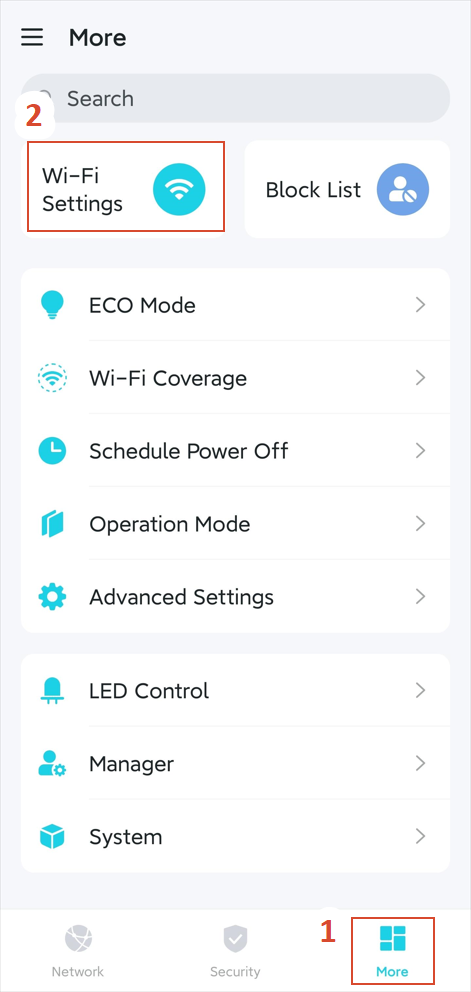
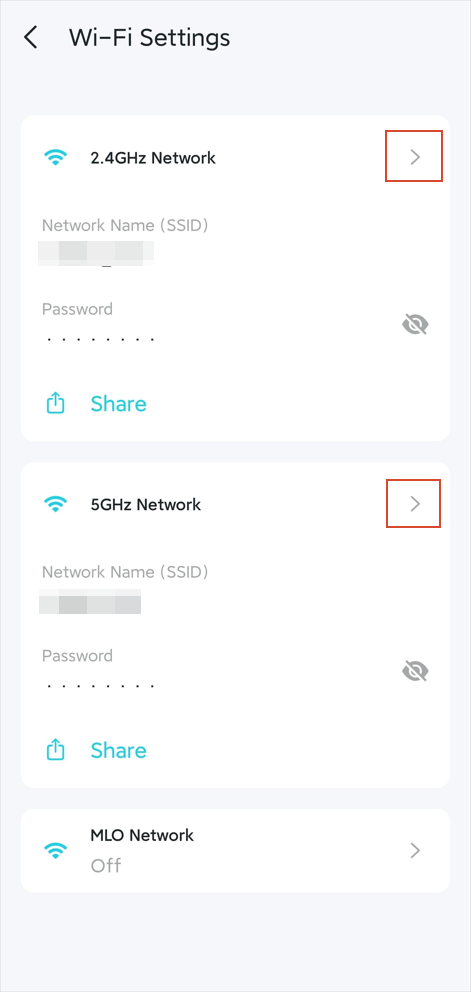
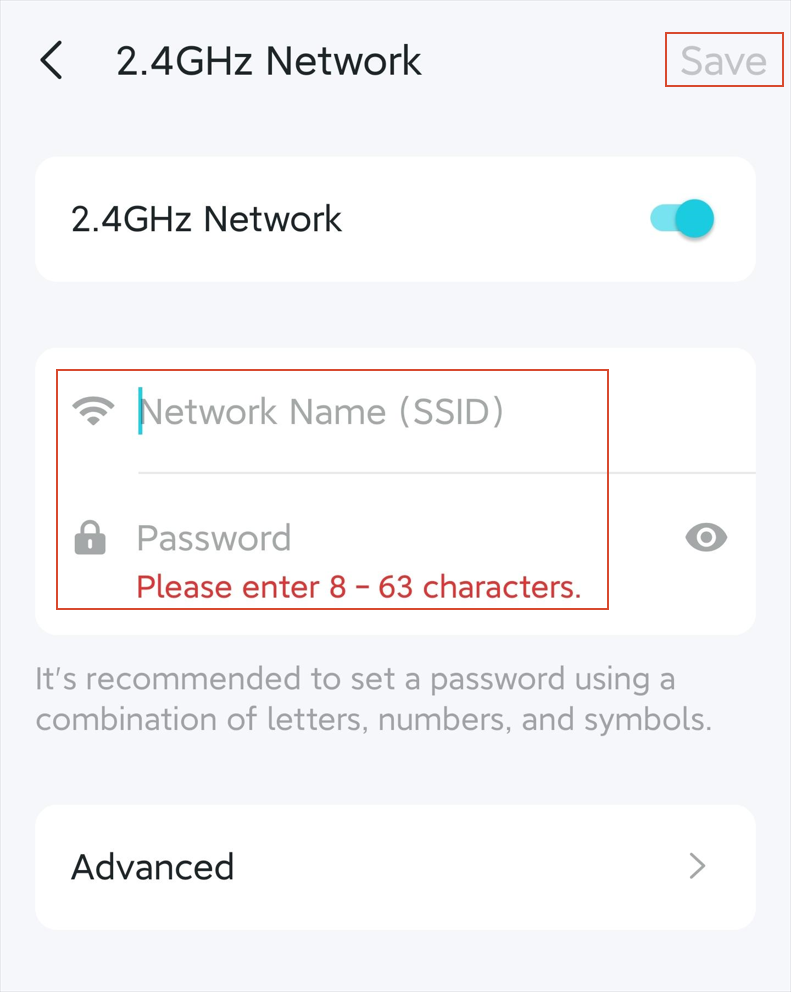
If your range extender works in Access Point mode, go to More > Wi-Fi Settings > 2.4GHz / 5GHz Network to adjust the settings as needed, and click Save to apply the settings:
Method 2: Using Web Management Page (for all models)
Step 1. Access Web Interface
Connect to your extender’s Wi-Fi.
Open a web browser and visit http://tplinkrepeater.net/.
Log in with your admin password.
Step 2. Adjust Wireless Configuration
If your extender works in Range Extender mode, go to Settings/Wireless > Extended Network to adjust the settings as needed, and click Save to apply the settings:
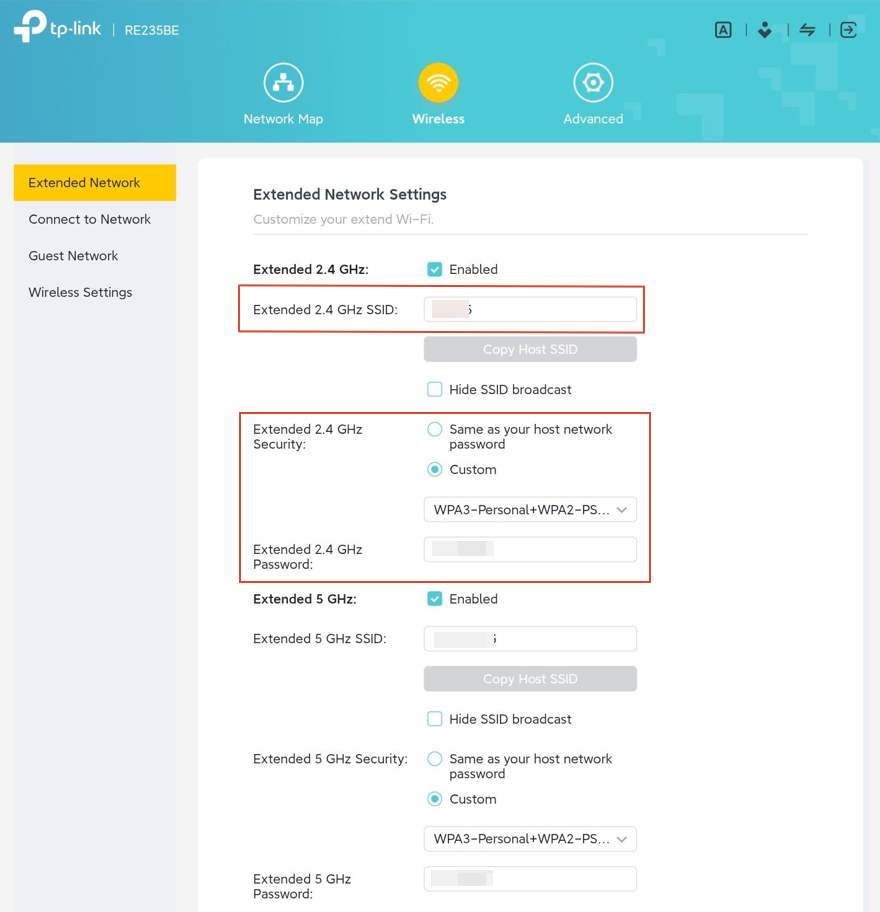
If your extender works in Access Point mode, go to Settings/Wireless > Wireless Settings to adjust the settings as needed, and click Save to apply the settings:
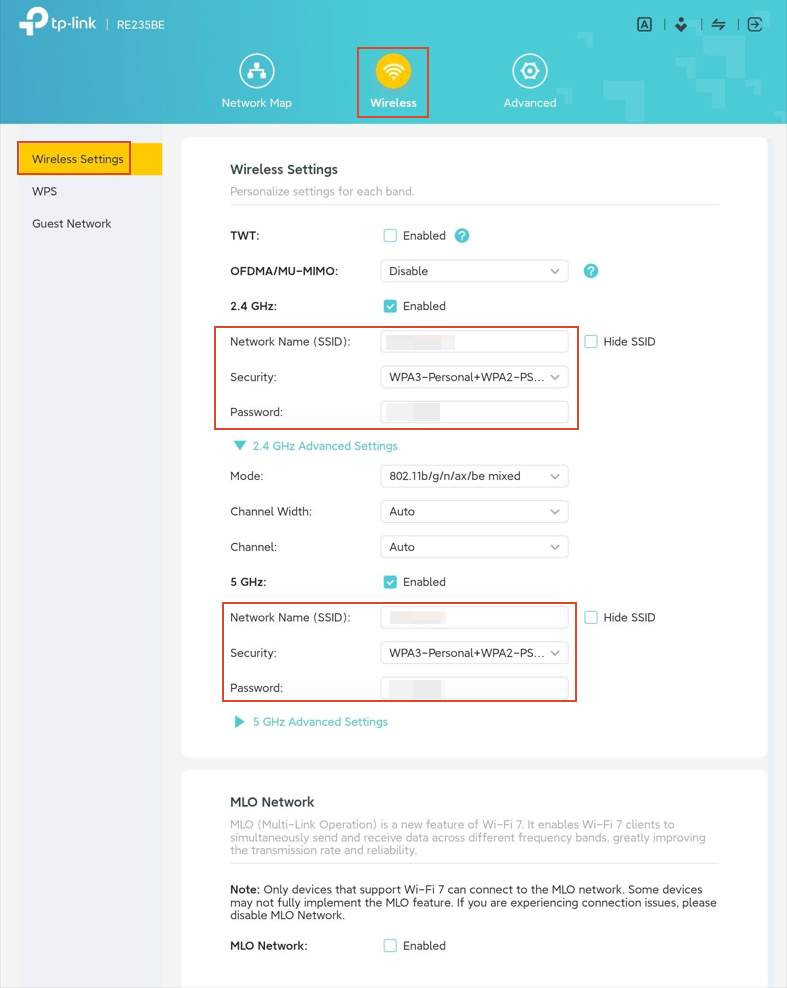
To get to know more details of each function and configuration, please go to the Download Center to download the manual for your product.
Looking For More
Byla tato FAQ užitečná?
Vaše zpětná vazba nám pomůže zlepšit naše webové stránky


TP-Link Community
Still need help? Search for answers, ask questions, and get help from TP-Link experts and other users around the world.