
What to Do When Your Kasa Device Time Is Not Syncing
If your Kasa device is showing the wrong time or a time not sync error, it can affect key features like schedules, timers, and away mode — all of which depend on the device having the correct time. Normally, Kasa devices sync their time automatically after setup, so this page covers cases where that has not happened. There are two ways to fix it: rebooting the device or manually adjusting the time zone in the Kasa app.
Key Takeaways
- If your Kasa device's time is not syncing, try rebooting it first. It will attempt to synchronize the time automatically on restart.
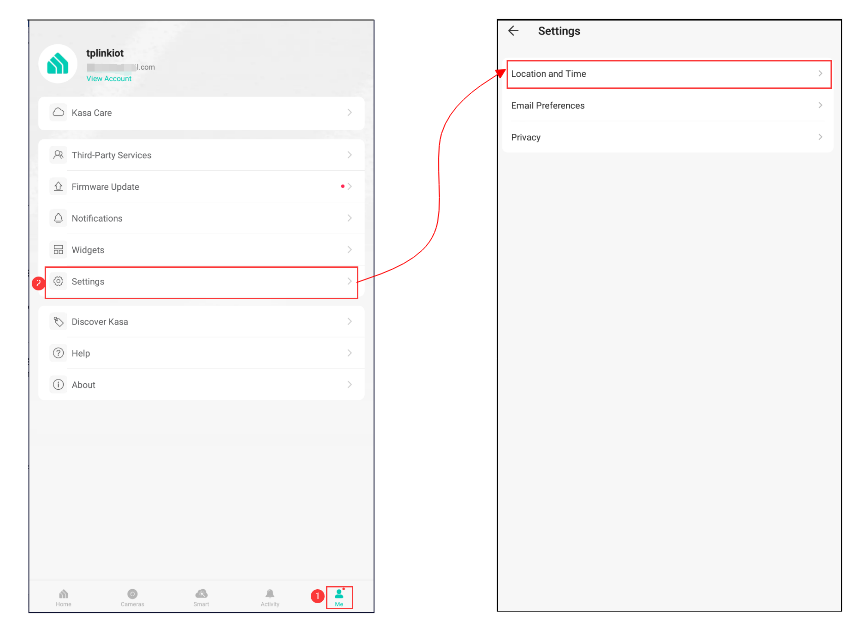
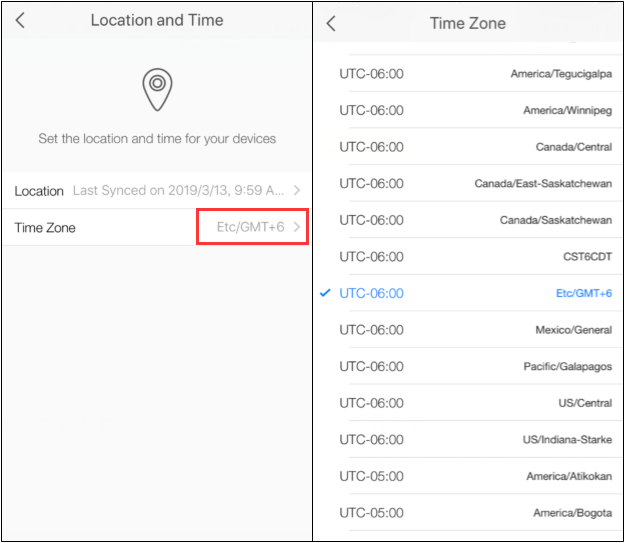
- If rebooting does not work, you can manually set the time zone in the Kasa app by going to Me > Settings > Location and Time > Time Zone.
- Kasa devices sync their time automatically after setup by obtaining location and time zone information. Manual adjustment is only needed if automatic sync fails.
- If your Kasa device time is wrong, features like schedules, timers, and away mode may not trigger correctly. Keeping the time synced ensures these automations run on schedule.
Why Is My Kasa Device Time Not Syncing?
A Kasa time not syncing error can occur for several common reasons. The device may have briefly lost its Internet connection during initial setup, preventing it from obtaining time zone data. The Kasa app may not have location permissions enabled on your phone, which can block the automatic sync. In some cases, the time zone in the app simply was not set correctly during configuration. Any of these can cause your Kasa smart plug or another device to display the wrong time.
Why Does the Correct Time Matter for Kasa Devices?
Kasa schedules, timers, and away mode all depend on the device having the correct local time. If the time is wrong, scheduled actions may trigger at the wrong time or may not run at all. Fixing a Kasa device time error ensures your automations work as expected and your smart home routines stay on schedule.
How to Fix Kasa Time Not Sync
Method 1: Reboot Your Kasa Device
Reboot the Kasa device. After restarting, the device will attempt to sync its time automatically. Check the device time in the Kasa app to confirm it is now correct.
Method 2: Manually Adjust the Time Zone in the Kasa App
You can also adjust the time zone manually to make your Kasa device time settings correct.
From the Kasa app > Tap Me on the bottom> Tap Settings, and then choose Location and Time. Tap Time Zone and select the correct time zone for your location.
Get to know more details of each function and configuration please go to the Download Center to download the manual of your product.
Looking For More
¿Es útil esta pregunta frecuente?
Sus comentarios nos ayudan a mejorar este sitio.


TP-Link Community
Still need help? Search for answers, ask questions, and get help from TP-Link experts and other users around the world.