
How to test the speed of the TP-Link ISP-customized Router
 7393
7393Introduction
This FAQ article explains how to run built-in and external Speedtests on a TP-Link ISP-Customized Router.
Requirements
Download the Aginet App by visiting the Google Play Store, the App Store, or by scanning the QR code.

Configuration
Scenario 1: For the Aginet models that support the Test Internet Speed feature
Tap the Test Internet Speed feature in the Aginet app or Web GUI to check the internet speed the Controller router receives from the front modem.
Here we use HB810 as an example.
Note:
- The speed test result shows the speed that the controller gets from the modem, not the speed on the client connected to the Aginet.
- The Test Internet Speed function is available on some Aginet models. You can ask your ISP whether the router supports the Test Internet Speed feature before purchasing.
- If you have multiple ISP-Customized models forming a mesh network together, the Test Internet Speed will only appear when the above models are configured as the main ISP-Customized model.
Method 1: Test Internet Speed in the Aginet app
Launch the Aginet app, and tap the Test Internet Speed feature on the Network page to test the speed that the main Aginet obtains from the modem.
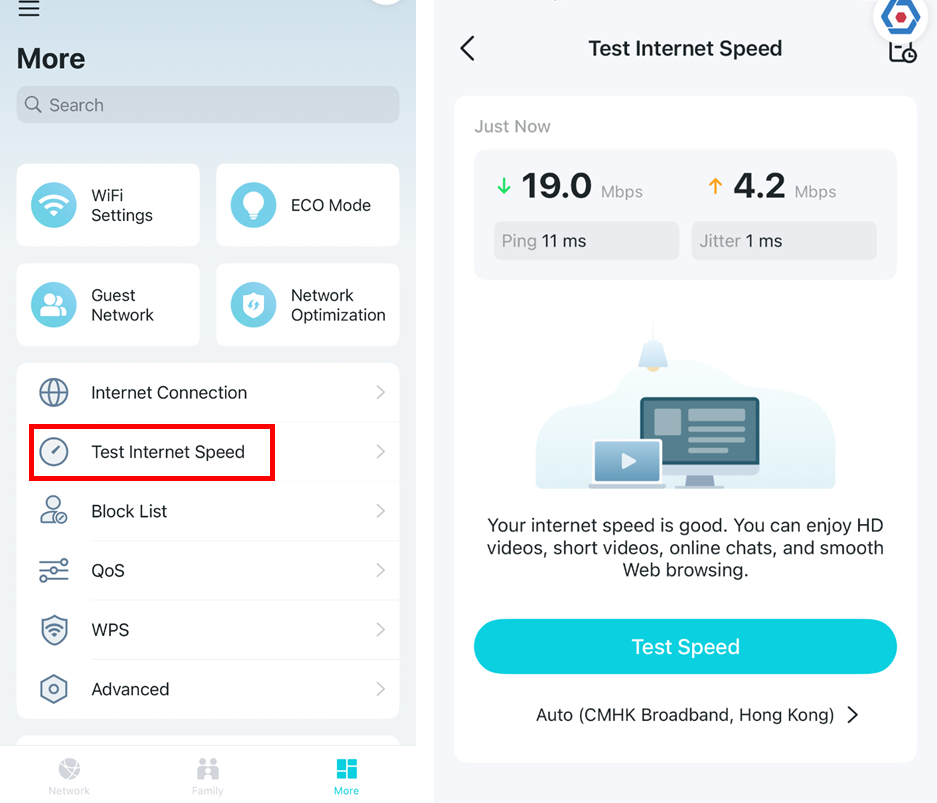
Note: Test speed will vary due to network conditions, the speed test tool, and environmental factors.
If the speed test result is slow, tap the "Auto >" icon below Test Server to select a different server, then tap Test Speed to test again.
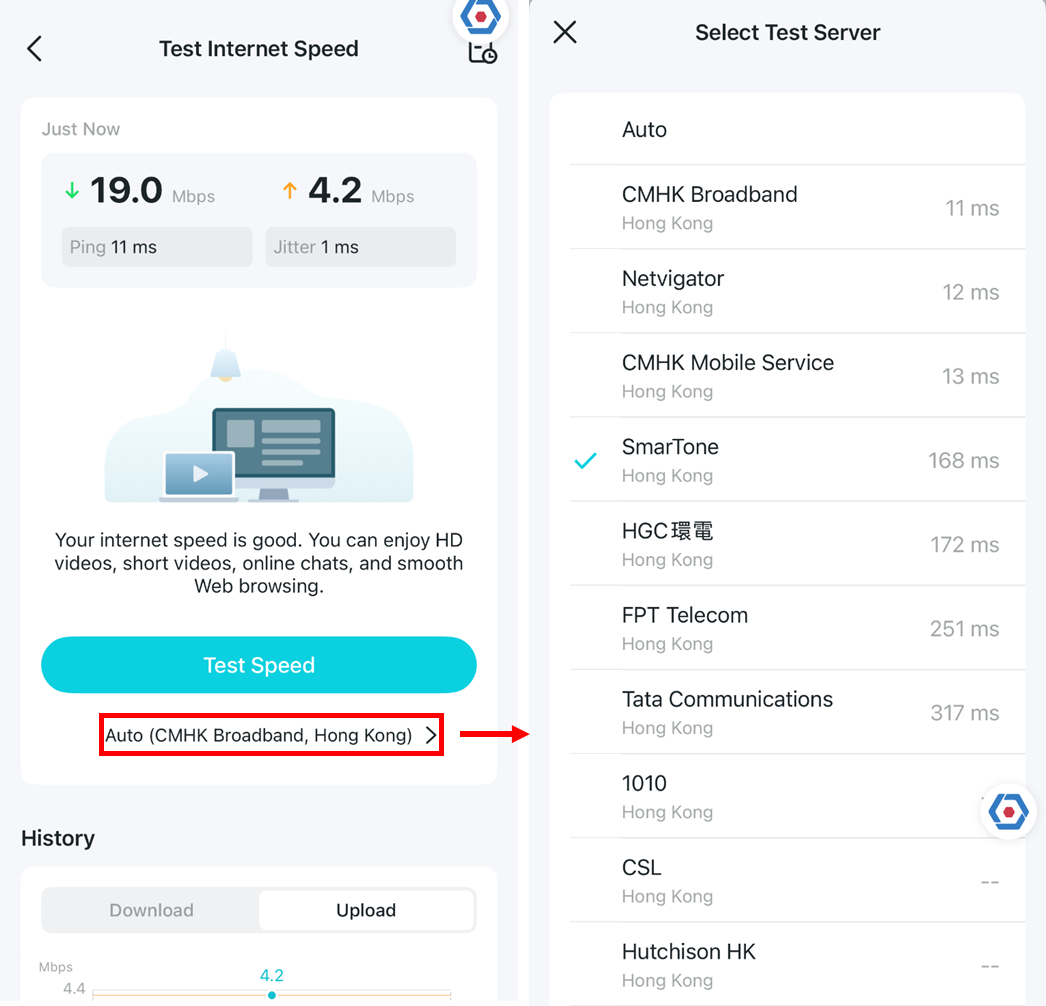
Note: Test speed will vary due to network conditions, the speed test tool, and environmental factors.
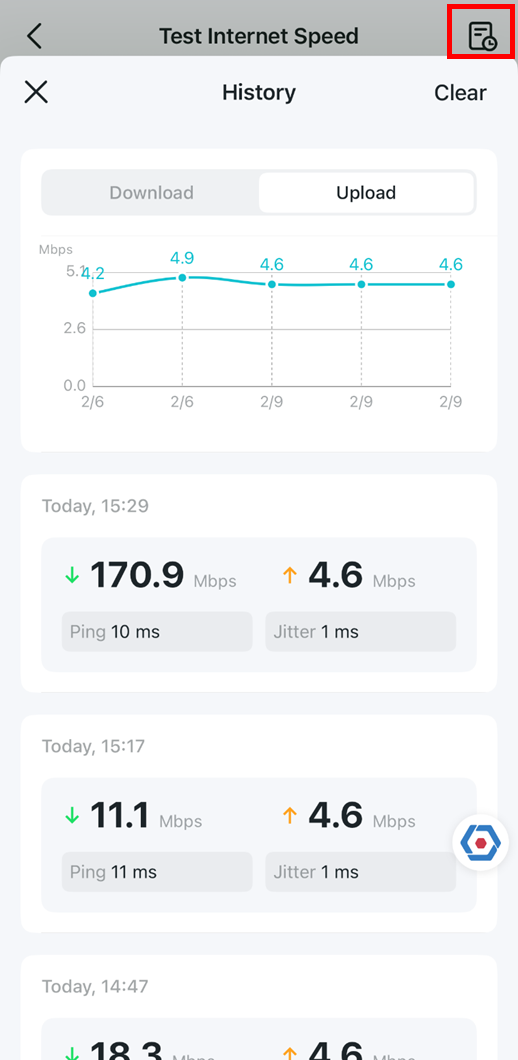
If you tap the icon in the top-right corner, you'll see the speed test history.
Method 2: Test Internet Speed in Web GUI
Log into the router’s web management page, and tap the Speed Test logo in the Network Map, Test AGAIN.
How do I log into the web-based Utility (Management Page) of TP-Link wireless router?

Likely, if the speed test result is slow, you can tap the "Auto" icon below Test Server to select a different server, then Test Speed to test the speed again.
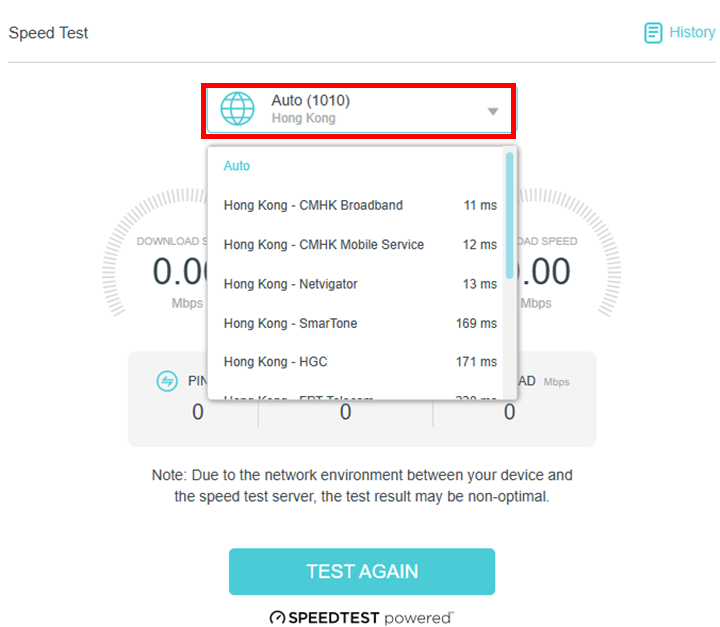
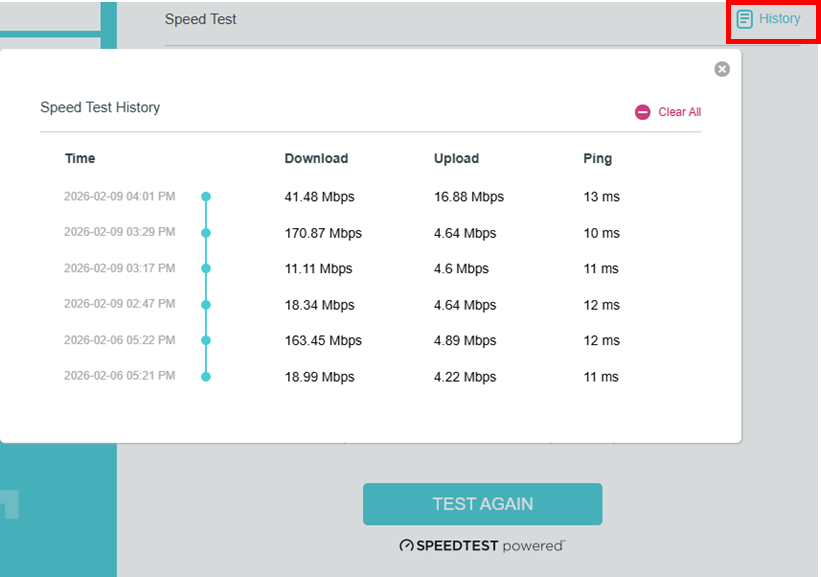
If you tap the history logo, here is the speed test history.
Scenario 2. For the Aginet models that do not support the Test Internet Speed feature
For these models, you can connect a computer to the Aginet controller via an Ethernet cable, then visit www.speedtest.net or the Speedtest app to test internet speed.
To get know more details about each function and configuration please go to Download Center to download the manual of your product.
Is this faq useful?
Your feedback helps improve this site.

-1.0_overview_listpage_normal_20251120072446k.png)


TP-Link Community
Still need help? Search for answers, ask questions, and get help from TP-Link experts and other users around the world.