
How to factory reset the Tapo/Kasa smart plug
 357962
Introduction
Resetting your Tapo or Kasa smart plug can help resolve various issues such as network connection failures, abnormal behavior, or configuration errors. This FAQ explains the two types of reset methods, soft reset and factory reset, and provides step‑by‑step instructions for each scenario to help you restore your smart plug to normal operation.
Configuration
There are two types of reset available: a soft reset which does not erase the current settings, and a factory reset that erases all of your custom settings and restore the plugs to factory defaults.
Scenario 1: Soft reset (without losing the configuration settings)
Step 1. Power on the plug.
Step 2. Press and hold the power button for 5 seconds.
Scenario 2: Factory reset (back to factory default settings)
Method 1. Via power button
Step 1. Power on the plug.
Step 2. Press and hold the power button for 10 seconds.
Method 2. Via Tapo/Kasa app
Note: The plug must be online to perform an app-based reset.
Case 1. On Home page
On the home page, long tap on your plug model card. Then tap the minus icon on the card to remove it.
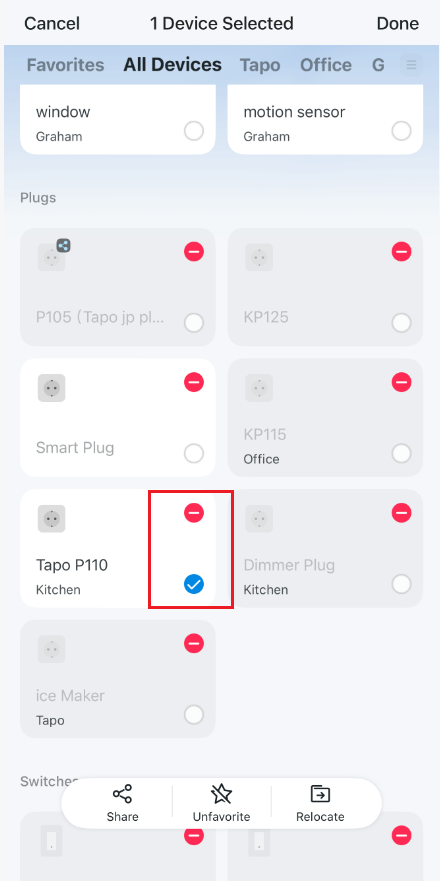
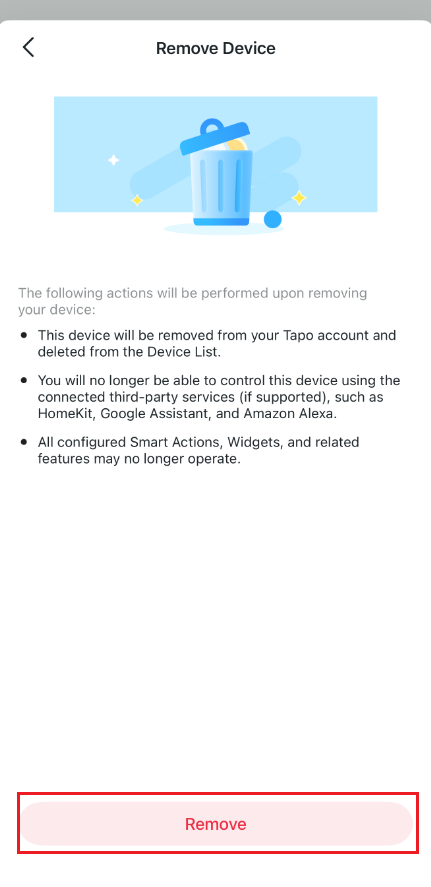
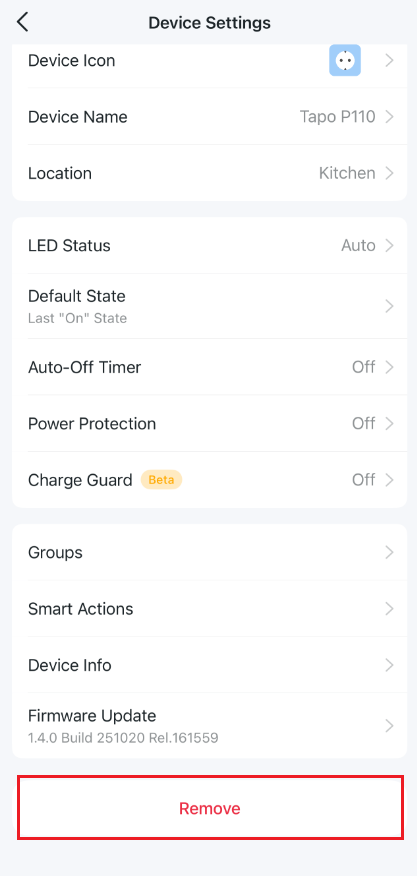
Case 2. On Device Settings page
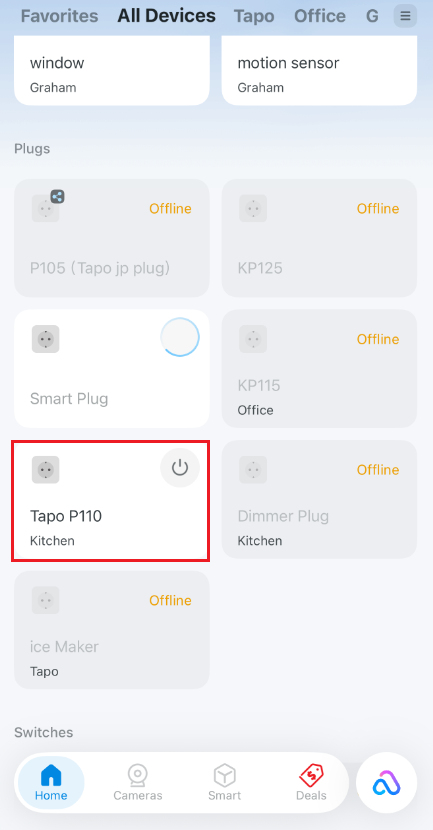
Step 1. On the home page, tap on your plug model card.
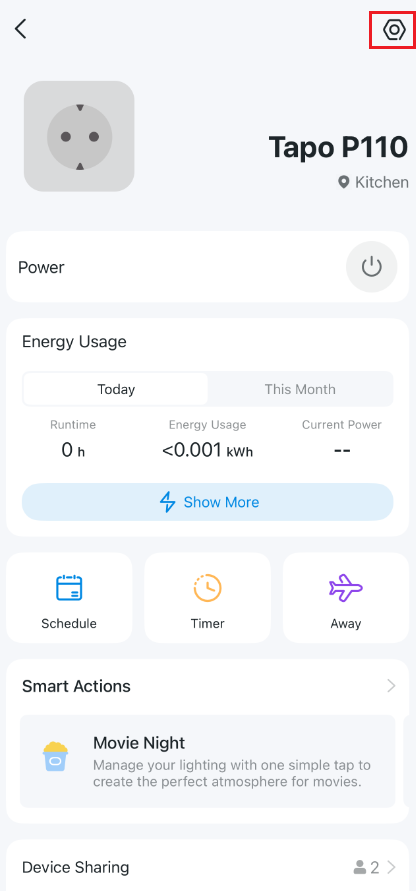
Step 2. Tap the gear icon to enter the Device Settings page.
Step 3. Tap Remove at the bottom to reset the plug.
Get to know more details of each function and configuration, please go to the Download Center to download the manual of your product.
Is this faq useful?
Your feedback helps improve this site.
1.0_Setup-image_2000x2000_单只_列表页_normal_1596521450001c.png)



TP-Link Community
Still need help? Search for answers, ask questions, and get help from TP-Link experts and other users around the world.