
Archer C6 V5 Product and Installation Guide
About This Guide
This guide is a complement of Quick Installation Guide. The Quick Installation Guide instructs you on quick internet setup, while this guide introduces the appearance, LEDs, buttons and ports of your router, and provides methods to connect the hardware.
Please note that the images and pathway descriptions in this guide may differ from your actual product and firmware version.
Conventions
In this guide the following conventions are used:
|
Convention |
Description |
|---|---|
|
Underline |
Underlined words or phrases are hyperlinks. You can click to redirect to a website or a specific section. |
|
Bold |
Contents to be emphasized and texts on the web page are in bold, including the menus, items, buttons and so on. |
|
> |
The menu structures to show the path to load the corresponding page. For example, Settings > System Tools > Firmware Upgrade means the Firmware Upgrade page is under the System Tools menu that is located in the Settings tab. |
|
Note: |
Ignoring this type of note might result in a malfunction or damage to the device. |
|
Tip: |
Indicates important information that helps you make better use of your device. |
More Info
The latest software, management app and utility can be found at Download Center at https://www.tp-link.com/support/download.
The Quick Installation Guide can be found where you find this guide or inside the package.
Specifications can be found on the product page at https://www.tp-link.com.
TP-Link Community is provided for you to discuss our products and share knowledge at https://community.tp-link.com.
Our Technical Support contact information can be found at the Contact Technical Support page at https://www.tp-link.com/support.
Get to Know About Your Router
This chapter introduces what the router can do and its appearance.
It contains the following sections:
- Product Overview
- Appearance
1. Product Overview
The TP-Link router is designed to fully meet the need of Small Office/Home Office (SOHO) networks and users demanding higher networking performance. The powerful antennas ensure continuous Wi-Fi signal to all your devices while boosting widespread coverage throughout your home, and the built-in Ethernet ports supply high-speed connection to your wired devices. Moreover, it is simple and convenient to set up and use the TP-Link router due to its intuitive web interface and the powerful Tether app.
2. Appearance
Front Panel
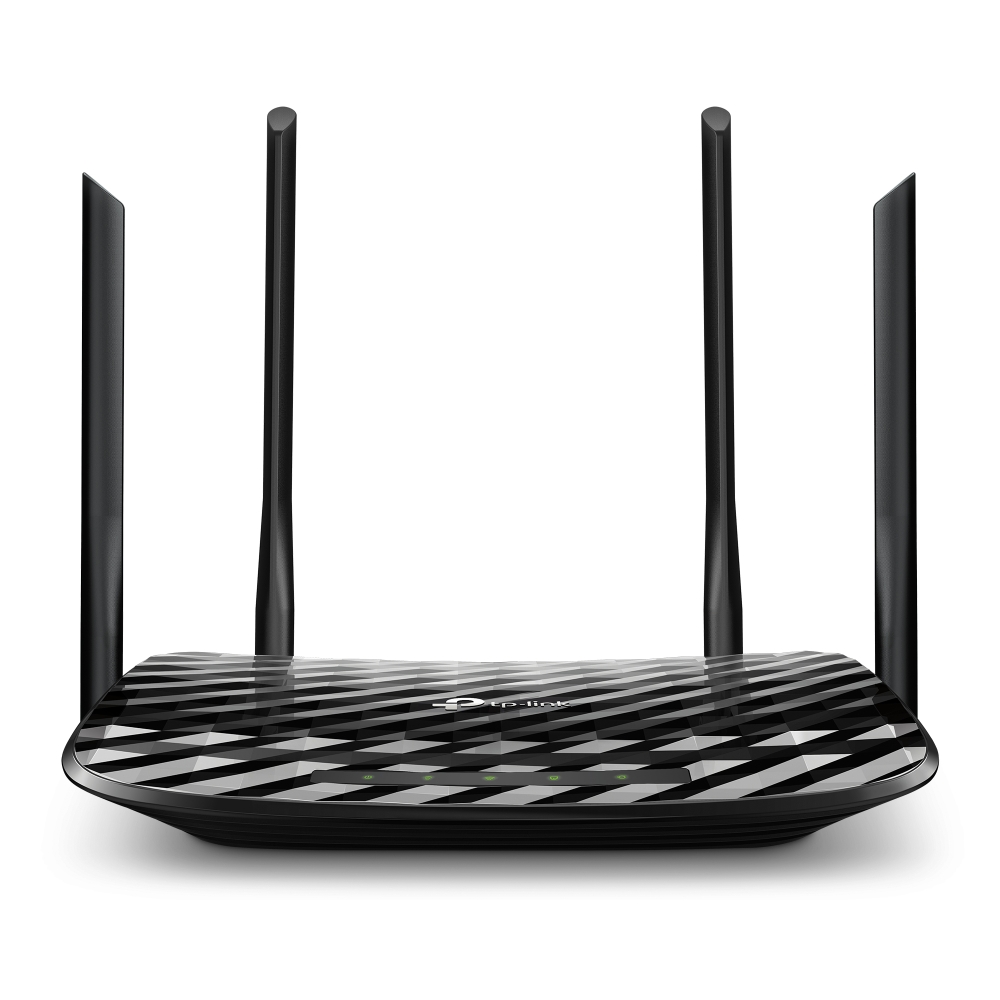
LED Explanation
You can check the router's working status by following the LED Explanation table.
|
Name |
Status |
Indication |
|
(Power) |
On |
The system has started up successfully. |
|
Blinking |
Blinking slowly:
|
|
|
Off |
Power is off. |
|
|
(2.4GHz Wireless) |
On |
The 2.4GHz wireless band is enabled. |
|
Off |
The 2.4GHz wireless band is disabled. |
|
|
(5GHz Wireless) |
On |
The 5GHz wireless band is enabled. |
|
Off |
The 5GHz wireless band is disabled. |
|
|
(LAN) |
On |
At least one powered-on device is connected to the router’s LAN port. |
|
Off |
No powered-on device is connected to the router’s LAN port. |
|
|
(Internet) |
Orange On |
The WAN port is connected, but internet is unavailable. |
|
Green On |
Router Mode: Internet is available. |
|
|
Off |
The router’s Internet port is unplugged. |


Back Panel
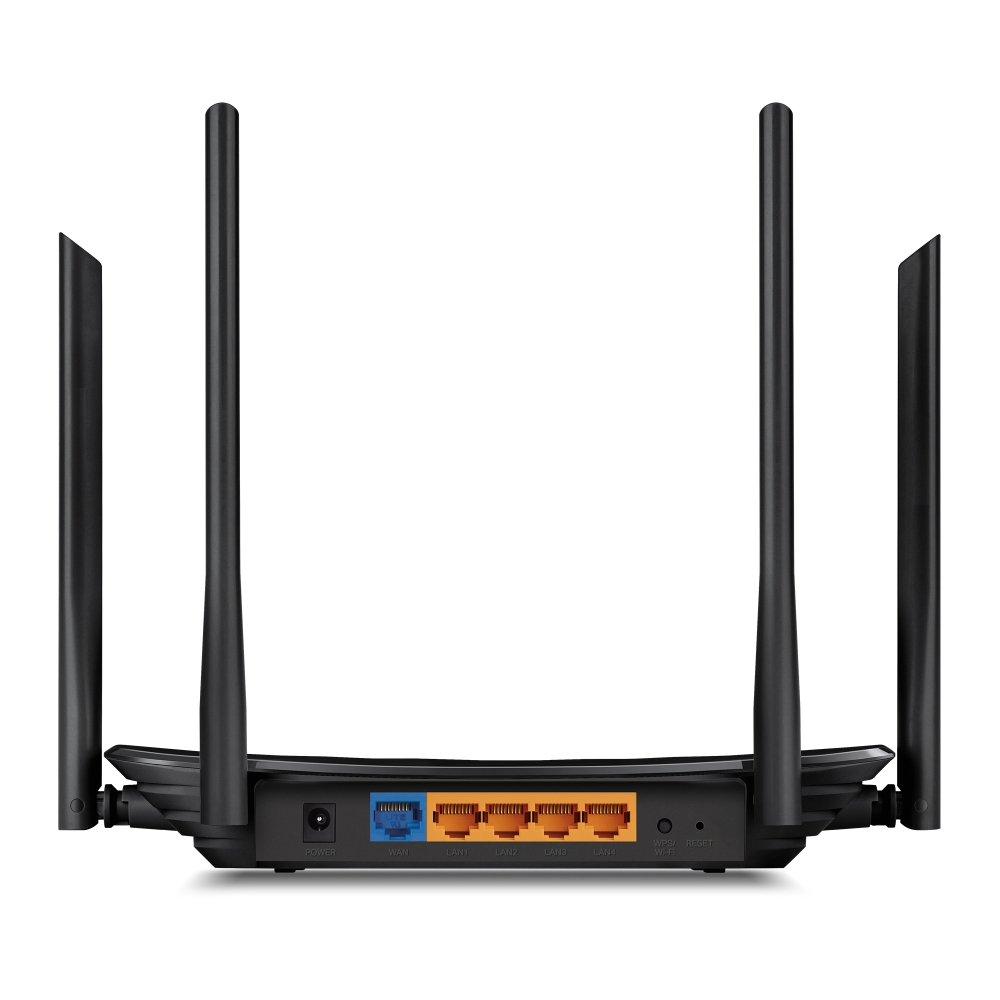
Button and Port Description
|
Button and Port |
Description |
|
Power Port |
For connecting the router to a power socket via the provided power adapter. |
|
WAN Port |
For connecting to your modem or the Ethernet outlet. |
|
LAN Ports |
For connecting your PC or other wired devices to the router. |
|
WPS/ Wi-Fi |
Press for 1 second, and immediately press the WPS button on your client device to start the WPS process. |
|
Reset |
Press and hold this button for about 10 seconds until the Power LED blinks to reset the router to its factory default settings. |
Connect the Hardware
This chapter contains the following sections:
• Position Your Router
• Connect Your Router
Position Your Router
• The product should not be located in a place where it will be exposed to moisture or excessive heat.
• Place the router in a location where it can be connected to multiple devices as well as to a power source.
• Make sure the cables and power cord are safely placed out of the way so they do not create a tripping hazard.
• The router can be placed on a shelf or desktop.
• Keep the router away from devices with strong electromagnetic interference, such as Bluetooth devices, cordless phones and microwaves.
• Generally, the router is placed on a horizontal surface, such as on a shelf or desktop. The device also can be mounted on the wall as shown in the following figure.
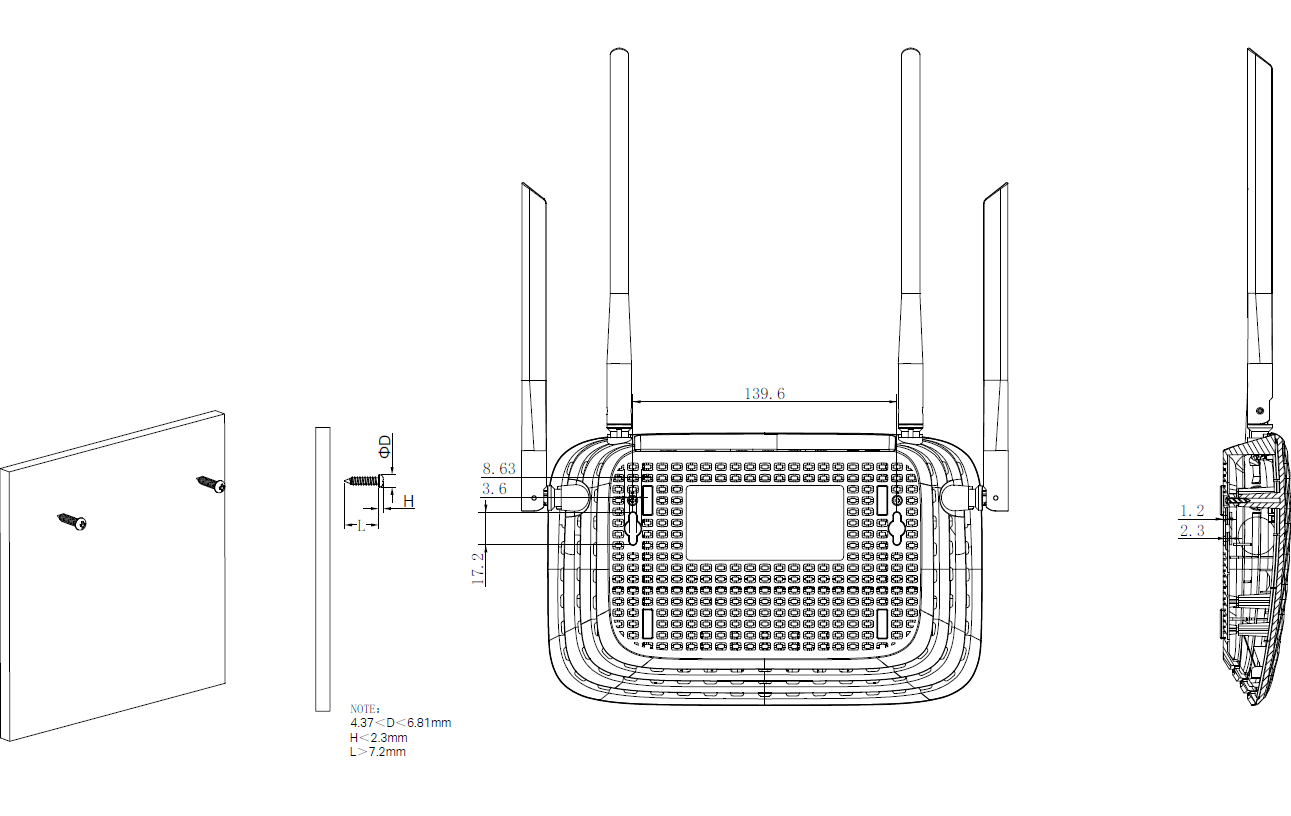
Note: The diameter of the screw head, 4.37mm<D<6.81mm, and the distance of two screws is 139.6mm. The screw that project from the wall need around 5mm based, and the length of the screw need to be at least 7.2mm to withstand the weight of the product.
Connect Your Router
1. Connect the powered-off modem to the router’s Internet port with an Ethernet cable.
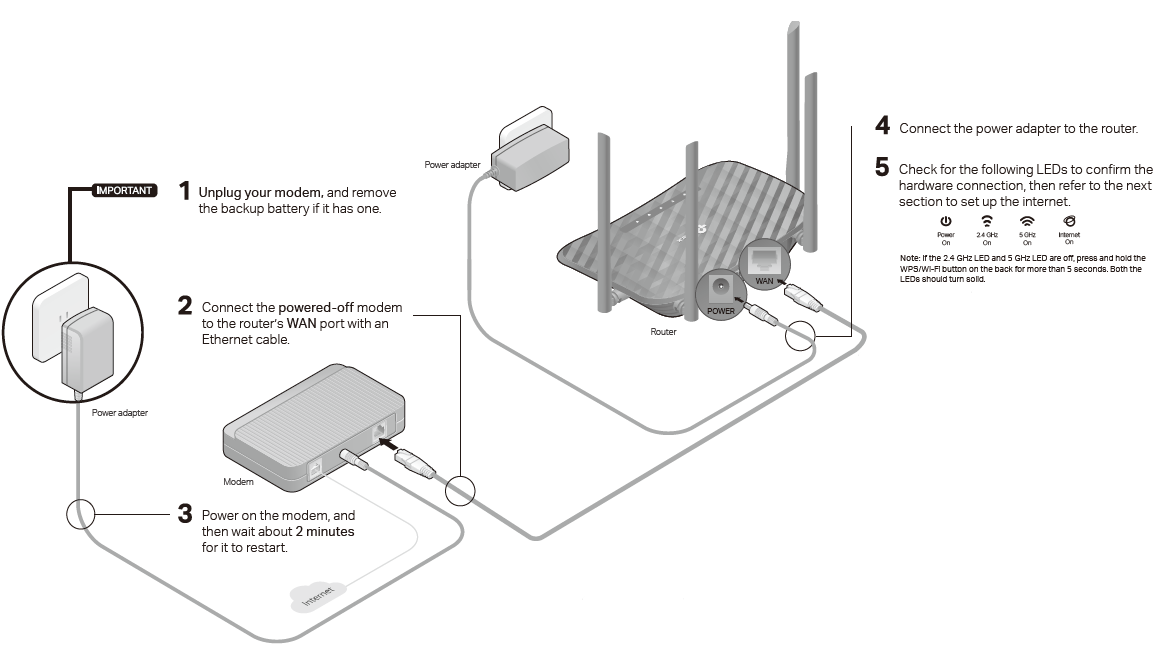
2. Power on the modem, and then wait about 2 minutes for it to restart.
3. Connect the power adapter to the router.
4. Verify that the hardware connection is correct by checking the following LEDs.

5. Connect your computer to the router.
• Method 1: Wired
Turn off the Wi-Fi on your computer and connect the devices to the LAN port of yourrouter.
• Method 2: Wirelessly
1 ) Find the SSIDs (Network Names) and Wireless Password printed on the label at the bottom of the router.
2 ) Click the network icon of your computer or go to Wi-Fi Settings of your smart device, and then select the SSID to join the network.
Authentication
For the following regions, use only the power supplies provided by the manufacturer in the original product package, or those listed in the user instructions:
|
Region |
Manufacturer |
Model |
|
European Union Switzerland Egypt |
TP-Link |
T090085-2C1 |
|
United Kingdom |
TP-Link |
T090085-2D1 |

OPERATING FREQUENCY(the maximum transmitted power)
2400 MHz -2483.5 MHz (20dBm)
5150 MHz -5250 MHz (23dBm)
EU Declaration of Conformity
TP-Link hereby declares that the device is in compliance with the essential requirements and other relevant provisions of directives 2014/53/EU, 2009/125/EC, 2011/65/EU and (EU)2015/863.
The original EU Declaration of Conformity may be found at https://www.tp-link.com/en/support/ce/
RF Exposure Information
This device meets the EU requirements (2014/53/EU Article 3.1a) on the limitation of exposure of the general public to electromagnetic fields by way of health protection.
The device complies with RF specifications when the device used at 20 cm from your body.
National Restrictions
Frequency band: 5150 - 5250 MHz:
Indoor use: Inside buildings only. Installations and use inside road vehicles and train carriages are not permitted. Limited outdoor use: If used outdoors, equipment shall not be attached to a fixed installation or to the external body of road vehicles, a fixed infrastructure or a fixed outdoor antenna. Use by unmanned aircraft systems (UAS) is limited to within the 5170 - 5250 MHz band.
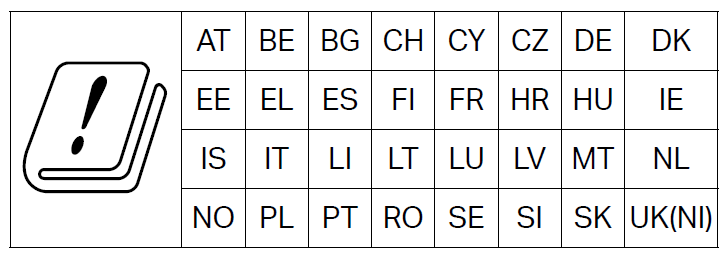
UKCA Mark

UK Declaration of Conformity
TP-Link hereby declares that the device is in compliance with the essential requirements and other relevant provisions of the Radio Equipment Regulations 2017.
The original UK Declaration of Conformity may be found at https://www.tp-link.com/support/ukca
National Restrictions
Attention: This device may only be used indoors in Great Britain.
Korea Warning Statements
당해 무선설비는 운용중 전파혼신 가능성이 있음.

Продукт сертифицировано згідно с правилами системи УкрСЕПРО на відповідність вимогам нормативних>Продукт сертифіковано згідно с правилами системи УкрСЕПРО на відповідність вимогам нормативних документів та вимогам, що передбачені чинними законодавчими актами України.

Safety Information
Keep the device away from water, fire, humidity or hot environments.
Do not attempt to disassemble, repair, or modify the device. If you need service, please contact us.
Do not use damaged charger or USB cable to charge the device.
Do not use any other chargers than those recommended.
Do not use the device where wireless devices are not allowed.
Adapter shall be installed near the equipment and shall be easily accessible.
Use only power supplies which are provided by manufacturer and in the original packing of this product. If you have any questions, please don’t hesitate to contact us.
Operating Temperature: 0℃ ~ 40℃ (32℉ ~ 104℉)
This product uses radios and other components that emit electromagnetic fields. Electromagnetic fields and magnets may interfere with pacemakers and other implanted medical devices. Always keep the product and its power adapter more than 15 cm (6 inches) away from any pacemakers or other implanted medical devices. If you suspect your product is interfering with your pacemaker or any other implanted medical device, turn off your product and consult your physician for information specific to your medical device.
Please read and follow the above safety information when operating the device. We cannot guarantee that no accidents or damage will occur due to improper use of the device. Please use this product with care and operate at your own risk.
Explanation of the symbols on the product label
Note: The product label is on the bottom of the product and its power supply. Symbols may vary from products.
注意:產品標籤可以在產品底部和其I.T.E.電源供應器上找到。符號可能因產品而異。
| Symbol 符號解釋 |
Explanation 解釋 |
|---|---|
 |
Class II equipment Class II 設備 |
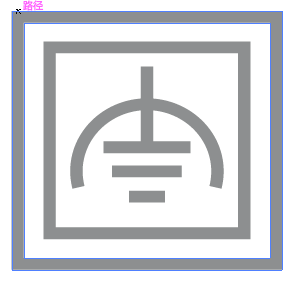 |
Class II equipment with functional earthing 具有功能接地的Class II 設備 |
 |
Alternating current 交流電 |
 |
DC voltage 直流電壓 |
 |
Polarity of output terminals 輸出端子極性 |
 |
Indoor use only 僅限室內使用 |
 |
Dangerous voltage 危險電壓 |
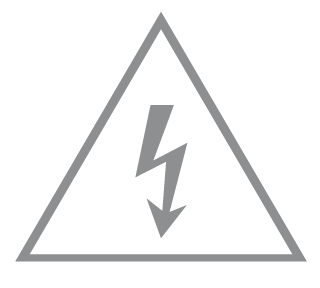 |
Caution, risk of electric shock 注意,有觸電危險 |
 |
Energy efficiency Marking 能源效率標示 |
 |
Protective earth 保護接地 |
 |
Earth 接地 |
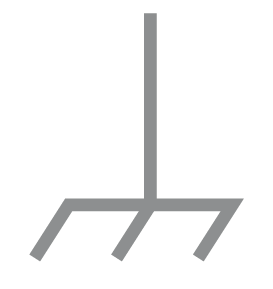 |
Frame or chassis 機架接地 |
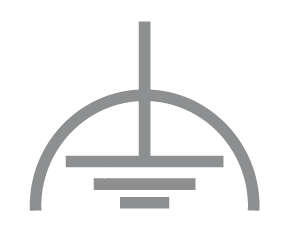 |
Functional earthing 功能接地 |
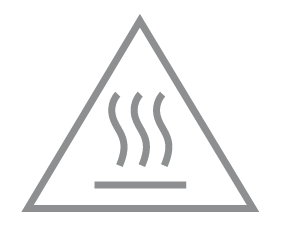 |
Caution, hot surface 警告,表面高溫 |
 |
Caution 警告 |
 |
Operator’s manual 操作手冊 |
 |
Stand-by 待機 |
 |
“ON”/”OFF” (push-push) 「開」/「關」 ( 按壓式) |
 |
Fuse 保險絲 |
 |
Fuse is used in neutral N 保險絲用於中性線N |
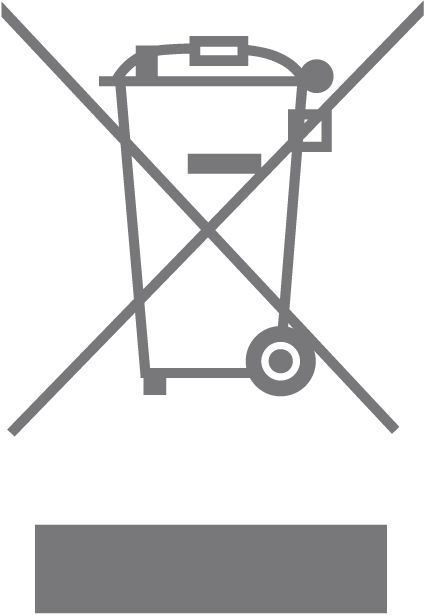 |
RECYCLING This product bears the selective sorting symbol for Waste electrical and electronic equipment (WEEE). This means that this product must be handled pursuant to European directive 2012/19/EU in order to be recycled or dismantled to minimize its impact on the environment. User has the choice to give his product to a competent recycling organization or to the retailer when he buys a new electrical or electronic equipment. 回收利用 本產品標示有「廢棄電氣電子設備(WEEE)」的分類回收標誌。這表示本產品必須依據歐盟指令 2012/19/EU 進行妥善回收或拆 解,以減少對環境的影響。 使用者可選擇將本產品交給合格的回收機構,或在購買新電器或電子設備時,交回給零售商進行回收處理。 |
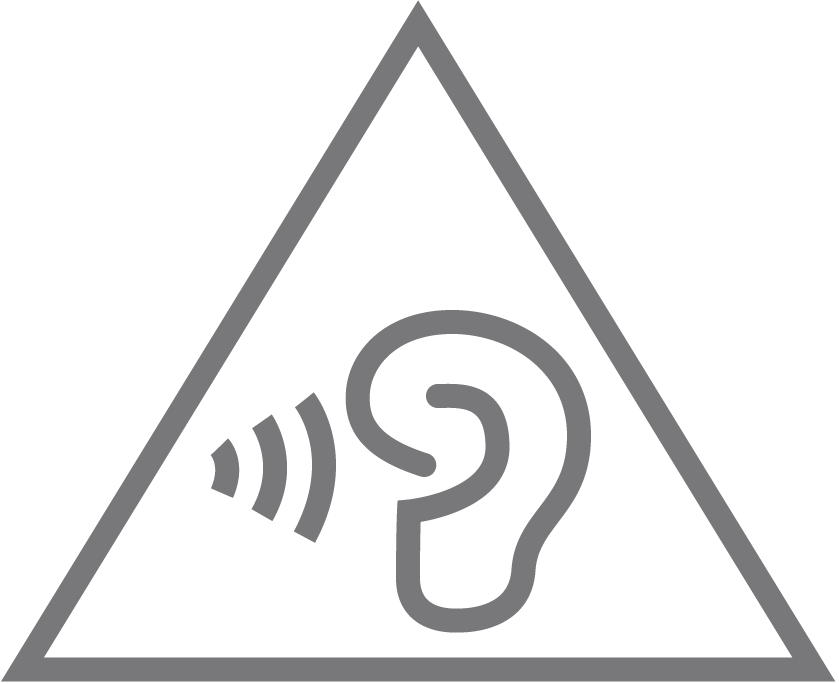 |
Caution, avoid listening at high volume levels for long periods 注意,避免長時間以高音量收聽 |
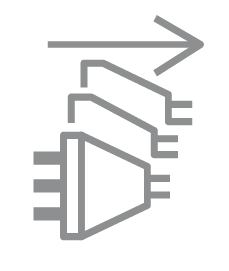 |
Disconnection, all power plugs 斷開所有電源插頭 |
| m | Switch of mini-gap construction 微間隙結構的開關 |
| µ | Switch of micro-gap construction (for US version) Switch of micro-gap / micro-disconnection construction (for other versions except US) 微小間隙結構開關(適用於美國版) 微小間隙 / 微小斷開結構開關(適用於美國以外的其他版本) |
| ε | Switch without contact gap (Semiconductor switching device) 無接點間隙開關(半導體開關裝置) |
Appendix I
定位您的路由器:
產品不應放置在會受潮濕或過高溫度的地方。
將路由器放置在能夠連接多個設備並接上電源的地方。
請確保線和電源線放置在安全位置,以免造成絆倒的危險。
路由器可以放置在架子上或桌面上。
將路由器遠離具有強烈電磁干擾的設備,例如藍牙設備、無線電話和微波爐。
通常,路由器放置在水平的表面上,例如在架子上或桌面上。該設備還可以安裝在牆上,如下圖所示。
注意:螺絲頭直徑為4.37mm<D<6.81mm,兩個螺絲之間的距離為139.6m。從牆壁突出的螺絲需要約5mm的基底,並且螺絲的長度至少需要7.2mm才能承受產品的重量。
運作溫度: 0°C~40°C (32°F~104°F)
適配器應安裝在設備附近,並應易於接近。
請使用製造商提供的電源適配器。如果您有任何問題,請隨時與我們聯繫。