
How to Reset Deco or Reboot Your TP-Link Deco System
If your Deco network is running slowly, dropping connections, or behaving unexpectedly, a reset or reboot may resolve the issue. Resetting a Deco unit clears its configuration and returns it to factory defaults. Rebooting simply restarts it without erasing any settings. This page covers both processes for your Deco whole-home Wi-Fi system.
Key Takeaways
- You can reset a Deco unit in two ways: through the Deco app or by pressing the physical reset button on the unit.
- Rebooting and resetting are different. Rebooting restarts the unit while keeping your settings intact. Resetting wipes the unit's configuration.
- If you are resetting your entire Deco system through the app, remove expansion units first and the primary unit last to avoid network issues.
- You can reboot your entire Deco network at once directly from the Deco app.
- To factory reset a TP-Link router (not a Deco unit), see How to reset a TP-Link router to factory defaults.
When to Reset vs. When to Reboot
Reboot your Deco unit when you want to refresh the connection, clear temporary memory issues, or resolve minor glitches without losing your Wi-Fi settings.
Reset your Deco unit when you intend to wipe it completely and start fresh, such as when troubleshooting persistent issues or preparing the unit for a new setup.
How to Reset a Deco Unit
There are two ways to reset a Deco unit:
Method 1: Using the Deco App
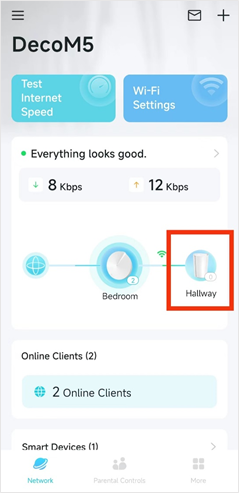
- Open the Deco app and go to the Network page.
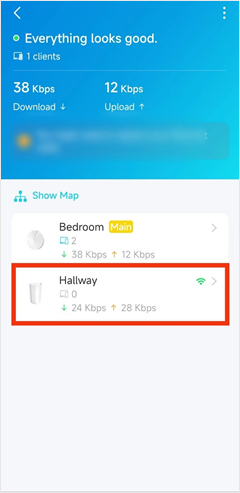
- Tap the network map, then tap the Deco unit you want to reset.
- Tap the button in the top right corner of the unit's screen.
- Tap Remove to reset the unit.
Method 2: Using the Reset Button
Press the reset button on the bottom of the Deco unit for one second to reset it.
Note:
- If the reset does not work using either method, unplug the Deco unit, plug it back in, wait two minutes, then try resetting again.
- If you want to reset all Deco units through the app, remove the expansion units first and the primary unit last.
How to Reboot a Deco Unit or Network
There are two ways to reboot a single Deco unit:
Method 1: Using the Deco App
- Open the Deco app and go to the Network page.
- Tap the network map, then tap the Deco unit you want to reboot.
- Tap the button in the top right corner of the unit's screen.
- Tap Reboot to restart the unit.
Method 2: Manually Power Cycling
Unplug the Deco unit from its power source, then plug it back in.
Rebooting the Whole Deco Network
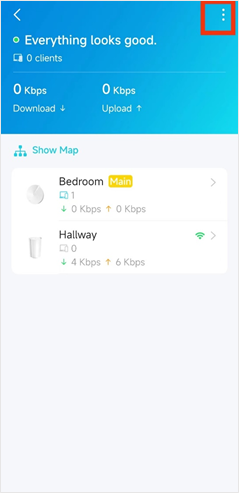
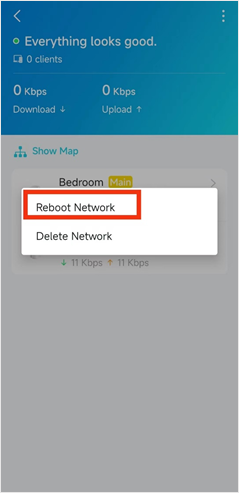
To reboot every unit in your Deco network at once, open the Network page in the Deco app, tap the network map, tap the icon in the upper right corner, and then tap Reboot Network.
If you need to remove a network entirely from the Deco app, see how to delete a network on the Deco app.
Полезен ли беше този ЧЗВ?
Вашите отзиви помагат за подобряване на този сайт.
_EU_V1.0_01_normal_20220817025337r.jpg)

_normal_20230201014412u.png)