
How to upgrade firmware of TP-Link xDSL Modem Router
 407292
Introduction
This article guides you on updating the firmware on a TP-Link xDSL Modem Router.
Requirements
- Computer
- TP-Link xDSL Modem Router
- (optional) If the firmware release note indicates that the upgrade will reset your settings, you may back up the configuration to restore it after upgrading
Configuration
Method 1. Local Upgrade manually
Step 1. Download the latest firmware for the modem router from the TP-Link official website at www.tp-link.com.
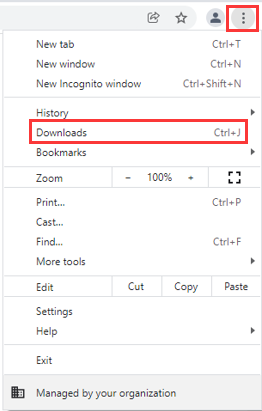
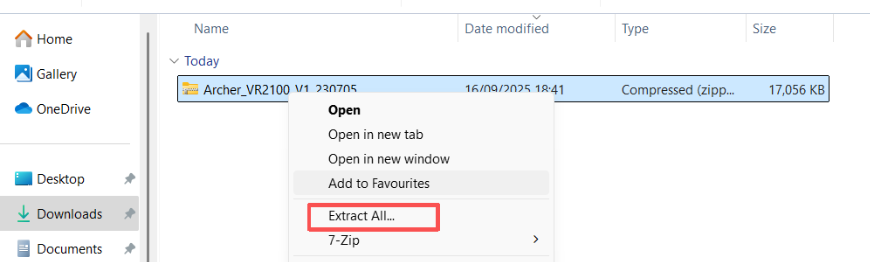
Step 2. Find and open the ZIP file you want to extract from. Right-click on the file and select Extract All from the context menu to extract BIN file. (Google Chrome & Windows system as an example)
Step 3. Log in to the router’s web-based interface via https://tplinkmodem.net.

Step 4. Go to Advanced > System Tools > Firmware Upgrade.
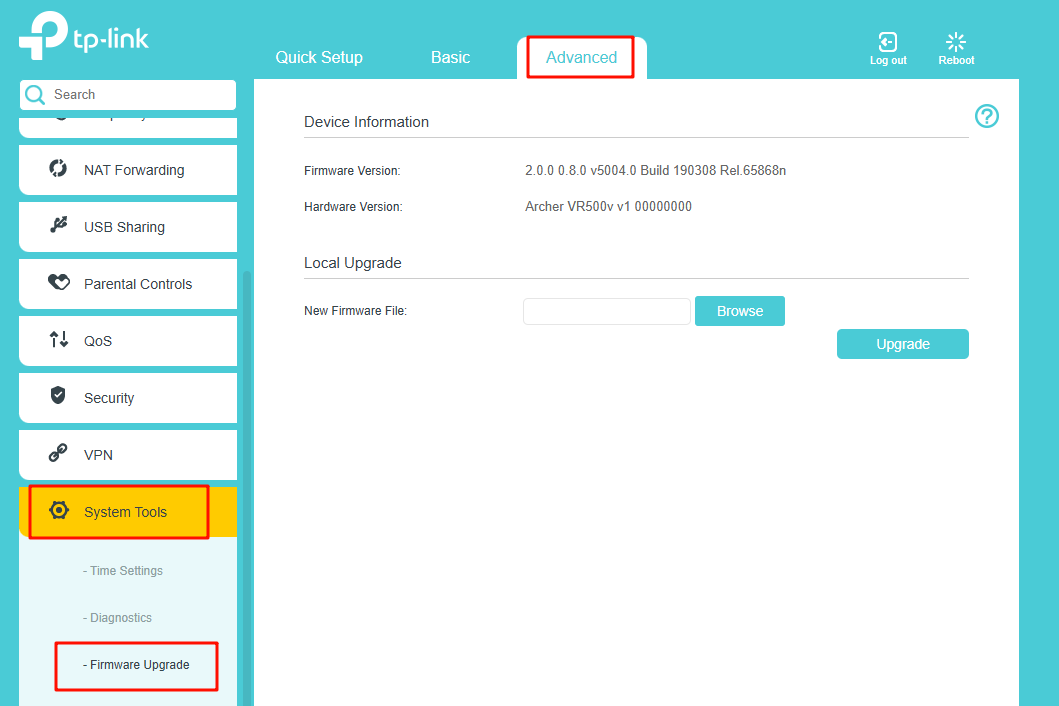
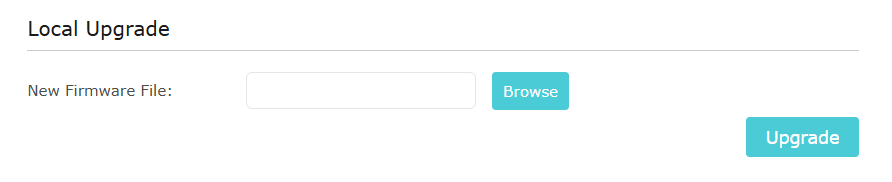
Step 5. Find the Local Upgrade, click Browse to locate the BIN file, then click Upgrade.
Method 2. Online Upgrade
Step 1. Log in to the router’s web-based interface via https://tplinkmodem.net.

Step 2. Go to Advanced > System Tools > Firmware Upgrade.
Note: The color schemes of the UI interfaces may vary across models, but the operation procedures remain the same.
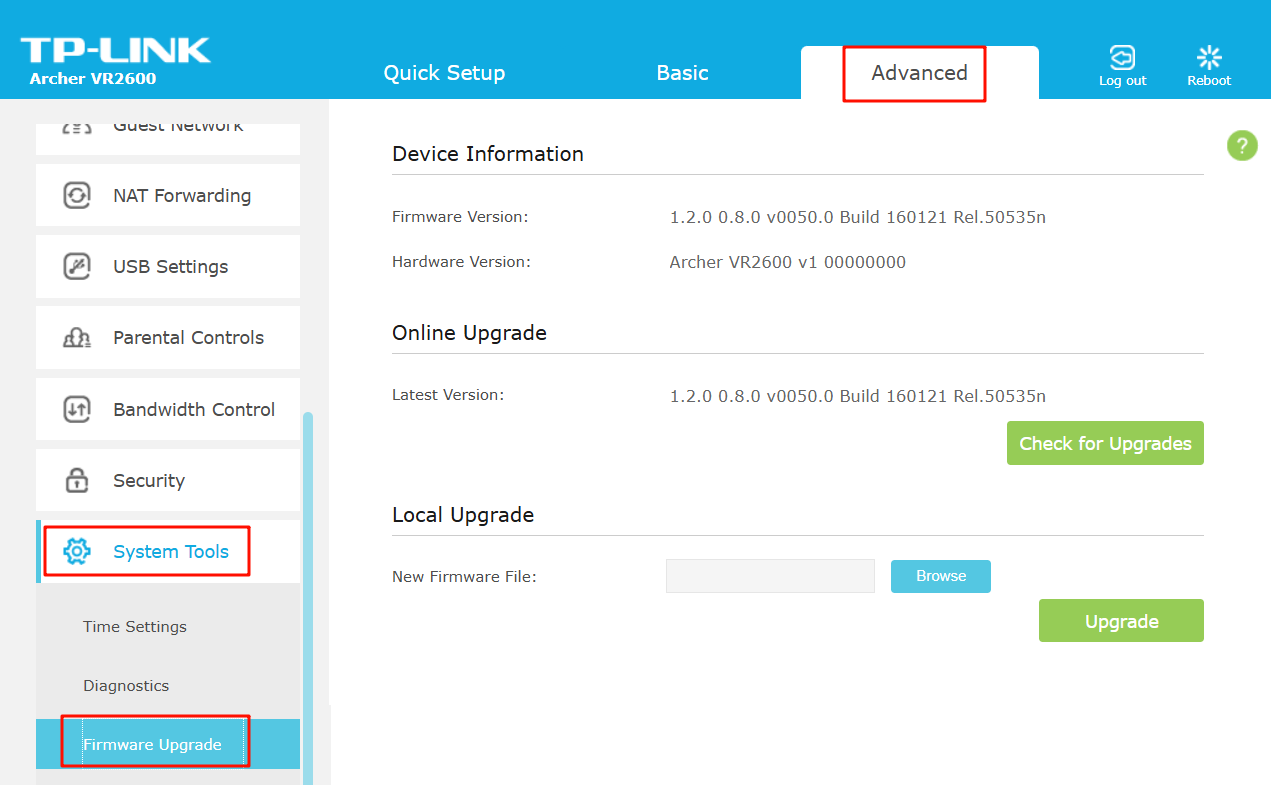
Step 3. Find the Online Upgrade, and click Check for Upgrades to update the firmware automatically.
Note: During the restore process, do not power off or reset the extender, and some models do not support Online Upgrade. Please refer to Method 1 for manual updates, such as Archer VR500v.

Note: If there’s a new important firmware update for your router, you will see a notification (similar to the one shown below) on your computer when you open a new web page. Click Upgrade now, and log in to the web management page. You will see the Firmware Upgrade page.
Step 4. Wait a few moments for the upgrading and rebooting.
Get to know more details of each function and configuration please go to Download Center to download the manual of your product.
Полезен ли беше този ЧЗВ?
Вашите отзиви помагат за подобряване на този сайт.


3.0-F1_1529482239075s.jpg)