
How to Find the IP Address of Your Tapo and Kasa Camera
Knowing your Tapo camera IP address is useful for setting up RTSP/ONVIF streaming, configuring third-party software, or troubleshooting network connectivity. This guide covers two ways to find the Tapo/Kasa camera's IP address: via the Tapo/Kasa app or the router's web management page.
Note: Some Tapo battery cameras and doorbells connect through a hub rather than directly to the router and do not have an IP address.
Key Takeaways
- There are two ways to find the IP address of a Tapo or Kasa camera: through the Tapo/Kasa app or through the router's web management page.
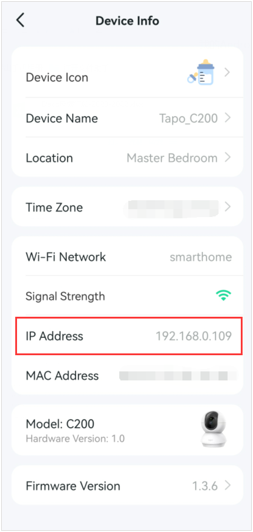
- In the Tapo app, the camera's IP address can be found under camera Device Settings > Device Info.
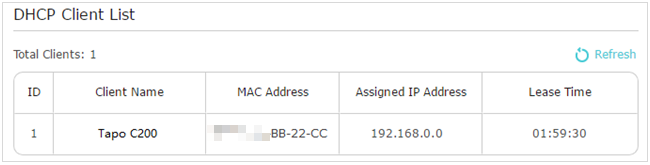
- Via the router web management page, the IP address appears in the DHCP Client List under Advanced > Network > DHCP Server.
How to Find the IP Address of Your Camera
This guide uses the Tapo C200 as an example.
Method 1: Via Tapo app
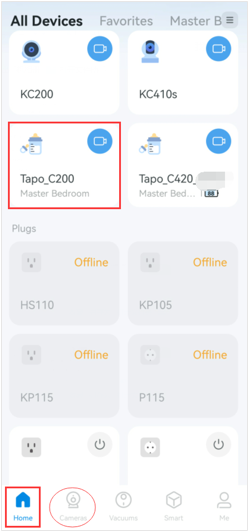
Step 1. On the Tapo app Home page, tap your camera model card to go to the Live View page.
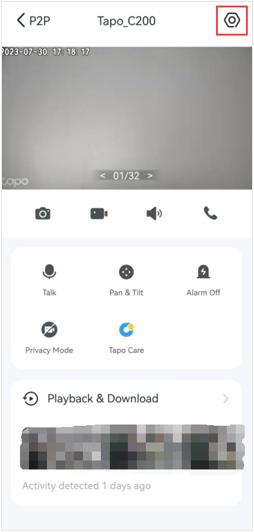
Step 2. On the Live View page, tap the gear icon in the top right corner to enter the Device Settings page.
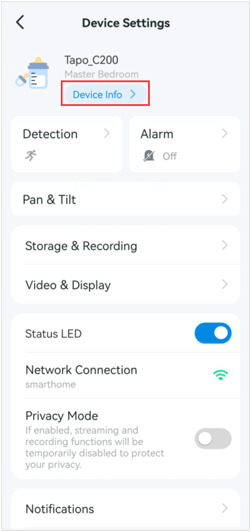
Step 3. Tap Device Info to find your camera's IP address.
Method 2: Via The Web Management Page Of Your Router
Here we take the TP-Link router Archer C7 as an example.
Step 1. Log in to your router's management page.
Step 2. Go to Advanced > Network > DHCP Server, then locate the DHCP Client List section to find your camera's IP address.
To learn more about each function and configuration, please visit the Download Center to download the manual for your product.
Looking For More
Is this faq useful?
Your feedback helps improve this site.



TP-Link Community
Still need help? Search for answers, ask questions, and get help from TP-Link experts and other users around the world.