
How to Block or Unblock a Device from Your Wi-Fi Network via Tether App
If you spotted an unknown device on your network or want to remove someone from your Wi-Fi, TP-Link routers make it easy. The Tether app lets you block any device on your Wi-Fi network using a Block List or a swipe-to-block interface, depending on your router model. This guide covers how to block a device from Wi-Fi and how to unblock it when needed. If you prefer to manage access through the router's browser interface instead, see how to configure Access Control on the web management page.
Key Takeaways
- On Wi-Fi 6, 6E, and 7 routers, open the Tether app, go to More > Block List, tap the + icon, then select a device from your connected clients list or enter its media access control (MAC) address manually.
- On older models, open the Tether app, tap Clients, then swipe left on the device you want to block.
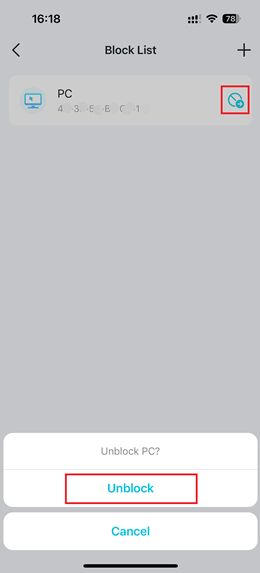
- To unblock a device on Wi-Fi 6/6E/7 routers, tap the icon next to the blocked device in the Block List, then select Unblock.
- To unblock a device on older models, go to the Blocked Clients list and swipe left on the device.
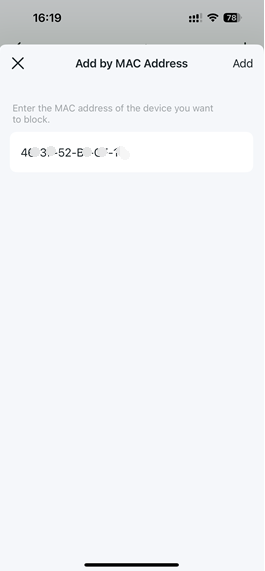
- You can block devices either by selecting them from your connected clients list or by entering a MAC address manually.
- On some older models, a blocked device may still connect to Wi-Fi but will not have Internet access.
Which Method Applies to You?
Not sure which case fits your router? Check the Tether app. If you see a Block List option under More, follow Case 1. If your app shows a swipe-to-block interface under Clients, follow Case 2.
Case 1: Block List Method (Wi-Fi 6, 6E, and 7 Routers and Wi-Fi 7 Range Extenders)
Applies to: Archer AX72, AXE95, BE800, BE900, RE800BE, and similar models.
Block a Device
Step 1: Open the Tether app and tap Local Device to locate your router.
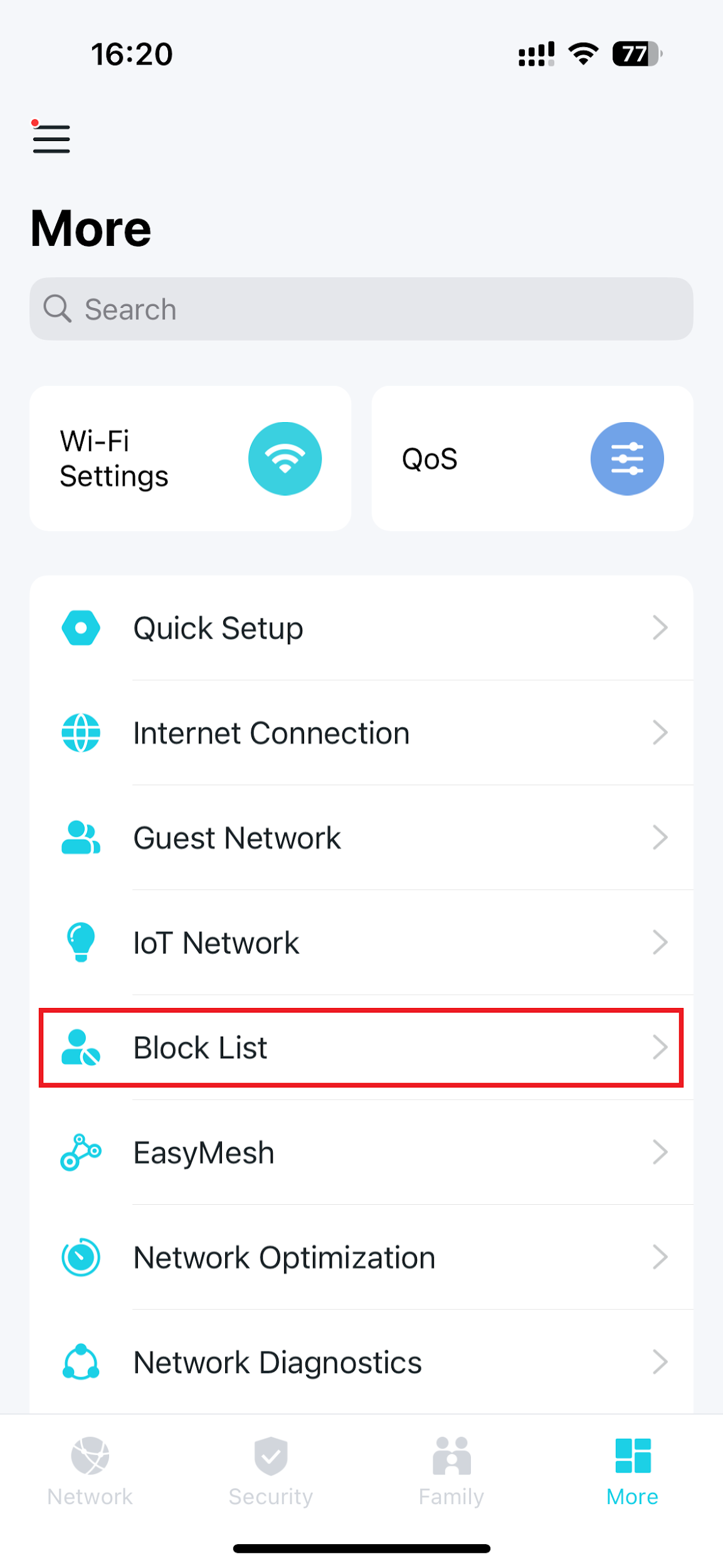
Step 2: Tap More to access additional settings.
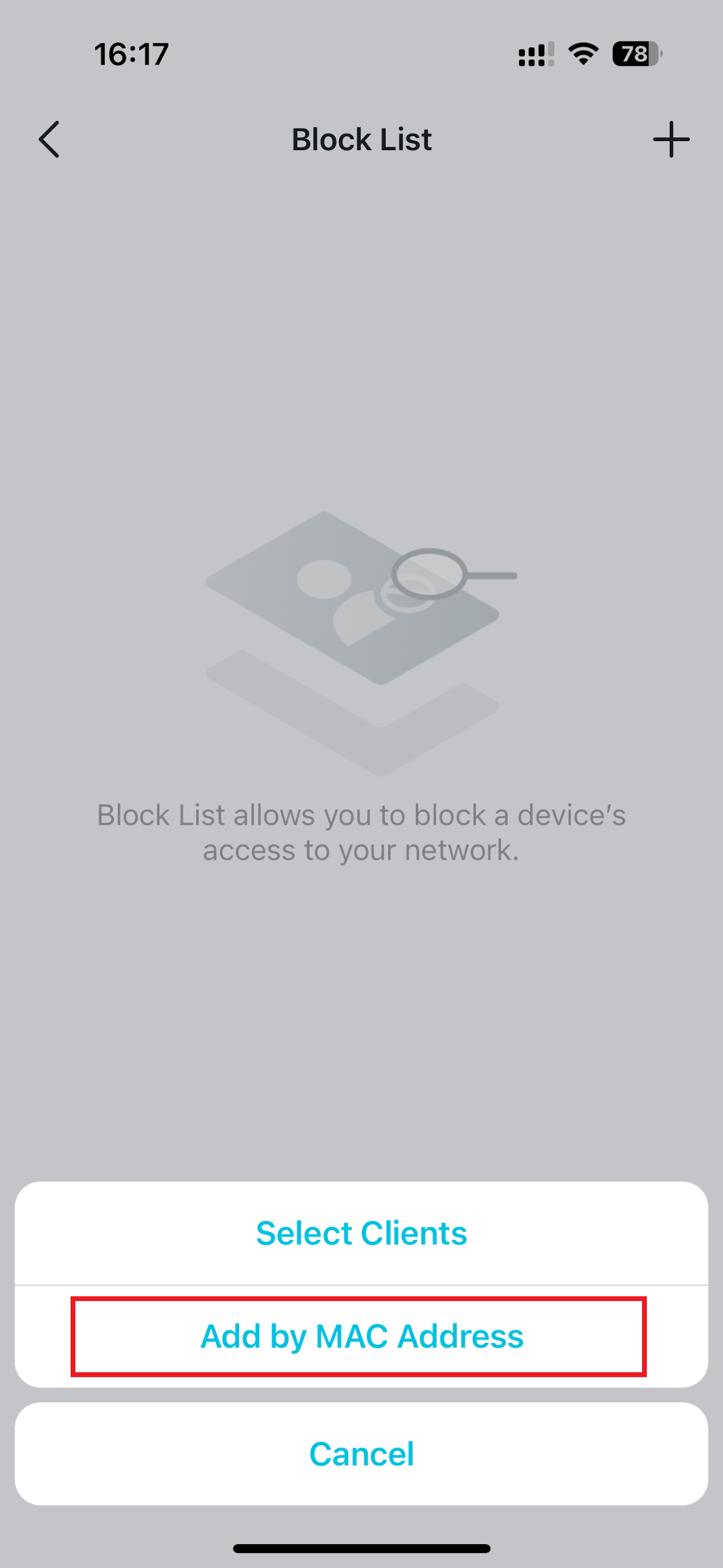
Step 3: Tap Block List, then tap the + icon.
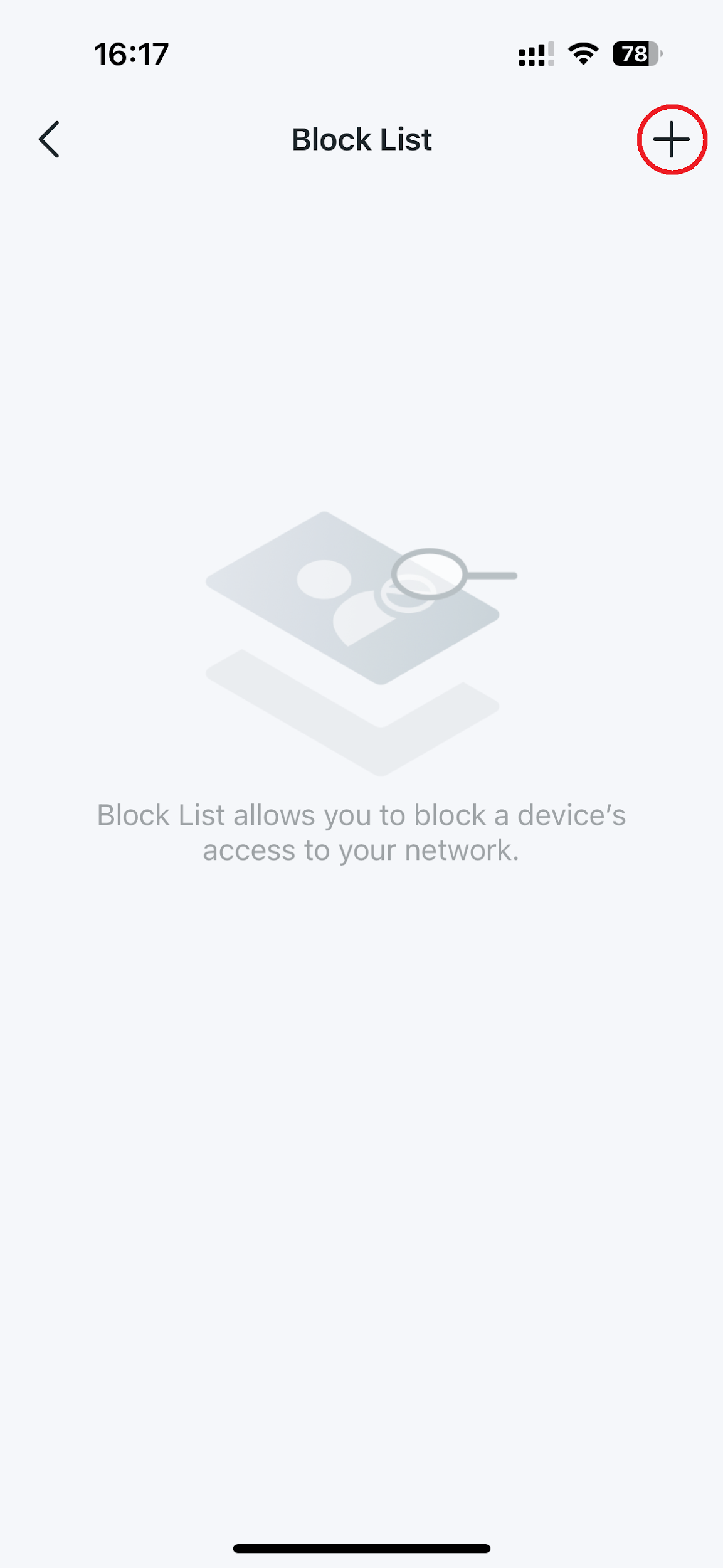
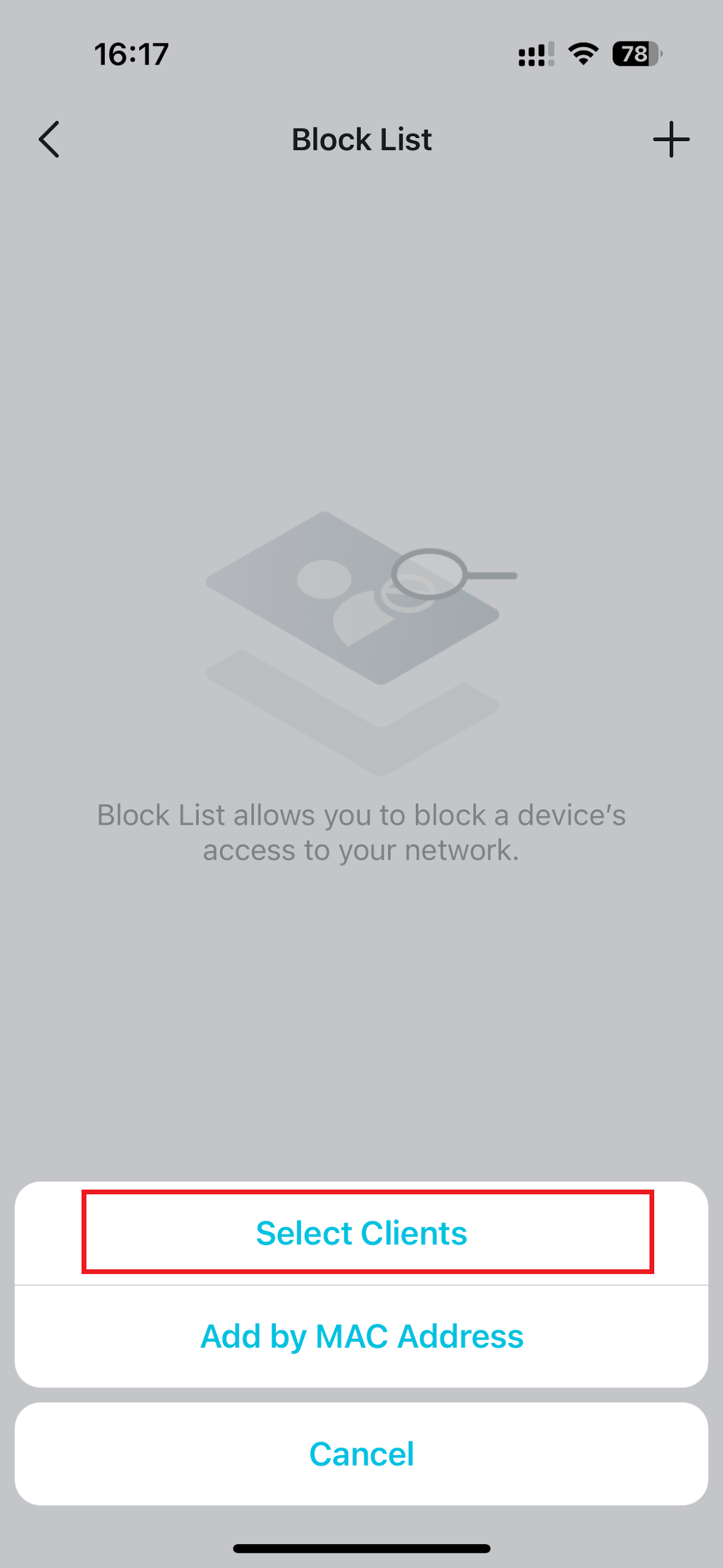
Step 4: Choose how to add the device:
- Select Clients: Pick the device directly from your list of connected clients.
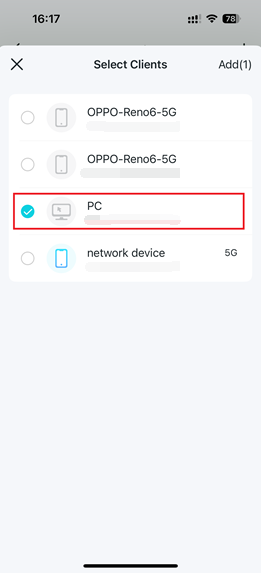
- Add by MAC Address: Enter the device's MAC address manually.
Unblock a Device
In the Block List, tap the icon to the right of the device you want to restore, then select Unblock.
Case 2: Swipe-to-Block Method
Applies to: Archer A8, C54, C5400, VR900, MR600, RE500, TL-WA854RE, and similar models.
Block a Device
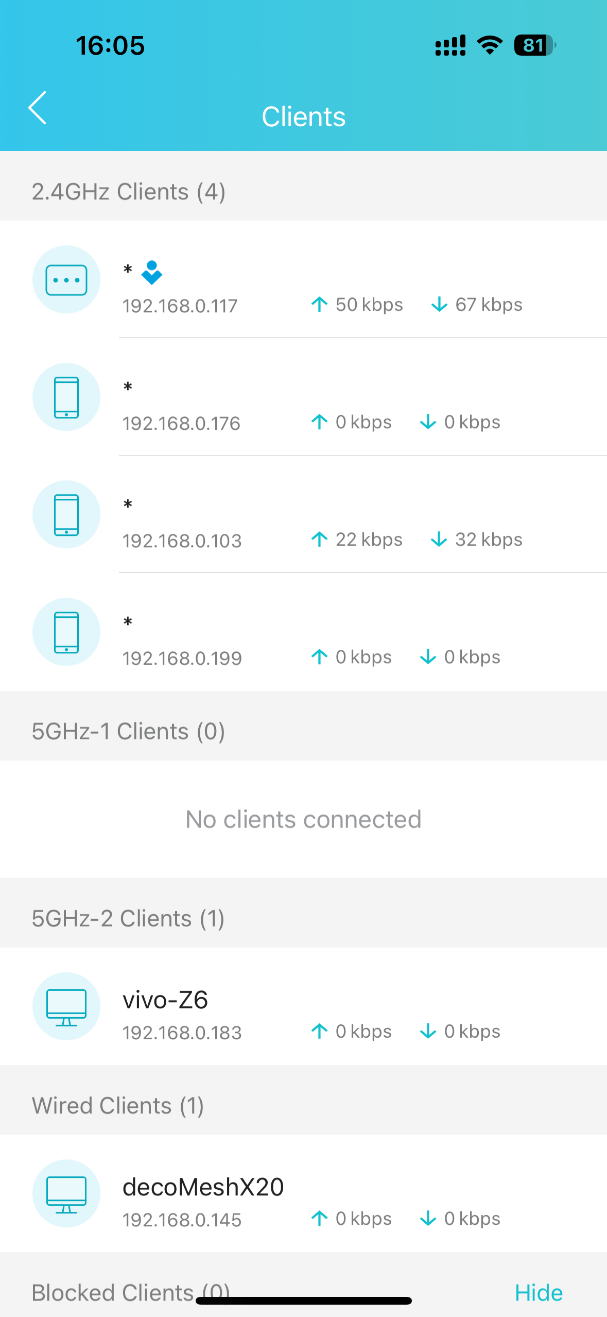
Step 1: Open the Tether app and tap Clients to view connected devices.
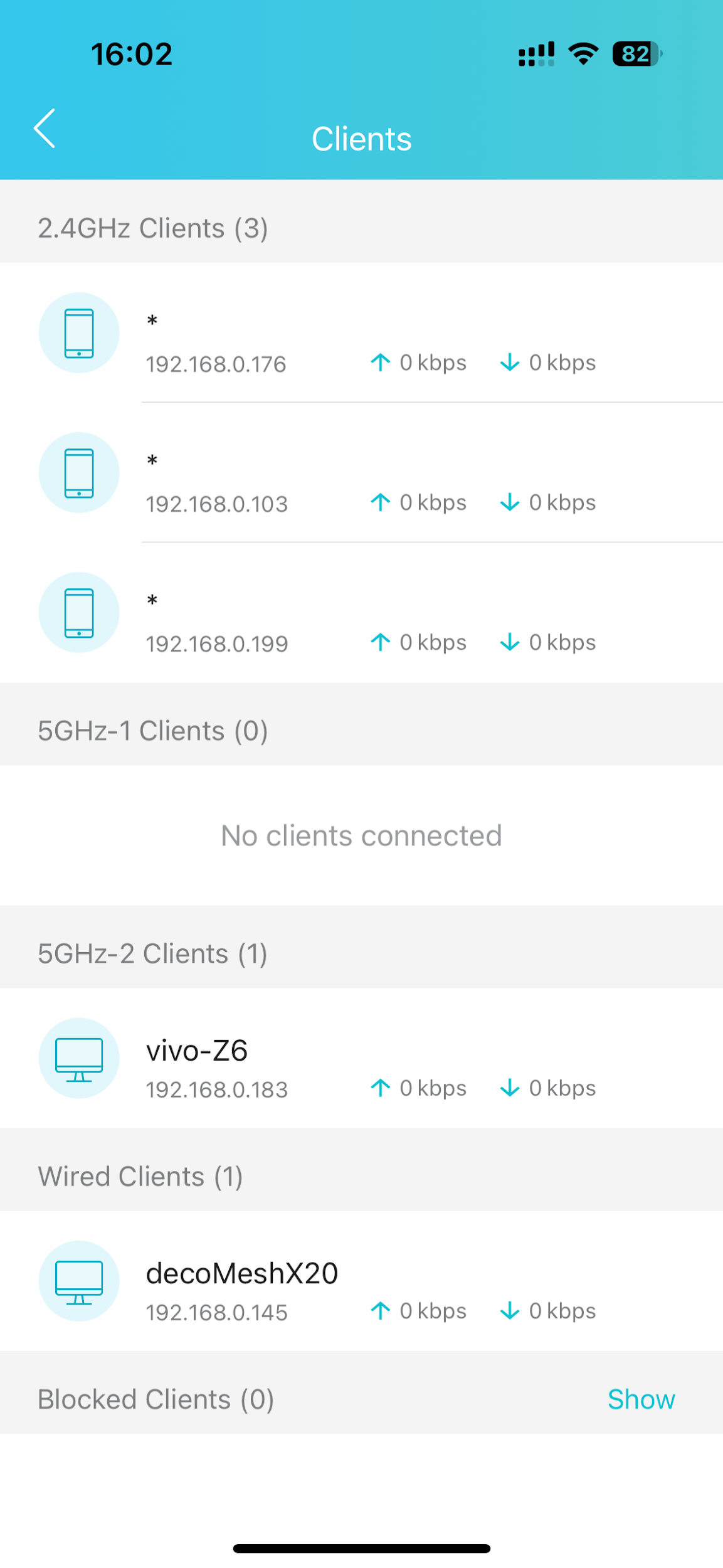
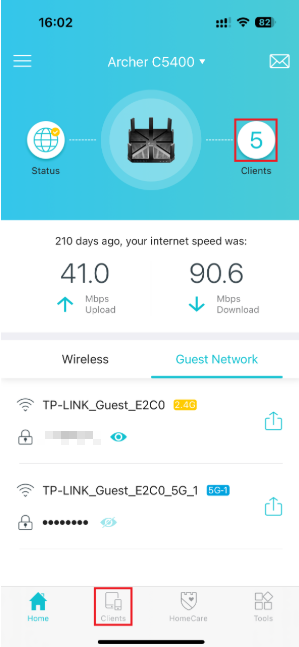
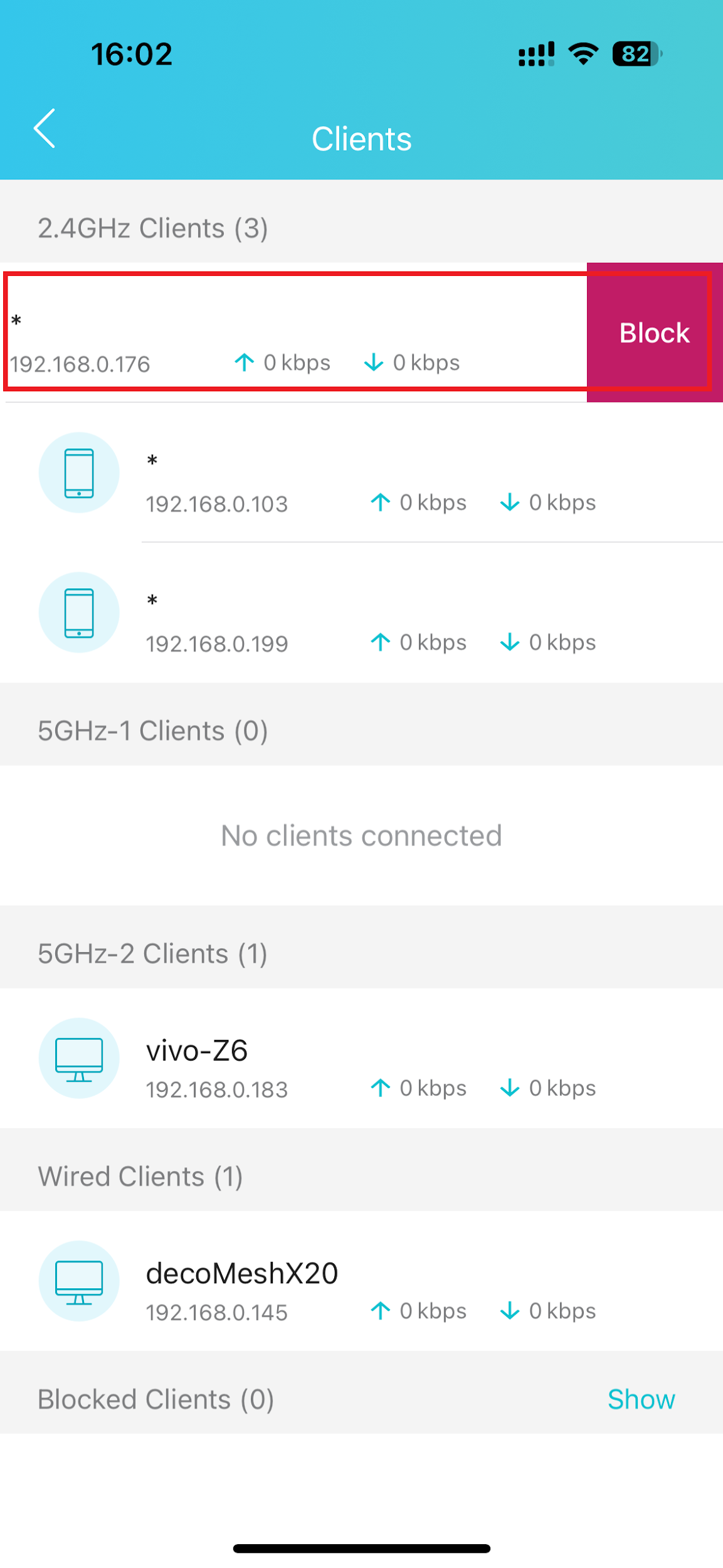
Step 2: Swipe left on the device you want to block. The device will move to the Blocked Clients list.
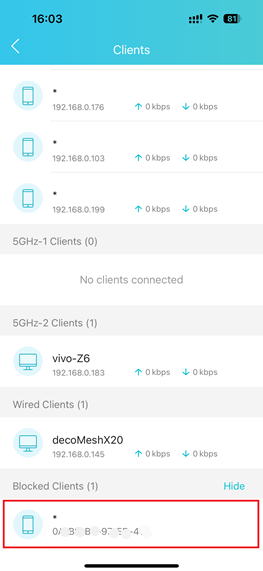
Note: On some models, the blocked device can still connect to Wi-Fi but cannot access the Internet.
Unblock a Device
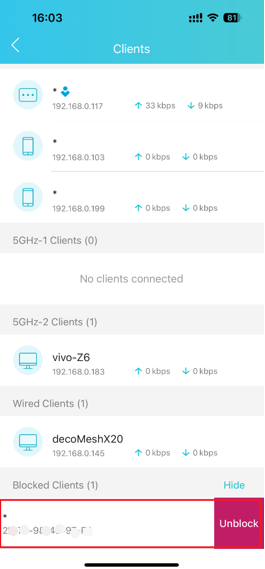
In the Blocked Clients list, swipe left on the device you want to restore. It will move back to the corresponding Clients list.
¿Es útil esta pregunta frecuente?
Sus comentarios nos ayudan a mejorar este sitio.


3.0_A_RGB_normal_1584493572647x.png)