
Understanding the TapoCare Refund Policy and Managing Your TapoCare Subscription
This FAQ explains how to manage your TapoCare subscription and what to expect regarding refunds. To cancel your TapoCare subscription, turn off auto-renewal instead of ending your plan right away. The service will remain active for the remainder of the last paid term. Because TapoCare is a prepaid service, TP-Link does not provide refunds.
Key Takeaways
- Canceling TapoCare means turning off auto-renewal. The service remains active, and you have full access to your plan until your current billing period ends.
- TapoCare is a prepaid subscription service; TP-Link does not provide refunds for payments that have been made and processed.
- You can turn off auto-renewal through Apple (iOS Settings, then Subscriptions), Google Play (Profile, then Payments and Subscriptions), or the Tapo web portal for PayPal or card payments
- Free trials can be canceled at any time, but once canceled, they cannot be restarted.
- Your TapoCare plan is tied to your TP-Link account and cannot be transferred to a different TP-Link account.
Common Questions
How Do I Cancel My TapoCare Subscription?
To cancel, turn off auto-renewal—your service will continue until the end of the current billing period.
Will I Receive a Refund When I Cancel?
No, since TapoCare is a prepaid subscription service, refunds are not provided.
How Do I Turn Off Auto-renewal for TapoCare?
The steps for turning off auto-renewal depend on your payment method for the TapoCare plan. We recommend checking your billing statements or receipts to confirm which payment method you used.
- Apple App Store:
iOS 11-13: Go to Settings > [Your Name] > iTunes & App Store > Apple ID > View Apple ID > Subscriptions. iOS 14 and above: Go to Settings > [Your Name] > Subscriptions. The path may vary with the system version. Please refer to the description on Apple's official website.
- Google Play Store:
Go to Google Play Store > Profile > Payments & Subscriptions > Subscriptions > TapoCare. The path may vary with the system version. Refer to the description on Google Play's official website.
- PayPal or Credit/Debit Card:
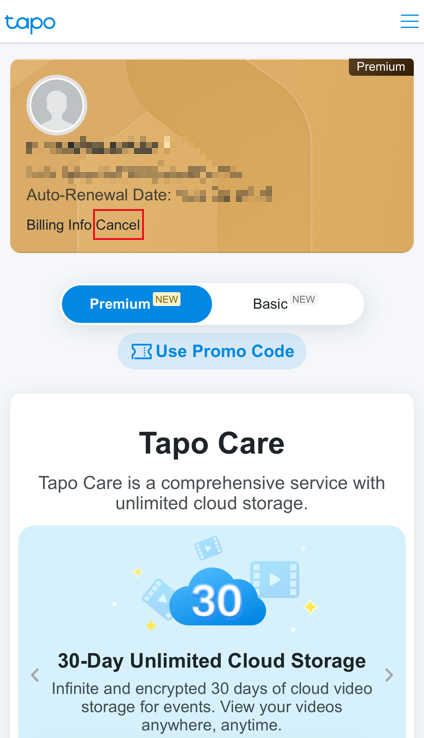
Go to the Tapo web portal and sign in with your TP-Link ID. Tap on your Subscription Card, then click Cancel.
Note: If you use a credit/debit card for payment, your card issuer may charge a foreign transaction fee when the transaction currency differs from your card's billing currency. TP-Link is not responsible for these additional fees.
Can I Transfer My TapoCare Plan to a Different TP-Link ID?
No, the TapoCare Plan is tied to your TP-Link account, so you cannot transfer it to a different TP-Link account.
For Google/Apple Subscriptions:
If you originally subscribed to TapoCare through Google Play or the Apple App Store, please be aware that these platforms operate as independent billing systems separate from TP-Link.
Even if you've changed the email address associated with your Google/Apple account, you must continue using the original email address that was used when you first subscribed to TapoCare when logging into the Tapo app.
If you can no longer access your previous email account, we recommend canceling the subscription renewal through Apple/Google first, then subscribing via the Tapo web portal.
Can I Cancel the TapoCare Free Trial?
Yes, you can cancel the free trial at any time during the trial period. However, once the trial is canceled, it cannot be restarted.
For more details about the TapoCare Free Trial, please refer to: Information related to the TapoCare free trial.
To learn more about the terms and conditions of the service, visit: TapoCare Service Agreement
Please contact TP-Link technical support with the following information if you need further help:
- Your TP-Link ID (The email or mobile phone number used for logging into Tapo)
- Proof of purchase or a picture of the purchase record. (It should include information that can be traced to the transaction details, such as a Transaction ID or Payment ID)
Looking For More
Is this faq useful?
Your feedback helps improve this site.


TP-Link Community
Still need help? Search for answers, ask questions, and get help from TP-Link experts and other users around the world.