
How to Create Multiple TP-Link Deco Networks in the Deco App
The Deco app lets you create multiple Deco networks and manage them all from a single TP-Link ID. This is useful when you need separate networks for different locations or purposes. For example, keeping a home network and a home office network completely separate, each with its own settings and connected devices. This guide covers two ways to add a Deco network: from the Network tab on the homepage, and from the Menu page.
Note: Features available in Deco may vary by model and software version. All steps and images described here are only examples and may not reflect your actual Deco experience.
Key Takeaways
- The Deco app lets you create and manage multiple Deco networks using a single TP-Link ID.
- There are two ways to create a new network in the Deco app: from the Network tab on the homepage, or from the Menu page.
- To create a network from the homepage, open the Deco app, go to the Network tab, tap the "+" icon, and select "Create a Network."
- To create a network from the Menu page, open the Deco app, tap three lines icon in the upper left corner, tap the network icon, and select "Create New Network."
- After selecting a creation method, follow the in-app instructions to complete setup.
In the Deco app, you can create different Deco networks with your TP-Link ID and manage them conveniently from the Deco app with one account.
There are two methods to add a new Deco network.
Method 1. Create a Network From the Homepage
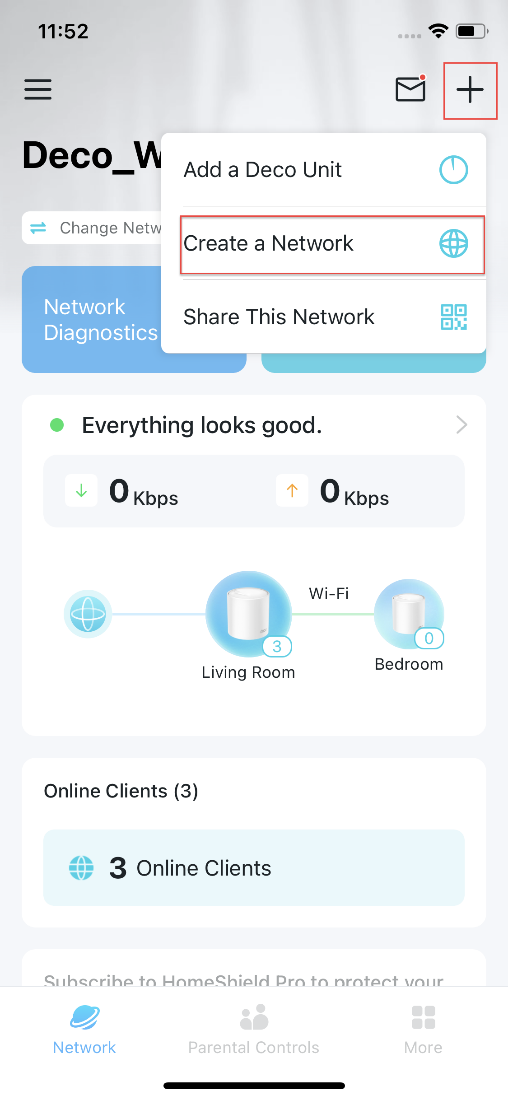
Open the Deco app and go to the Network tab. Tap the + icon and select Create a Network. Then follow the app instructions to complete the setup.
Method 2. Create a network from the Menu page
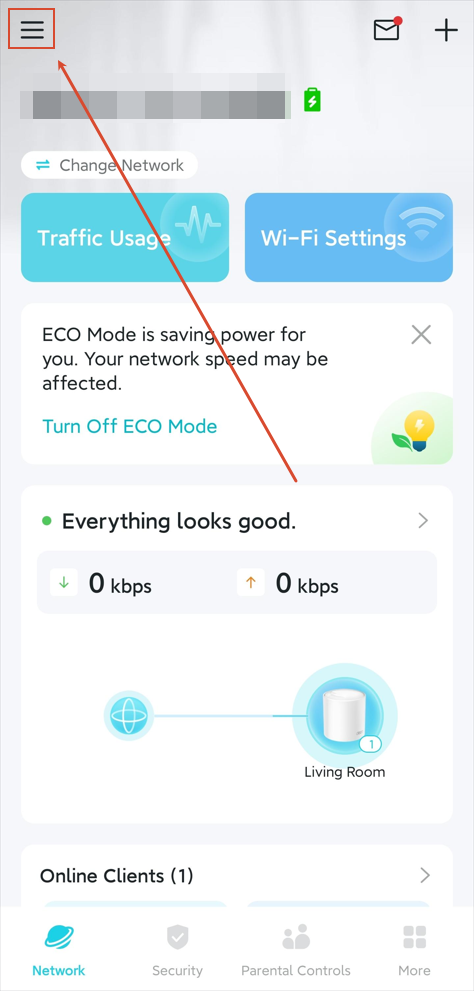
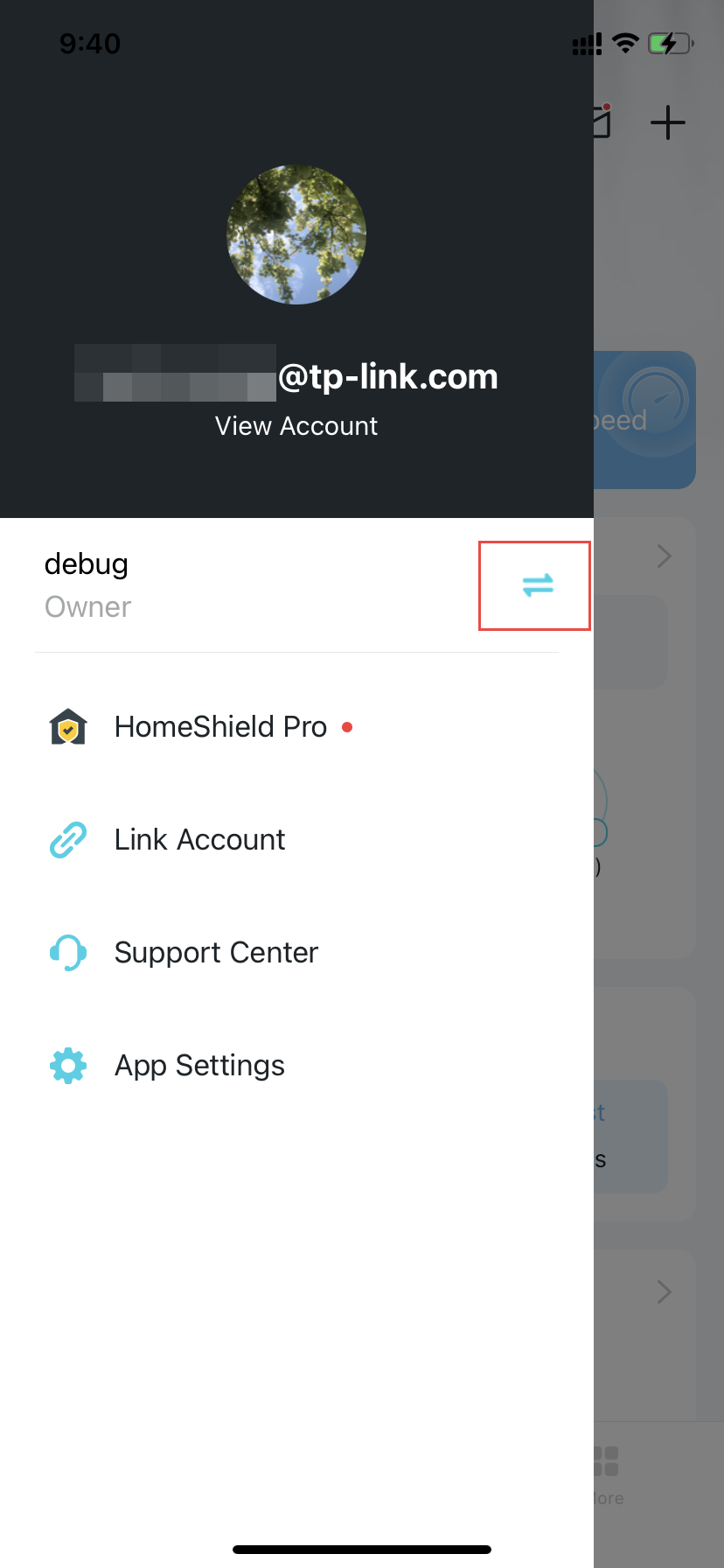
1. Open the Deco app, tap the three lines icon in the upper left corner to open the menu, then select  .
.
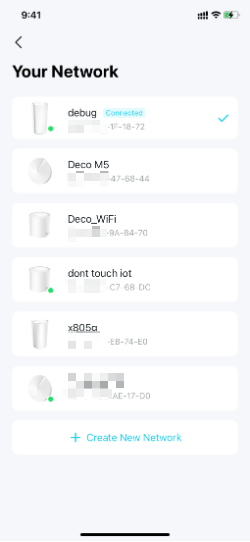
2. Tap Create New Network. Then follow the app instructions to complete the setup.
Get to know more details of each function and configuration. Please go to the Download Center to download the manual for your product
Looking For More
Is this faq useful?
Your feedback helps improve this site.
-Flarge1560310831908gnormal_1587022111972i.jpg)



TP-Link Community
Still need help? Search for answers, ask questions, and get help from TP-Link experts and other users around the world.