
Troubleshooting Guide: TP-Link Router/Deco Parental Control Not Working as Expected
Introduction
Here are some tips if the Parental Control feature is not working properly on the Wi-Fi router and Deco.
Requirement
Parental Control on Wi-Fi router/Deco is correct.
Troubleshooting
There are currently several scenarios for the Parental Controls issue. Please follow the instructions under the scenario that corresponds to your problem.
Note: Here we take Deco app as example, profile on Tether app is under Family Tab.
Scenario 1: Parental Control will be delayed for one hour to take effect
It may be caused by Daylight Saving Time. In this case, please try to reboot the whole Deco/Router network, and then the Deco/Router will obtain the correct time normally.
Scenario 2: A specific website is blocked by the parental control settings
Step 1. On the Deco/Tether app, go to Parental Controls, and click on the profile you configured on the Deco/Router.
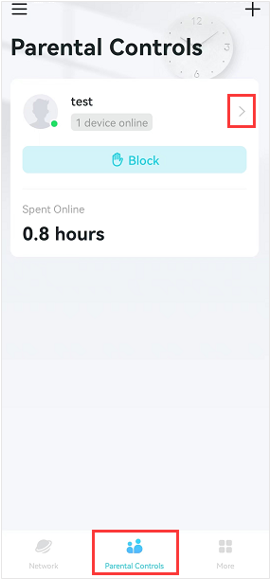
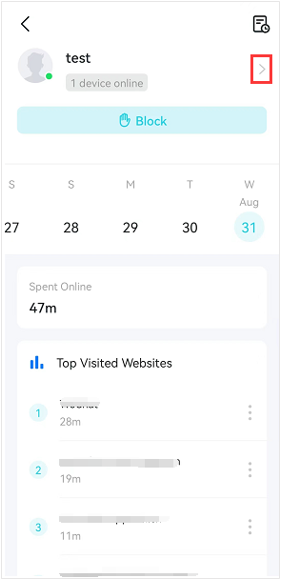
Step 2. Check what Categories and Apps/Websites you have blocked on the parental control.
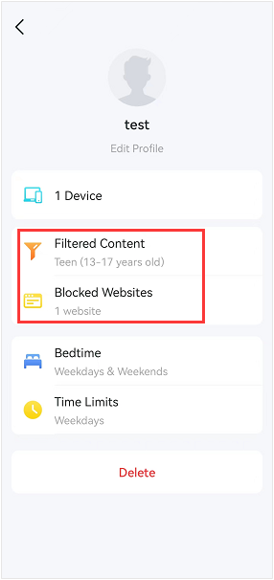
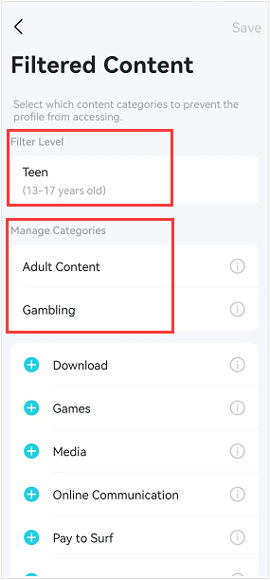
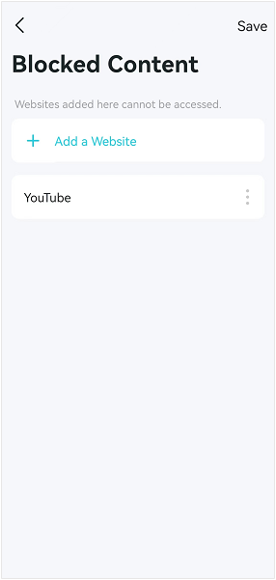
Step 3. Go to https://global.sitesafety.trendmicro.com, enter the URL of the blocked website, and then you can know if the website is safe or not, and also know what category the website belongs to.
If the website belongs to the blocked categories, it's normal to be blocked by the parental control feature.
If you find that the blocked website is classified into the wrong categories, please go to https://global.sitesafety.trendmicro.com, then apply to reclassify the blocked website to a different category.
Scenario 3: Deco/ Router cannot block websites
Step 1. Ensure the Malicious Content Filter on the Security page is enabled.
Step 2. Ensure you have entered the full domain name of the websites rather than the keywords in the Parental Control profile > Blocked Websites page. For example, if you want to block the official website of Facebook, you need to type in www.facebook.com instead of just facebook or facebook.com.
Step 3. When you access the blocked website, you may be redirected to other websites related to the blocked site (such as its subdomain), causing the filtering rule not to take effect. In this case, it's suggested to go to the History page, identify the domain name to be blocked, and then add it to the Blocked Websites page.
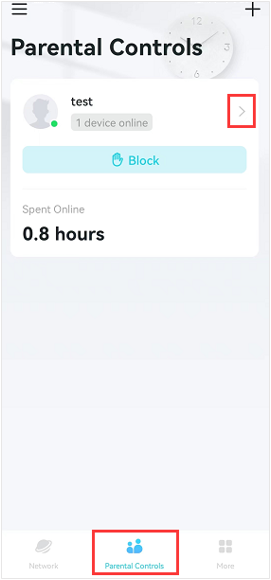
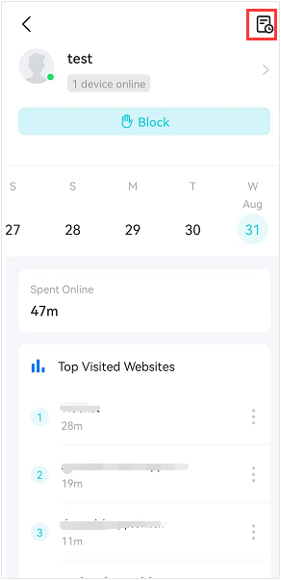
Step 4. Clean the browser's cache, then go to the website again to confirm if the website is blocked.
Scenario 4: Bedtime/Time limits/Off time don't work at all
Parental Control identifies devices by their MAC addresses. Some devices use a randomized MAC address by default, which can cause Parental Control to not work properly.
In the Parental Control profile, you can see devices that are currently online. If a device you want to control shows as offline but can still access the internet, it may be connected to your router using a different (random) MAC address.
If you have access to the device, follow the steps below to disable the random MAC address feature:
iOS (iPhone/iPad):
Settings > Wi-Fi > Tap the blue info icon (ⓘ) next to your Deco/router’s Wi-Fi name > Turn off Private Address. (For detailed guidance, see Use private Wi-Fi addresses on Apple devices)
Android:
Settings > Network & Internet > Wi-Fi > Tap the gear icon next to your Deco/router’s Wi-Fi name > Advanced > Privacy > Select Use Device MAC.
Windows 10:
Settings > Network & Internet > Wi-Fi > Tap your Deco/router’s Wi-Fi name > Advanced Options > Turn off Random Hardware Addresses > Restart your computer. (For detailed guidance, see Disable Random Hardware Address in Windows 10)
If you don’t have access to the device, check the Parental Control device list and add all possible devices to the profile manually.
Scenario 5: Parental Control shows my device has reached the time limit, but it actually hasn't
After configuring a time limit on the parental controls feature, a device under parental control may experience an issue where it uses the internet for a short time, but the app indicates that the set time has been used up, resulting in no internet access.
It's because the Deco/router counts internet time for all internet activities on the device under parental control, including background activities, such as iCloud communications from iOS; the background activities work the same as regular internet activities, and it's difficult to distinguish them from regular internet activities like browsing. Therefore, the actual internet usage time of the device is shorter than the set time.
It is recommended to turn off the Wi-Fi or disconnect the device from the Deco/router when it is not in use, so the time used will match the time limit set on the Deco/router.
Looking For More
Is this faq useful?
Your feedback helps improve this site.

_normal_20250418093949d.png)


TP-Link Community
Still need help? Search for answers, ask questions, and get help from TP-Link experts and other users around the world.