
How to Delete Your TP-Link Account (TP-Link ID)
We understand there are times when you want your TP-Link account, along with any associated information, permanently removed. We are happy to help. Deleting your TP-Link ID (also called your TP-Link account, Tapo account, or Kasa account) is a permanent action that cannot be reversed. Before you begin, please read through the consequences below carefully.
Once you delete your TP-Link ID, you will lose access to:
- Device management using TP-Link apps or cloud services
- All cloud data, including recordings (TapoCare/KasaCare)
- Access to services such as the Warranty Portal or Community Forum (All posts and content you published in the TP-Link Community Forum, bound to this ID, will also be permanently deleted along with your ID)
- Third-party cloud interactions (Google Home/Amazon Alexa)
To submit your TP-Link account deletion request, use the following link: https://account-delete.tplinkcloud.com/#/
Key Takeaways
- Deleting your TP-Link ID (also called your TP-Link cloud account, Tapo account, or Kasa account) is permanent and cannot be reversed.
- Once deleted, you will lose access to device management via TP-Link apps, all cloud data, including TapoCare and KasaCare recordings, the TP-Link Warranty Portal and Community Forum, and third-party integrations such as Google Home and Amazon Alexa.
- Before you can delete your account, you will need to confirm your identity via email verification. If you have forgotten your TP-Link ID password, you must reset it first before starting the deletion process.
- The deletion request is submitted via https://account-delete.tplinkcloud.com/#/, and you will receive a confirmation email within 72 hours letting you know whether the deletion was successful.
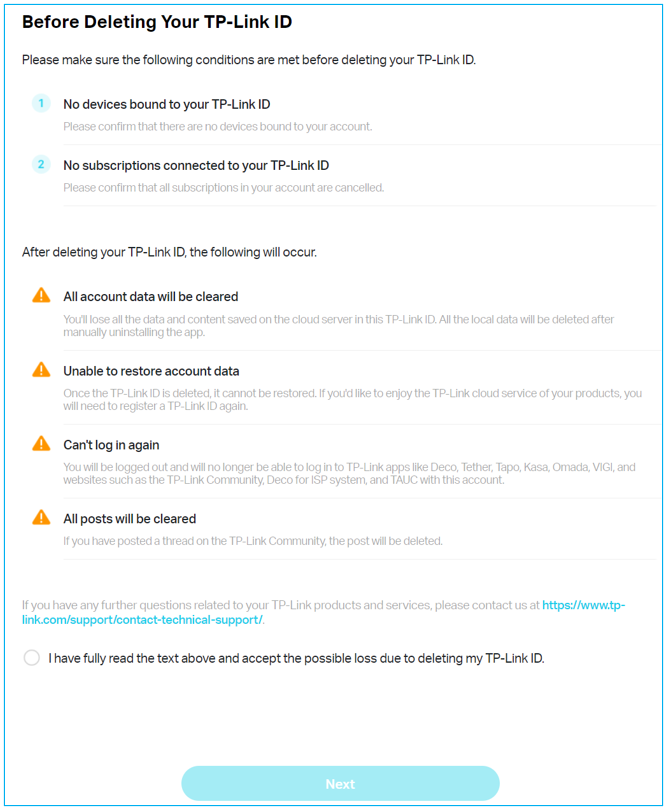
- Before deleting, the portal will require you to confirm that no devices are bound to your TP-Link ID and that all subscriptions are canceled.
Steps to Delete Your TP-Link Account
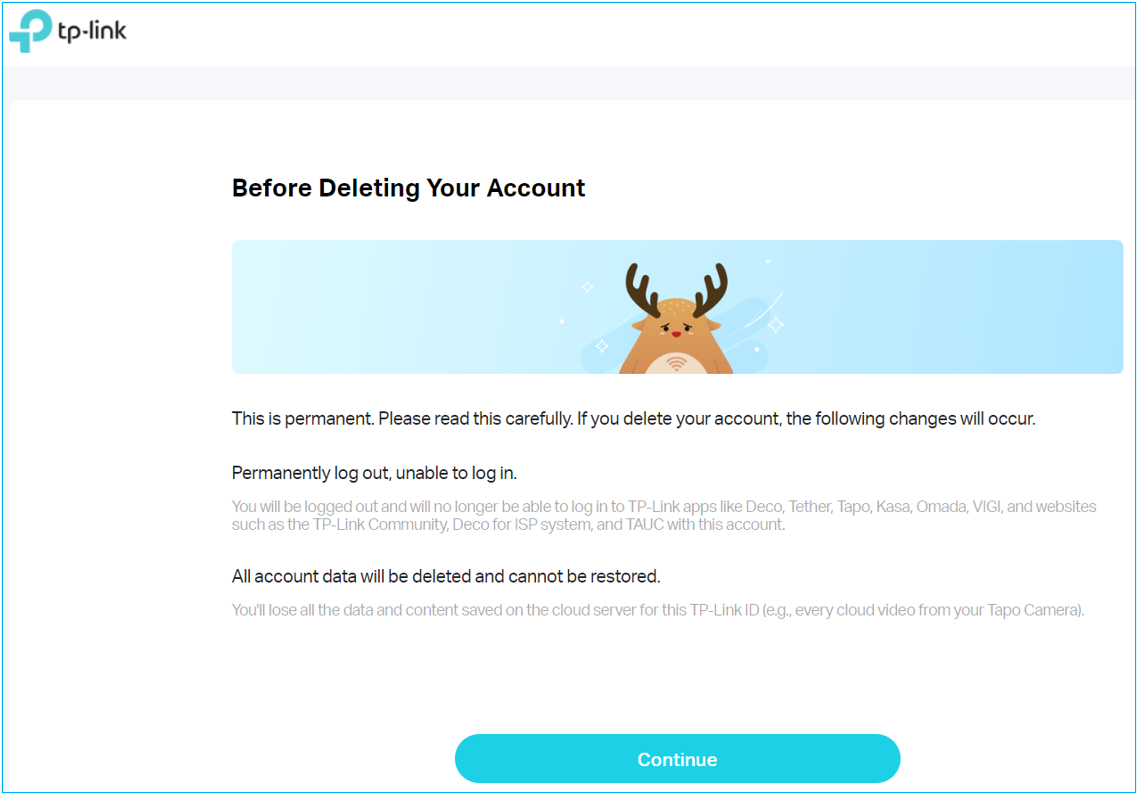
Step 1. Open a web browser and enter https://account-delete.tplinkcloud.com/#/. Check the note carefully and then click Continue.
Step 2. Type in your TP-Link ID and password. If you forget the password, please reset your password first.
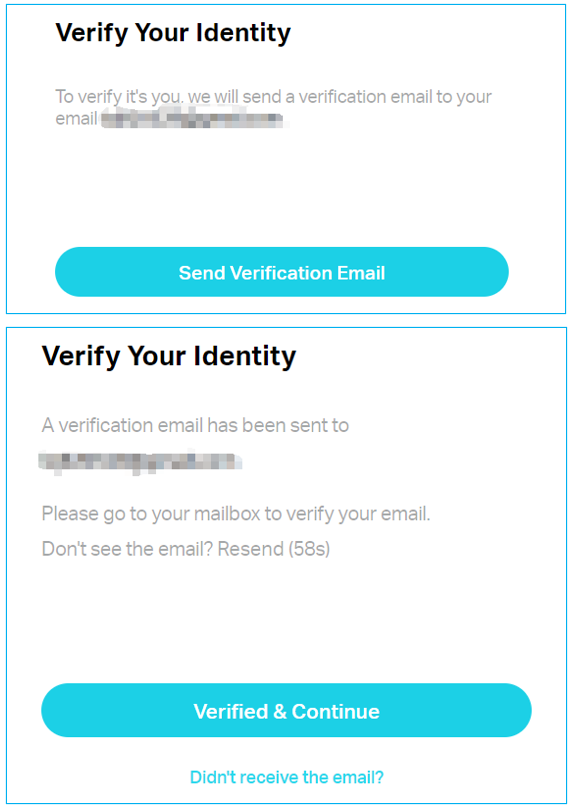
Step 3. After logging in. click Send Verification Email to continue. If you don’t receive the email, click the Resend button for a try. If it still doesn’t work, kindly check your Spam folder.
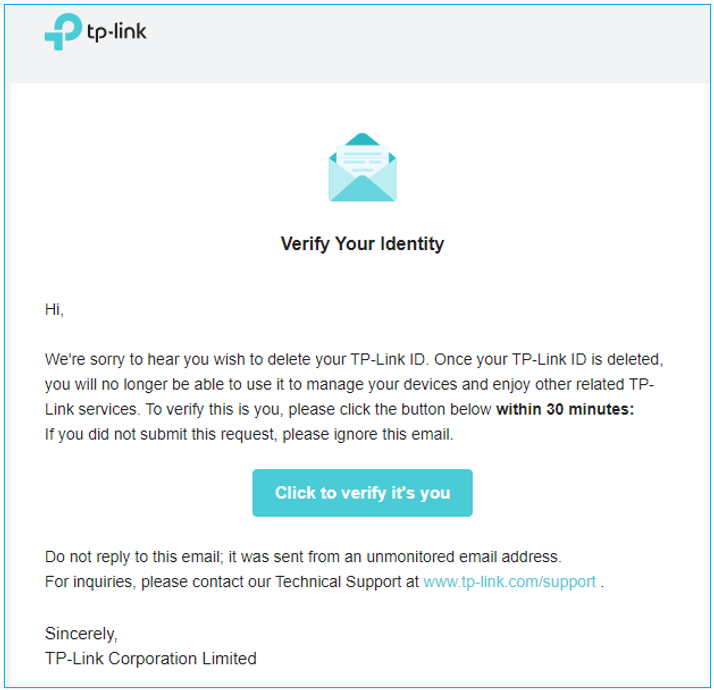
Step 4. You will receive an email from our system. Simply tap Click to verify it’s you within 30 minutes. Once it prompts Verified, please go back to the Verify Your Identity page on Step 3 and click Verified & Continue.
Step 5. Read the information carefully and tick the option, then click Next.
Step 6. Finish the survey and click Next.
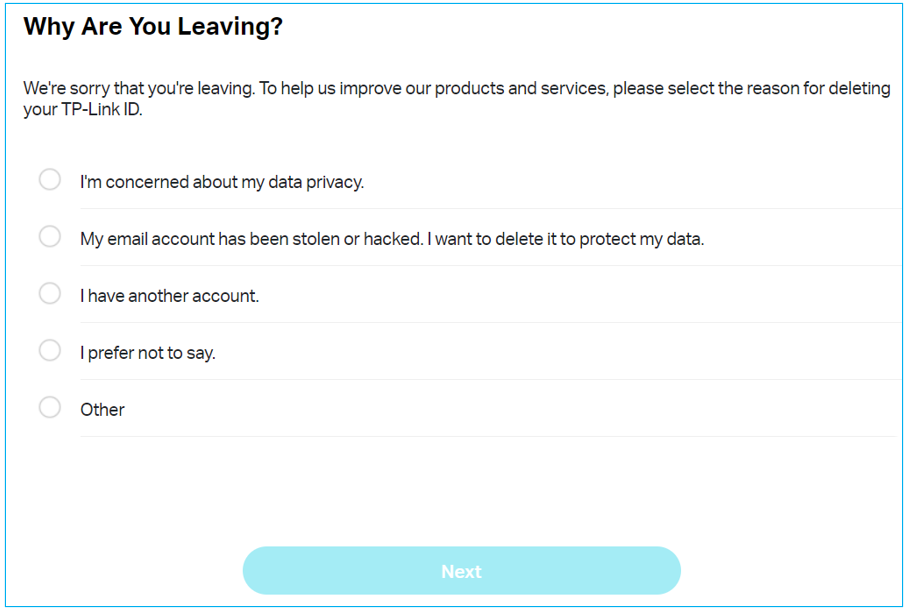
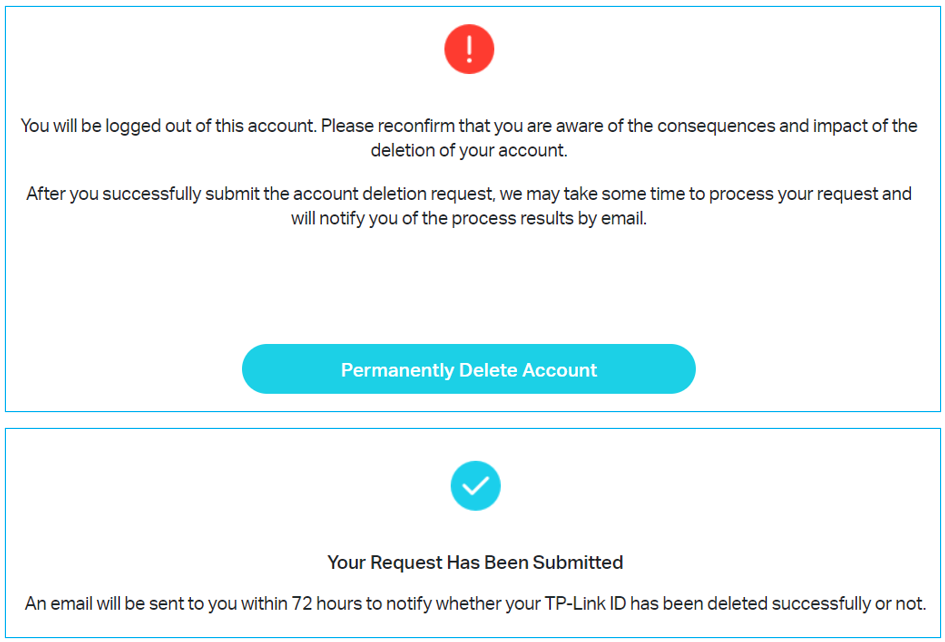
Step 7. Deleting the account is irreversible, please confirm your deletion again. If you confirm it, click Permanently Delete Account to start the deletion process. You will receive an email within 72 hours confirming whether your TP-Link ID was deleted successfully.
Looking For More
Is this faq useful?
Your feedback helps improve this site.


TP-Link Community
Still need help? Search for answers, ask questions, and get help from TP-Link experts and other users around the world.