
Guest Network vs Kid Network: Should You Separate Them?
Published: September 25, 2026
Quick Answer
-
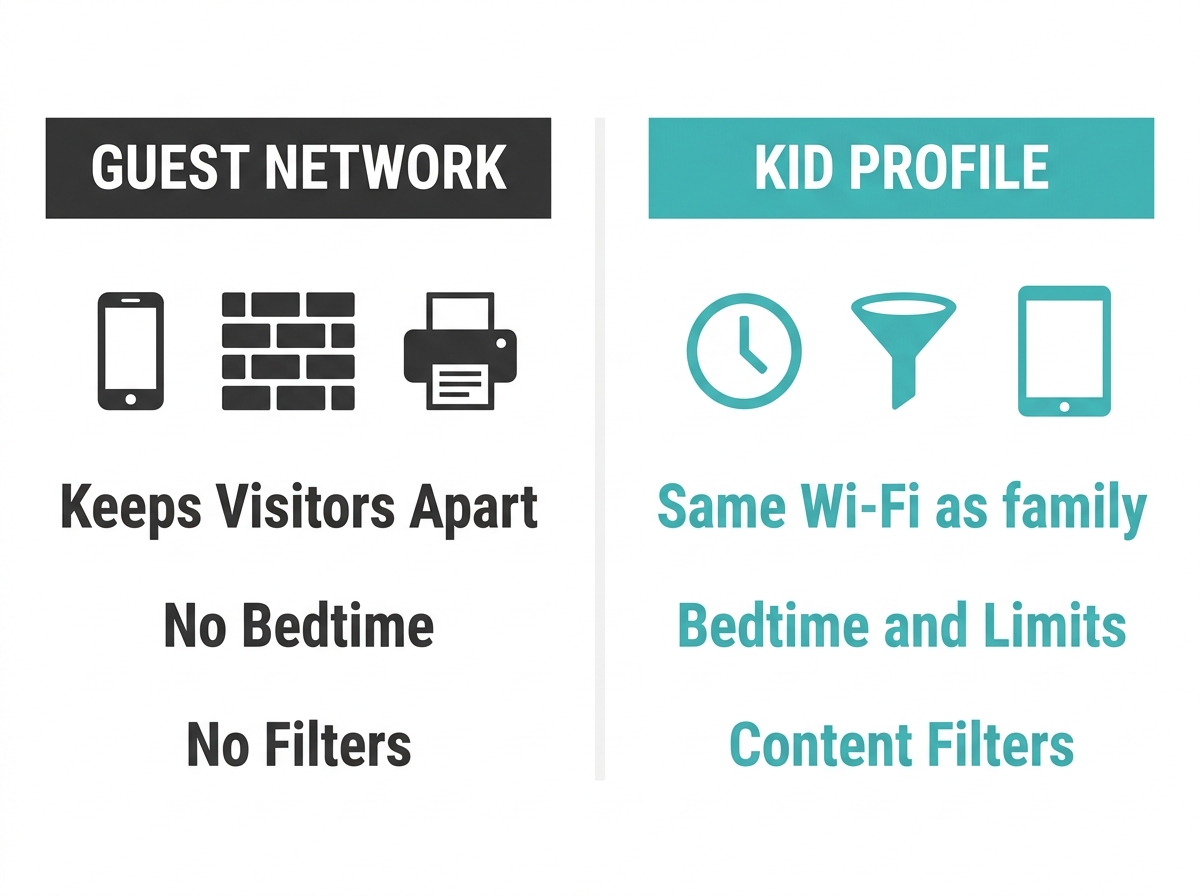
A guest network keeps visitors' devices away from your main network's computers, printers, and smart devices, but it gives no bedtime, content filtering, or time limits.
-
TP-Link parental controls follow the devices assigned to a child's profile, so kids get their rules on the main network without being moved to a separate one.
-
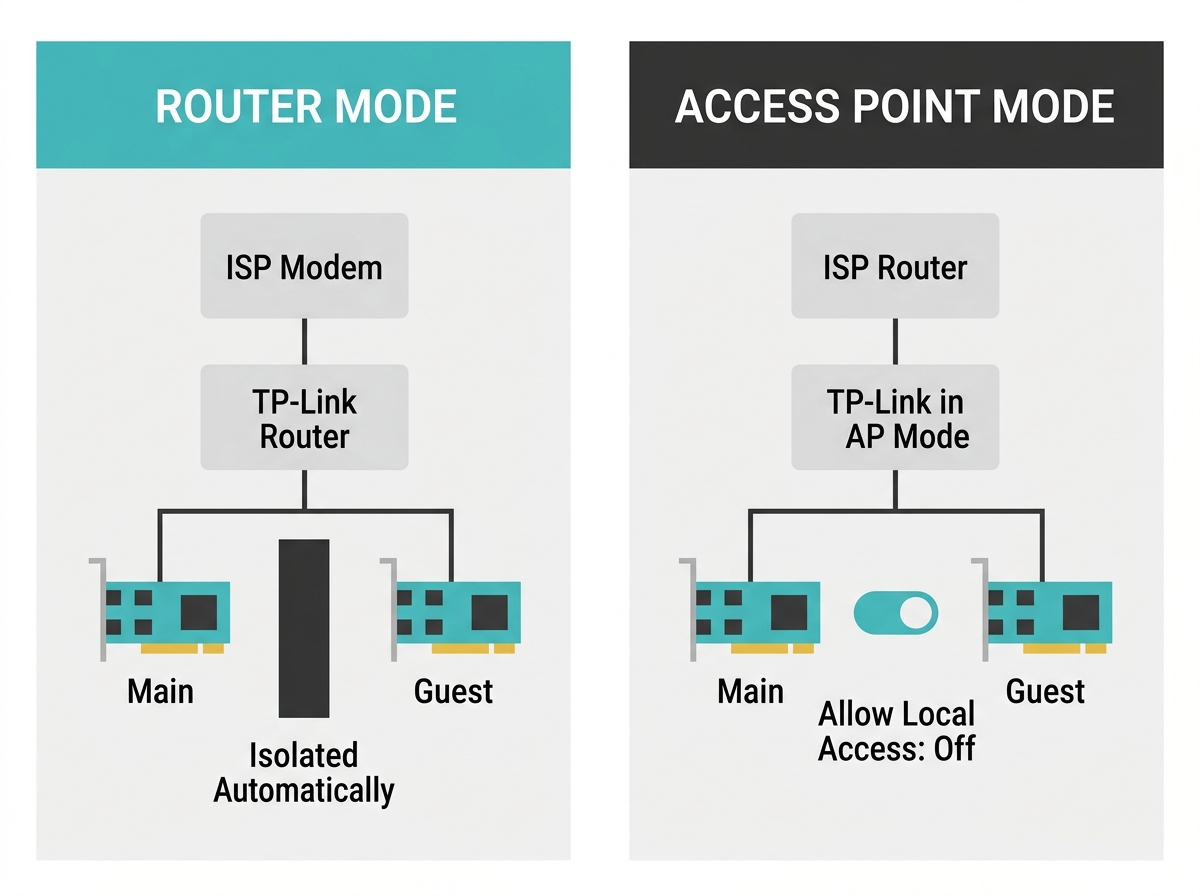
Guest isolation on a Deco is automatic in Router mode, while in Access Point mode it depends on the Allow Local Access setting, so check it before relying on it.
Moving your kids to the guest network feels like a clever shortcut to parental control, but it doesn't work that way. A guest network separates devices from each other. A kid profile controls what those devices can do online, and when. They solve two different problems, and on TP-Link routers, they're built as two different tools. This guide shows when each one earns its place, and how to run both without tripping over either. For how every tool fits together, see our main parental controls guide for Philippine families.
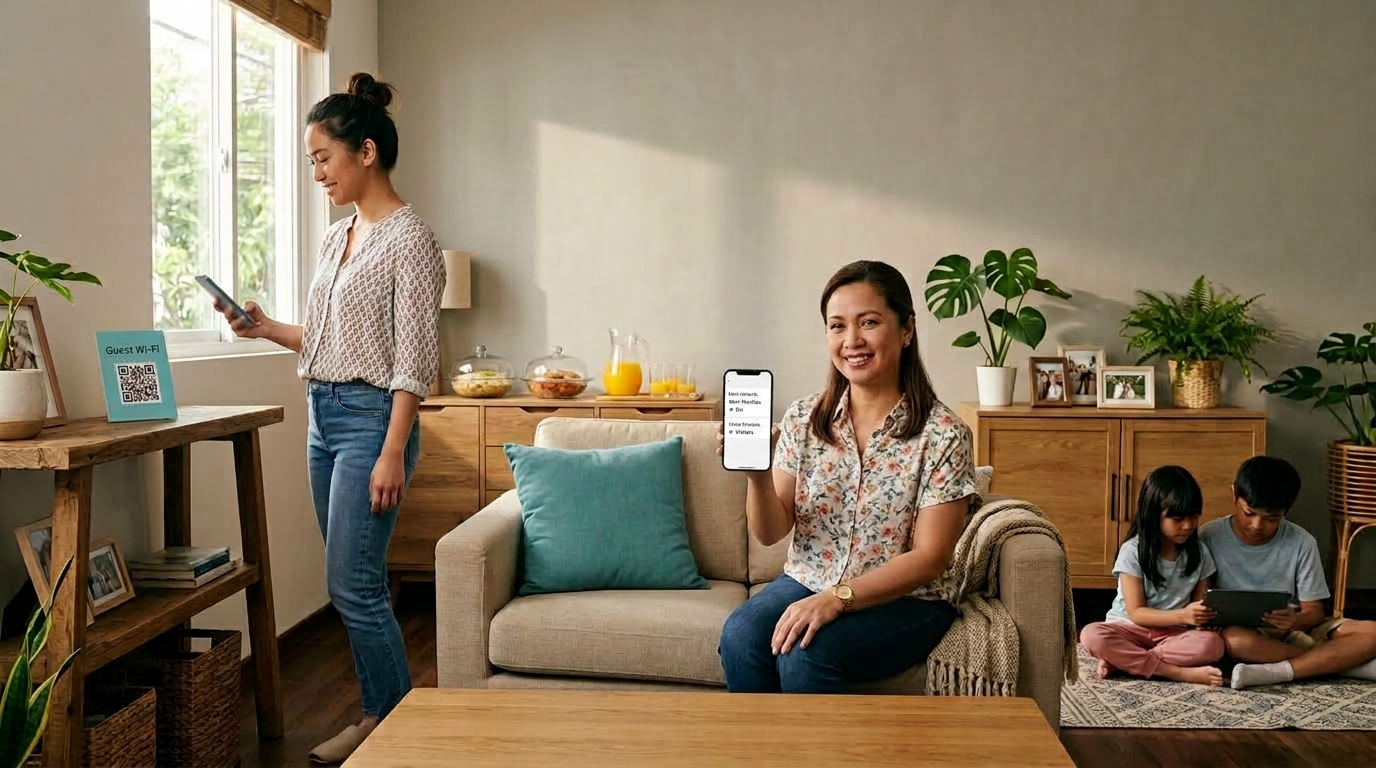
Table of Contents
What a Guest Network Is Actually For
Guest Network vs Kid Profile: The Real Difference
When a Separate Network Makes Sense
What a Separate Network Won't Do
The Router Mode vs Access Point Mode Caveat
What a Guest Network Is Actually For
A guest network is a second Wi-Fi name with its own password, built for people who aren't part of the household. Visitors get internet, but not your shared folders, printer, work laptop, or Tapo cameras.
Think of the Filipino home on a fiesta weekend, or at Christmas when the balikbayan cousins arrive. Everybody asks for the Wi-Fi password. The guest network lets you say yes without handing over the keys to the whole house.
On a Deco system, the guest network comes with a few handy extras:
- A timer. Set it for 1 hour, 4 hours, 24 hours, or always on. On Auto, it switches itself off after about 10 minutes with nobody connected.
- Bandwidth limits. These keep a cousin's movie download from choking your 7 to 10 PM peak hours.
- Share Wi-Fi. This sends the guest name and password straight from the Deco app.
Setting one up for the first time? It's one item in our list of ten Wi-Fi security settings worth checking on your router. For Deco screenshots, see TP-Link's Deco guest network setup guide.
Guest Network vs Kid Profile: The Real Difference
|
|
Guest Network |
Kid Profile (Parental Controls) |
|
What it controls |
Which local devices a phone can reach |
What a device can do online, and when |
|
How it's applied |
By which Wi-Fi name a device joins |
By which devices you assign to the profile |
|
Bedtime and time limits |
None |
Yes |
|
Content filtering |
None |
Yes |
|
Built for |
Visitors and short stays |
Your children, every day |
A tablet on the guest network can still browse anywhere, at any hour, with no filters. A tablet on your main network, assigned to a kid profile, gets bedtime, filters, and limits, even though it shares the Wi-Fi name with your own phone. The rules come from the profile, not from the network name.
That's why the practical answer for most families is simple: keep kids on the main network and give each child per-child profiles on your main network.
When a Separate Network Makes Sense
Separation is worth it when the goal is keeping devices apart, not controlling kids:
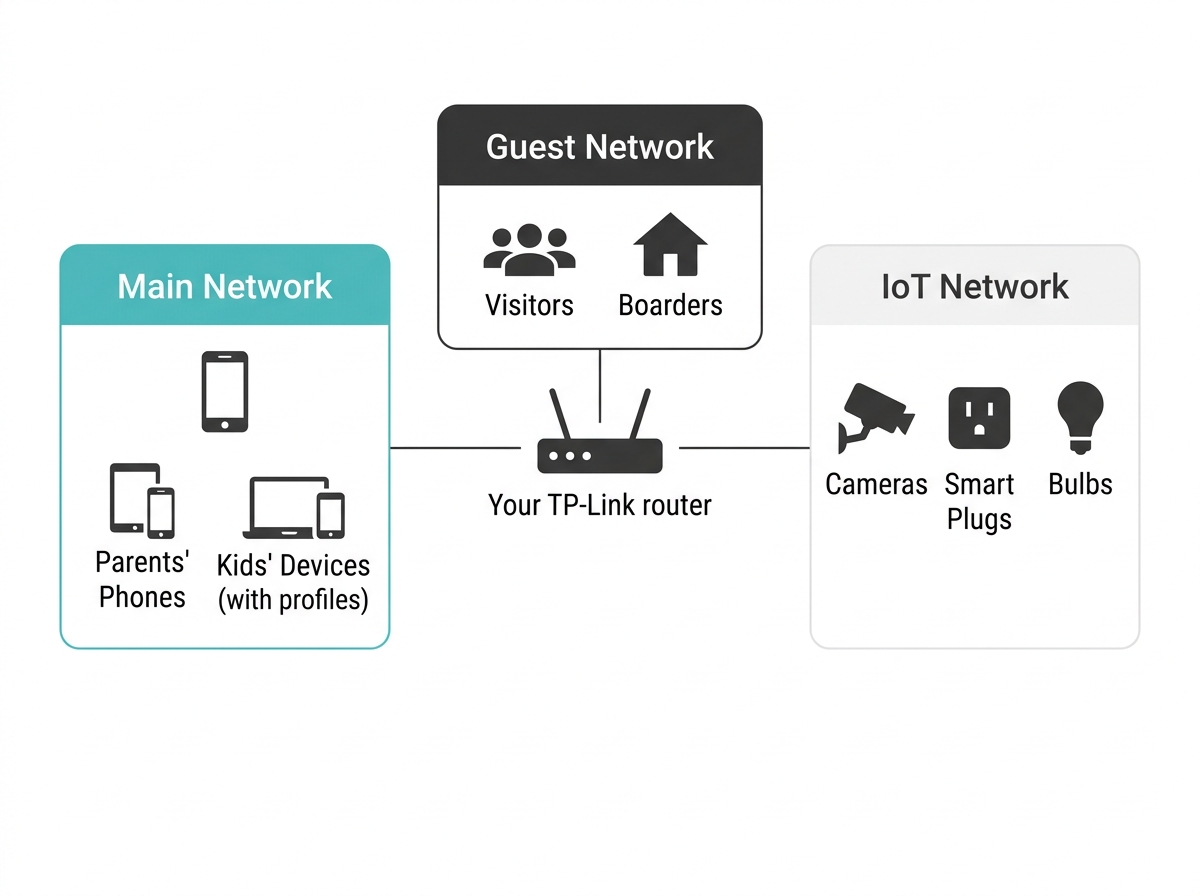
- Visitors, boarders, and helpers. Relatives on a long stay, boarders in a paupahan, or a kasambahay who needs her own Wi-Fi all fit the guest network. Set it to always on and add a bandwidth limit.
- Smart home gadgets. Cameras, smart plugs, and bulbs often work better on their own 2.4 GHz network. Deco systems have a dedicated IoT Network for this, covered in TP-Link's Deco IoT Network setup guide.
- A parent's work laptop. If your company is strict about what shares a network with a work device, keeping kids' gadgets and visitors off the main network reduces what can see it.
One more case parents ask about is the school laptop. For a device that needs internet only during class, profiles and schedules do a better job than a separate network. See our guide for a school laptop that needs class-hours-only access.
What a Separate Network Won't Do
Moving a child's devices to another Wi-Fi name adds none of these:
- Bedtime or daily limits. Those come from schedules, so limit screen time on your kids' devices through their profiles.
- Website or category blocking. That comes from filters, so apply content filters to your kids' devices in their profile.
- A way to remove a device. When a visitor's phone should be gone for good after the fiesta, block a single device without changing your password.
The Router Mode vs Access Point Mode Caveat
Guest isolation depends on how your TP-Link gear is set up.
Router mode. When your Deco or Archer router handles routing for the house, TP-Link isolates the guest network from the main network automatically.
Access Point (AP) mode. This is common in Filipino homes. The PLDT, Globe, or Converge router from your ISP still does the routing, and the TP-Link unit only broadcasts Wi-Fi. In AP mode, current Deco firmware adds an Allow Local Access switch on the guest network's Advanced page. Turn it off to keep guests away from your local devices. Older firmware didn't isolate guests in AP mode at all.
Not sure which mode you're in? Open the Tether or Deco app and check the operation mode. If it's confusing that both the ISP box and your TP-Link unit get called "routers," here's the difference between your ISP modem and your router. Standalone Archer routers handle this a little differently. In their guest settings, you'll find Allow Guest to Access My Local Network. In Router mode, leave it off. In AP mode, you'll need to switch it on, or your guests won't get internet at all. That means an Archer in AP mode can't keep guests away from your local devices. If that separation matters to you, set the Archer to Router mode, or use a Deco with Allow Local Access switched off.
How to Run Both the Right Way
For most Filipino households, this setup covers everyone:
- Keep the kids on the main network and assign their devices to their profiles, so every rule applies.
- Keep your own phone on the main network too. You need it there to manage the router in the app.
- Turn on the guest network for visitors, boarders, and helpers. Add a timer for short visits, or a bandwidth limit for long stays.
- Put smart home gadgets on the IoT Network if your Deco has one.
- Check your operation mode. If you're in AP mode, confirm guest isolation is switched on.
Frequently Asked Questions
If I move my kid's tablet to the guest network, does it get a bedtime?
No, the guest network has no parental controls of its own. Bedtime, time limits, and filters come from a Parental Controls profile, and the device has to be assigned to that profile. Moving the tablet to the guest Wi-Fi only changes which local devices it can reach. It can still browse anything, at any hour, until it's added to a profile with rules.
Can I apply parental controls to devices on the guest network?
Yes, on Deco, as long as you add each device to a profile yourself. Once a guest device is connected, you can add it to a profile. A phone using a private address shows up as a new device on the guest network, so add that entry too. On Tether routers, check your app. Keeping a child on the main network is still the simpler path.
Can I manage my TP-Link router while connected to the guest network?
No, the Tether app doesn't work when your phone is on the guest network. The guest network is walled off from the router's management functions on purpose, so a visitor can't reach your settings. Keep the phone you use to manage parental controls on the main network, and only join the guest network when testing what a visitor sees.
Is it fine to keep everyone on the main network?
Yes, and for most families it's the simpler setup. Kids stay on the main network with their profiles, and adults stay there without any. Every parental control feature works normally that way. Save the guest network for people outside the household, and the IoT Network for smart gadgets, if your router offers one.
Should boarders or a kasambahay use the guest network?
Yes, the guest network fits anyone outside the immediate family. It gives them fast internet without access to your shared files, printer, or cameras. Set its duration to always on so it doesn't switch off, and add a bandwidth limit if their streaming competes with your family's evening use. Change the guest password when a boarder moves out.
Does a guest network slow down my main Wi-Fi?
Only if the guests use a lot of bandwidth. Both networks share the same internet connection and the same router, so a heavy download on the guest side still takes a share of your plan. On a Deco, set a bandwidth limit for the guest network to protect your family's speed during the 7 to 10 PM peak.
Final Thoughts
Handing out your main Wi-Fi password to every visiting tito, boarder, and neighbor who asks? Or thinking of shoving the kids onto guest Wi-Fi to "control" them? Split the job the right way this weekend: family and kids on the main network with profiles, visitors on the guest network, and gadgets on the IoT Network if you have one.
Then check your operation mode, especially if an ISP router sits in front of your TP-Link unit. For how profiles, schedules, filters, and blocking fit together, read the full picture of parental controls for your home.
Need a router that runs a separate guest network and kid profiles from one app? The Archer BE900 Wi-Fi 7 router with guest network and HomeShield profiles handles both in Tether. For multi-level homes, the Deco X20 mesh system with whole-home guest Wi-Fi gives visitors a signal in every room without opening your main network. Still deciding? Browse all TP-Link routers in the Philippines, then buy from TP-Link's official Philippine sellers to keep your warranty protected.