
TP-Link Content Filtering: What It Can and Can't Block
Published: September 25, 2026
Quick Answer
-
TP-Link routers and Deco systems with HomeShield can block specific websites and whole content categories for free, and can add SafeSearch, YouTube Restricted Mode, and app blocking with an Advanced Parental Controls subscription.
-
Router-level filtering stops working once a device leaves your home Wi-Fi, and it cannot see messages, photos, or videos shared inside encrypted apps.
-
SafeSearch on a TP-Link router filters Google search results only, so other search engines and websites typed in directly are not covered by it.
TP-Link content filtering blocks bad websites before they reach your child's screen, but it only guards the doorway of your home Wi-Fi. That's the honest summary most guides skip. Filters are great at shutting out adult sites, online gambling, and anything you add by hand. They can't read inside chat apps, and they can't follow a phone out the door or onto mobile data. This guide shows exactly where that line sits, so you set filters up knowing what they will and won't do. For the rest of the setup, see our full parental controls guide for Filipino households.
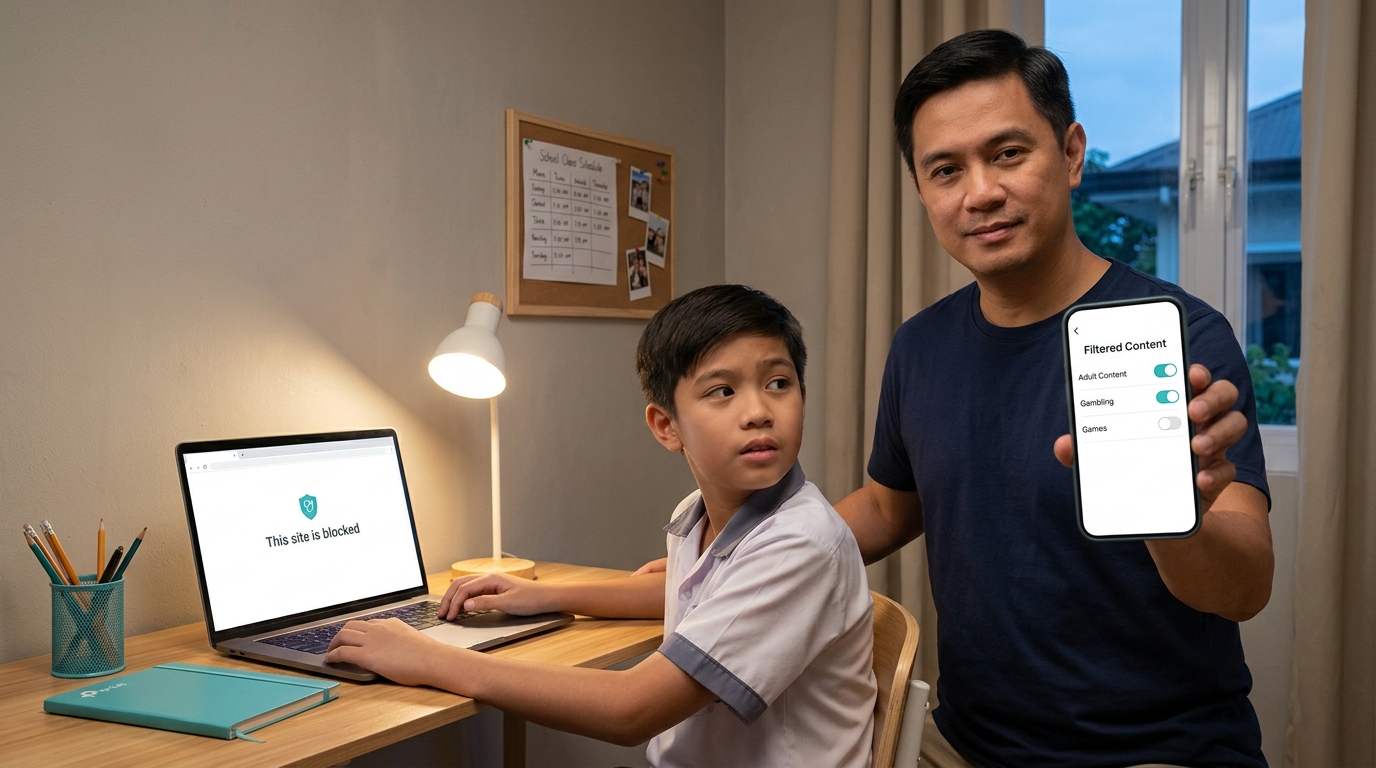
Table of Contents
What Content Filtering Actually Does
How to Set Up Content Filtering
When a Safe Site Gets Blocked by Mistake
Setting Realistic Expectations
What Content Filtering Actually Does
Router-level filtering checks where a device on your Wi-Fi is trying to go and stops it if the destination matches a rule you set. Those rules can be a specific site you typed in or a whole category, like adult content or gambling.
Because the filtering happens on the router, you don't install anything on your child's phone, tablet, or laptop. Every device in their profile is covered the moment it joins your home Wi-Fi. That convenience is the whole appeal. It's also why the limits later in this guide matter, because anything the router can't see, the router can't filter.
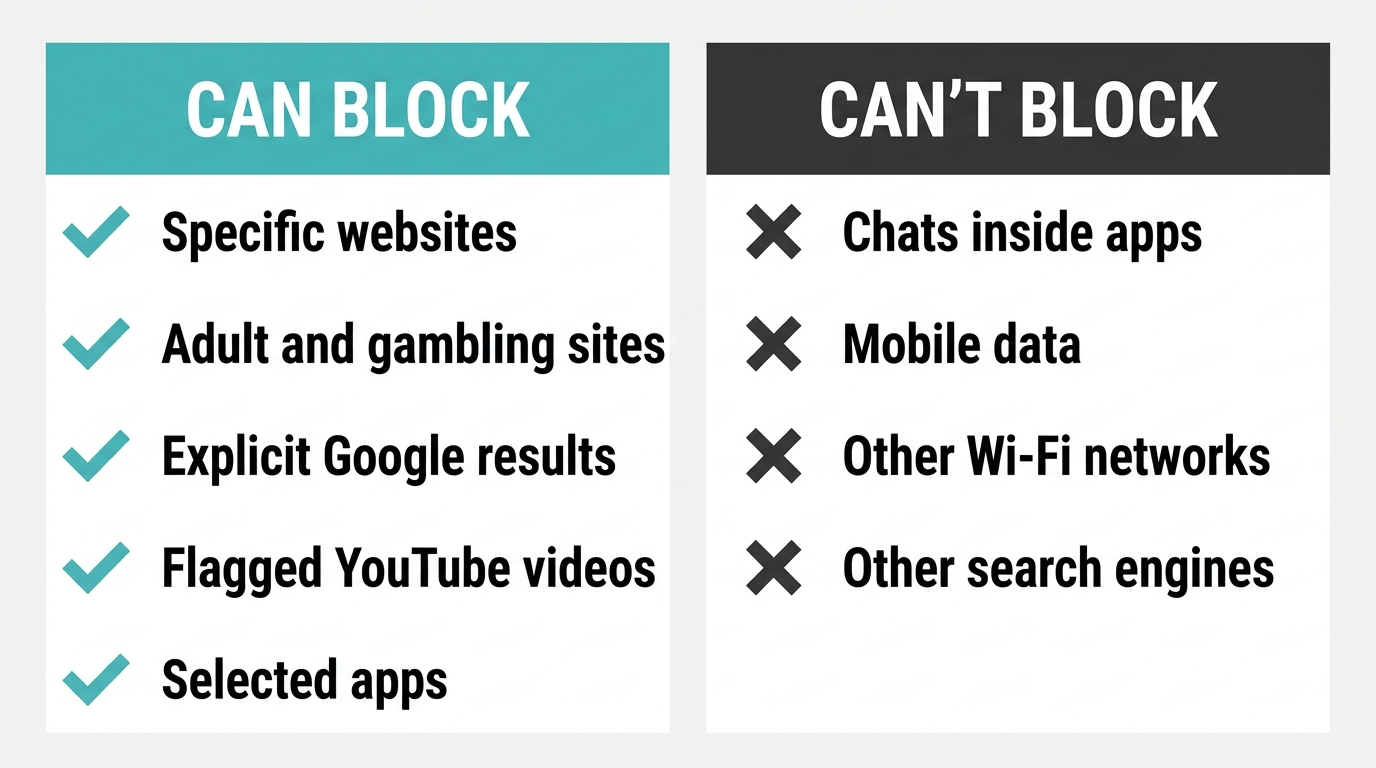
What TP-Link Can Block
HomeShield parental controls in the Tether app (for routers) and the Deco app (for mesh systems) give you five filtering tools:
|
Filtering Tool |
What It Does |
Free or Paid |
|
Blocked Websites |
Stops a specific site you add by its web address |
Free |
|
Category filtering |
Blocks whole groups of sites, like adult content or gambling, without listing each one |
Free |
|
SafeSearch |
Removes explicit results from Google search |
Advanced Parental Controls |
|
YouTube Restricted Mode |
Hides videos and channels flagged as potentially inappropriate on YouTube |
Advanced Parental Controls |
|
App blocking |
Blocks or time-limits specific apps from a catalog of more than 2,000 |
Advanced Parental Controls |
Two notes before you plan around the paid tools. First, SafeSearch, YouTube Restricted Mode, and app blocking don't appear on every model or firmware version. Your Tether or Deco app only shows the features your router supports, so check there before counting on one. Second, the subscription comes with a trial, and our screen time guide covers the Advanced Parental Controls trial and pricing details. For a quick tour of everything else HomeShield does, see the HomeShield feature overview.
What TP-Link Can't Block
Read this part before you treat the router as your only safety net.
- What happens inside encrypted apps. The router can tell that a phone is talking to a messaging app's servers. It can't see the chats, photos, or videos inside. You can block the whole app on supported models, but you can't filter what's said in it.
- Files and links shared person to person. A photo sent in a group chat never passes through a website the router can check.
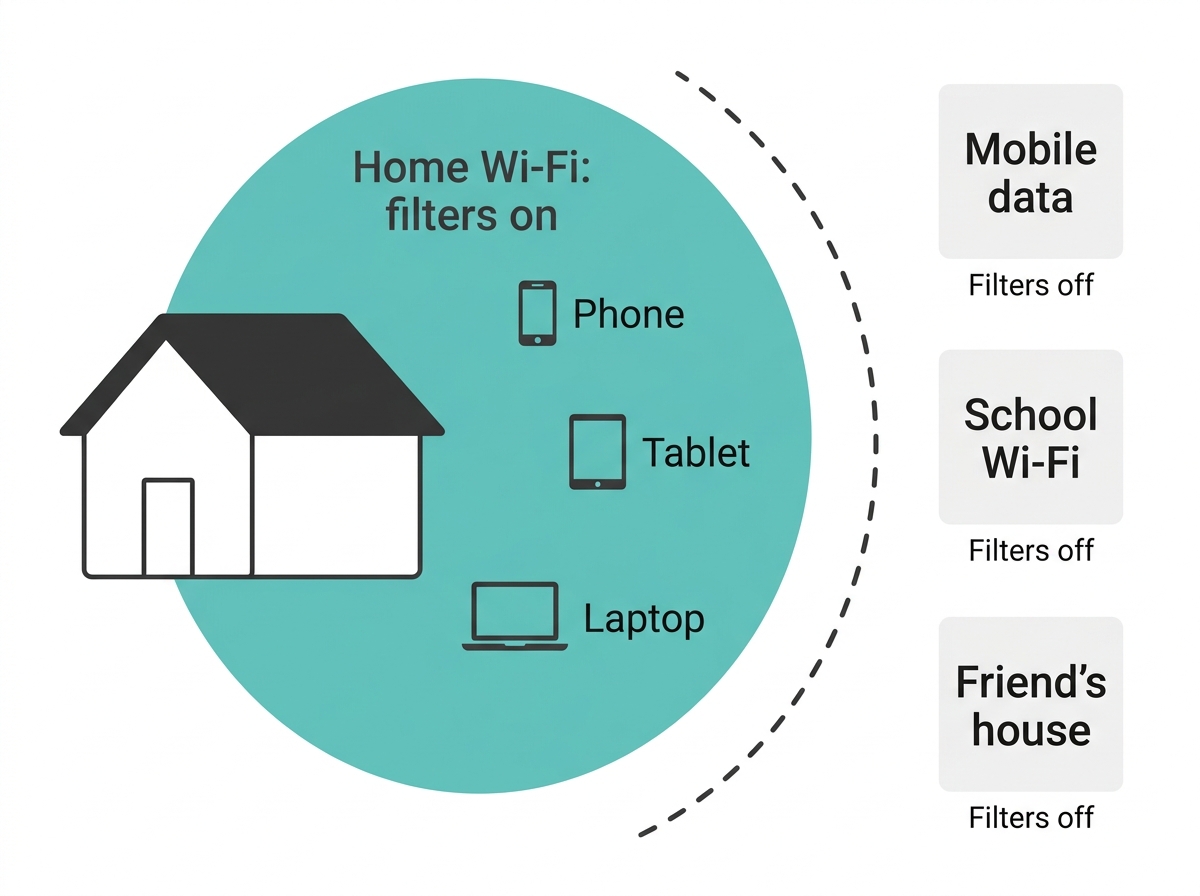
- Anything off your home Wi-Fi. Mobile data, school Wi-Fi, a friend's house, the mall's free hotspot. Once the phone isn't on your network, your filters don't travel with it.
- Search results outside Google. SafeSearch only cleans up Google's results. A different search engine, or typing a site's address directly, goes around it.
- Sites filed under the wrong category. Category filters depend on how each site is classified. A new or obscure site might not be in the category you expect yet, which is why the Blocked Websites list exists for anything that slips through.
How to Set Up Content Filtering
-
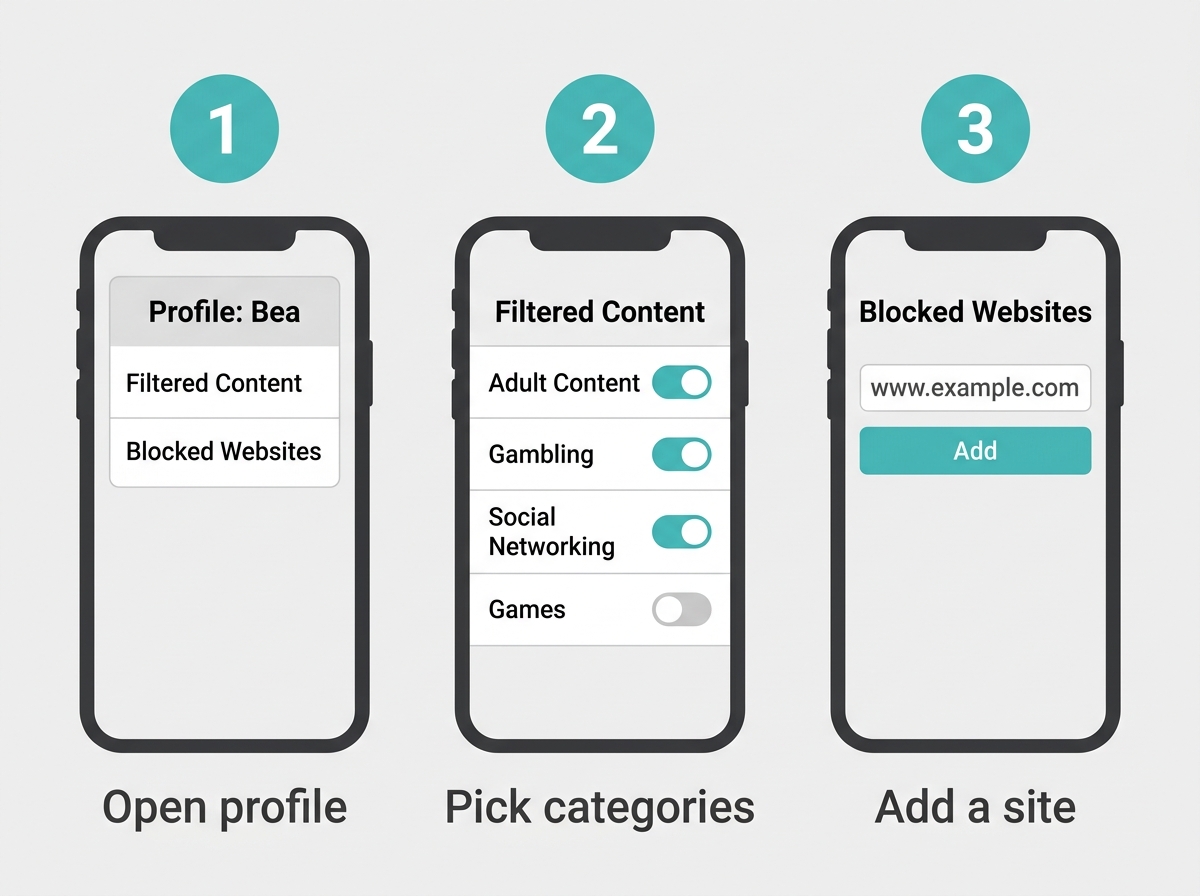
Open your child's profile in the Family tab of Tether or the Parental Controls tab of Deco. No profile yet? Build a Wi-Fi profile for your child first, then come back.
-
Tap Filtered Content (called Web Filter on some app versions). The age range you chose for the profile has already switched some categories on. Turn more on, or turn some off.
-
Tap Blocked Websites, then Add a Website. Type the full domain, like www.example.com, not just the site's name.
-
Save.
-
On the router's Security page, check that the Malicious Content Filter is switched on. Website blocking won't work without it.
Clear your child's browser cache after adding sites, so an old saved copy doesn't load. TP-Link's screenshots for each of these screens are in the HomeShield filter setup screenshots.
When a Safe Site Gets Blocked by Mistake
Category filters sometimes catch a site your child needs. A school research page, an online encyclopedia article, or a DepEd learning resource can land in a broader category than it deserves.
First, open the profile and look at which categories and websites you've blocked. If the site sits under a category you meant to block, you've found the cause. You can switch that category off, or accept the trade-off.
If the site looks miscategorized, TP-Link's parental controls troubleshooting guide links to a lookup page where you can check which category a site belongs to and request a reclassification. Reclassifications take time, so for an urgent homework deadline, temporarily switching the category off is the faster fix.
Setting Realistic Expectations
Think of router-level filtering as one layer, not the whole fence. It does real work, keeping obvious adult and gambling sites off every device at home without installing a single app. It won't catch everything, and it was never meant to replace talking with your kids about what they see online.
Filters work best alongside other rules. Many families pair filters with daily screen time limits, so kids spend less unsupervised time online in the first place. When one device keeps finding its way around the rules, take that device off the network entirely. For online classes, a school-hours-only internet schedule keeps the connection focused on lessons. And if you'd rather give the kids a network of their own, weigh a dedicated kid network against a shared one.
Frequently Asked Questions
If I block the "social networking" category, does that block the apps too?
Not necessarily, because category filtering and app blocking are separate tools. Category filtering stops web access to sites in that group, so a browser can't open them. The matching apps can keep working unless you also turn on app blocking, which is a paid Advanced Parental Controls feature on supported models. For full coverage on a social platform, switch on both the category filter and the app block.
Can my child get around content filtering with a VPN?
Yes, a VPN can weaken router-level filtering. A VPN wraps a device's traffic in an encrypted tunnel, so the router may no longer see which site the device is really visiting. If VPN use worries you, block VPN apps through app blocking if they appear in your app list, and talk with your child about why the filters are there. A sudden jump in unfamiliar app traffic is worth a question.
Does SafeSearch also filter YouTube?
No, SafeSearch and YouTube Restricted Mode are two separate switches. SafeSearch filters explicit results out of Google search only. YouTube Restricted Mode hides videos and channels flagged as potentially inappropriate on YouTube. Turning on one does nothing for the other, so enable both if your child uses Google and YouTube. Both require an Advanced Parental Controls subscription and a model that supports them.
Why don't I see SafeSearch or YouTube Restricted in my app?
Your router or firmware version probably doesn't support them yet. TP-Link rolls out these features model by model, and the Tether or Deco app only shows options your hardware can use. Update your router's firmware first, since some newer features appear only after an update. If they're still missing, your model likely offers website blocking and category filtering only.
Why can my child still open a site I blocked?
The site is probably loading from an address you didn't add. Many sites redirect to a subdomain or a separate domain, and the rule only covers the exact address you typed. Open the profile's History page, find the domain your child actually reached, and add it to Blocked Websites. Then clear the browser cache on your child's device so an old saved copy doesn't load.
Can I see which websites my child visits?
Yes, the profile shows your child's online activity. Open their profile in the Tether or Deco app to see time spent online and a list of top visited websites. For more detail, the History page lists the domains their devices reached. Use it to spot sites worth adding to Blocked Websites, and to start a calm conversation rather than a surprise confrontation.
Can I block a specific app like TikTok?
Yes, on supported models with Advanced Parental Controls. App blocking lets you pick individual apps from a catalog of more than 2,000, including TikTok, Minecraft, and Discord, and either block them outright or set a daily time limit per app. Without the subscription, you can still block the app's website through Blocked Websites.
Final Thoughts
Worried about what your child might stumble onto during a late-night homework search? Or about the online casino ads that seem to follow every Filipino phone around? Turn on the free category filters tonight, add the handful of sites you already know you don't want at home, and then check the History page after a few days. You'll learn more about your child's online habits in one week than a whole school year of guessing.
When filters alone aren't enough, the next step is structure. Read the complete Philippine family guide to parental controls to see how filters, profiles, schedules, and device blocking fit together.
Need a router that shows SafeSearch and YouTube Restricted in the app? The Archer BE900 Wi-Fi 7 router for families who want full HomeShield filtering is built for single-router homes. For multi-room homes, the Deco X20 mesh system with filters that cover every room keeps the same rules active upstairs and downstairs. Still comparing models? Check which TP-Link routers are sold in the Philippines, then buy from authorized TP-Link resellers in the Philippines so your warranty stays valid.