
How to Set Screen Time Limits on Your TP-Link Router
Published: September 24, 2026
Quick Answer
-
Set screen time limits on a TP-Link router per child profile in the Tether app's Family tab or the Deco app's Parental Controls tab, both powered by HomeShield.
-
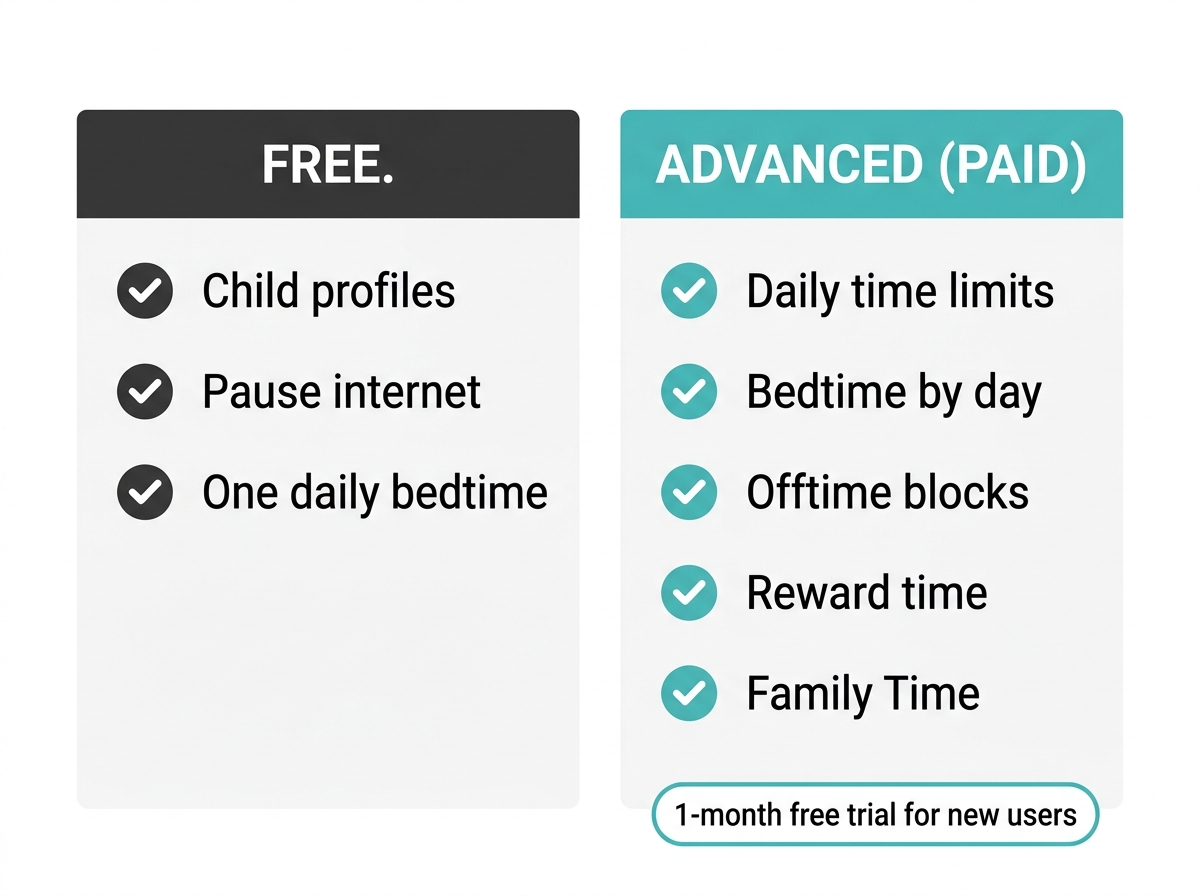
Daily time limits, Offtime, day-by-day bedtimes, and reward time are paid Advanced Parental Controls features, with a one-month free trial for new users.
-
A single every-day bedtime and an instant internet pause cost nothing on HomeShield-compatible Archer routers and Deco mesh systems.
Every Filipino parent knows the 9 PM standoff: "Five more minutes, Ma." A TP-Link router can settle it for you, with a hard cutoff, a daily allowance, and bonus time you hand out from your own phone. Speed is rarely the issue now. Median fixed broadband in the Philippines hit 105.17 Mbps by the end of 2025, so the internet will happily run all night. The question is how many hours it runs for your kids. This guide sticks to the time side. For the full picture, start with our complete guide to parental controls for Filipino families.
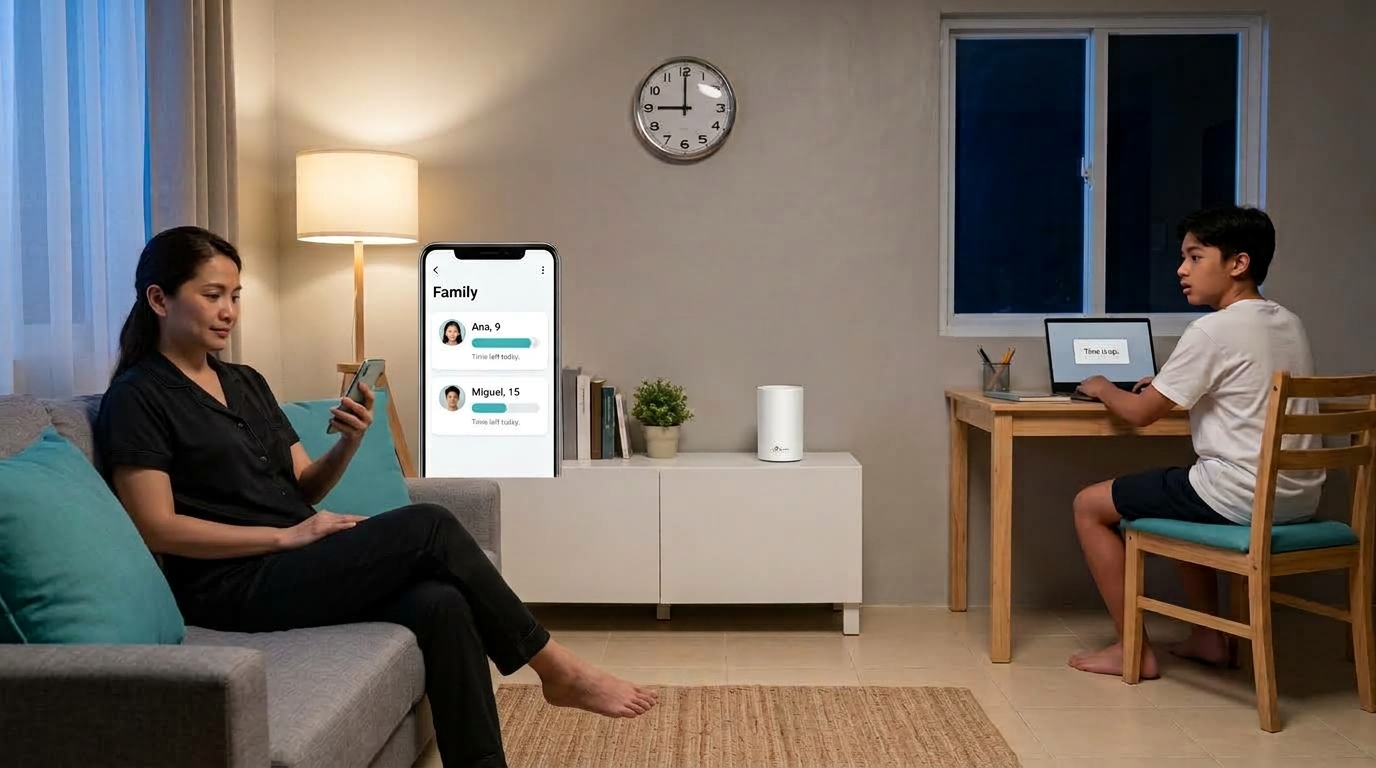
Table of Contents
What You Need Before You Start
Free vs Paid: The Screen Time Features in HomeShield
Step 1: Create a Profile and Add Your Child's Devices
Step 2: Set a Daily Time Limit
Step 3: Set Bedtime and Offtime Hours
Step 4: Grant Extra Time as a Reward
A Sample Weekly Screen Time Plan for Filipino Homes
What Happens When Time Runs Out
What You Need Before You Start
Screen time controls on TP-Link home routers and Deco mesh systems run through HomeShield, TP-Link's built-in security and parental controls platform. Check three things first:
- A HomeShield-compatible router or Deco. Not every TP-Link model has it. Older and entry-level units may only have basic controls in the web interface. Look up your exact model in TP-Link's HomeShield parental controls setup guide.
- The right app and a TP-Link ID. Archer routers use the Tether app. Deco systems use the Deco app. If your router isn't in the app yet, set up your TP-Link router using only your phone and come back.
-
Current firmware. Some newer parental control features only show up after you update.
Free vs Paid: The Screen Time Features in HomeShield
Here's the catch most guides leave out: the thing parents want most, a daily time budget, is on the paid side.
|
Screen Time Feature |
Free (Basic) |
Advanced Parental Controls (Paid) |
|
Separate profile per child, with age presets |
Yes |
Yes |
|
Instant internet pause for a profile |
Yes |
Yes |
|
Bedtime |
One schedule, same every day |
Different times per day |
|
Daily time limits |
No |
Yes |
|
Offtime (extra no-internet blocks) |
No |
Yes |
|
Reward time |
No |
Yes |
|
Family Time (selected devices go offline together) |
No |
Yes |
So a nightly cutoff costs nothing. "Ninety minutes on school nights, three hours on Saturday" does. Website blocking and category filters are a separate topic, covered in our guide on what TP-Link content filtering can and cannot block.
New users get one month of Advanced Parental Controls free. That's long enough to see whether a daily budget actually changes anything at home. The peso price is shown inside the Tether or Deco app, and TP-Link's HomeShield plans and free trial details explain how billing works.
Step 1: Create a Profile and Add Your Child's Devices
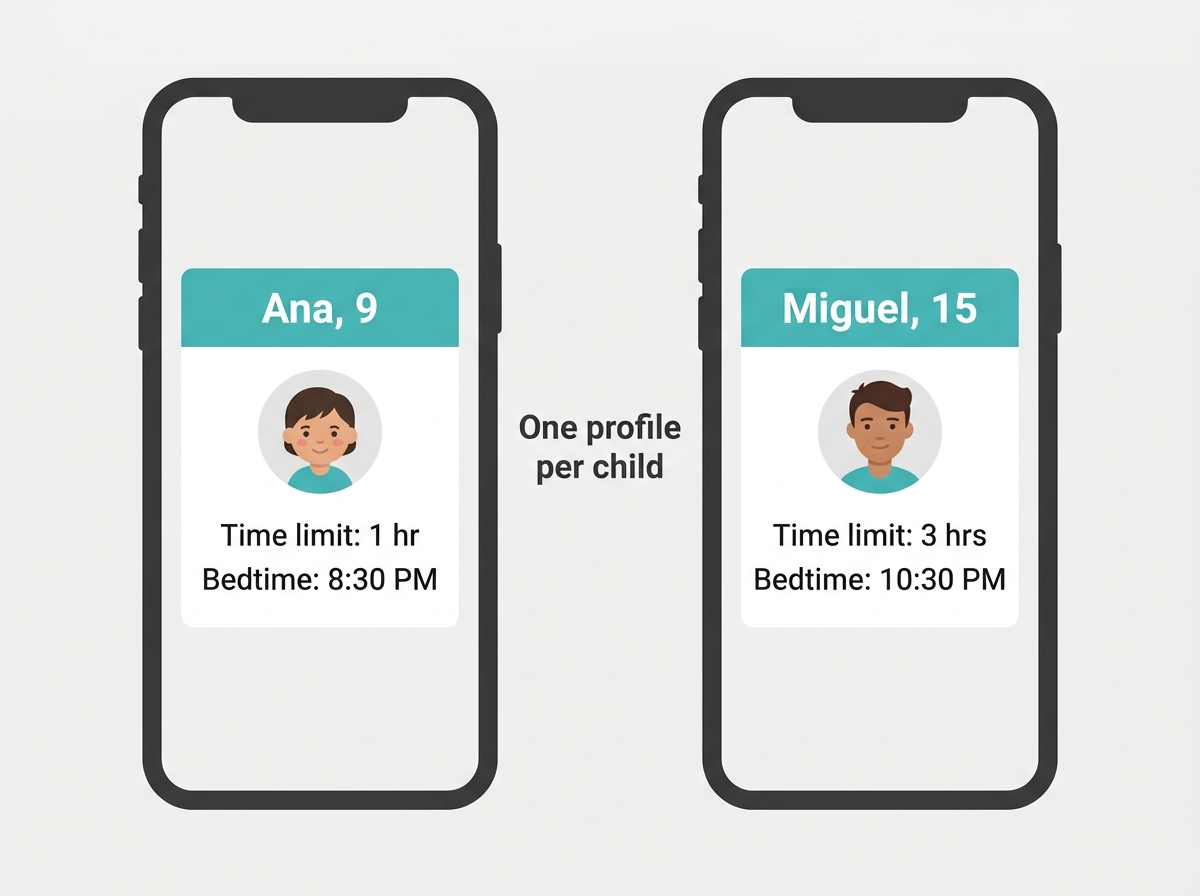
Limits attach to a profile, not to the whole network. So each child needs one.
- Open Tether (routers) or Deco (mesh), go to the Family or Parental Controls tab, and tap Get Started.
- Name the profile, pick an age range, and choose an avatar.
- Add the phone, tablet, laptop, or console that belongs to that child, then confirm.
A Grade 4 learner and a Grade 11 student shouldn't share a rulebook, and separate profiles keep one child's limit from touching the other's. Device list full of names like "android-7f3a"? Check who's connected to your TP-Link Wi-Fi and rename things first. Everything else about profiles, from age presets to editing rules later, is in our guide to setting up kid-safe Wi-Fi profiles in the Tether app.
Step 2: Set a Daily Time Limit
Paid feature.
- Open the child's profile and tap Time Limits.
- Set how many hours of internet the profile gets per day.
- Want weekends looser? Set separate weekday and weekend limits, or tweak individual days. Save.
Once the allowance is gone, it's gone until the next day, unless you add reward time (Step 4).
Sticking with the free tier? A manual pause does the job in a pinch. You can pause or block a device from your Wi-Fi the moment homework time starts, then turn it back on when it's done.
Step 3: Set Bedtime and Offtime Hours
-
In the profile, tap Bedtime.
-
Pick the hours when the internet goes off, for example, 10:00 PM to 6:00 AM.
-
Save.
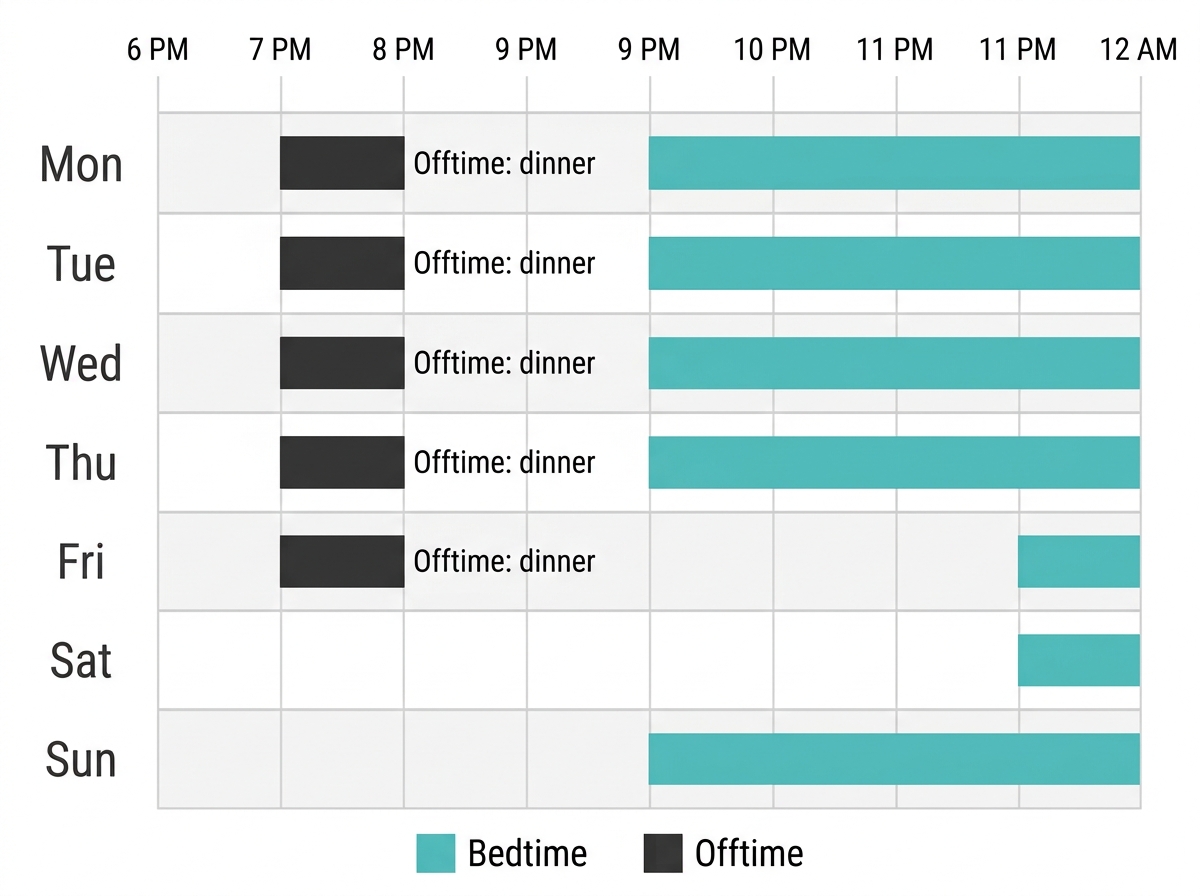
Free users get that one window every night. With Advanced, a 9:00 PM Monday-to-Thursday cutoff can slide to 11:00 PM on Friday and Saturday.
Offtime is a paid, separate block for daytime or early evening. Think family dinner at 7:00 PM, or the hour before the jeepney ride to school when nobody should be on YouTube. For internet that only works during class hours, see our guide on school-hours-only internet access for remote learning.
Step 4: Grant Extra Time as a Reward
Also paid, and the one feature kids actually thank you for.
When a child's allowance runs out and they open a website, a Time Is Up page lets them ask for more. That page only shows up on HTTP websites, though. Inside apps and on most secure sites, content just stops loading. Requests land in the app's Message section, where you approve or decline.
You can also skip the request. Open the profile, tap Adjust, and add minutes for today. Dishes done? Top score on the Araling Panlipunan quiz? Video call with Tita in Dubai ran long? Add time, and nobody has to pull the router's plug.
A Sample Weekly Screen Time Plan for Filipino Homes
Use these as starting points. Every row uses daily limits and day-specific bedtimes, so all of them need Advanced Parental Controls.
|
Child |
School Nights (Sun to Thu) |
Weekends (Fri to Sat) |
|
Grade school, ages 6 to 10 |
1 hour daily, bedtime 8:30 PM |
2 hours daily, bedtime 9:30 PM |
|
Junior high, ages 11 to 14 |
2 hours daily, bedtime 9:30 PM |
3 hours daily, bedtime 10:30 PM |
|
Senior high, ages 15 to 17 |
3 hours daily, bedtime 10:30 PM |
4 hours daily, bedtime 11:30 PM |
Decide before the timer starts whether online research counts. Some families fold it into the allowance. Others give extra reward time during project week. Either works if the kids know the rule up front.
What Happens When Time Runs Out
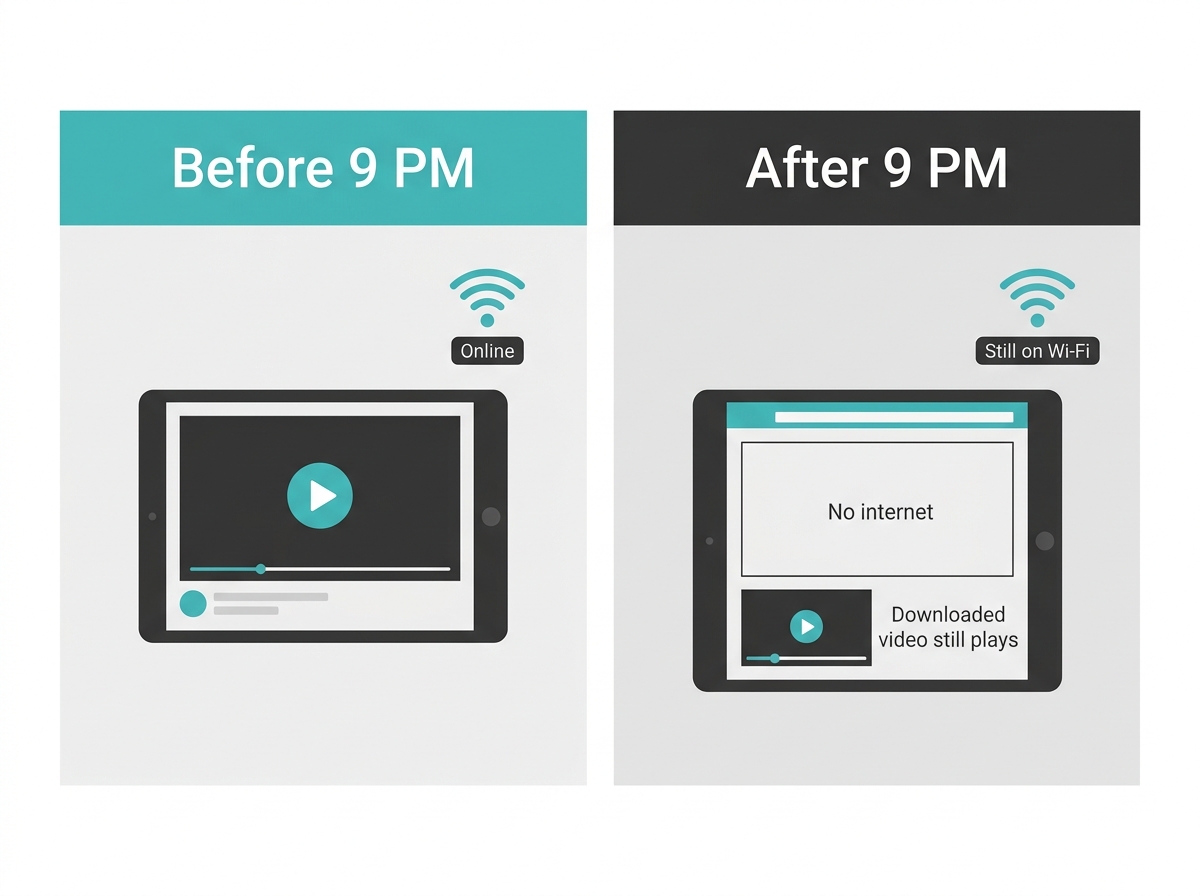
The device stays on your Wi-Fi, but the internet stops. Websites and anything that needs a live connection won't load.
Downloaded videos, saved music, and offline games still play. So the episode your child saved earlier will finish even after the cutoff.
Nobody else is touched. Your WFH laptop, the smart TV, and any device outside the profile keep their usual connection. On a Deco mesh system, the rules follow the device from the sala to the upstairs bedroom across every Deco unit, concrete walls and all. Thinking about giving the kids their own network instead? Weigh it up in our guide on separating a kid network from your guest network.
Frequently Asked Questions
Why aren't my screen time limits working on my child's phone?
The phone is probably hiding its real MAC address. TP-Link routers identify devices by MAC address, and many phones use a private, randomized one by default. The router then treats the phone as a stranger, and Bedtime, Time Limits, and Offtime never apply. On iPhone, turn off Private Address for your home Wi-Fi. On Android, choose Use Device MAC. Then add the device to the profile again.
Why did my child's time limit run out so fast?
Background activity counts as screen time. The router tracks every bit of internet use on the device, including app updates, photo backups, and notifications syncing while the phone sits on the table. A two-hour allowance can vanish faster than your child expects because of this. Having them switch off Wi-Fi on the device when they are not using it keeps the count closer to real screen use.
Why does bedtime start at the wrong hour?
The router's clock is off. Schedules follow the router's own time, so a wrong time zone or a clock that drifted after a brownout pushes every rule early or late. Check that the time zone in the app is set to the Philippines (GMT+08:00), then reboot the whole router or Deco network. TP-Link's troubleshooting notes confirm that a reboot lets the router pull the correct time again.
Can my child get around this by using mobile data instead of Wi-Fi?
Yes, router limits only cover your home network. With prepaid load or a postpaid plan, your child can switch off Wi-Fi and keep scrolling. To close that gap, use the phone's built-in screen time settings or cap mobile data on the SIM itself. TP-Link's KidShield app can also carry some parental controls onto the phone away from home Wi-Fi, where available in your region.
Can I manage my kids' screen time while working abroad?
Yes, if the router is linked to your TP-Link ID. OFW parents can open the Tether or Deco app from anywhere with internet, see how much time each child has left, approve reward time, and move bedtime around. Before flying out, make sure the router or Deco is bound to the same TP-Link ID on your phone, and keep the app updated so the controls match the router's firmware.
Does the Advanced Parental Controls free trial end on its own?
No, it rolls into a paid subscription. After the one-month trial, Advanced Parental Controls renews automatically until you cancel. If you only want to test daily limits and reward time, set a phone reminder a few days before the month ends. Cancel through the App Store or Google Play account you used to subscribe, and the free Basic features keep working after the paid ones switch off.
Do I need to change anything on my PLDT, Globe, or Converge modem?
No, the ISP modem stays as it is. The modem from your provider does not run HomeShield, so it has no role in screen time rules. Every limit, bedtime, and reward lives on the TP-Link router or Deco system that your family's devices actually connect to. As long as the kids' phones and tablets join the TP-Link network, the schedule applies to them.
Final Thoughts
Still finding a glowing phone under the kumot at midnight? Still pausing the Wi-Fi by hand every afternoon and hearing "Ma, just one more round"? That's the signal to let the router do the reminding. Turn on the trial tonight, set one allowance per child, and see how the week goes before you pay a peso.
Some nights call for more than a schedule. When one device needs to come off the network completely, learn how to block a device from your Wi-Fi temporarily or permanently. To set up filters, kid profiles, and school-hours access around your screen time rules, go to the full parental controls playbook for Philippine households.
Is your current router too old for HomeShield? The Deco X20 mesh system with HomeShield parental controls brings every feature in this guide to multi-room homes. Want to compare first? Browse TP-Link Wi-Fi routers available in the Philippines, then buy from authorized TP-Link stores and online shops in the Philippines so your warranty stays valid.