
How to Limit Internet to Class Hours with Parental Controls
Published: September 25, 2026
Quick Answer
-
School-hours-only internet on a TP-Link router works by leaving class hours open and switching off the child's internet outside them with Bedtime and Offtime schedules in the Tether or Deco app.
-
A schedule cuts all internet for the profile during its window, so it cannot allow learning platforms while blocking everything else at the same time.
-
Putting the school laptop and the personal phone in separate profiles lets the laptop stay online for class while the phone follows stricter rules.
School-hours-only internet means your child's school device gets online when class is running and goes quiet when it isn't, while the rest of the household's Wi-Fi keeps working. On a TP-Link router, you build this from two things: a profile that holds the school device, and a schedule that closes every hour outside class. It's not a magic "school mode." It's a clear window you control. This guide shows how to set it up for Filipino school calendars. For the bigger picture, see our parental controls hub for Filipino families.
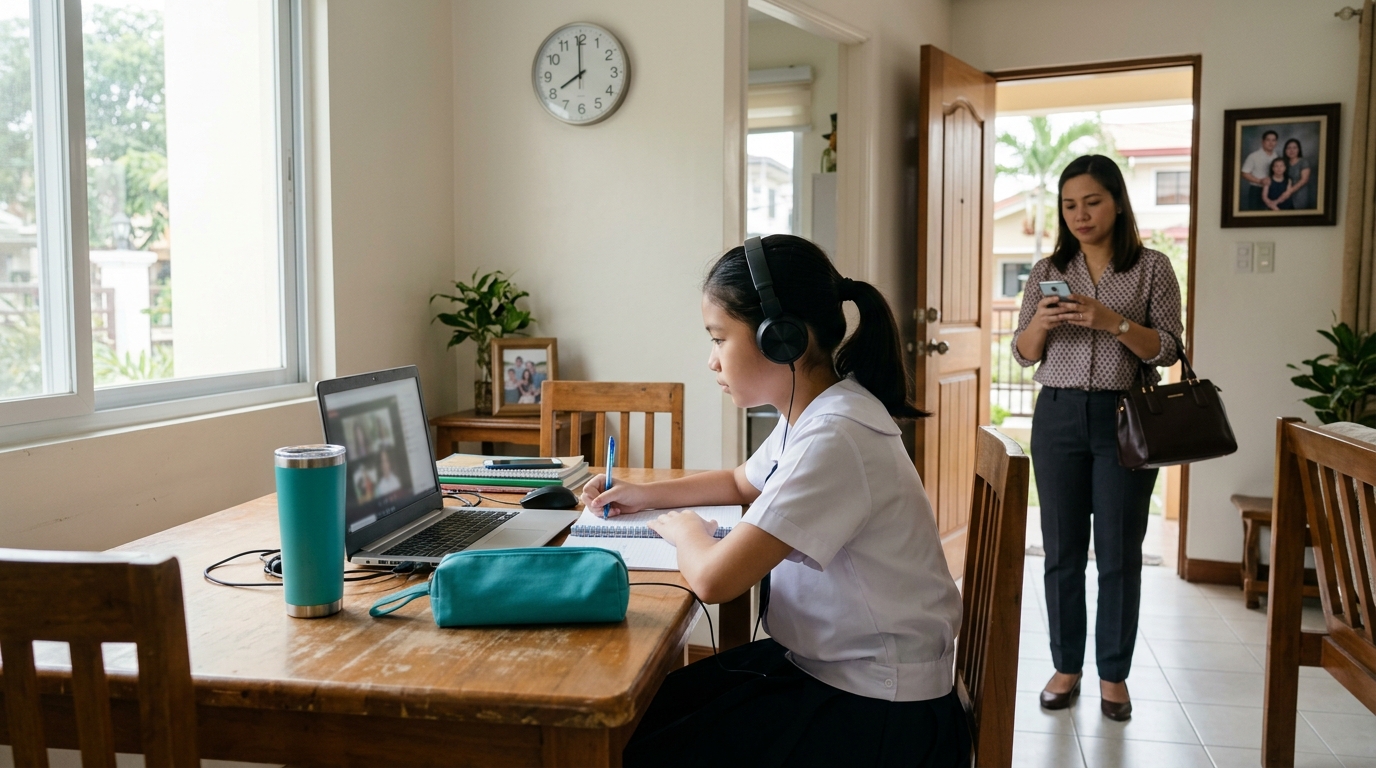
Table of Contents
Why Filipino Parents Set This Up
What a School-Hours Schedule Can and Can't Do
Step 1: Split School and Personal Devices
Step 2: Build the Class-Hours Window
Step 3: Add Filters for Distractions
Handling Blended, Shifting, and Suspended Class Days
Why Filipino Parents Set This Up
SY 2026-2027 runs from June 8, 2026 to April 8, 2027 across three terms, under DepEd Order No. 009, s. 2026. Private schools can opt out of the three-term setup, so check your child's school calendar. For many families, part of that year happens online. That might be a private school with blended days, a college on online delivery, or a public school that switches to remote sessions when a typhoon suspends face-to-face classes.
The request from parents is always the same: keep the school laptop working during class, and stop it from becoming a YouTube machine the moment class ends. Everyone else in the house, from the WFH parent to Lola watching her teleserye, should stay online.
Still choosing a router or setting up QoS for your student's laptop? Start with our router and QoS setup for SY 2026-2027 students, then come back here for the scheduling side.
What a School-Hours Schedule Can and Can't Do
What it does. It gives the school device a fixed online window, for example, 7:00 AM to 3:00 PM, and cuts the internet outside it. You can also filter known distractions, so they're off-limits even during class.
What it can't do. A schedule is all or nothing. During a no-internet window, everything goes dark, including the learning platform. During an open window, everything works, including games. TP-Link's HomeShield doesn't recognize a site as "for school" and let only that through.
There are two partial exceptions worth knowing. On supported models with Advanced Parental Controls, HomeShield's app controls include an Always Allowed Apps list, which keeps chosen apps reachable even when other app blocks or app time limits apply. TP-Link doesn't say it overrides Bedtime or Offtime, so don't count on it during a no-internet window. Some older, non-HomeShield Tether routers also offer a website Allow mode that permits only the sites you list. Check your app to see whether either is available on your model.
Wondering whether the school laptop should sit on a different Wi-Fi network altogether? That's a separate question, covered in our guide on whether a school device belongs on a separate network.
Step 1: Split School and Personal Devices
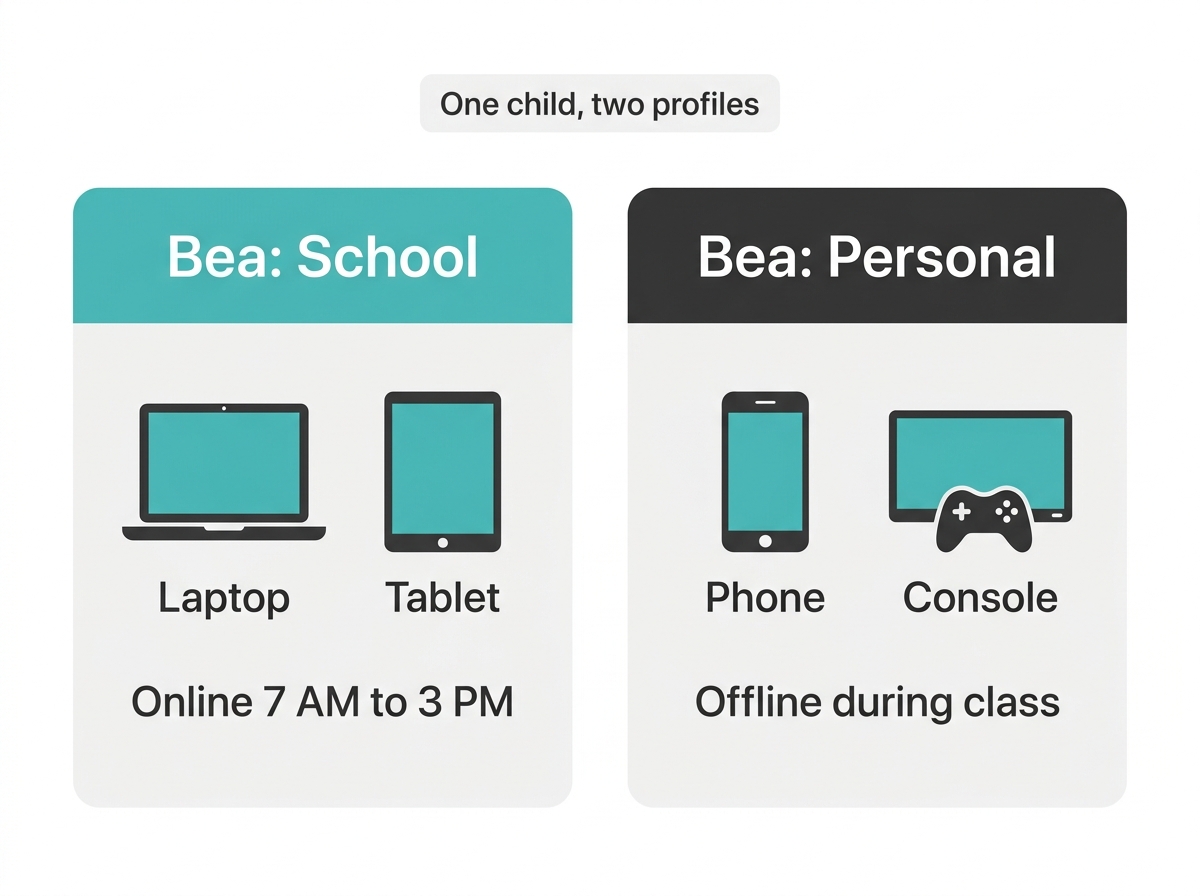
Most parents make one profile per child. For school-hours control, two per child often works better:
- "Bea: School" holds the laptop or tablet used for class. It follows the class-hours window.
- "Bea: Personal" holds the phone and the game console. It gets stricter rules, like no internet during class and an earlier bedtime.
This way, the laptop stays online at 10:00 AM for a math session while the phone stays offline in the next room. If you haven't made profiles yet, build a profile for each student in the house first, then return here.
Step 2: Build the Class-Hours Window
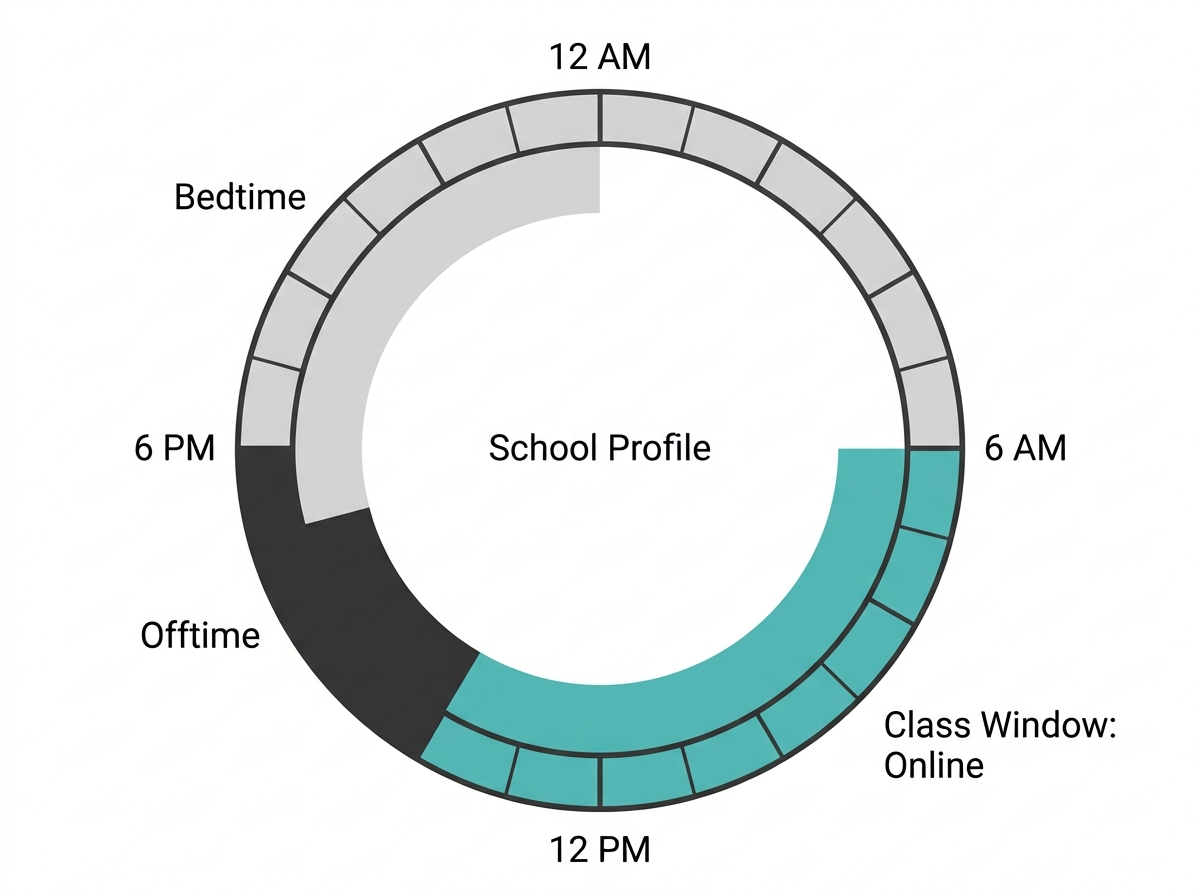
The trick is to schedule the offline hours, not the online ones. Whatever you don't block becomes the class window.
- Open the School profile in the Family tab (Tether) or the Parental Controls tab (Deco).
- Set Bedtime to cover the long stretch outside school, for example, 5:00 PM to 7:00 AM.
- If you have Advanced Parental Controls, add Offtime to close the gap between dismissal and bedtime, for example, 3:00 PM to 5:00 PM, and set weekdays and weekends differently.
- Save. For the Personal profile, block the class hours with an Offtime window instead, which also needs Advanced Parental Controls.
Here's the catch with the free tier. It's a single Bedtime that repeats every day, so a 5:00 PM cutoff applies on Saturday and Sunday too. For how each schedule type works and what the paid tier adds, see how Bedtime and Offtime work.
Prefer a lighter touch? Many households skip the class-hours window entirely and just close the 3:00 to 7:00 PM stretch, which is when the distraction really happens. The laptop stays available all morning and during the 7 to 10 PM study hours.
Step 3: Add Filters for Distractions
A class window stops after-school scrolling, but it doesn't stop a game tab from opening during a lesson. Filters handle that.
- In the same School profile, open the filter settings.
- Block the specific game or video sites your child drifts to, and turn on categories you'd never want on a school device.
- If your router supports app blocking, block the distracting apps on the school tablet too.
One thing to know: filters you switch on apply whenever the profile is online, not only during class. Pick categories you'd block at any hour. To see what filters can and can't catch, read our guide on how to keep school sites open while filters stay on.
Handling Blended, Shifting, and Suspended Class Days
Real school weeks don't repeat perfectly. Here's how to handle the common curveballs:
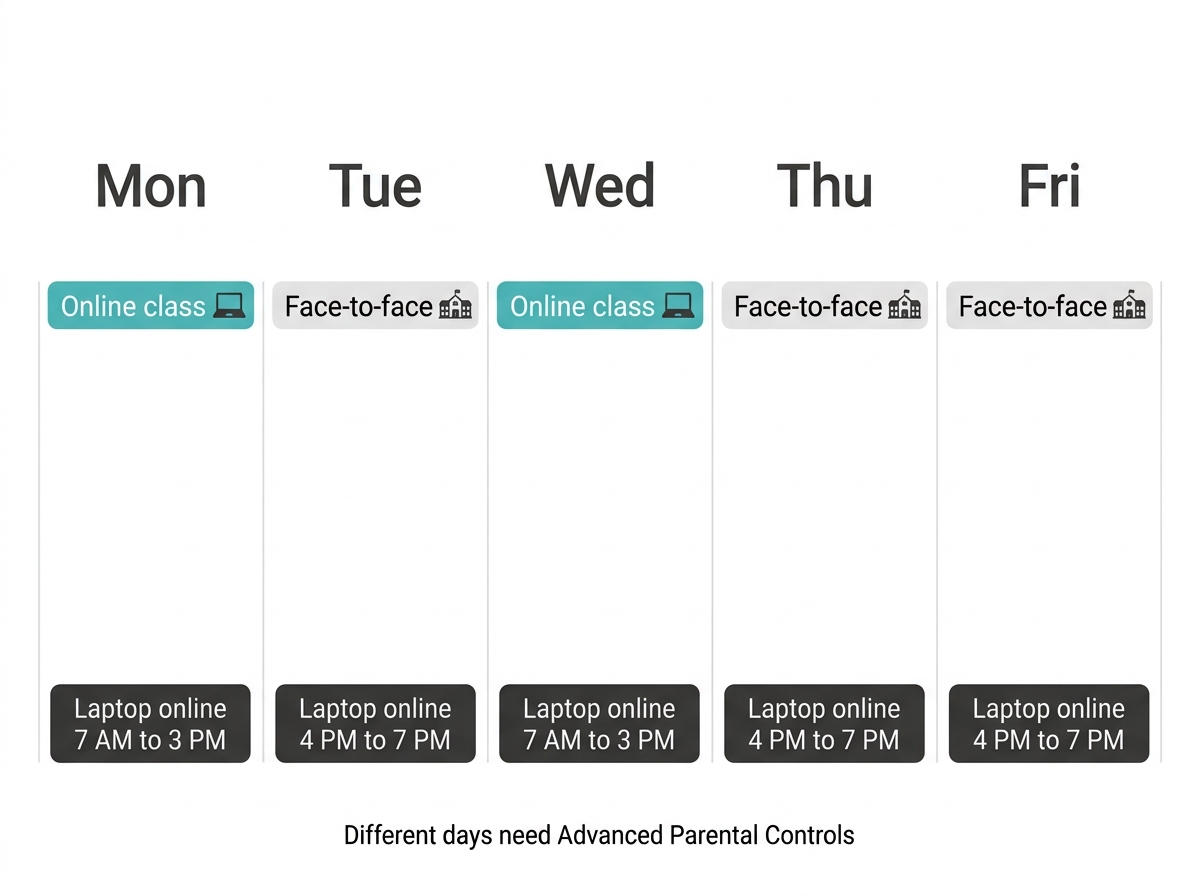
- Blended weeks. If Monday and Wednesday are online and the rest are face-to-face, Advanced Parental Controls lets you set different Bedtime and Offtime windows per day. That's the clearest case where the subscription earns its keep for students.
- A new term, a new timetable. Term 2 opened September 16, 2026, and Term 3 opens January 4, 2027. When the class schedule changes at a term opening, update the School profile's windows that week. Set a phone reminder for both dates.
- Typhoon or class suspension days. When face-to-face classes are suspended and the school moves online, the class window may not match. Pause the Personal profile for the class period so the phone stays out of the way, and leave the School profile as it is. If the schedule hasn't caught up by dismissal, pause a profile the moment class ends.
Frequently Asked Questions
Can I allow only specific learning platforms and block everything else?
Not with standard HomeShield schedules. Schedules and filters work by blocking, so a class window opens the whole internet and a no-internet window closes all of it. The closest options are an Always Allowed Apps list, which exempts chosen apps from app blocks and app time limits on supported models, or a website Allow mode on some older Tether routers. Otherwise, combine a class window with blocked distraction sites.
What if my child needs internet after hours for a group project?
Switch off the School profile's Bedtime, or edit its Offtime window, for that evening, then restore it when the project is done. That opens the laptop without touching the phone's rules. If you use daily time limits, you can add reward time instead, but reward time extends the allowance and won't necessarily lift a Bedtime or Offtime window. Remind yourself to turn the schedule back on.
Should the school laptop be in the same profile as my child's phone?
Keeping them separate works better for school-hours control. One profile applies one set of rules to every device inside it, so a shared profile forces the laptop and phone to go online and offline together. Two profiles, like "School" and "Personal," let the laptop run the class window while the phone stays off during lessons and follows an earlier bedtime at night.
Will the schedule interrupt an online class that runs late?
Yes, if the class runs past the window you set. The router cuts the internet at the exact minute the Offtime or Bedtime starts, even mid-session. Leave a buffer of 30 minutes after the official dismissal time, especially on days with long synchronous sessions. If a teacher regularly extends class, widen the window on those days using day-specific schedules.
Does this setup slow down Wi-Fi for the rest of the family?
No, schedules only affect devices inside the profile. The WFH laptop, the smart TV, and everyone else's phones keep their normal connection all day. What a schedule can do is free up bandwidth in the 7 to 10 PM peak, since a blocked console or phone isn't streaming. For prioritizing the student's laptop during class, use the router's QoS settings.
How is this different from regular screen time limits?
It uses the same tools, aimed at a different goal. Screen time limits cap how many hours a child spends online and when they go to bed. A school-hours setup builds the day around a fixed class window, often with separate School and Personal profiles. Many families use both: a class window for the laptop, and a daily limit and bedtime for the phone.
Final Thoughts
Tired of finding a game running in the background of an online class? Or of the laptop turning into a video marathon the minute dismissal hits? Set up a School profile for the laptop and a Personal profile for the phone this weekend. Give the laptop a class window, close the after-school gap, and block the two or three sites that always win the tug-of-war.
When afternoons are the real battleground, add a daily screen time budget for after-school hours on the Personal profile. For how profiles, filters, and schedules fit together across the whole house, read our whole-home parental controls guide.
Need a router that handles class-hours profiles and day-specific schedules? The Archer BE900 Wi-Fi 7 router for student households runs it all from the Tether app. For study rooms upstairs behind thick concrete walls, the Deco X20 mesh system for a strong signal in every study area and keeps the class window reliable in every room. Comparing options? View TP-Link's Philippine router lineup and buy from official TP-Link retail and online partners in the Philippines so your warranty holds.