
How to Set Up Kid-Safe Wi-Fi Profiles in the Tether App
Published: September 24, 2026
Quick Answer
-
A kid-safe Wi-Fi profile in the TP-Link Tether app is a set of rules attached to one child's devices, created under the Family tab (or the Parental Controls tab in the Deco app).
-
Each profile gets a name, an age range that loads preset rules, and every phone, tablet, laptop, or console that child uses.
-
Separate profiles let siblings of different ages follow different rules on the same home network without touching each other's settings.
A kid-safe Wi-Fi profile is the one setup step every other TP-Link parental control depends on. Bedtimes, filters, pauses, and daily limits all attach to a profile, not to the router as a whole. Build it right once, and every rule you add later lands on the right phone, the right tablet, and the right child. Skip it, and you end up managing gadgets one by one. This guide walks through building profiles in the Tether and Deco apps. For how profiles fit the full picture, see the parental controls roadmap for Filipino families.
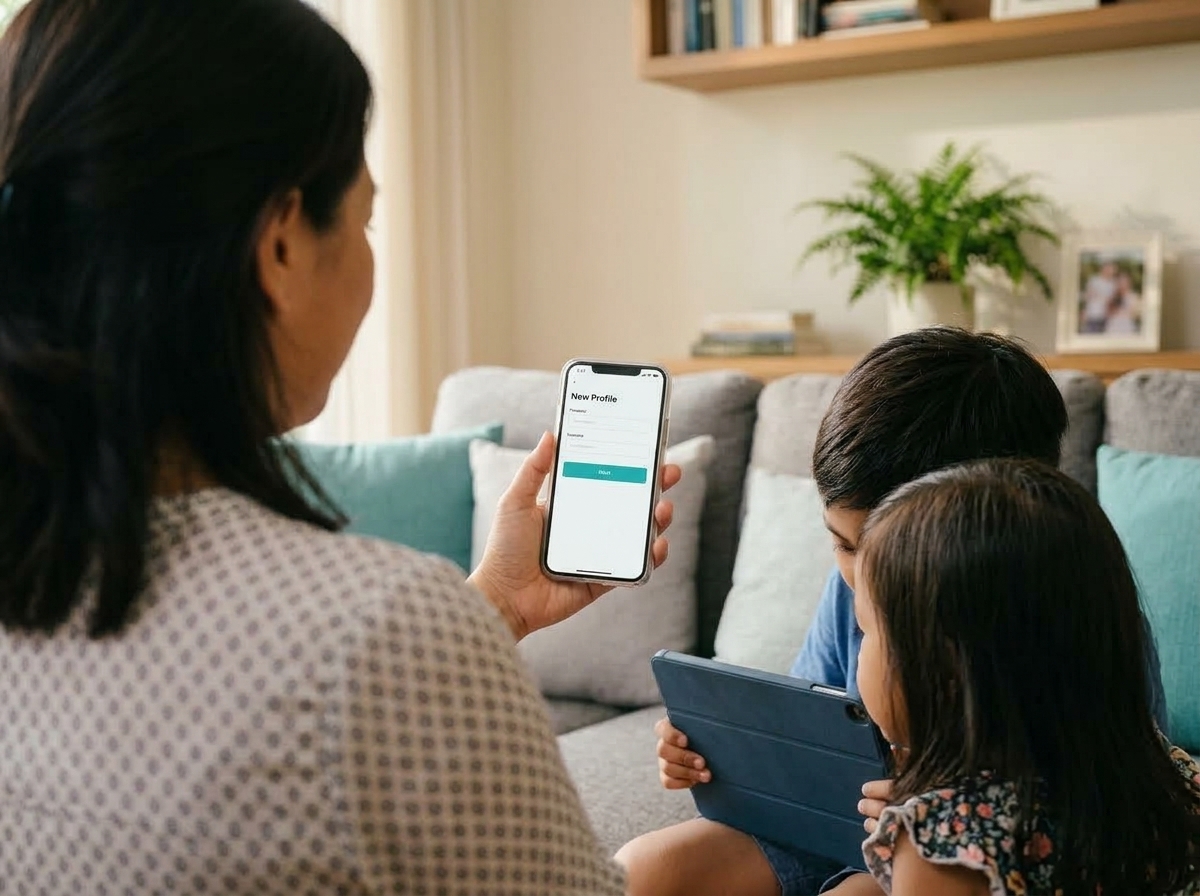
Table of Contents
Step 2: Pick a Name, Age Range, and Avatar
Step 3: Add Every Device Your Child Uses
Step 4: Turn On the Rules You Need
Running Profiles for More Than One Child
What a Profile Actually Does
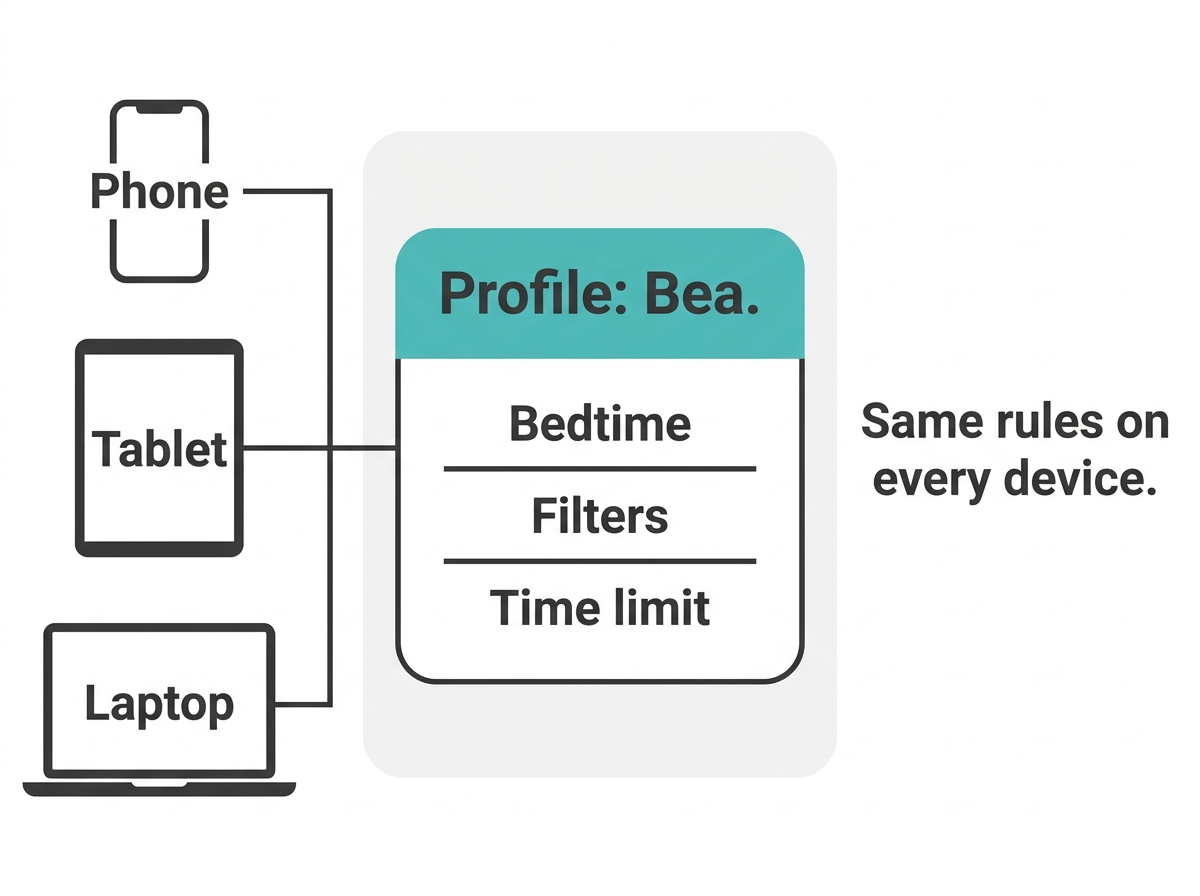
A profile is a rule set, not an account. Your child never signs into anything or sees a login screen. You create the profile in your app, attach your child's devices to it, and every rule you set on that profile follows those devices automatically.
That changes how you plan the setup. You're not making a user for Bea. You're telling the router, "These three gadgets belong to Bea, and here's what Bea is allowed to do." When Bea's bedtime hits, her phone, tablet, and laptop all follow it. Nothing changes for anyone else in the house.
Before You Start
Get three things ready before you open the app:
- Your router in the app. Standalone Archer routers use Tether, and Deco systems use the Deco app. Both need you signed in with your TP-Link ID. If your router isn't linked yet, add your router to the Tether app from your phone first.
- Your child's devices online at home. Each gadget should be connected to your home Wi-Fi right now, or at least once before, so it shows up in the device list.
- Private addresses switched off. On every device you plan to add, turn off Private Wi-Fi Address (iPhone and iPad) or set Android to Use Device MAC for your home network. Do this before you add the device, so the profile saves the address the device will actually use.
Step 1: Create the Profile
-
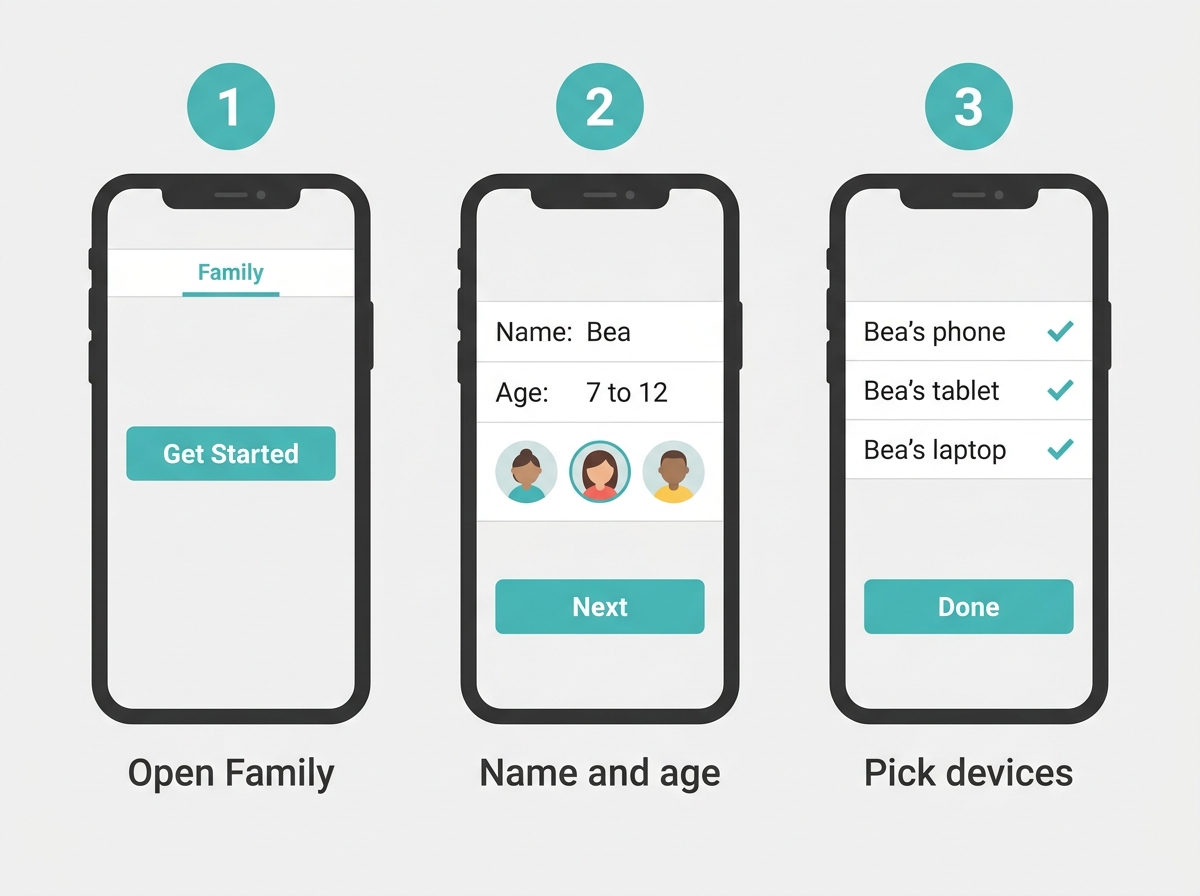
Open Tether and tap your router, or open the Deco app.
-
Go to the Family tab in Tether or the Parental Controls tab in Deco.
-
Tap Get Started to create your first profile. For more profiles later, use the + button on the same tab.
TP-Link's own screenshots for this flow are in TP-Link's Tether parental controls guide.
Step 2: Pick a Name, Age Range, and Avatar
-
Type your child's name. Use the real name or the nickname the whole family uses, like "Bea" or "Bunso," so anyone opening the app knows whose rules they're looking at.
-
Choose an age range. The app loads preset rules based on the age you pick, and you can edit them anytime from the profile's settings.
-
Pick an avatar, then tap Next.
Treat the age preset as a first draft. It gets you started, but it won't know that your 12-year-old needs a research site for a school project or that your 8-year-old found a game site you'd rather keep closed. Before you rely on the preset alone, read up on how far TP-Link's category filters actually reach.
Step 3: Add Every Device Your Child Uses
-
From the device list that appears, tick every gadget that belongs to this child.
-
Tap Done.
-
To add more later, open the profile and use its add-device option.
Kids have more devices than parents remember. Think about the phone, the tablet, the school laptop, the gaming console, and the old phone that became a "YouTube-only" device. Anything left out of the profile runs with no rules at all.
A device list full of names like "Galaxy-A15" or "iPad (2)" makes this step slow. Before you start ticking boxes, rename devices in your connected clients list so you can tell whose is whose.
Step 4: Turn On the Rules You Need
With the profile built and the devices assigned, you can start switching rules on. Each one has its own guide:
- Daily time limits, bedtimes, and reward time. Set these using our walkthrough on daily time limits, bedtimes, and reward time.
- Instant cutoffs. When you need the internet off right now, pause a profile or block a single device.
- School-hours access. For online or blended classes, set up internet that only runs during class hours.
Start with one rule, usually a bedtime, and live with it for a week. Adding five rules on day one tends to end in a family argument and a factory reset.
Running Profiles for More Than One Child
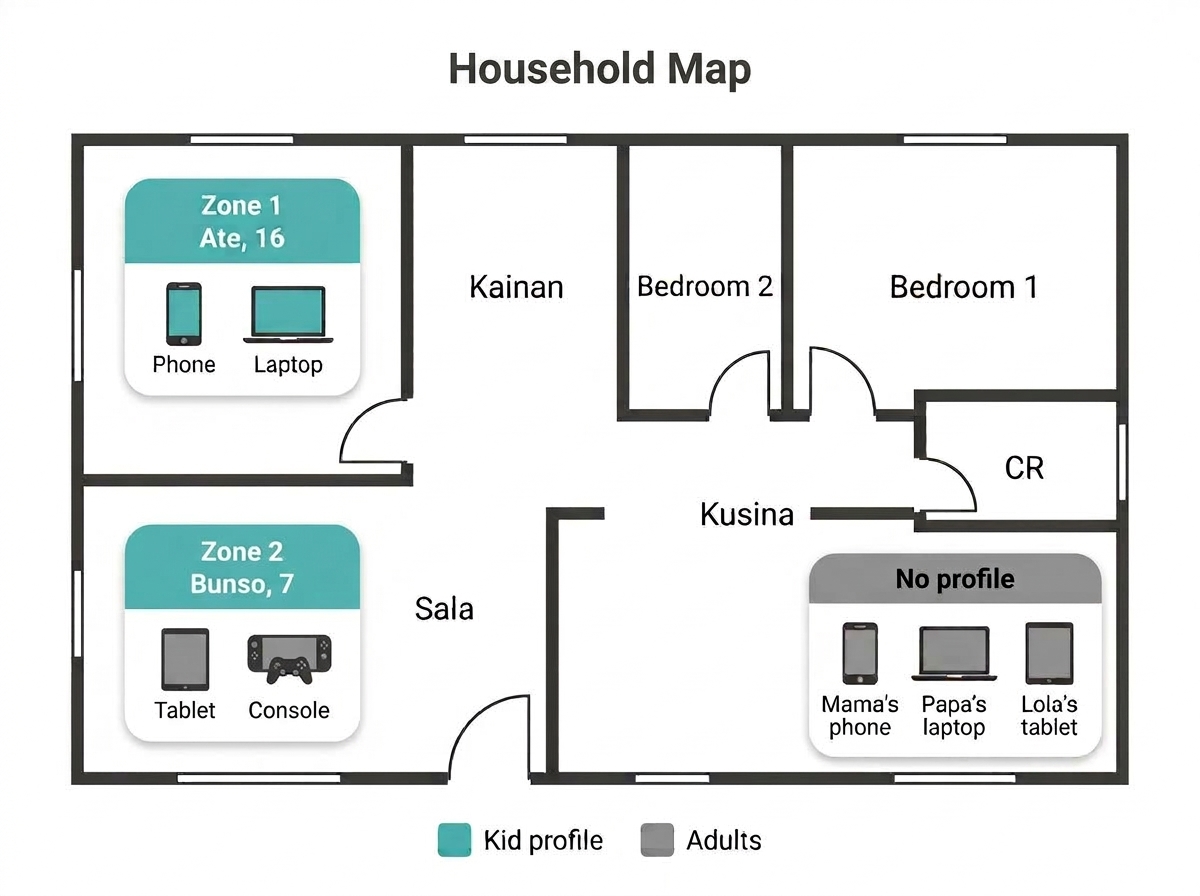
Give every child their own profile. This is where profiles really earn their keep. Ate in senior high and Bunso in Grade 2 can have completely different rules on the same Wi-Fi, and changing one never touches the other.
A few habits keep a multi-kid setup tidy:
- Name profiles by child, never "Kid 1." This matters most when Mama, Papa, and a Tita at home all open the same app.
- Keep adults' devices out. Parents' phones, a WFH laptop, and Lola's tablet should stay unassigned so no child rule ever reaches them.
- Review the device list at the start of each school year. New gadgets arrive, old ones get passed down, and a hand-me-down phone might still sit in an older sibling's profile.
Some families would rather give the kids a separate network entirely. If that's you, compare the trade-offs of a separate kid network instead of profiles.
Frequently Asked Questions
Does my child need to log in to anything?
No, profiles run entirely from the parent's side. Your child never creates an account, enters a password, or installs an app for the profile to work. The rules sit on your TP-Link router or Deco and apply to any device you've assigned. From the child's end, the only thing they notice is that the rules kick in, like the internet going off at bedtime.
What happens when my child gets a new phone?
Add the new phone to the existing profile once it joins your home Wi-Fi. The profile, its name, and all its rules stay the same. You're only updating which hardware the rules cover. If the old phone gets handed down to a sibling, move it into that sibling's profile too. That applies whether it came from the mall or out of a balikbayan box.
Can I add a gaming console or smart TV to a profile?
Yes, any device on your home network can join a profile. Consoles, smart TVs, streaming sticks, and laptops all appear in the app's device list once they connect, whether over Wi-Fi or an Ethernet cable. Add them the same way as a phone. For a TV in a child's bedroom, putting it in that child's profile means bedtime covers it too.
Where should a shared family laptop or TV go?
Put it in the profile of the youngest person who regularly uses it, or leave it out entirely. A shared device can only follow one set of rules, so choose based on who uses it most when you're not around. If the living room TV is mostly for family movie night, leaving it unassigned keeps everyone from getting cut off mid-film.
Can both parents manage the same profiles?
Yes on Deco, and Tether users should check their app. The Deco app lets you add a manager account, so a second parent's TP-Link ID can help run the network, including Parental Controls. This helps when one parent works abroad, though only one account can manage the network at a time. For standalone routers in Tether, confirm the sharing options in your app, or keep one TP-Link ID that both parents sign into.
How do I delete a profile I no longer need?
Open the profile, go to its settings, and tap Delete at the bottom of the page. The profile and all its rules disappear, and every device in it goes back to normal, unrestricted access. This is handy when an older child turns 18 or moves out for college. Double-check you picked the right profile first, because the rules don't come back once deleted.
Why doesn't my child's device show up when I try to add it?
The device probably hasn't connected to your home Wi-Fi yet. The app only lists devices that have joined your network at least once. Connect the gadget to your Wi-Fi, wait a minute, then refresh the device list. If it still doesn't appear under a recognizable name, check your connected clients list and rename it so you can spot it.
Final Thoughts
Still flipping through the device list every night trying to guess which "android-3b7c" is your daughter's? Tired of rules that accidentally catch your work laptop? Set up one profile per child this weekend, put every gadget they own inside it, and leave the adults' devices alone. Everything you add later lands in the right place.
Once the profiles are in, give each profile a daily screen time budget so bedtime and screen hours run without you policing them. To see how profiles, filters, and schedules work together, read the start-to-finish parental controls guide.
Is your router too old to show a Family tab in Tether? The Archer BE900 with Tether Family profiles gives you profiles for every child in one app. For bigger homes with thick concrete walls between rooms, the Deco X20 mesh with per-child Parental Controls profiles keeps each child's rules active in every room. Weighing more models? Compare TP-Link routers available in the Philippines, then buy from TP-Link's authorized stores and online shops in the Philippines so your warranty is covered.