
Fail to Configure the TP-Link Range Extender
If you have already tried to configure the range extender but it failed, this article will help you troubleshoot the issue.
Requirements
- For Dual-Band Range Extender, if there’s only a 2.4G LED light on, then 5G light off, please help fix the main router’s 5G to band1 (channel 36-48), then the RE should be able to connect to the Router in 5 GHz.
- Check those main router functions that may have a bad influence on RE to connect and work stably.
Troubleshooting
Scenario 1: Working in Repeater Mode
Case 1: Only the Power Light Is On After the Configuration
Step 1. Put the range extender 2-3 meters away from the router. Turn the range extender off and back on, then wait 2 minutes. Check whether the signal light is on.
Step 2. If possible, set the 2.4G and 5G Wi-Fi networks to different names on the main router. It will help us identify which band is experiencing a connection issue with the router.
Step 3. Upgrade the range extender to the latest firmware and reconfigure it.
Step 4. Make sure the main router doesn’t enable any security settings, like MAC Filtering or Access control. The Authentication Type and Encryption Type are set to Auto on the router.
Step 5. Try resetting the extender completely. Use a pin to press the button for 1 second to reset the extender. Also, after resetting, please reconfigure the extender.
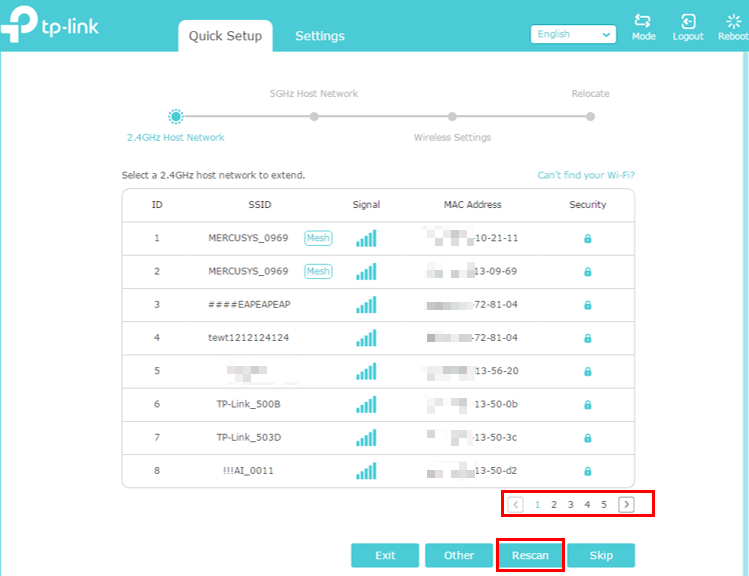
Case 2: The Extender Cannot Find the Host Network
Step 1. Move the extender closer to your host router/modem. It would be better for you to move it about 3 meters away from the host router/modem.
Step 2. Make sure the host network is unhidden and broadcast.
Step 3. Verify the network name and password, and make sure the host network is accessible to your smartphone or laptop.
Step 4. Click Rescan in Quick Setup to scan the Wi-Fi. You may try to rescan about 3 times.
Step 5. Check on the Next page of available networks in case there are too many Wi-Fi networks showing.
Step 6. Reboot the router and range extender, then try to rescan again.
Step 7. Check the channel on your Host network, and try changing the 2.4GHz Channel to 1/6/11 and the 5GHz Channel to 36/40/44/48.
Case 3: The End Devices Cannot Connect to the Wi-Fi of the Range Extender
Step 1. Check the wireless signal strength of the end devices. If only one end device cannot join the Wi-Fi range extender, remove the wireless network profile and reconnect. Connect it directly to your router to verify connectivity.
Step 2. If multiple devices cannot connect to the extender SSID:
- Double-check your SSID (and password). Make sure there are no extra spaces in the SSID (or password).
- Change the extender Wi-Fi security. Do not use TKIP that is not supported by Apple devices.
Case 4: The End Devices Can Connect to the Wi-Fi of the Range Extender, but Have No Network Access
Step 1. Set a different SSID for the range extender and router.
Step 2. Upgrade the range extender to the latest firmware and reconfigure it.
Step 3. Try multiple end devices. If only one end device doesn’t have internet access, check whether it is obtaining an IP Address automatically. Try connecting it directly to the main router to test network access.
Step 4. Connect the same end device directly to the main router to verify its internet connectivity. Check its IP address and Default Gateway when connected to the router and range extender.
Step 5. Make sure the main router doesn’t enable any security settings, like MAC Filtering or Access control.
Step 6. Refer to What's the solution if my TP-Link range extender can't connect to my router properly?
Note: If the error message "No Host Network Connection" appears after "the apply settings", it's probably because the router's 5G is using a DFS channel. Try disabling Band Steering on the router and setting the 5G channel to Band 1 (36, 40, 44, 48).
If all the troubleshooting can’t fix the issue, you can try the suggestions on the forum:
Recommended settings on the host router to work well with TP-Link Range Extenders
Please contact TP-Link support if the steps above do not solve the problem. Please provide the model number of your Router and the band you use: 2.4 GHz or 5 GHz.
Scenario 2: Working in Access Point Mode
Case 1: The End Devices Cannot Connect to the Wi-Fi of the Range Extender
Step 1. Check the wireless signal strength of the end devices. If only one end device cannot join the Wi-Fi range extender, remove the wireless network profile and reconnect. Connect it directly to your router to verify connectivity.
Step 2. Verify that the Wi-Fi name and password for the extender are correct.
Step 3. Modify the extender's wireless channel, channel width, and encryption method.
Step 4. Turn the range extender off and back on, then wait 2 minutes. Check whether the signal light is on.
Case 2: The End Devices Can Connect to the Access Point's Wi-Fi but Have No Network Access
Step 1. Please unplug and re-plug the Ethernet cable between the router and the range extender
Step 2. Please replace the network cable and change the LAN port on the router.
Step 3. Set a different SSID for the range extender and router.
Step 4. Upgrade the range extender to the latest firmware and reconfigure it.
Step 5. Try multiple end devices. If only one end device doesn’t have internet access, check whether it is obtaining an IP Address automatically. Try connecting it directly to the main router to test network access.
Step 6. Connect the same end device directly to the main router to verify its internet connectivity. Check its IP address and Default Gateway when connected to the router and range extender.
Step 7. Make sure the main router doesn’t enable any security settings, like MAC Filtering or Access control.
Step 8. In this case, we may also follow the link to see if we can configure it well:
What's the solution if my TP-Link range extender can't connect to my router properly?
If all the troubleshooting can’t fix the issue, you can try the suggestions on the forum:
Recommended settings on the host router to work well with TP-Link Range Extenders
To learn more about each function and configuration, please visit the Download Center to download the manual for your product.
Looking For More
Is this faq useful?
Your feedback helps improve this site.


-4.0_normal_1577339365712z.png)

TP-Link Community
Still need help? Search for answers, ask questions, and get help from TP-Link experts and other users around the world.