
How to Use Configuration Backup on TP-Link Deco App
The Configuration Backup feature lets you save your current Deco network configuration—including Wi-Fi names and passwords, guest network settings, parental controls, QoS rules, and advanced features—and restore it exactly later. This is especially helpful after resetting a Deco unit, updating firmware, or setting up a new Deco under the same TP-Link ID. This article walks you through the backup and restore process.
Key Takeaways
- Go to More > System > Backup to back up your configuration automatically or manually.
- Backups are saved to your device and TP-Link cloud — no manual export needed.
- To restore, use “Copy configuration settings” during the Deco setup process.
- Restoring brings back basic network settings, including Dial-up/Internet settings, Wi-Fi, and Operation Mode. Some models support restoring advanced features like guest networks, parental controls, and more.
- Backups are tied to your TP-Link ID — you must sign in to access them across devices.
Before You Begin
- Install Deco app version 3.8.3 or higher from App Store or Google Play

- Ensure your Deco system is running the latest firmware (More > System > Update Deco)
How to Back Up Your Deco Settings
1. Open the Deco app, go to More > System > Backup.
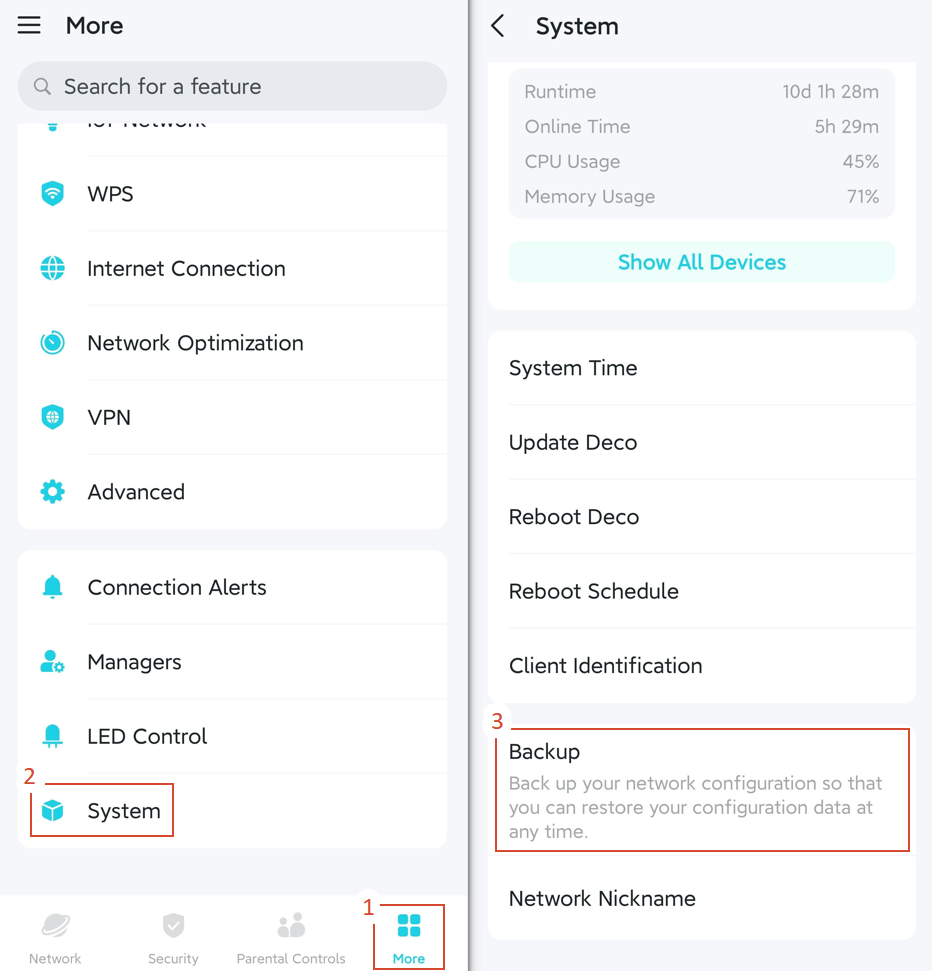
2. Select a backup option as you desire:
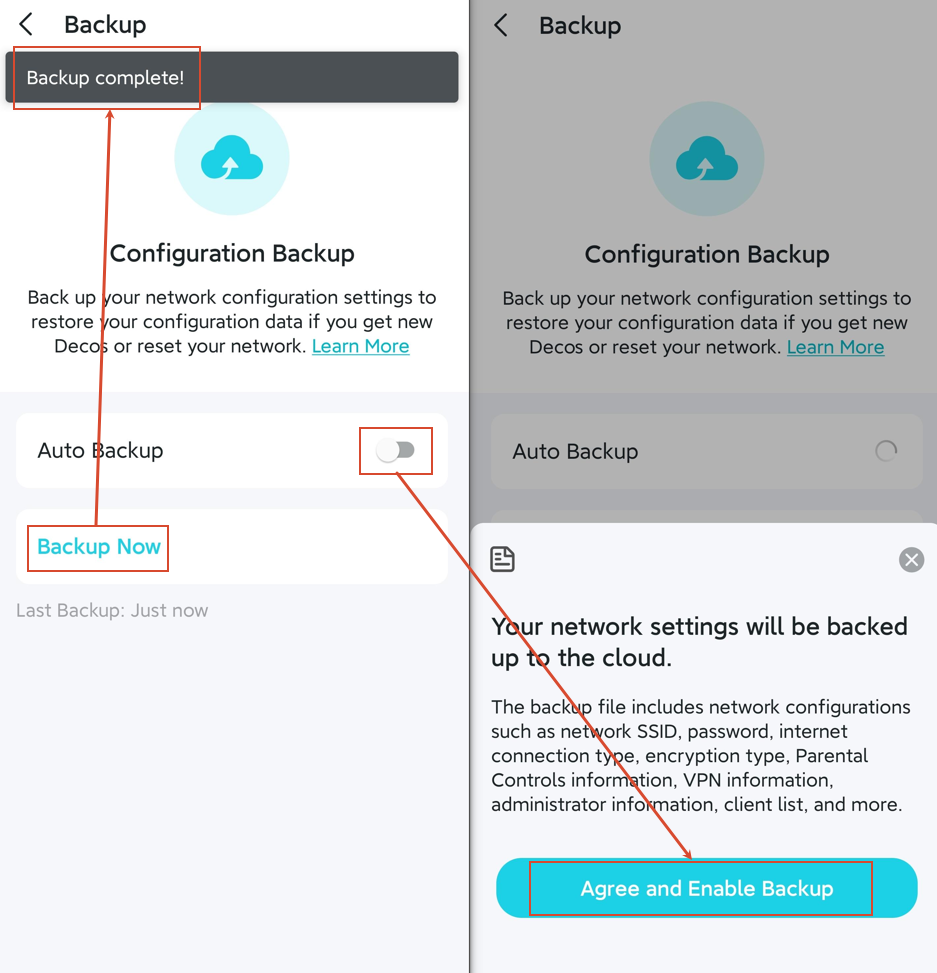
- Auto Backup: use this to save your full network configurations automatically to the TP-Link cloud
- Backup Now: click this to trigger an immediate backup
Note: Some models can only back up basic network settings (such as Dial-up/Internet settings, Wi-Fi, and Operation Mode). Please refer to the notice in your app for availability.
How to Restore Your Deco Settings
You can only restore a backup during initial setup of a Deco unit, including the following:
- Reconfiguring the main Deco unit after a reset
- Reconfiguring the main Deco unit after a firmware update
- Creating a new Deco network
Note: The settings cannot be restored if the network is already running.
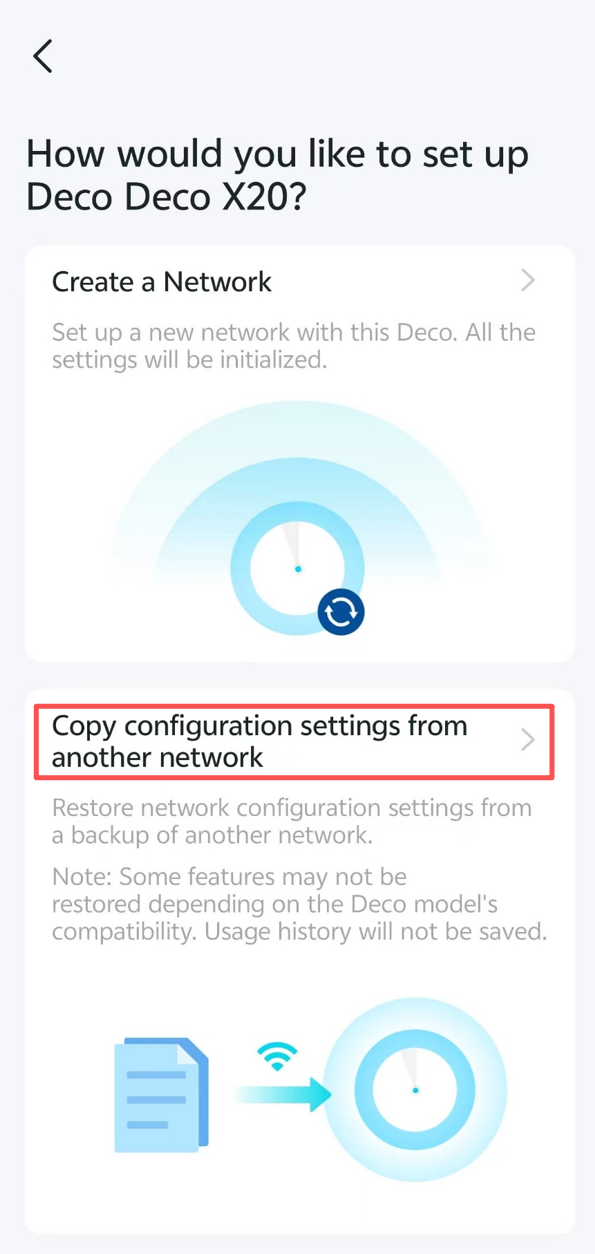
When you go through the setup process, the app will ask how you’d like to set up the Deco; click Copy configuration settings from another network to restore your settings.
Q&A
Q1: Where Is the Configuration Backup Stored?
Your backup is stored in two places:
- Locally on your phone or tablet (inside the Deco app data)
- Securely on TP-Link’s cloud servers (linked to your TP-Link ID)
If you uninstall the Deco app, the local copy is deleted. Your cloud backup remains and is available when you reinstall the app and sign in with the same TP-Link ID.
Q2: Can I Access the Backup Function Outside of the System Menu?
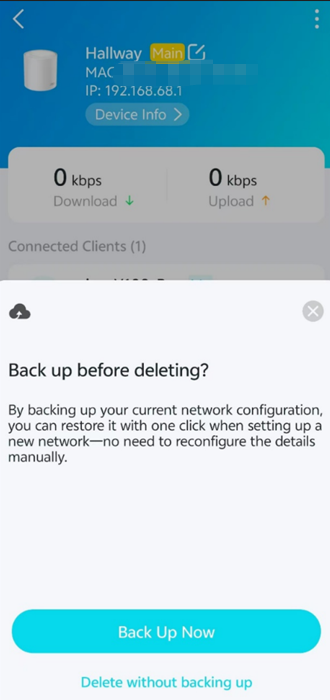
You’ll see a backup reminder when deleting a Deco network.
Q3: Why Is the Backup Option Not Appearing on My Deco App?
If you do not see the Backup option in the Deco app, check the following:
1. Ensure that your Deco app version is 3.8.3 or newer.
2. Ensure that your Deco system is running in Router mode instead of Access Point mode.
3. Ensure that you are logged in to the Deco app with the Owner Account, not a Manager account.
Looking For More
Is this faq useful?
Your feedback helps improve this site.



TP-Link Community
Still need help? Search for answers, ask questions, and get help from TP-Link experts and other users around the world.