
How to Change Your Deco Wi-Fi Name, Password, and other Settings
This guide covers how to update your Deco Wi-Fi settings in the Deco app, including changing your Wi-Fi name, password, security type, Wi-Fi band, SSID visibility, and Wi-Fi sharing. All steps use the Deco app (not the web management page). The Deco M5 is used as the example model, but these steps apply to all Deco models. If you need a refresher on navigating the app, see Getting to Know Your Deco App.
Key Takeaways
- To change your Deco Wi-Fi name or password, open the Deco app, tap More, then tap Wi-Fi Settings, make your changes, and tap Save.
- To change the wireless security type, go to Wi-Fi Settings and tap Security to choose a different option.
- To change the Wi-Fi band, tap Advanced, then Band, on the Wi-Fi Settings page.
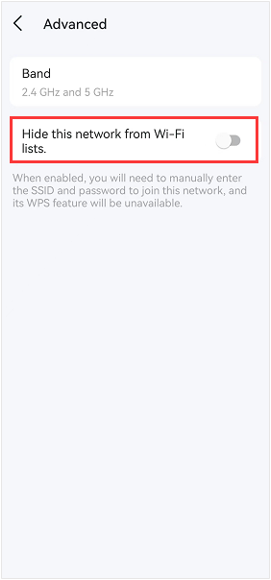
- To hide your Deco's Wi-Fi network from nearby device lists, enable the "Hide this network from Wi-Fi lists" toggle under Advanced. Note: when this is enabled, WPS (Wi-Fi Protected Setup) will be unavailable and devices must connect by manually entering the service set identifier (SSID) and password.
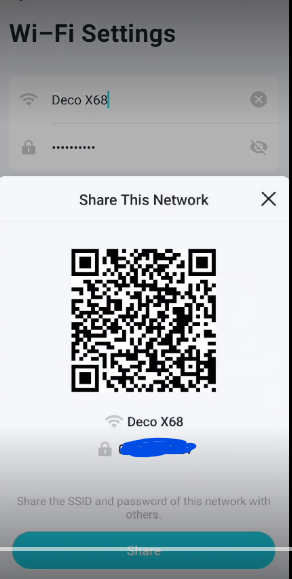
- To share your Wi-Fi network, tap Share Wi-Fi to access a QR code along with the network name and password.
Note: Features available in Deco may vary by model and software version. All steps and images described here are only examples and may not reflect your actual Deco experience.
Step 1: Connect to Your Deco Network and Open the App
Connect your phone to Deco's Wi-Fi network, then open the Deco app.
Step 2: Open More and Tap Wi-Fi Settings
Tap More, then tap Wi-Fi Settings.
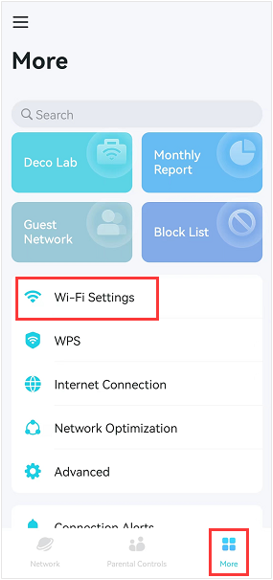
Step 3: Change Your Deco Wi-Fi Name and Password
On the Wi-Fi Settings page, you can update your Wi-Fi name and password.
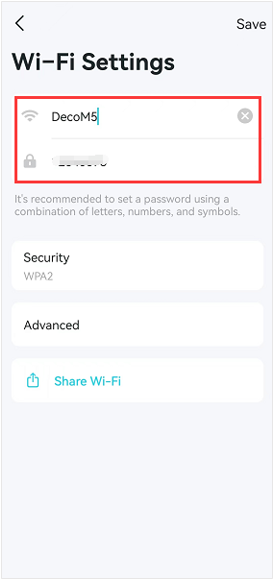
To change the wireless security type, tap Security and select a different option.
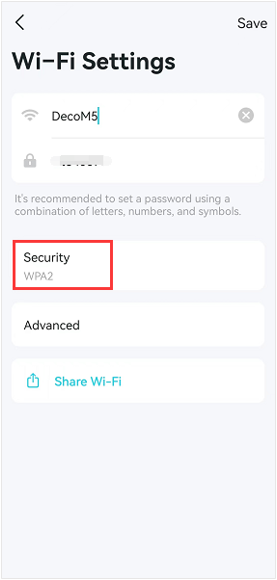
![Deco app showing the Security selection screen displaying options for WPA2, WPA/WPA2, and None, with WPA2-PSK [AES] shown.](https://static.tp-link.com/upload/faq/image-20260401172600-26_20260401092559e.png)
Step 4: Change the Wi-Fi Band and Hide Your Network
Tap Advanced, then tap Band to select the operating Wi-Fi band for your Deco.
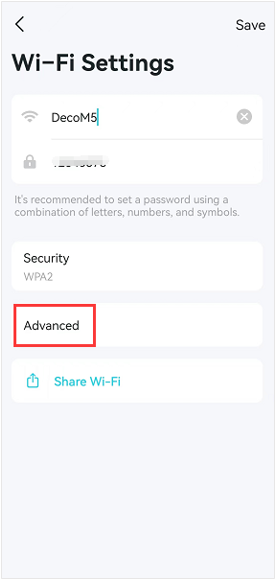
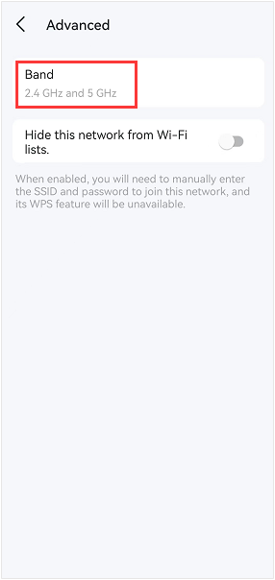
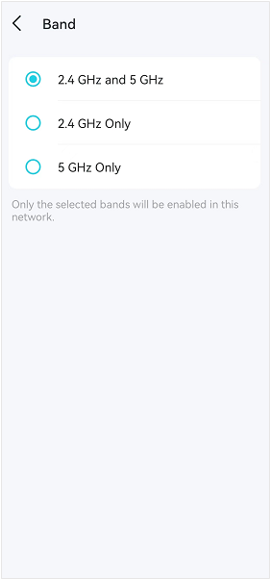
You can also enable the Hide this network from Wi-Fi lists toggle if you want to hide your SSID. When this is enabled, WPS will be unavailable and you will need to manually enter the SSID and password to connect to the network.
Step 5: Save Your Deco Wi-Fi Settings
Go back to the Wi-Fi Settings page and tap Save to apply your changes.
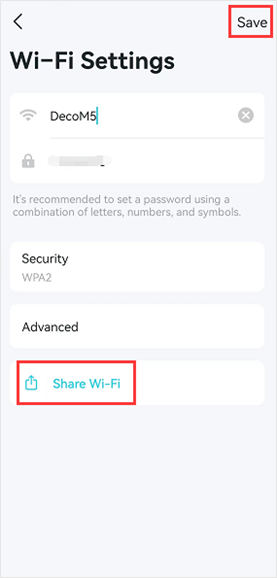
Step 6: Share Your Deco Wi-Fi Network
Tap Share Wi-Fi to open a page displaying a QR code along with the network name and password. You can share these with others so they can connect to your Deco network.
Step 7: Set Up a Guest Network
If you want to set up a guest network, see How to Configure a Guest Network on Your Deco.
For full details on each feature and configuration option, visit the TP-Link Download Center to download the manual for your product.
Is this faq useful?
Your feedback helps improve this site.
_Overview_normal_20211225093612j.png)
_normal_20230201014412u.png)


TP-Link Community
Still need help? Search for answers, ask questions, and get help from TP-Link experts and other users around the world.